
Which flight keeps you IFR current? Read the full IFR Currency sheet
The IFR Currency card on the Dashboard tells you whether you’re current and until when. Tap it, and its sheet shows the rest: which requirements are met, what’s still needed, the rule it follows, and the flights that count. For how the cards work in general, see Understand your currency cards.
1. Open the sheet
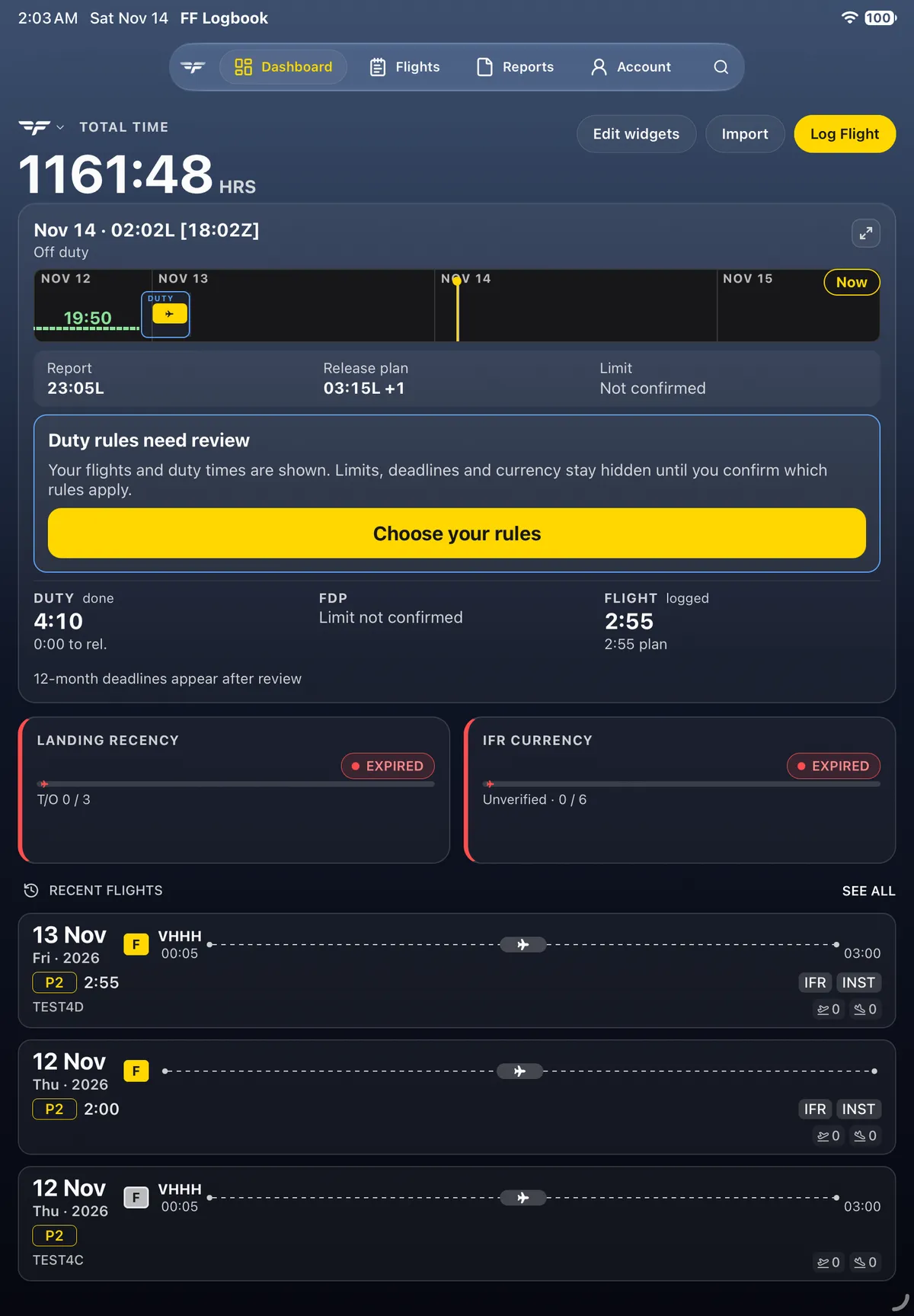
Section titled “1. Open the sheet”- On the Dashboard, the IFR CURRENCY card shows its status (CURRENT with days left, or EXPIRED) and the requirement that decides it, for example Holds 0 / 1 or Appr 6 / 6 · Exp 04/30/2027. No IFR card? Add it from Widgets → + → IFR Currency (see Customize your Dashboard).
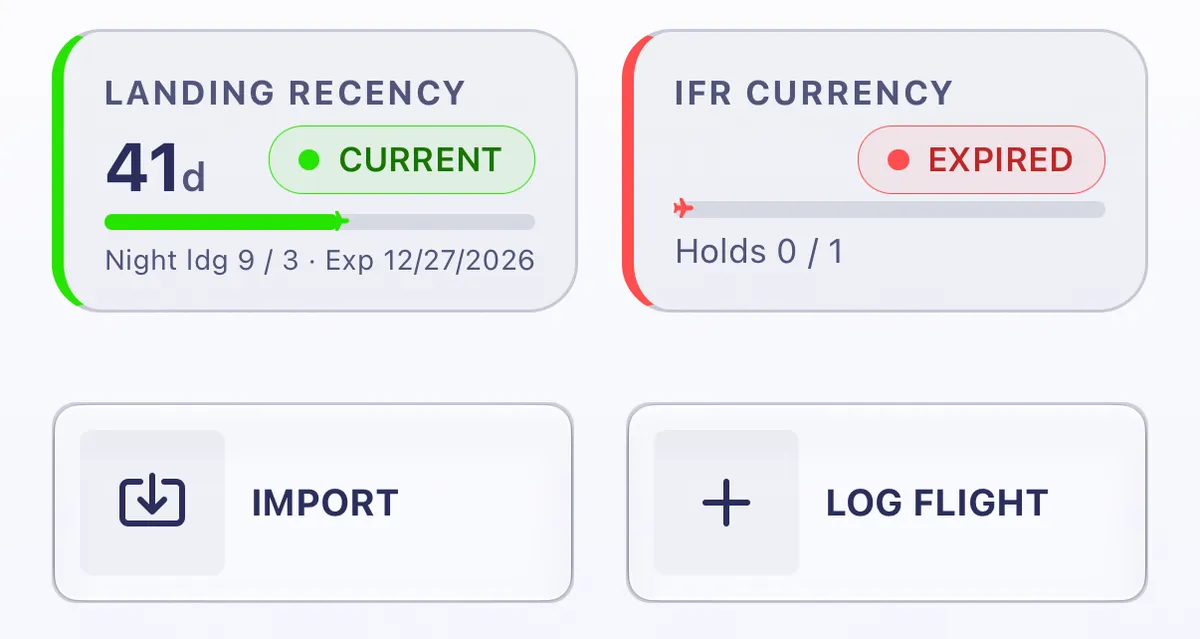
- Tap the card (if the Import / Log Flight buttons cover it, scroll down first). The sheet FAA — IFR Currency opens, with the card’s own name under the title.
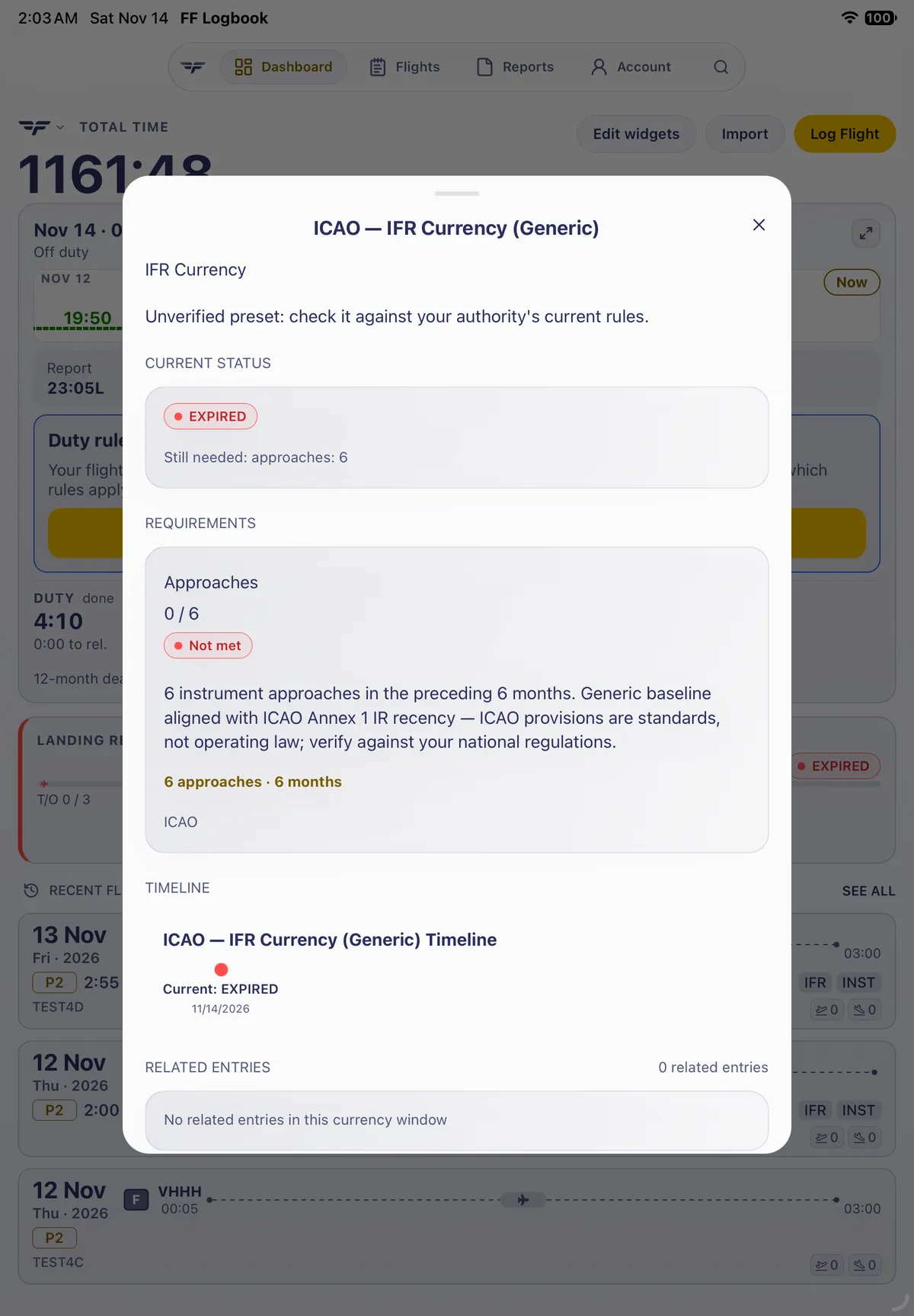
- Current Status shows the status, and either the days remaining and expiry date or, when you’re not current, what’s still needed, for example Still needed: holds: 1; or IPC/ICC: 1.
2. Read the requirements
Section titled “2. Read the requirements”- Requirements has two options, and you need only one:
- Option 1: Approaches (6 needed) AND · Holds (1 needed), each with its count and Met or Not met.
- OR · Option 2: IPC/ICC (an instrument proficiency check or instrument currency check), 0 / 1 until you log one.
- In the example, approaches read 9 / 6 · Met but holds 0 / 1 · Not met, so Option 1 isn’t met; with no IPC/ICC either, the card says Expired. Logging one hold in the window would make it current.
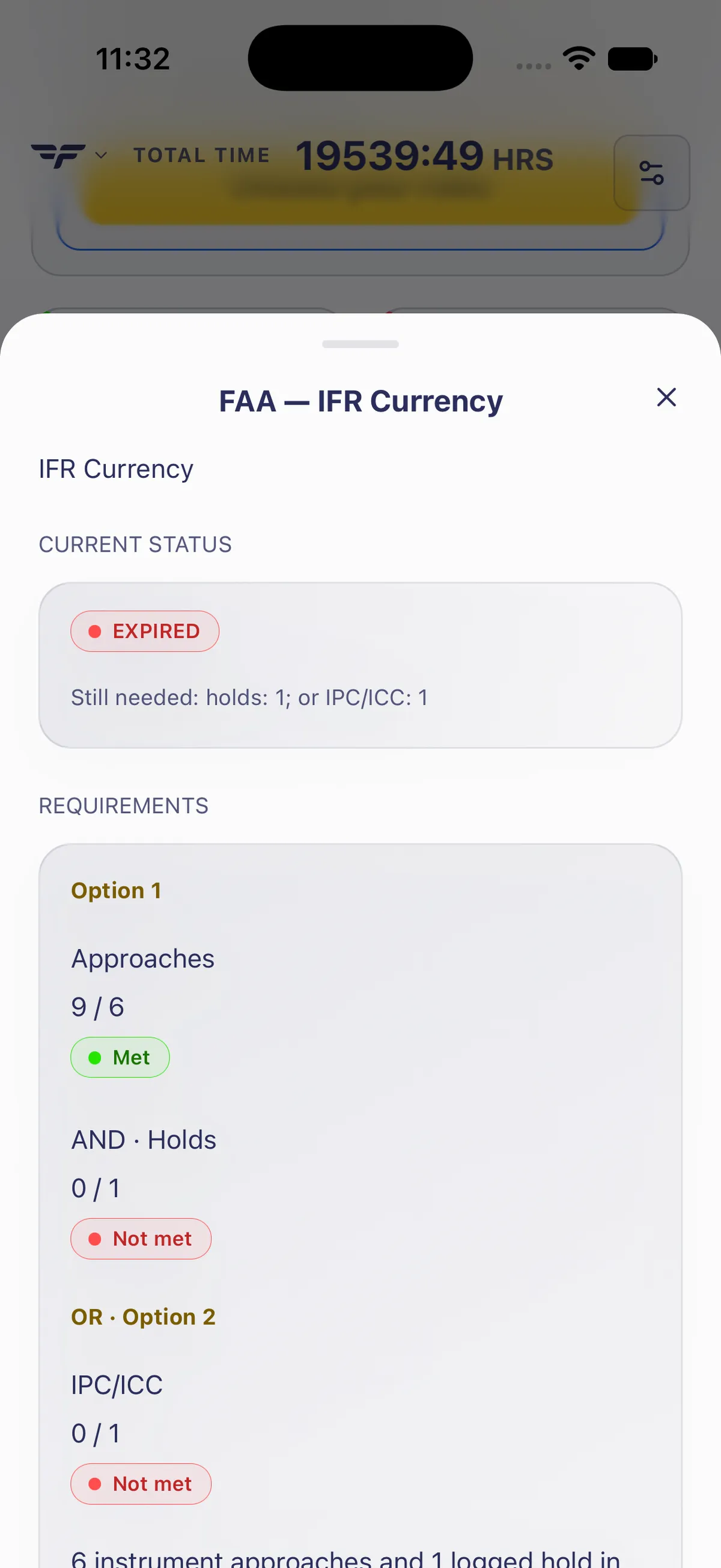
- Scroll down. Under the options is the rule text: 6 instrument approaches and 1 logged hold in the preceding 6 calendar months (FAA 14 CFR 61.57(c)), or a logged IPC/ICC under 61.57(d). It notes that intercepting and tracking courses aren’t tracked, so keeping track of them is up to you.
3. Find the flights that count
Section titled “3. Find the flights that count”- Scroll on. Timeline (FAA — IFR Currency Timeline) shows today’s status (Current: … with the date) and, when you’re current, the Expires date.
- Related Entries lists the flights in the window that count toward the rule, each marked Contributing with what it adds (for example 1 TO · 1 LDG · 2 app). In the example, 4 related entries from September supplied the approaches.
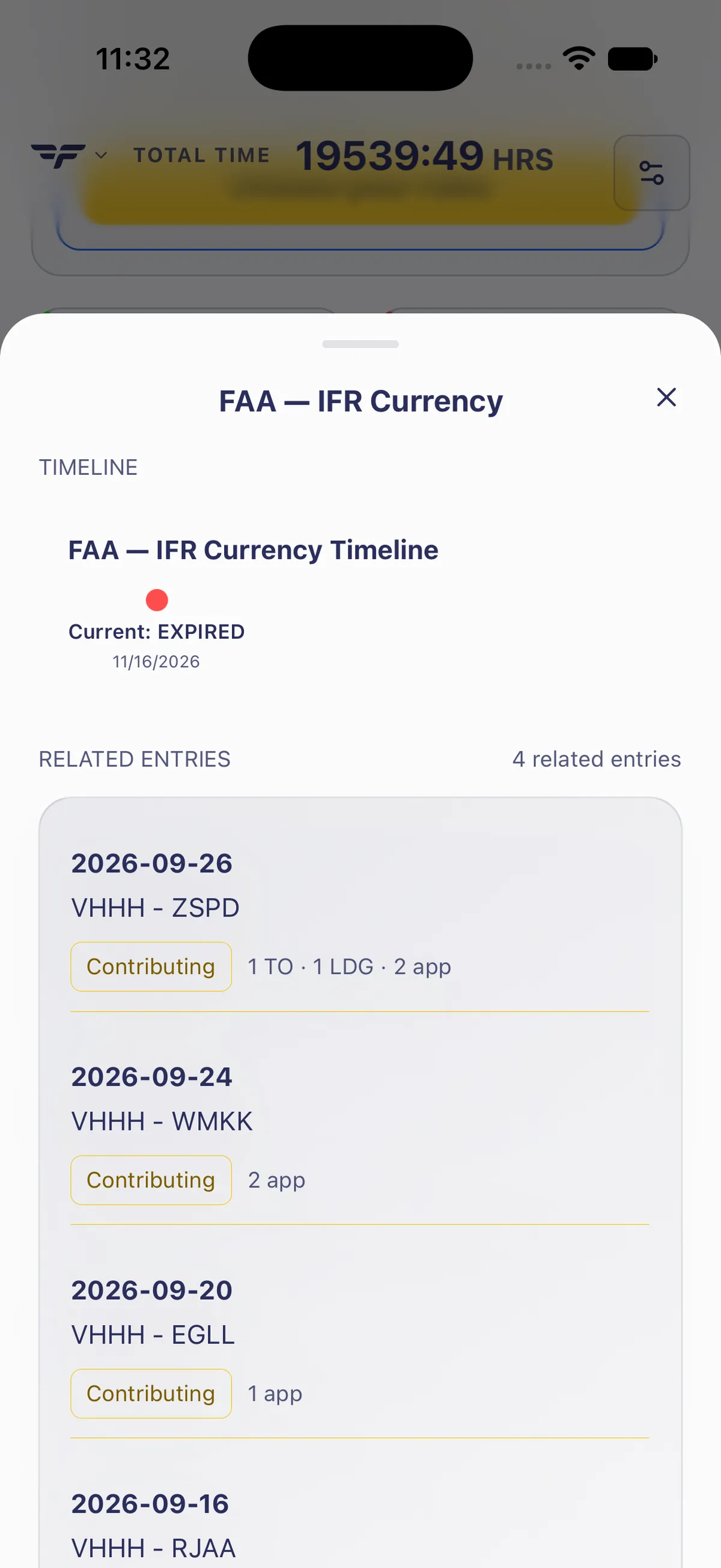
- Approaches and holds count until the end of the sixth calendar month after the month you flew them. To stay current, keep logging them before the oldest ones drop out (see Log approaches and holds).
- Tap × to close the sheet.
Good to know
Section titled “Good to know”- The sheet doesn’t decide your legal currency. It counts what you logged against the preset. Intercepting and tracking courses aren’t tracked; the sheet says so itself.
- A hold doesn’t show on a flight’s row in Related Entries: the row lists takeoffs, landings and approaches. Open the flight to check its Holds field.
- An IPC/ICC also works. Option 2 counts a flight with the IPC / ICC field set, within the same 6-calendar-month window.
- To change the warning time before the card turns Expiring, see Get an earlier currency warning. To track a different rule, see Make your own currency rule.
On iPad
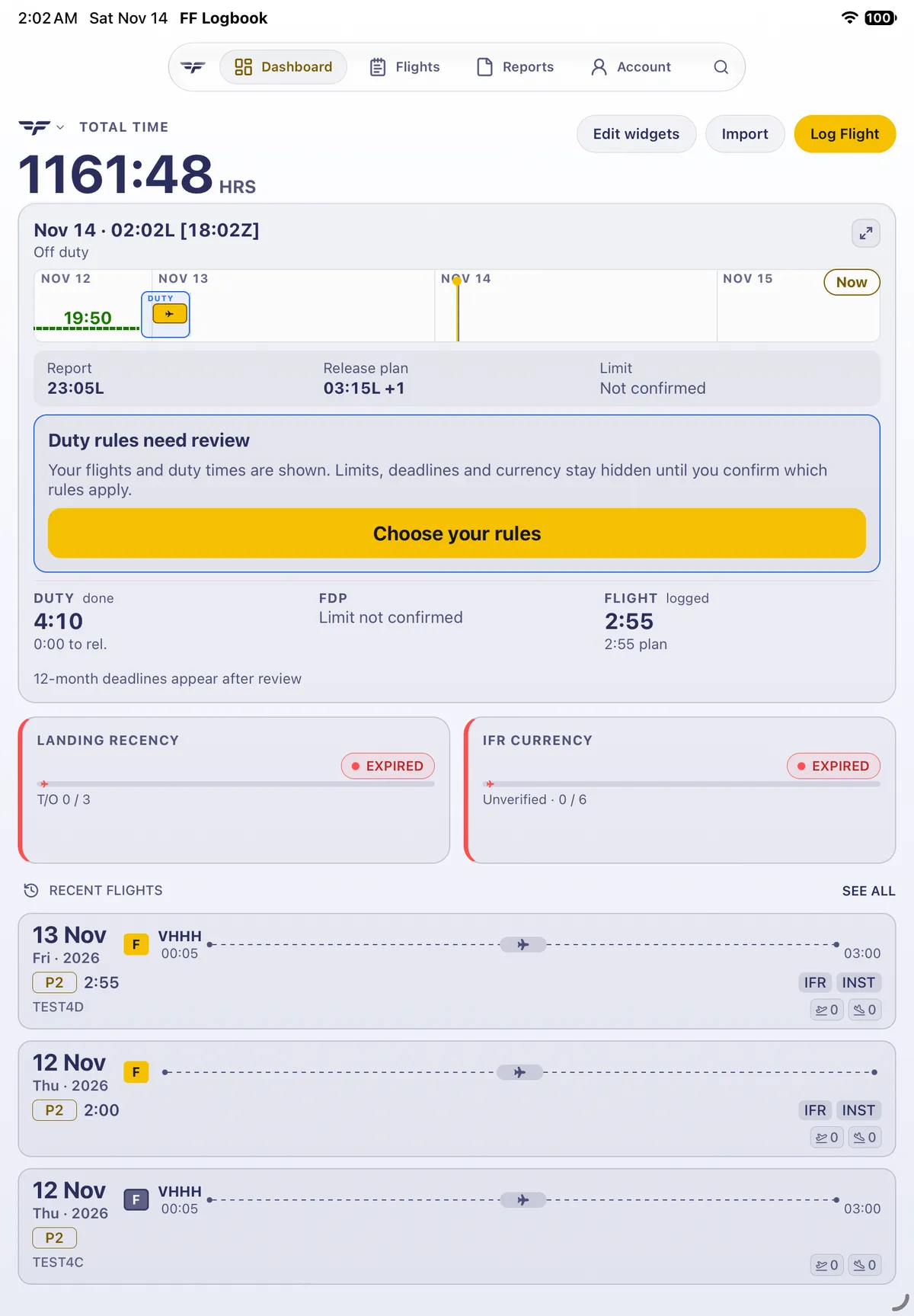
Section titled “On iPad”On iPad the sheet opens as a centred card over the Dashboard and shows the status, requirements, timeline and related entries without scrolling.

Related: Understand your currency cards · Log approaches and holds · Log approaches at other airports · Get night current again · Read your Time Loop · Get an earlier currency warning · Two currencies in one card: the FAA Currency widget