
Start a new flight
Before the next flight, clear the check marks so every checklist starts fresh. Your checklists and edits stay as they are.
- On Checklists, tap New flight (the circular-arrow button at the top).
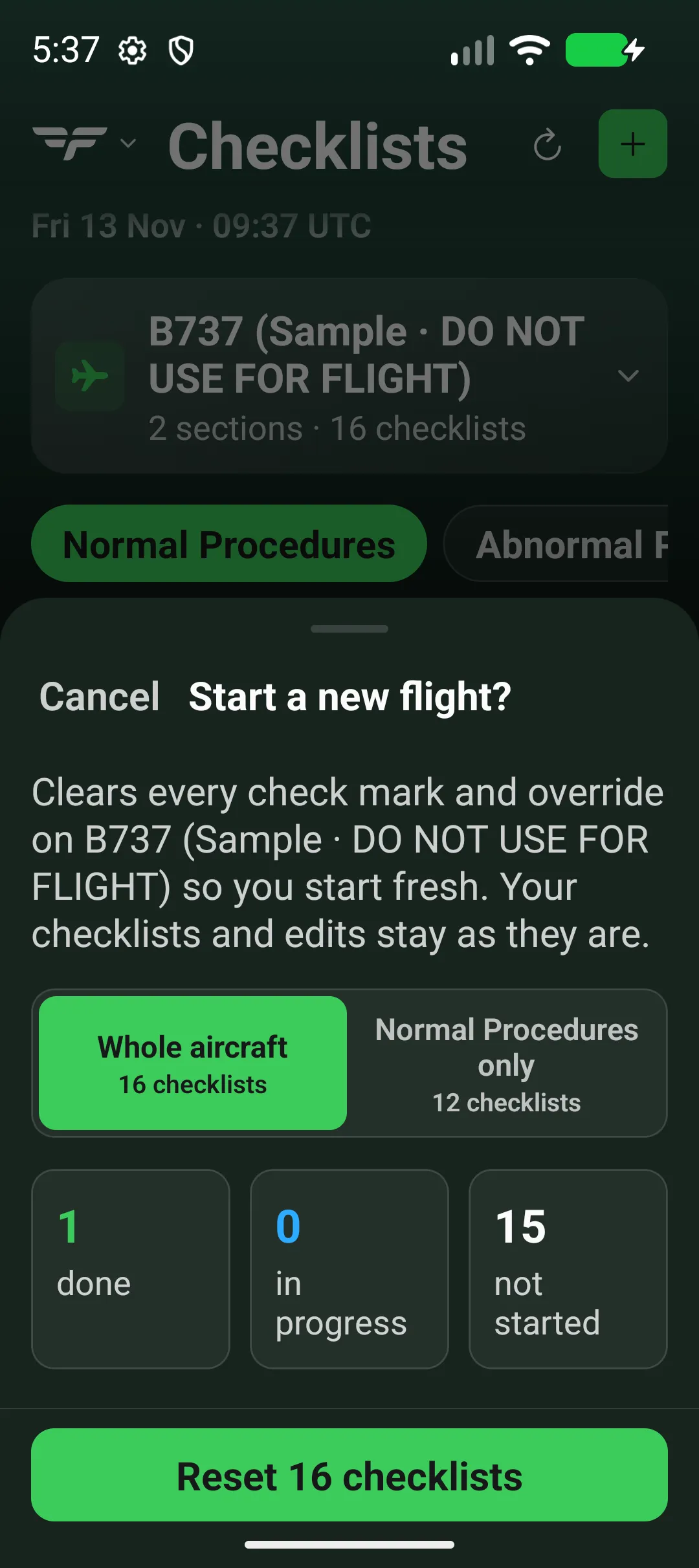
- Start a new flight? shows how many checklists are done, in progress and not started.
- Under What to reset, choose Whole aircraft or <section> only (for example Normal only).
- Tap Reset 16 checklists (the number matches your choice).
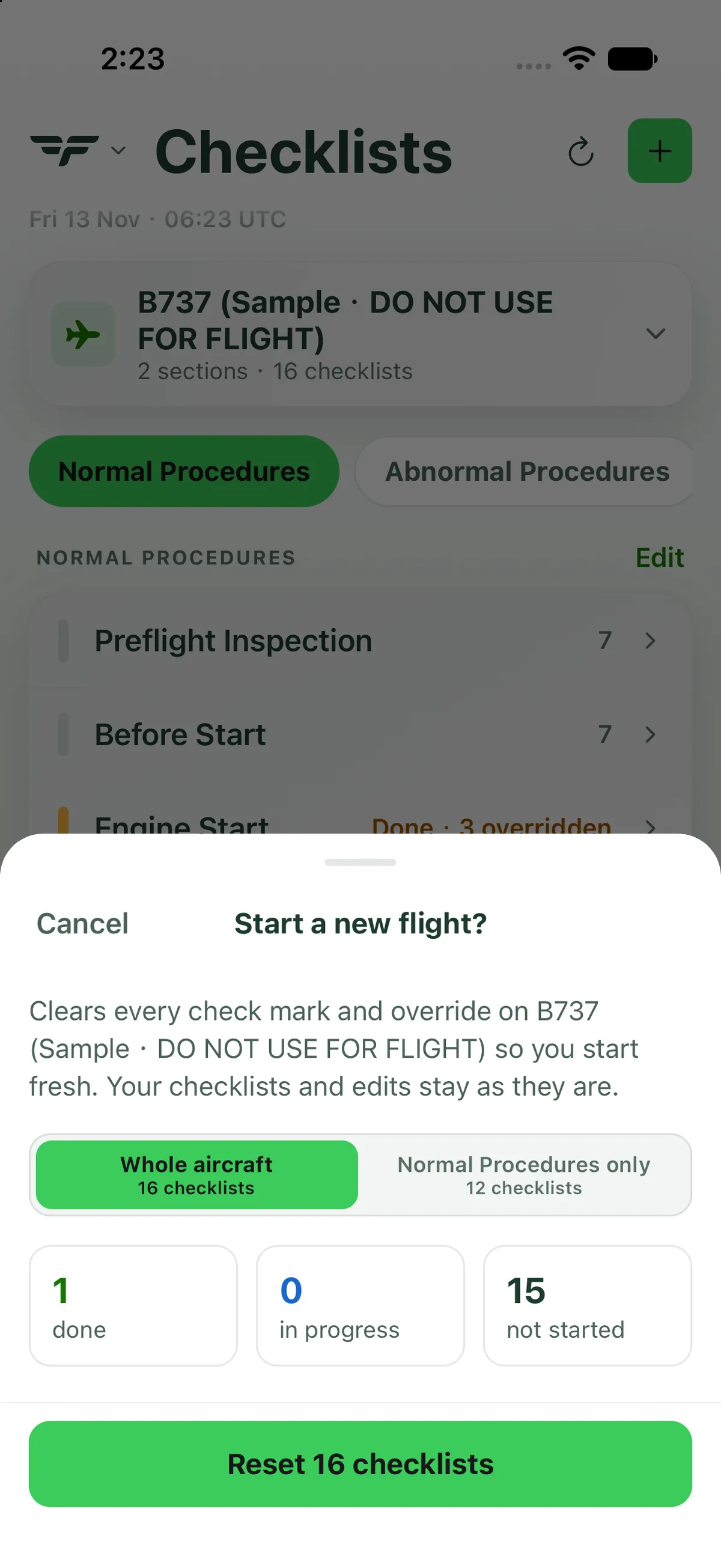
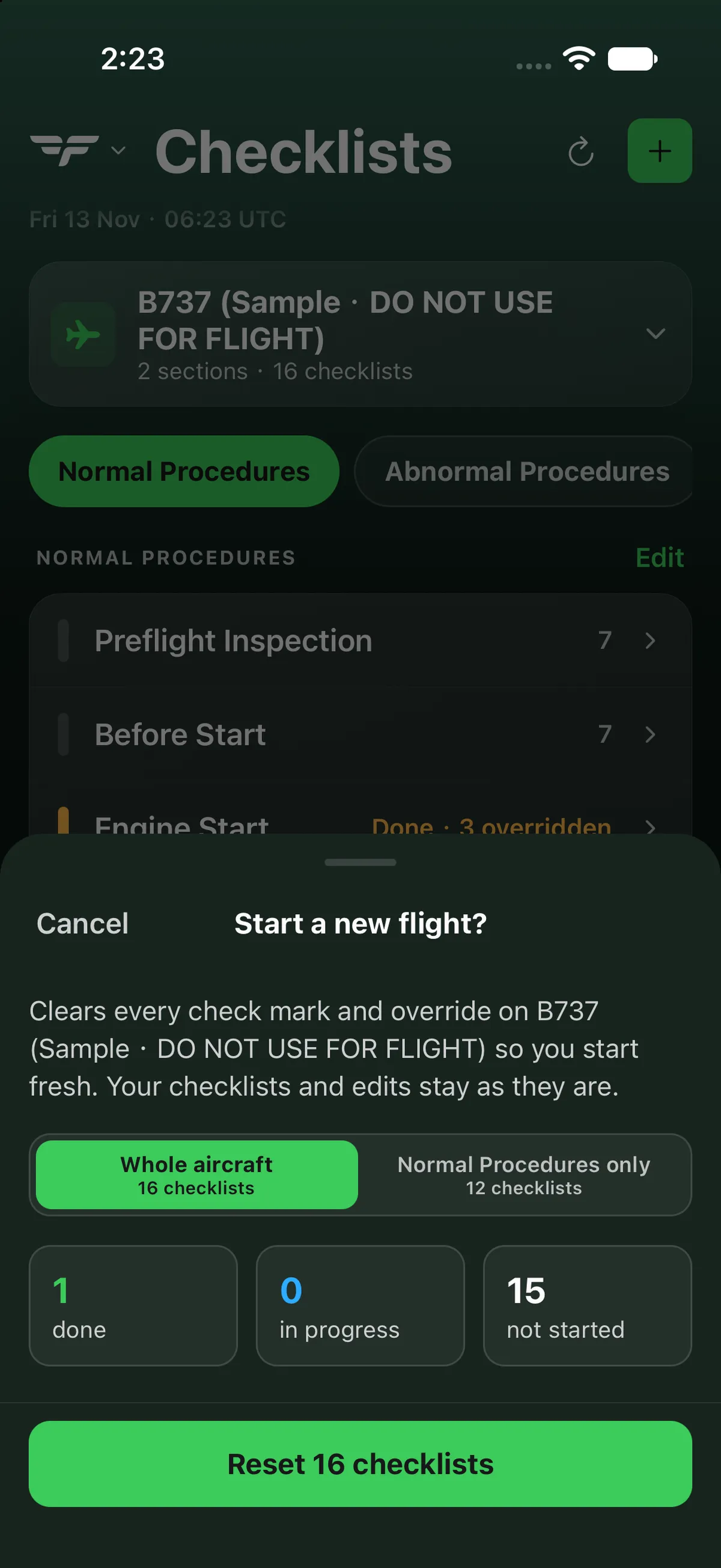
Every check mark and override in that scope is cleared.
On iPad
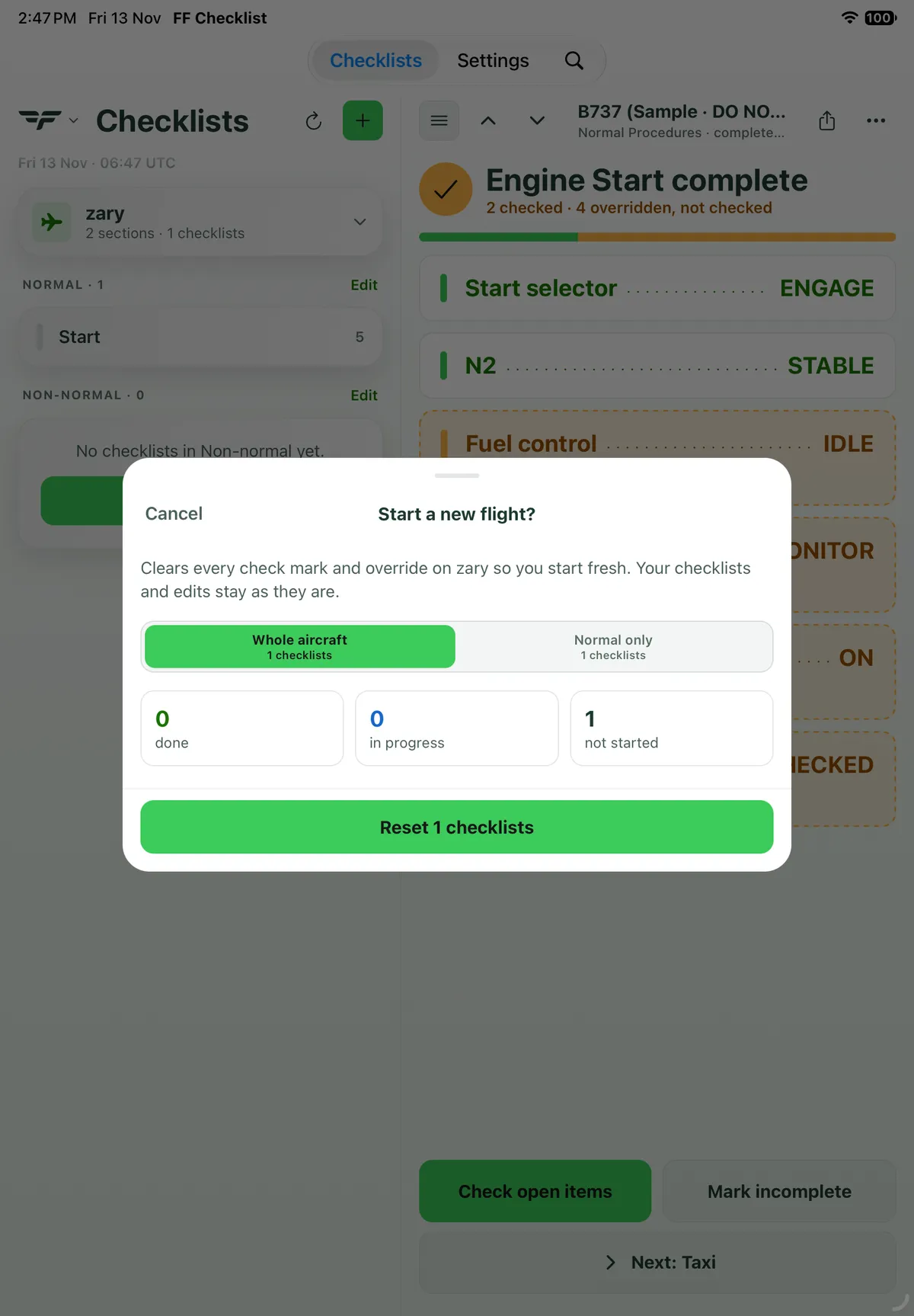
Section titled “On iPad”On iPad, New flight (circular arrow) is at the top of the left-hand list. Start a new flight? opens as a card in the middle of the screen with the same text, the Whole aircraft / <section> only choice, the three counts and the Reset button.

On Android
Section titled “On Android”
Related: Run a checklist · Complete a checklist early.