
Archive and restore a checklist
Archive a checklist you don’t use now but want to keep. It disappears from your lists, search and widgets, and isn’t included when you share or export.
Archive
Section titled “Archive”On Checklists, touch and hold the checklist and choose Archive. It’s archived straight away, with no question.
Restore or delete
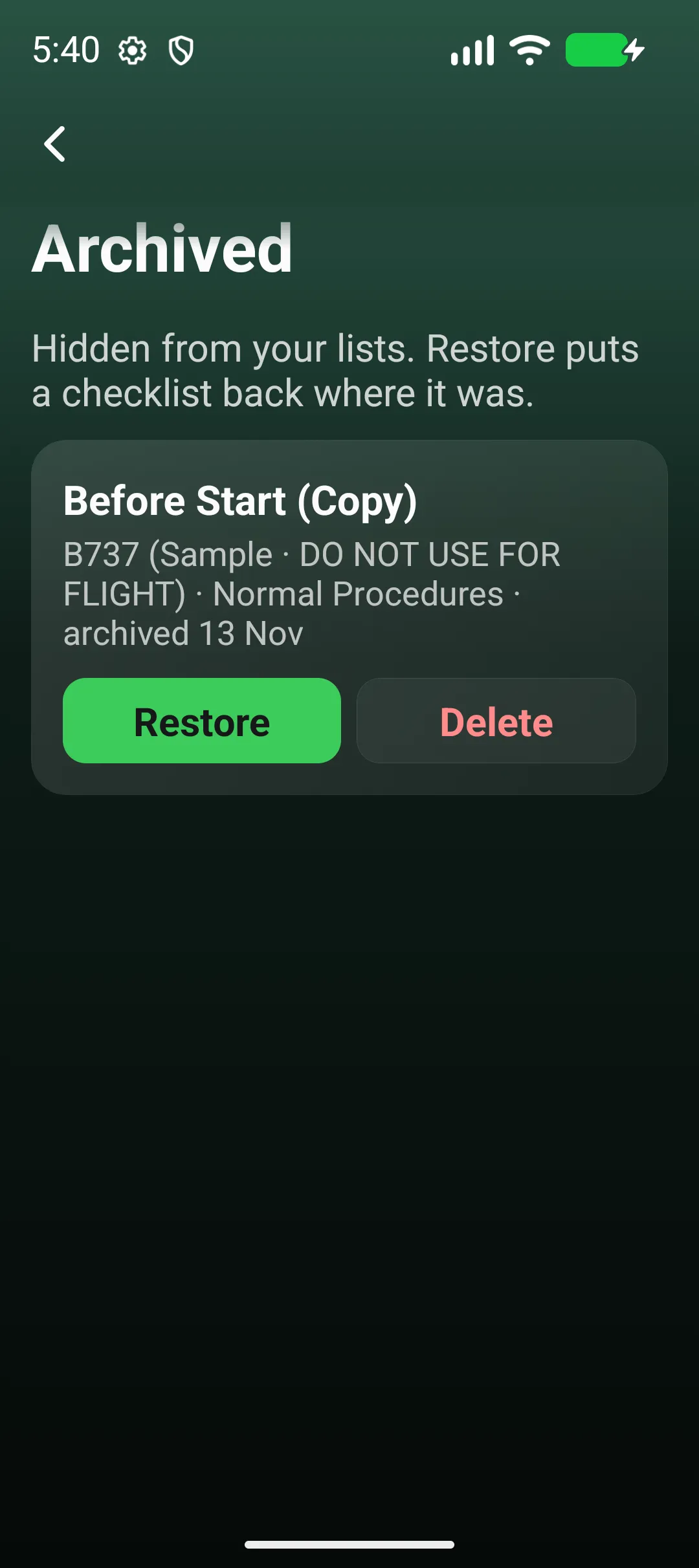
Section titled “Restore or delete”- Go to Settings → Archived (the number shows how many are archived).
- Restore puts a checklist back where it was.
- Delete removes it for good (asks first; can’t be undone).
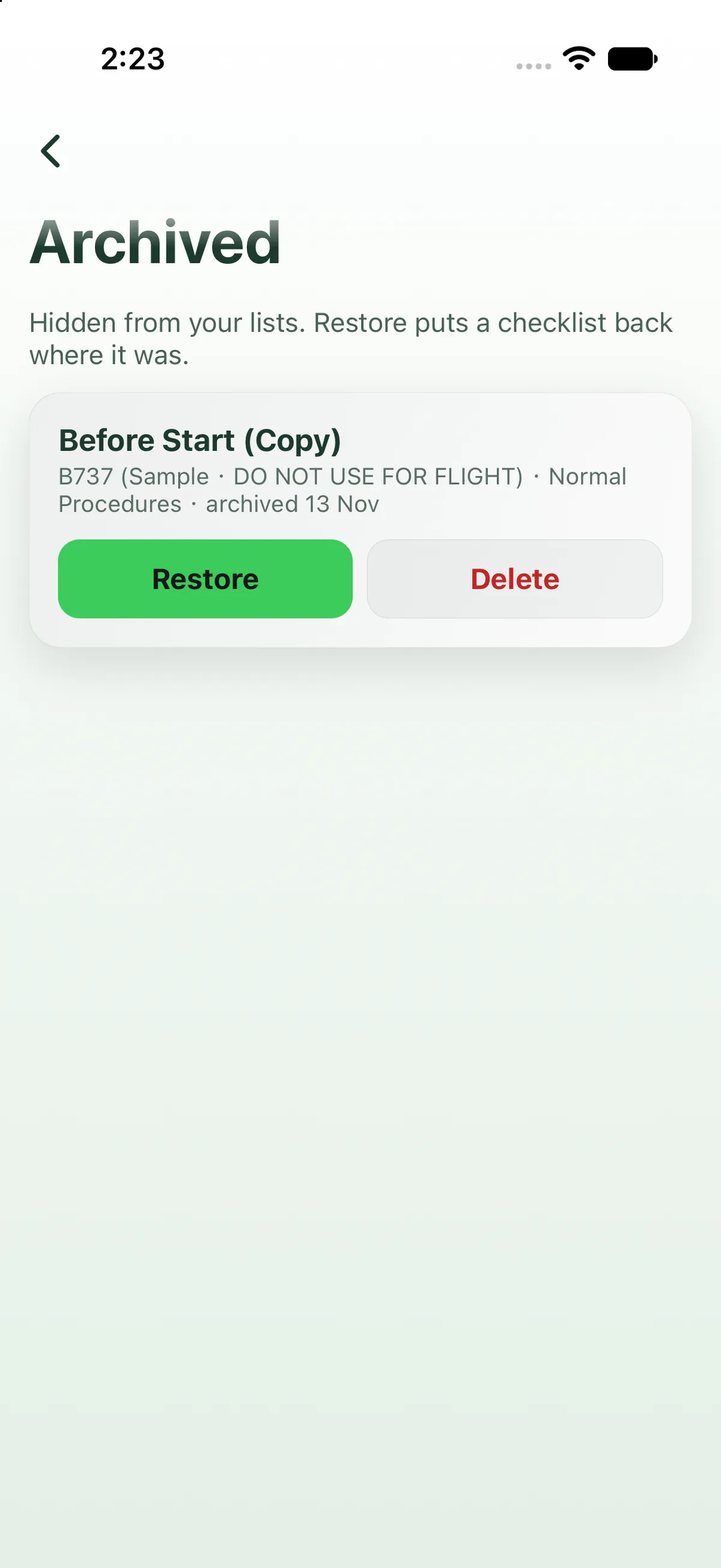
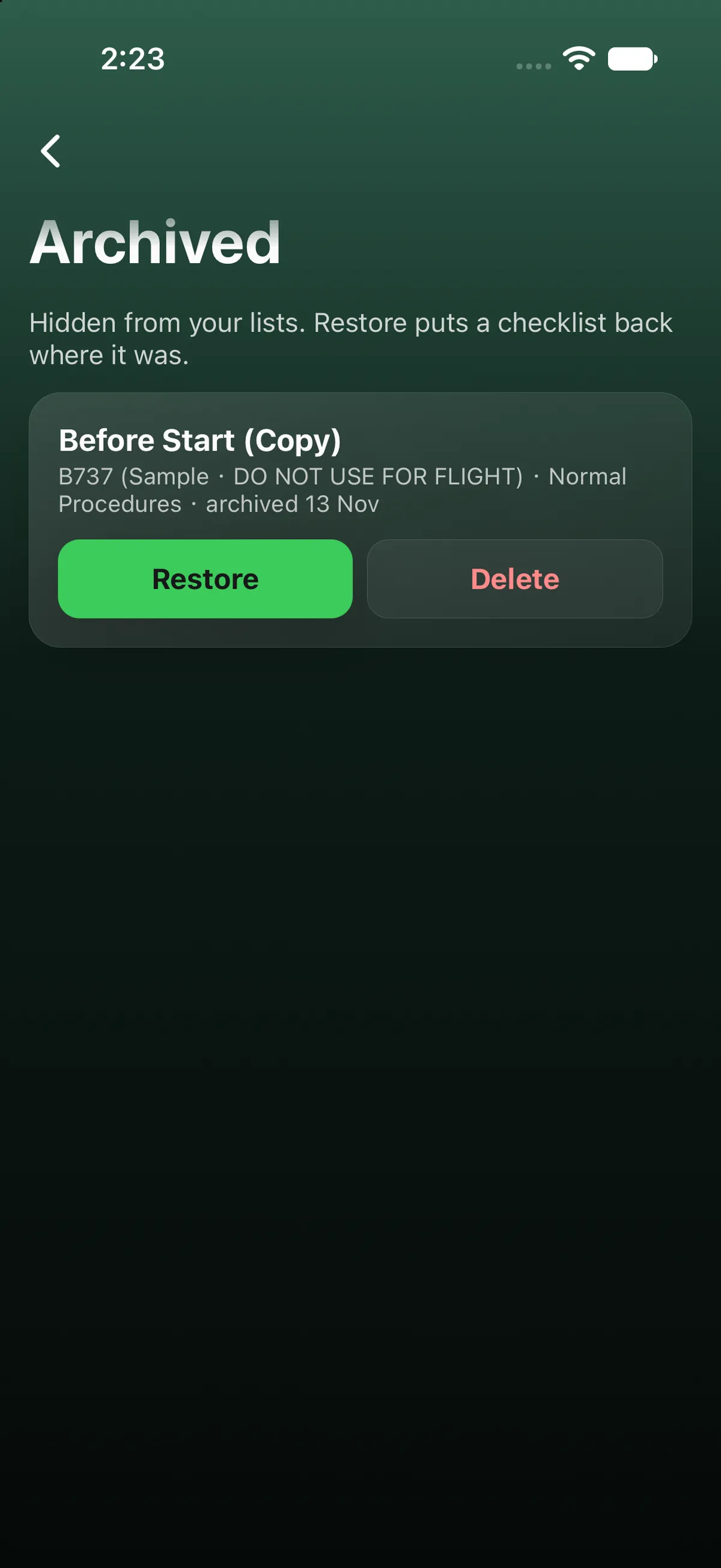
Nothing archived. means the archive is empty.
On iPad
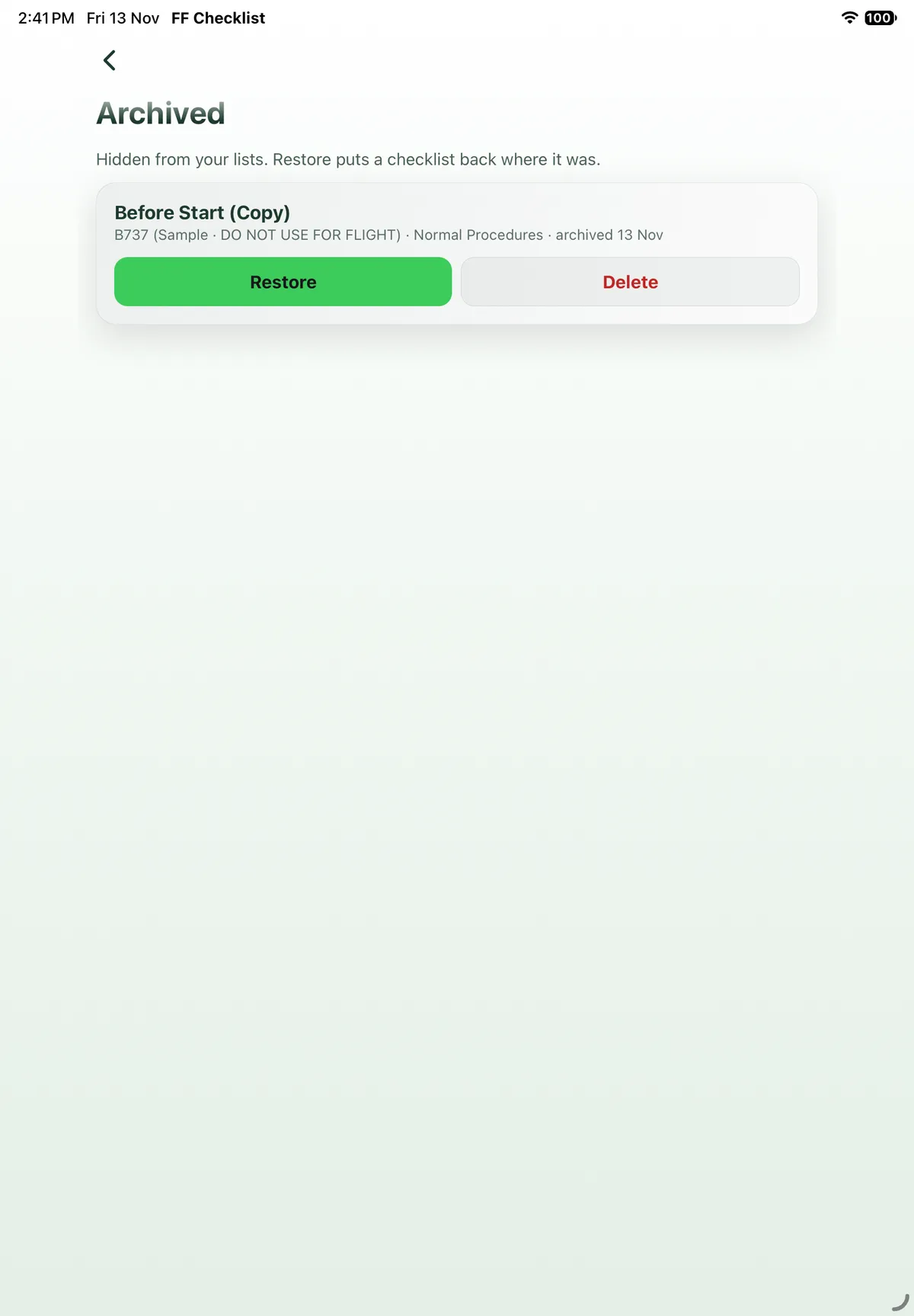
Section titled “On iPad”On iPad, Archive is in the long-press menu and in the ••• menu at the top right of the open checklist, and acts at once, as on iPhone. Settings → Archived opens as a full page (back arrow at the top left, top tab bar hidden) with the same Restore and Delete buttons side by side.

On Android
Section titled “On Android”
Related: Long-press a checklist - duplicate, move, mark complete · Settings explained.