
One aircraft's hours on one page, without your paper logbook
An insurance form or a club checkout asks for your hours in one aircraft, on paper. A searched Totals Summary puts them on one page. The catch: the PDF adds your paper-logbook carry-over back in, so turn that off before you send it.
1. Check the date range, then search the aircraft
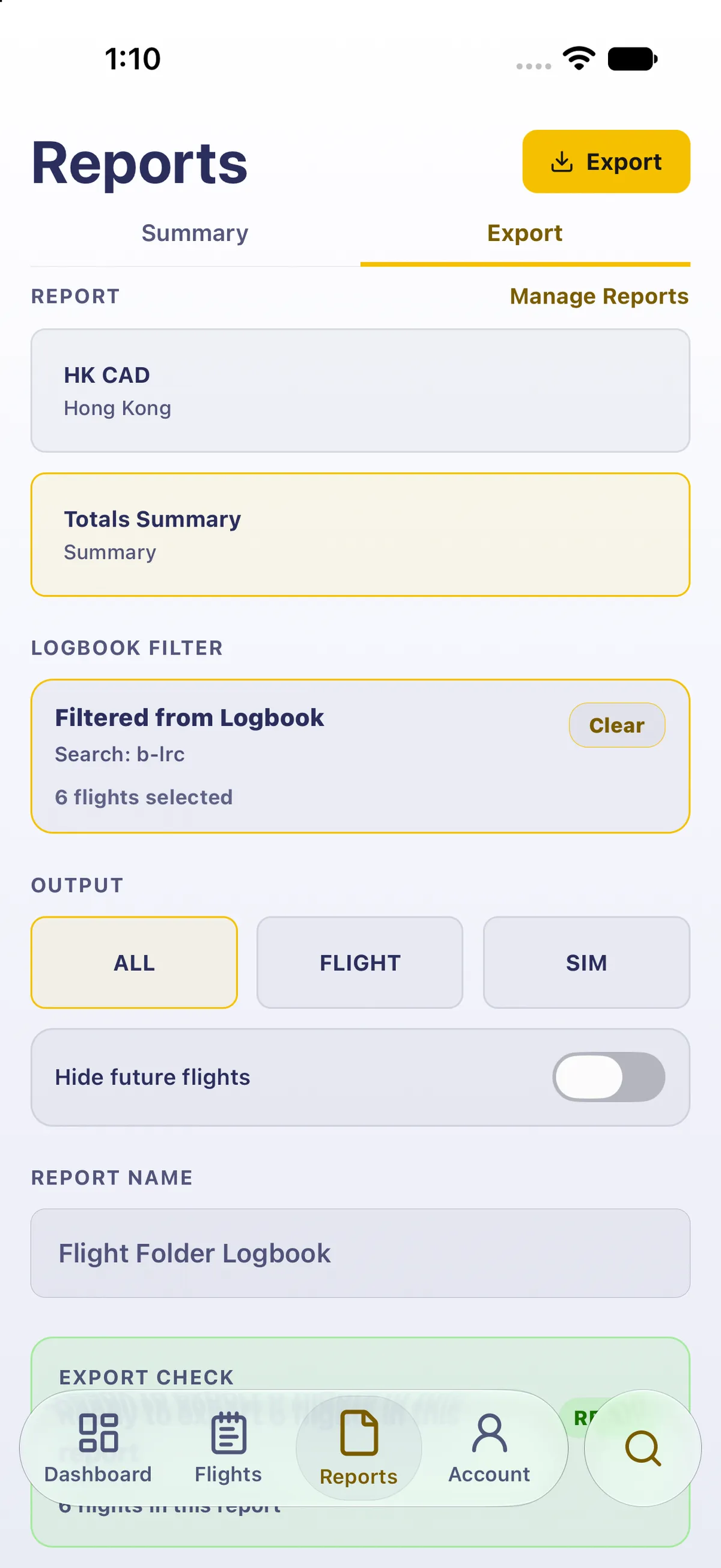
Section titled “1. Check the date range, then search the aircraft”- Reports → Export. Under DATE RANGE, tap ALL. EXPORT CHECK shows how many flights are in, for example Ready to export 1280 flights in this report. Once you search, the date range is hidden, but it still applies, so a range left over from an earlier export would quietly drop flights.
- Tap the round search button at the bottom right and type the registration.
- Tap search on the keyboard to close it. The filter is already on: it’s applied as you type.
DATE RANGE turns into LOGBOOK FILTER: Filtered from Logbook, the search (shown in lower case, for example Search: b-lrc), the number of flights selected, and a Clear button. EXPORT CHECK reads, for example, Ready to export 6 flights in this report.
2. Put it on one page
Section titled “2. Put it on one page”- Tap Manage Reports. Report Formats opens. Scroll down to SUMMARY: it reads Totals Summary · Hidden from Reports.
- Tap the Totals Summary card (its Hidden from Reports badge), not Preview: Preview ignores your search. The badge changes to Pinned on Reports. Already pinned? Go back and tap Totals Summary under REPORT on Export.
- Go back. REPORT now shows your usual logbook and Totals Summary, with Totals Summary selected, and the Logbook Filter is still on.
- Tap Export at the top right.

PDF Preview opens a file named like 20261117_Flight_Folder_Logbook.pdf (the date you export, then the report name). Totals Summary has no cover page: the PDF is the totals page.
3. See what the PDF adds
Section titled “3. See what the PDF adds”Pinch to zoom in on the page.
- ENTRIES and FLIGHTS are one more than Export said: 7 instead of 6 in this example. The extra entry is your carry-over.
- A box, PRIOR EXPERIENCE INCLUDED: These carry-forward records are already included in the totals shown on this page. It lists your carry-over record with its ENTRIES and LOGGED TIME.
- Total Logged Time, PIC, landings and the rest include the whole carry-over, not just your hours in this aircraft. In this example, 6 flights in one aircraft printed a Total Logged Time of 14302:29, because a carry-over of 14250:36 was added in.
The page’s subtitle says Values follow the active export filters, but the carry-over is added anyway. The footer shows the range of the flights and Report: with the report name (Flight Folder Logbook by default).

4. Leave the paper logbook out
Section titled “4. Leave the paper logbook out”- Go back, and scroll down to ADVANCED PDF SETTINGS. When it’s closed it shows a summary, for example A4 · As logged · Duplex · No page numbers. Tap + to open it.
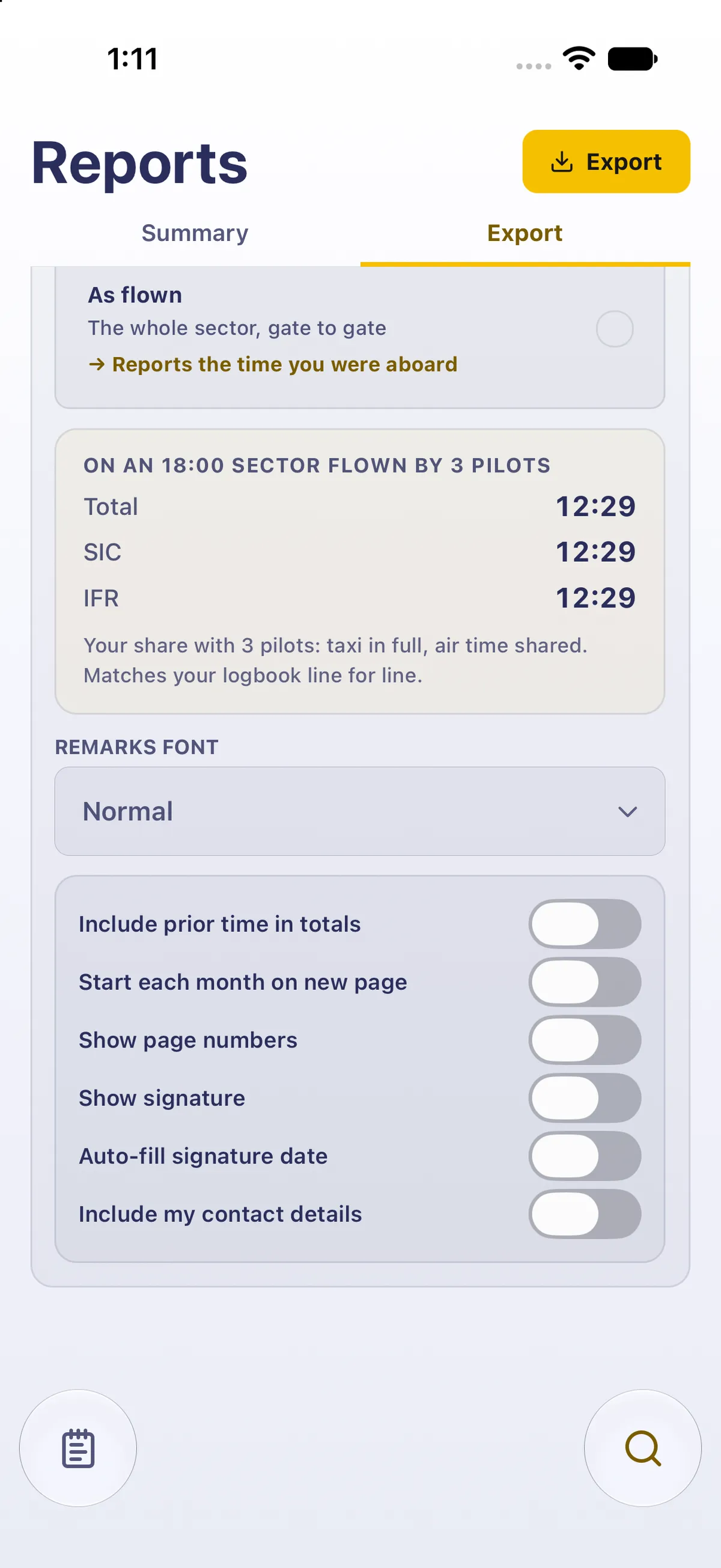
- Scroll to the switches at the bottom and turn off Include prior time in totals. It’s on by default.
- Tap Export at the top again.
Now ENTRIES and FLIGHTS match the flights selected (6 and 6), and the prior-experience box is gone. In this example Total Logged Time dropped to 51:53. These are your logged hours in this aircraft. To send the PDF, tap Share, or Save to keep a copy. The PDF prints hours with a leading zero (05:14, not 5:14).

5. Put things back
Section titled “5. Put things back”- Go back, and turn Include prior time in totals back on while Totals Summary is still selected. Each report keeps its own switch, so Totals Summary has to be the report in use when you turn it back on.
- Scroll up and tap Clear on the Logbook Filter. DATE RANGE comes back on ALL, and Export counts all your flights again.
- Tap your usual logbook under REPORT, so it’s the report in use.
- Manage Reports → tap the minus (−) next to Totals Summary under Pinned on Reports. PINNED goes back down by one, and Totals Summary reads Hidden from Reports again. Do step 3 first. While Totals Summary is the report in use, its minus only moves it to the top.
Good to know
Section titled “Good to know”- The PDF never names the aircraft. There’s no cover, and the file is called …_Flight_Folder_Logbook.pdf. Write the registration on the form. Or name the report: REPORT NAME on Export goes in the file name and the page footer, but it’s shared by every report, so set it back to Flight Folder Logbook afterwards.
- The PDF doesn’t split the carry-over by aircraft. With the switch on, it adds all of it; with it off, none. If you flew this aircraft before your paper logbook ended, add those hours yourself.
- The switch is saved per report. Turning it off for Totals Summary doesn’t change your usual logbook’s PDF.
- Preview ignores a search, so a one-aircraft PDF always goes through Export at the top.
- Summary leaves the carry-over out. The same search on Reports → Summary re-totals without your paper logbook (see Totals for one aircraft, no setup). The PDF adds it back.