
Log your first flight
Log a flight from the Dashboard and confirm it was saved. This example is a 50-minute General Aviation flight from Palo Alto (KPAO) to San Carlos (KSQL) in Cessna 172 N172FF.
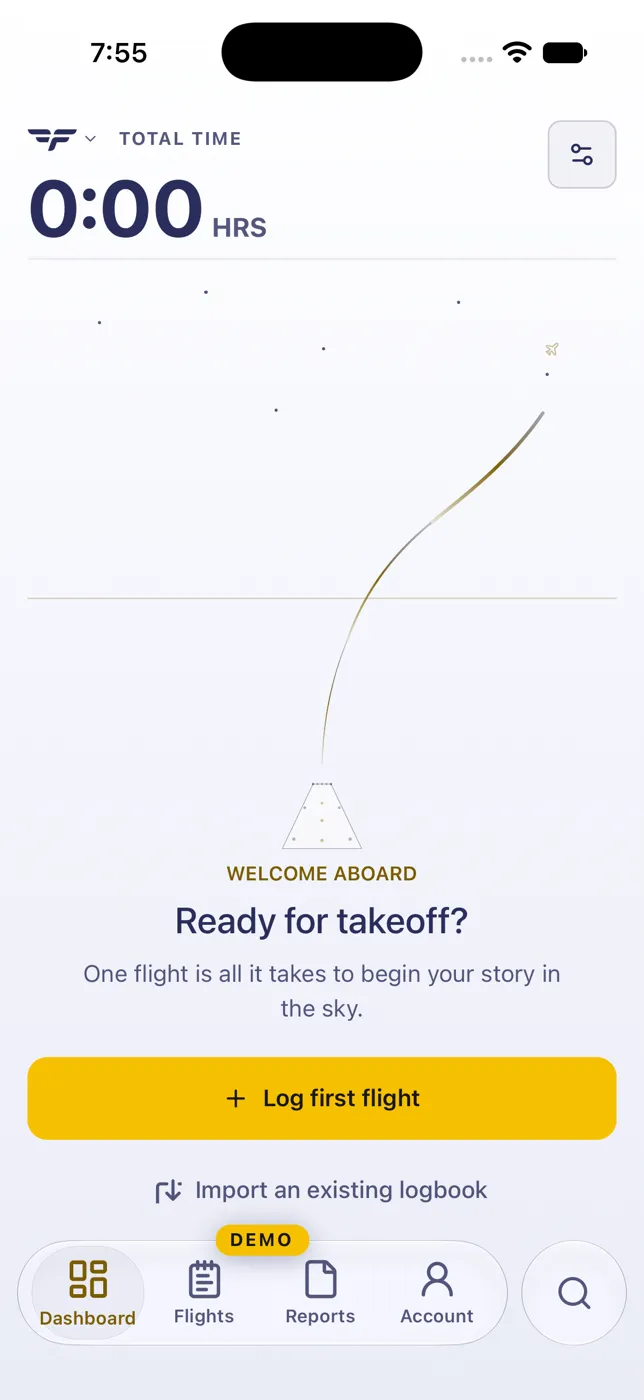
- On the Dashboard, tap Log first flight. After your first flight, use Log Flight. The Log Flight start screen opens: tap New Flight.
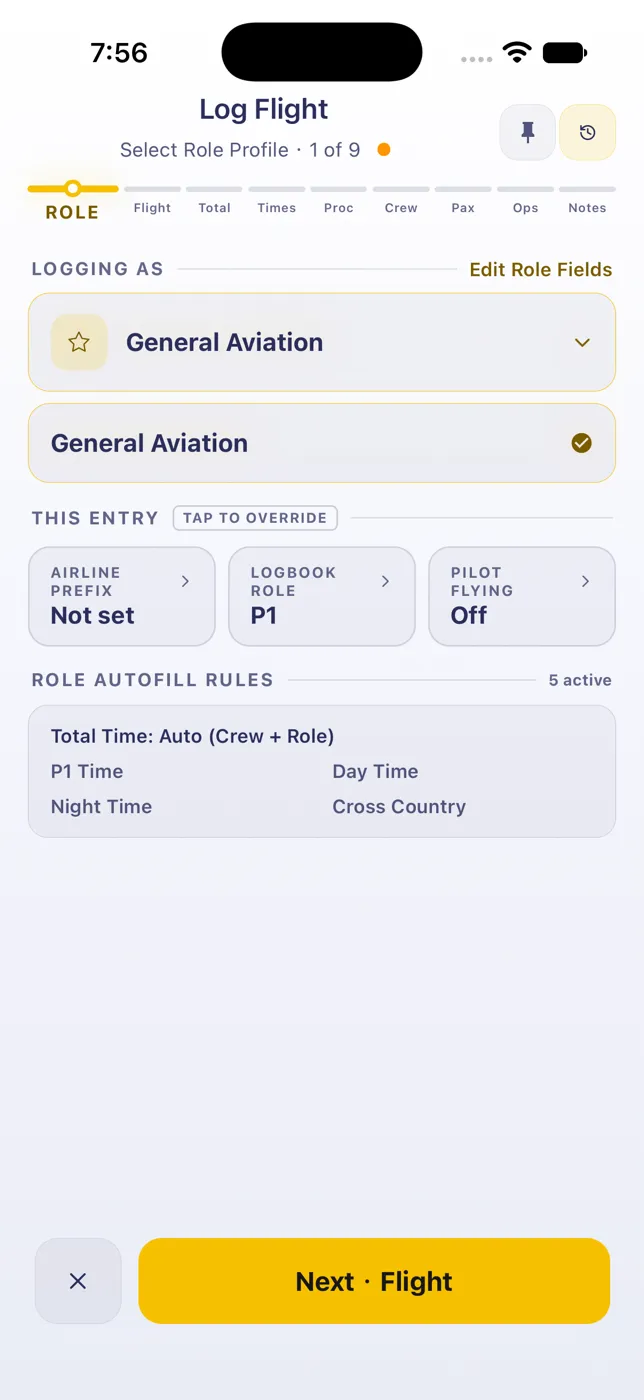
- Log Flight has nine steps: Role, Flight, Total, Times, Proc, Crew, Pax, Ops and Notes. Your draft saves on the device as you go. Tap Next to move on; Complete saves the flight from any step.
1. Role
Section titled “1. Role”Your role profile fills this step. In this example, choose General Aviation and P1, with your name as P1 crew. Tap a field under This entry to override it for this flight only.
2. Flight
Section titled “2. Flight”- Date: tap Now for today or Pick for another day. The date is required; if you skip it, This field is required appears when you tap Next.
- Airports: type the departure and arrival codes and pick each from the suggestions. Switch between IATA and ICAO codes with the toggle.
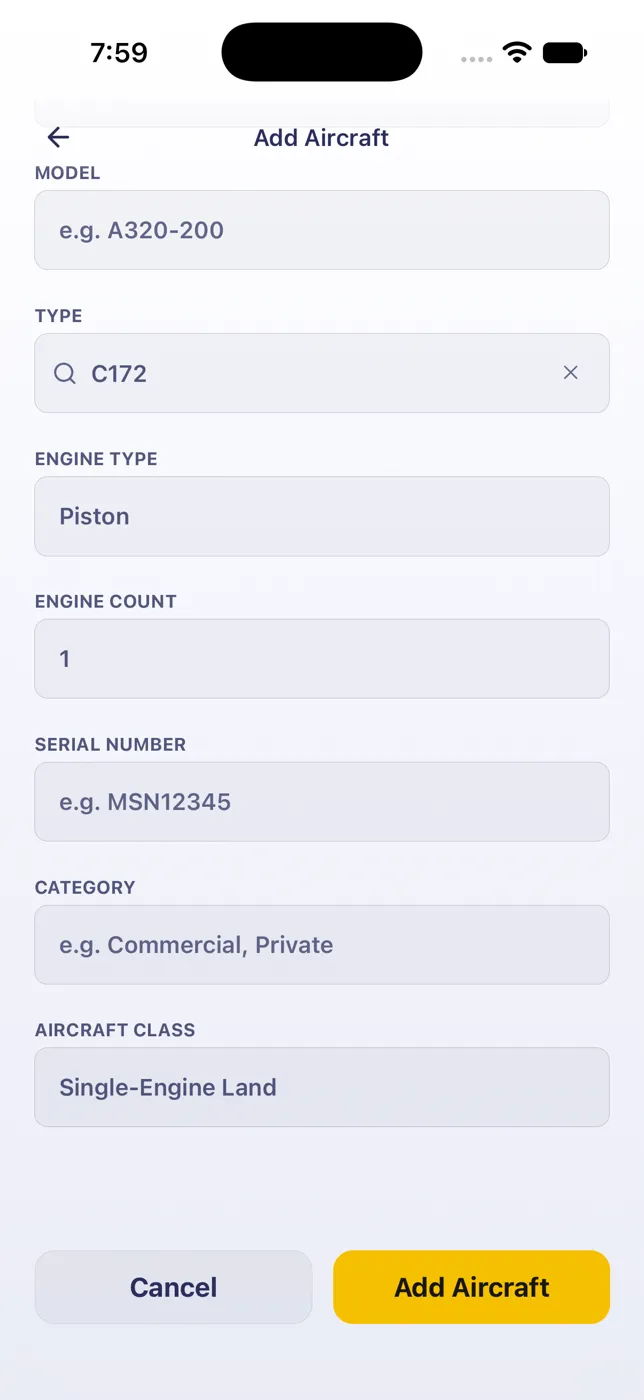
- Aircraft: type the registration. A new registration offers Add <registration>.


Add a new aircraft
Section titled “Add a new aircraft”Search the Type (for example C172). Engine type and count fill in from the type. Check the manufacturer and model and correct either field if it does not match your aircraft. Then tap Add Aircraft.
3. Total
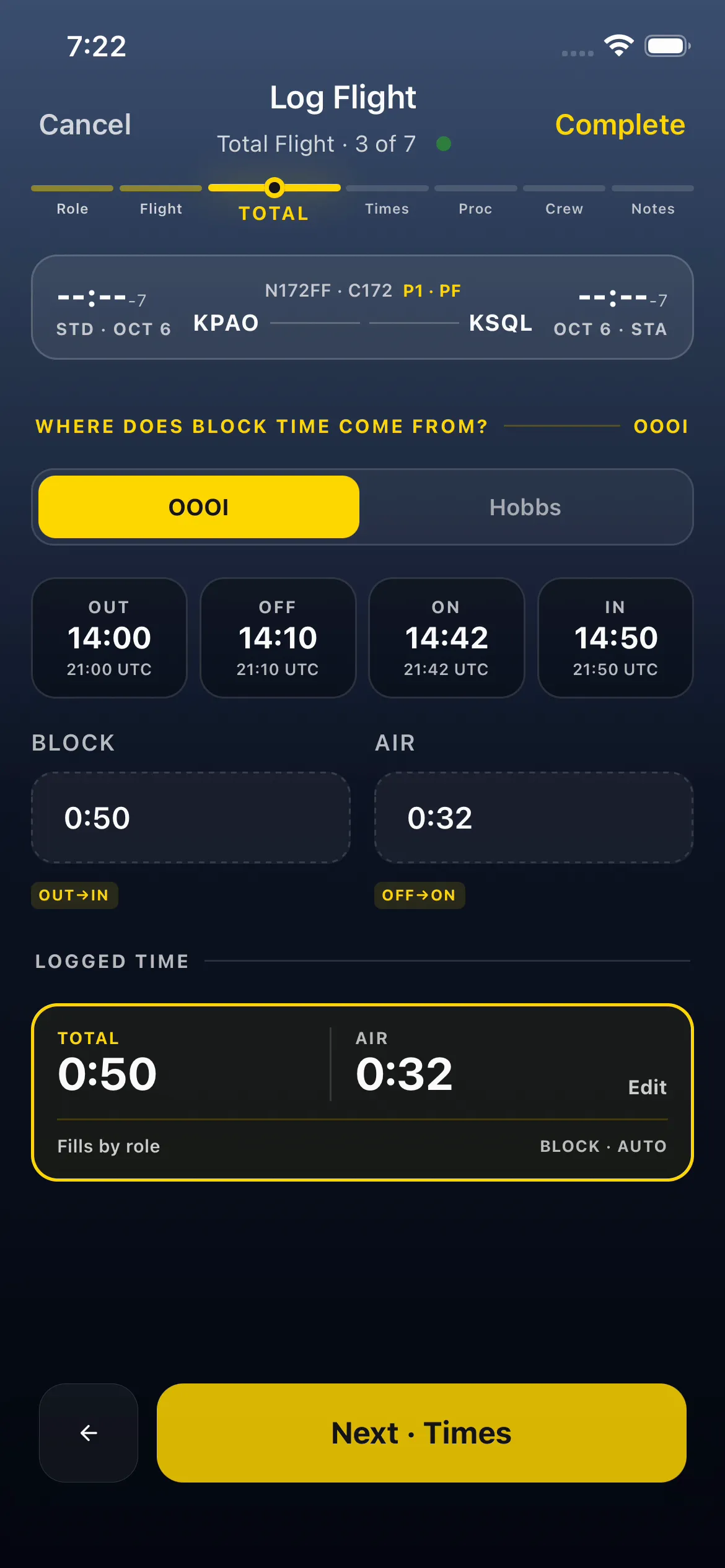
Section titled “3. Total”Choose where block time comes from: OUT→IN (clock times) or Hobbs. Tap each time box (OUT, OFF, ON, IN) and enter the time in UTC, for example 1400; the local time shows underneath (for example 06:00 UTC-8). Block time (out to in) and air time (off to on) are calculated, and Logged time fills by role. No clock times? Type the duration straight into Block instead, but 50 there means 50 hours: see Type a duration fast, and why ‘50’ means 50 hours.
4. Times
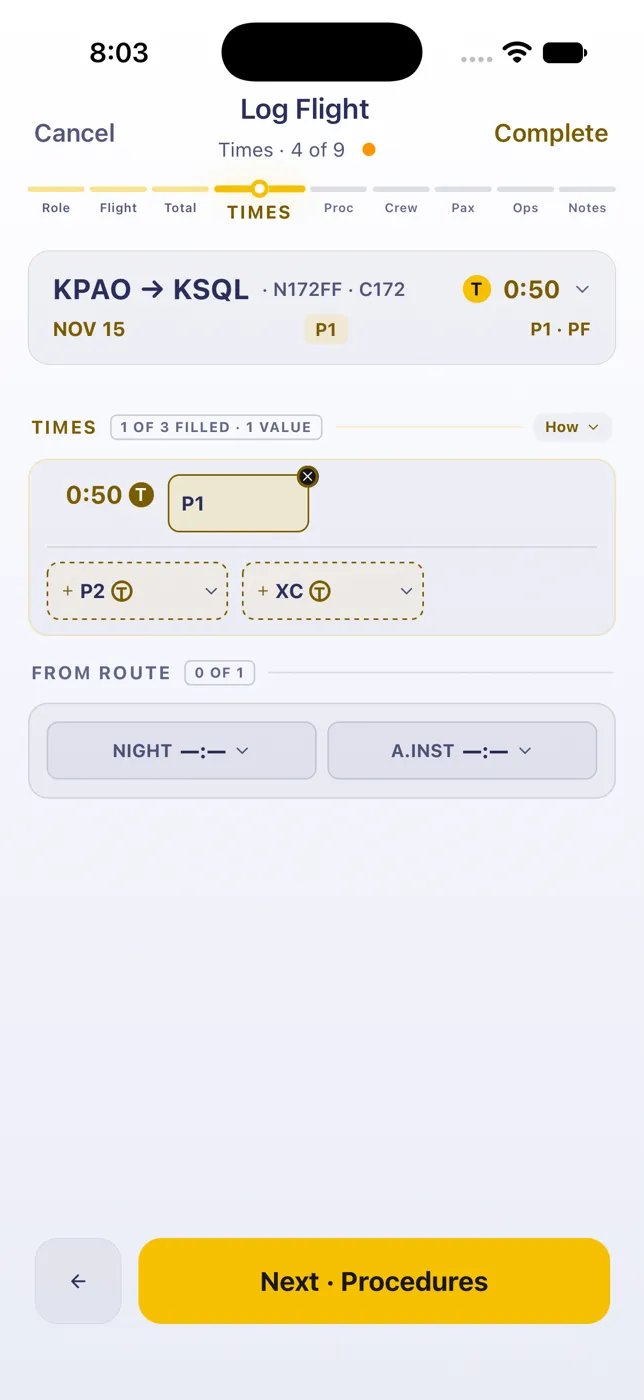
Section titled “4. Times”Your role fills the right columns. In this example, P1 fills PIC with 0:50. Add P2, cross-country, night or instrument time as needed. A 7 NM hop like KPAO → KSQL gets no cross-country, because it’s under the 50 nm minimum: see Is it cross-country? Watch the 50 nm rule fill XC.
5. Procedures, 6. Crew and 7. Notes
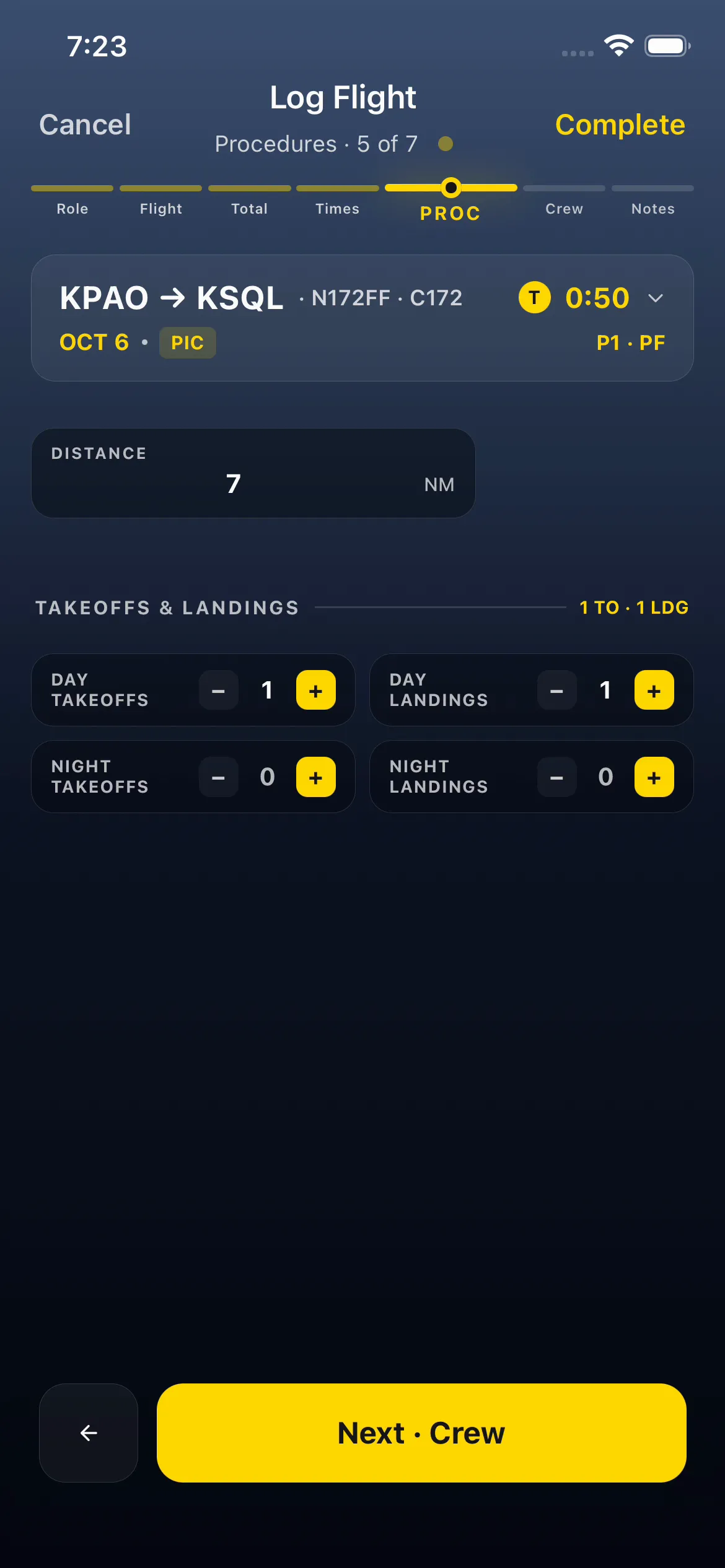
Section titled “5. Procedures, 6. Crew and 7. Notes”- Procedures: distance (7 NM here) and one day takeoff and landing are filled in. Adjust them with − and +.
- Crew: you’re listed as P1 crew. Tap Add crew for others.
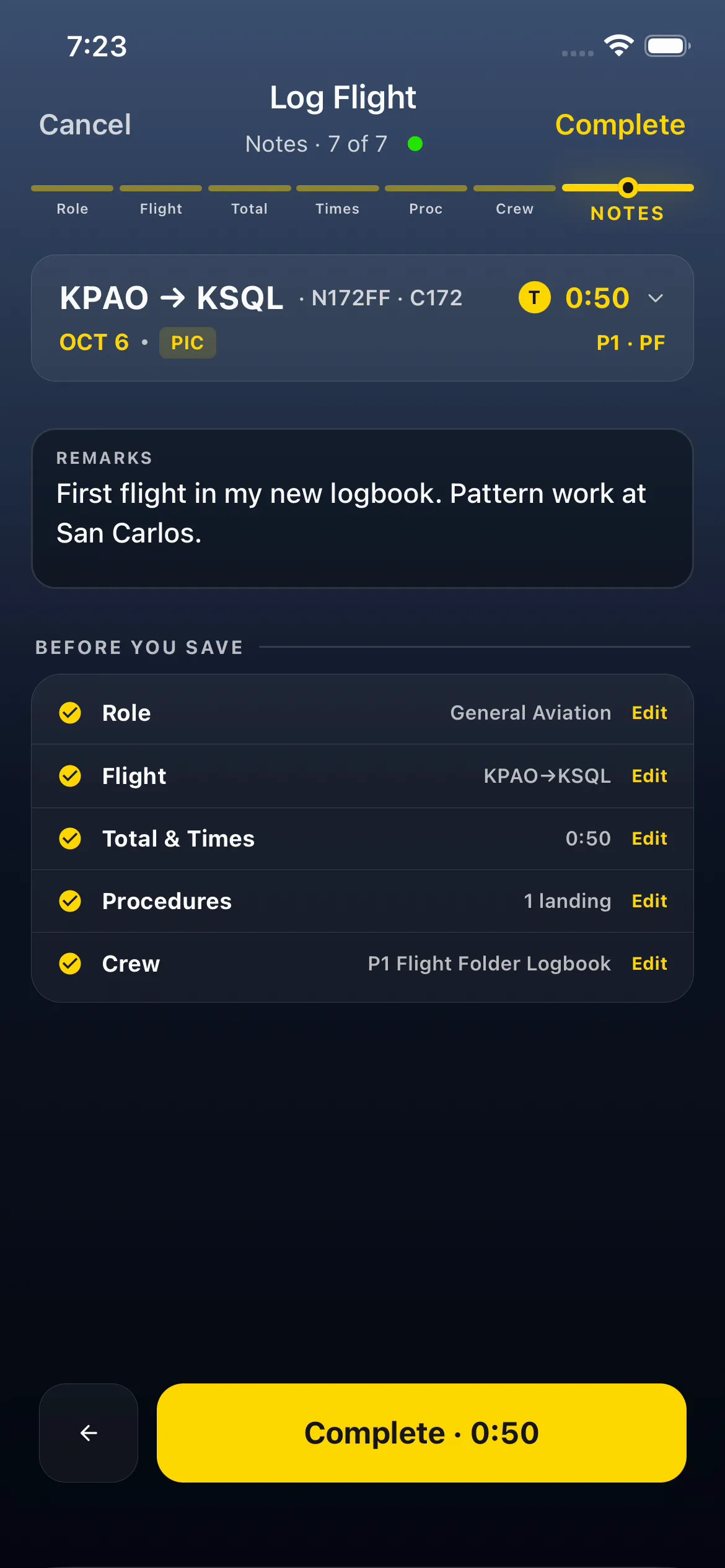
- Notes: add remarks, then check Before you save. Every step you need should show a tick. Optional steps can stay open: with the Passengers step on, its row stays open on any flight without passengers. See Check a flight before you save it.
Save and confirm
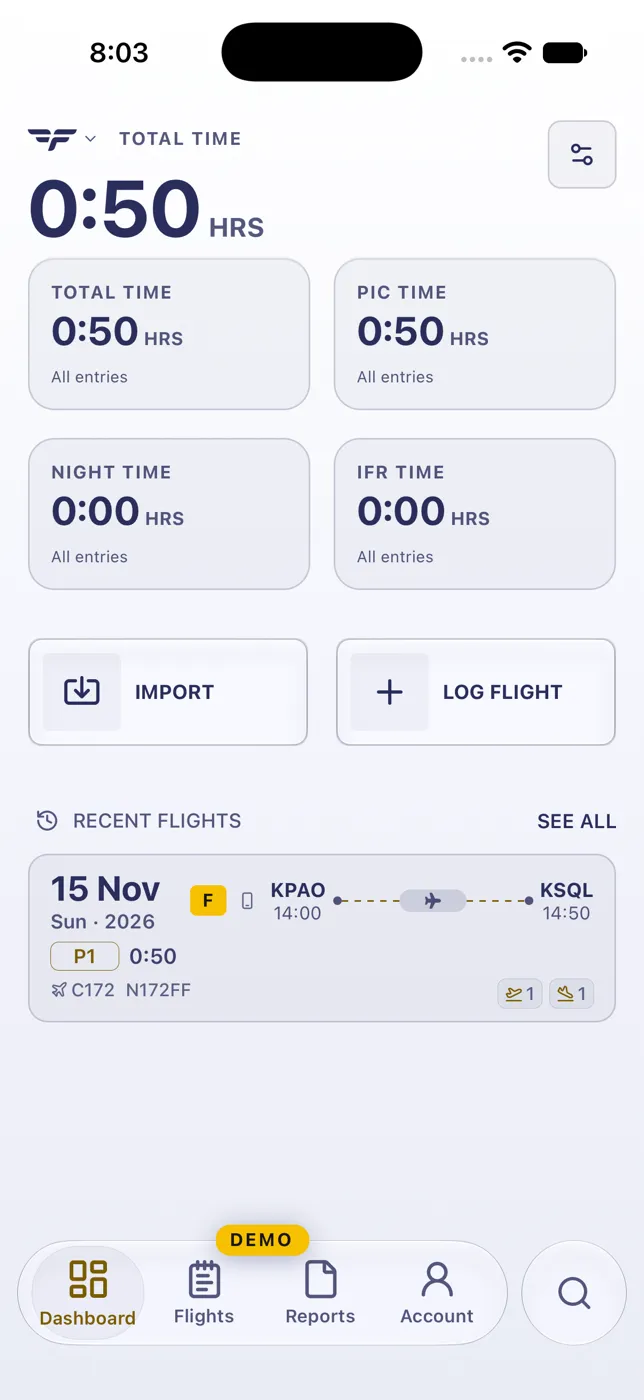
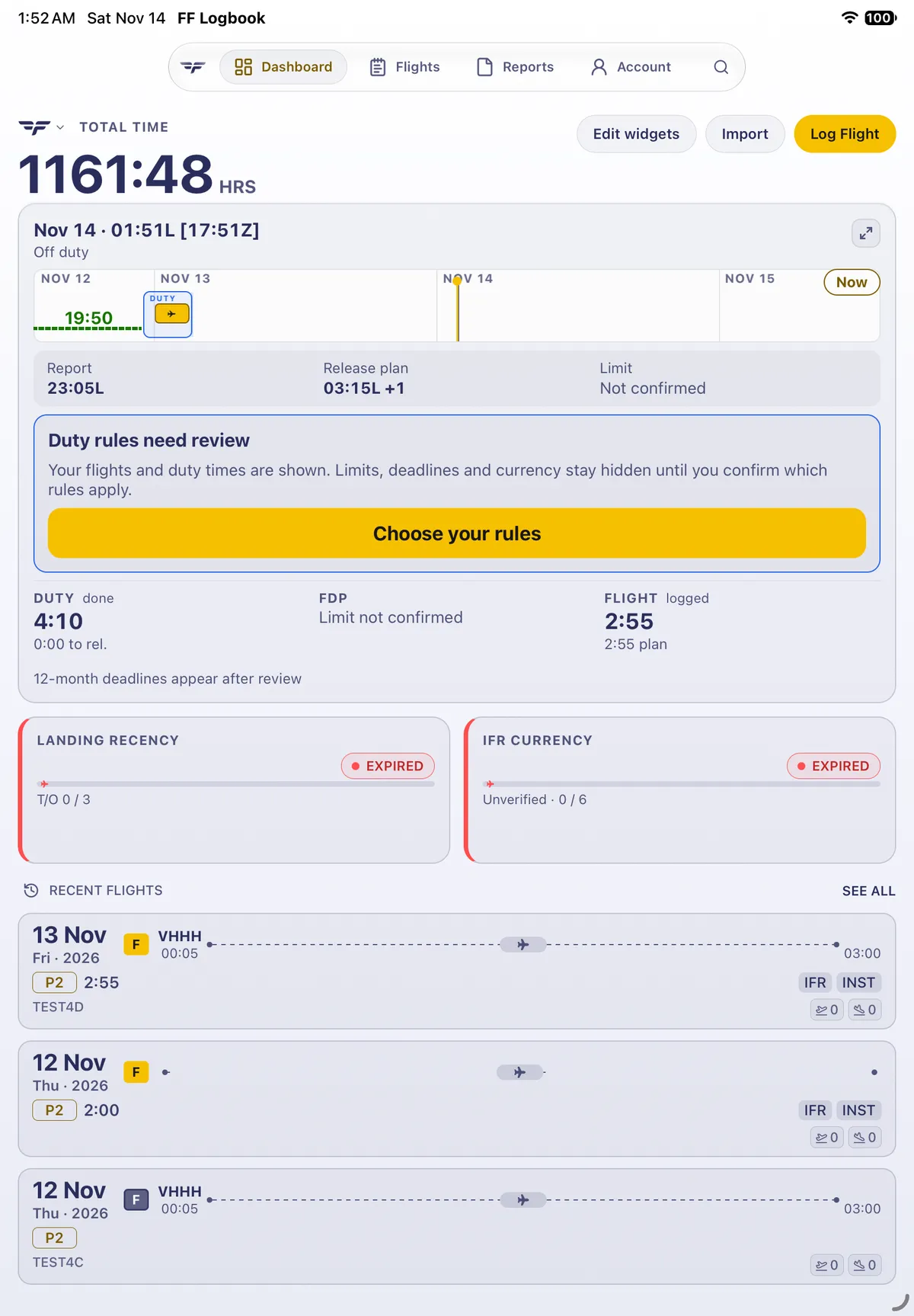
Section titled “Save and confirm”Tap Complete at the top right. Flight Details opens with the flight locked (Slide to unlock). The Dashboard’s total time shows 0:50, and the flight appears under Recent flights and in Flights. A Pending badge clears once the flight has synced.

On iPad
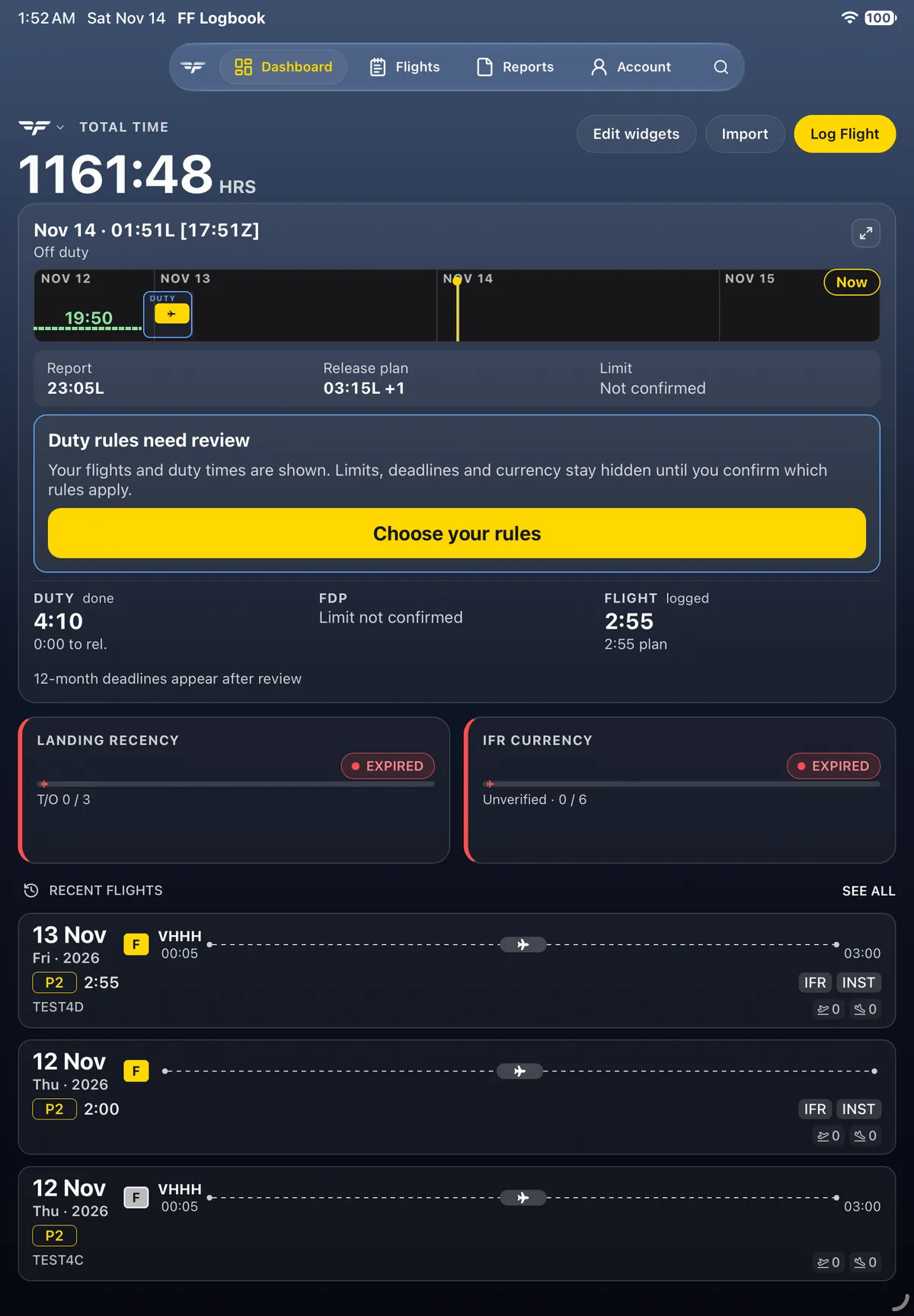
Section titled “On iPad”On iPad, Edit widgets, Import and Log Flight are buttons at the top right of the Dashboard.
Related: Correct a flight entry.