
Get an earlier currency warning
A currency card’s pill tells you how you stand: Current (green), Expiring (amber) or Expired (red). Out of the box it only turns amber in the last 30 days, whatever the rule’s length. On a 90-day rule that may be later than you’d like. Status thresholds let you choose when each card warns you.
1. Open the card’s thresholds
Section titled “1. Open the card’s thresholds”- Dashboard → the Dashboard settings button (top right) → Widgets. Scroll down to the widget list.
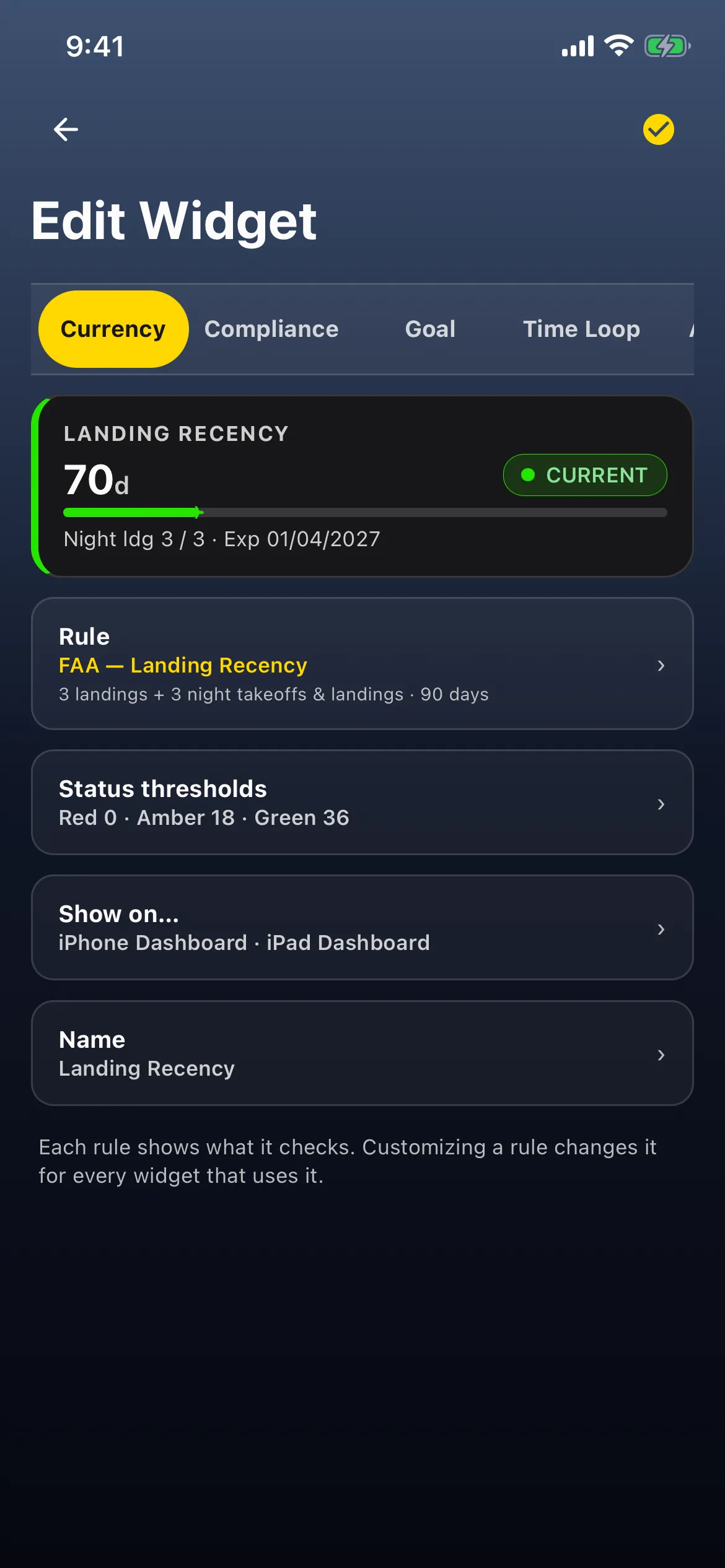
- Tap the currency card, e.g. Landing Recency (tap the name, not the Dashboard / Reports icon switches or the ≡ handle). Edit Widget opens on the Currency tab: the preview card (for example CURRENT, 70 days remaining), then Rule (FAA — Landing Recency), Status thresholds, Show on… and Name.

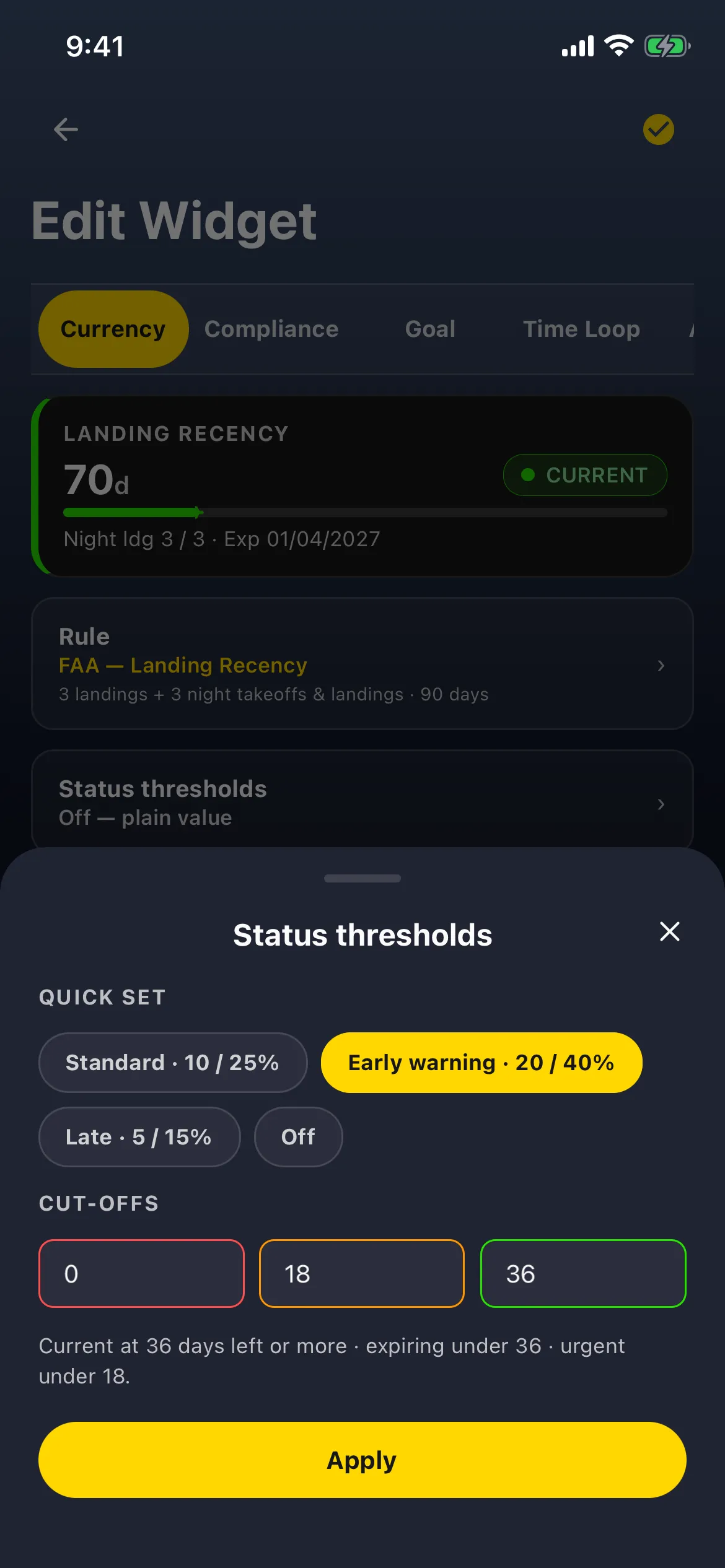
- Tap Status thresholds (Off — plain value).
2. Choose the cut-offs
Section titled “2. Choose the cut-offs”The Status thresholds sheet opens with suggestions worked out from the rule’s own window (90 days for Landing Recency):
- QUICK SET: Standard · 10 / 25%, Early warning · 20 / 40%, Late · 5 / 15% and Off.
- CUT-OFFS: three boxes, red, amber and green, in days left. The line under them says what they mean.

On a 90-day rule, Standard is amber under 23 days and Late under 14. Both are later than the app’s own 30 days, so on this rule they add nothing: the card still turns amber at 30 days. For more notice, use Early warning.
For example, Early warning reads: Current at 36 days left or more · expiring under 36 · urgent under 18. Tap Apply. (Closing the sheet without Apply asks Discard changes?.)
The row now reads Red 0 · Amber 18 · Green 36.
You can also type your own numbers. Apply stays greyed out until all three are filled in and in order; for days left, use red < amber < green.
Tap the checkmark (Save) at the top right, then go back. If you go back without saving, Discard changes? asks first, and Discard leaves the card unchanged.
3. What changes
Section titled “3. What changes”- With Early warning saved, the card reads Current until 36 days left, then turns amber, Expiring. Tap the card: the detail sheet shows the same status.
- It stays amber to the end. Thresholds can only warn you earlier; they can’t decide whether you’re current. Under the amber cut-off (18 days with Early warning) a card that’s still current keeps reading Expiring; it turns red, Expired, only when the rule actually lapses (
complianceDisplay.ts,getCurrencyStatusPresentation). The sheet’s urgent under 18 has no separate look on the card. - Thresholds on or off, a card that’s well ahead reads Current.
- The cut-offs belong to this card, not to the rule. Another card on the same rule keeps its own.
- The Exp date on the card doesn’t change; it comes from the rule.
To go back to the default, open Status thresholds again and tap Off → Apply → the checkmark.