
Before you delete an aircraft, see the flights it's on
Deleting an aircraft that you’ve flown doesn’t happen in one tap. The app first tells you how many flights use it, and lets you look at exactly those flights before you decide.
1. Open the delete dialog
Section titled “1. Open the delete dialog”- Account → Database → Aircraft. Your aircraft are listed under Favorites and My Aircraft.
- Tap the aircraft. Its page shows Flights, Block time and Last flown. N5214K read 5 · 4:20 · 20 SEP.
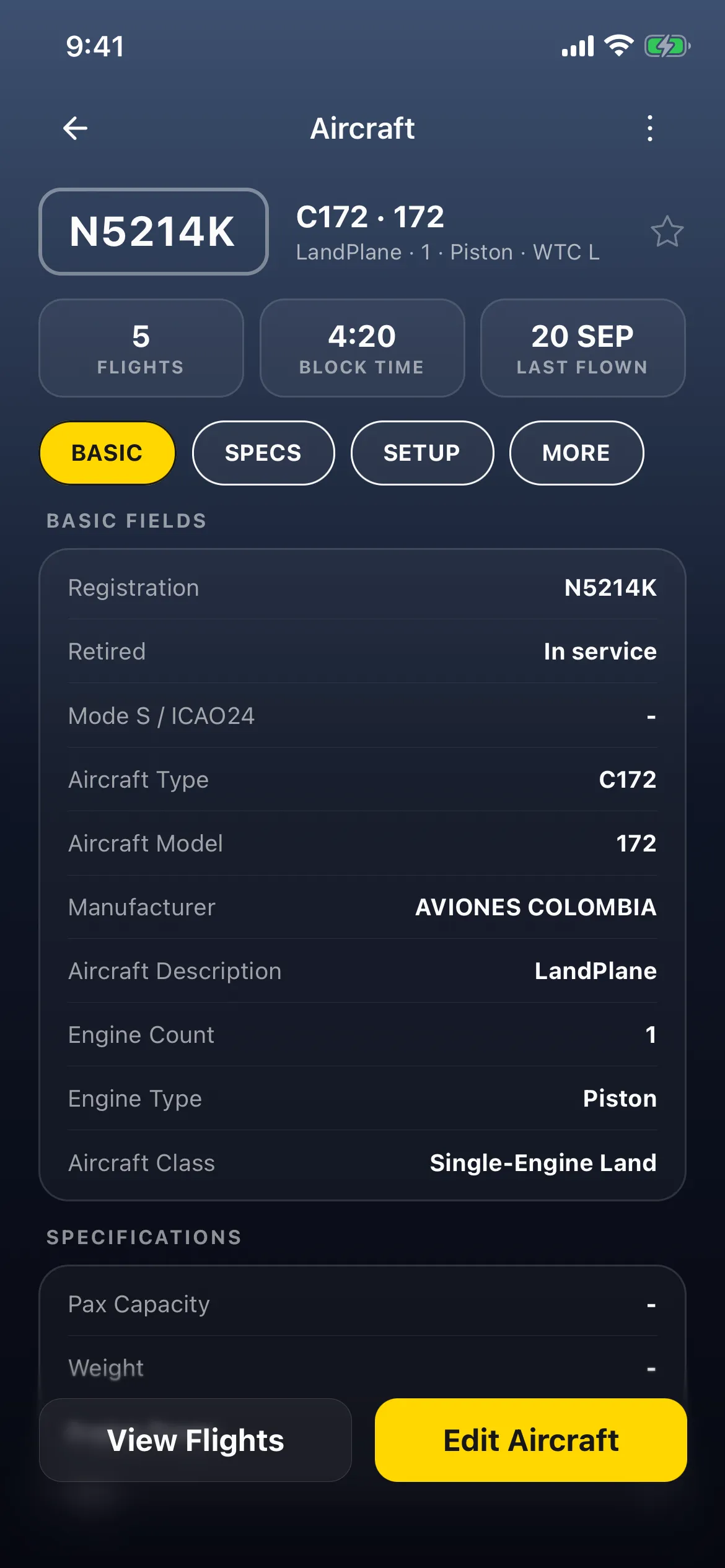
- Tap More (⋮, top right). A menu titled with the registration offers Convert to Simulator, Move to Garage, Delete and Cancel.
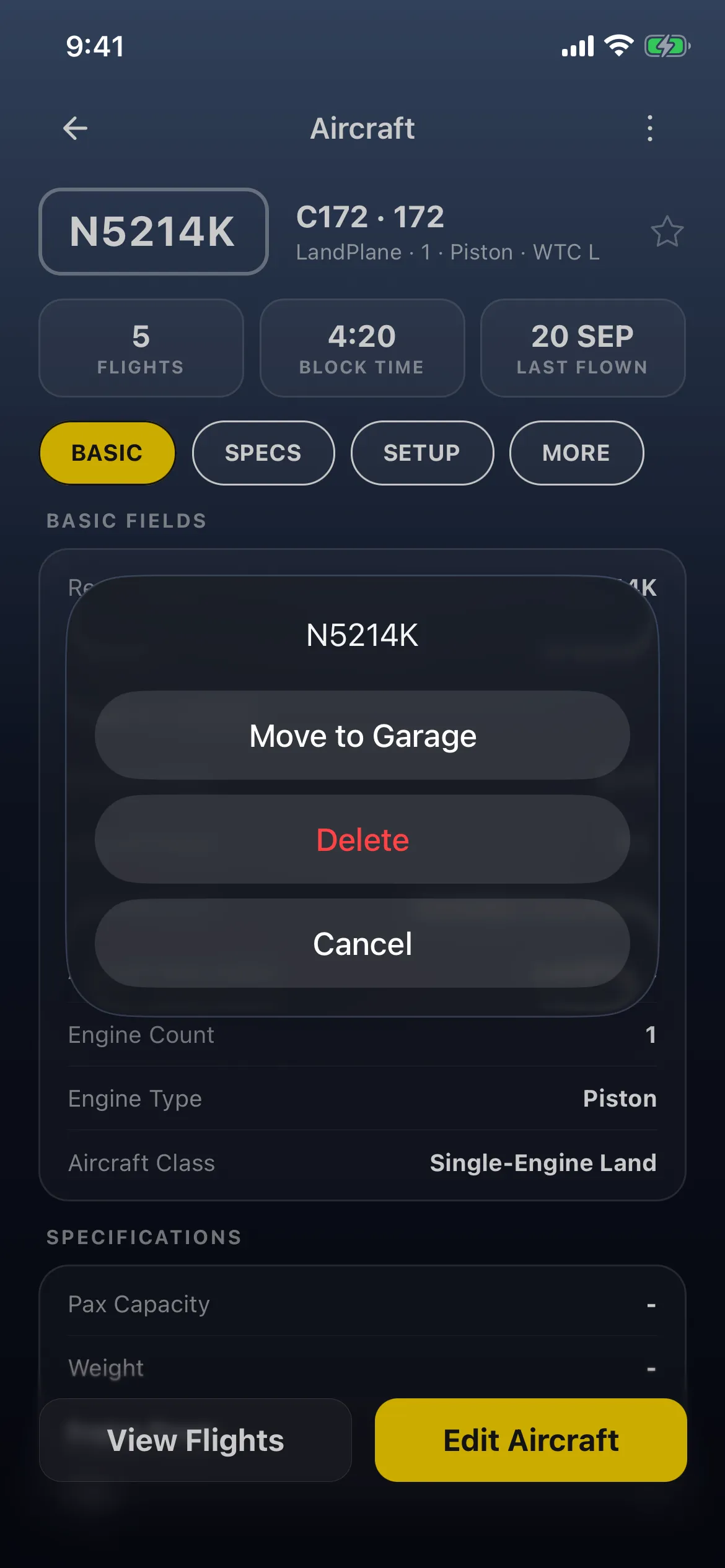
- Tap Delete.
2. What the dialog tells you
Section titled “2. What the dialog tells you”The dialog is titled Move Aircraft to Deleted. For example:
Move “N5214K” to deleted items?
5 linked flights found. Flights: 5
Moving to Deleted preserves historical flight display data.

It has four buttons, top to bottom:
- Review Linked Entries opens Flights with only those flights (below). Nothing is deleted.
- Replace Links moves the flights to another aircraft that you pick, and then deletes this one. The button doesn’t say so.
- Move to Deleted (red) moves the aircraft to deleted items.
- Cancel closes the dialog and changes nothing. N5214K still read 5 flights afterwards.
With no linked flights, the dialog has no count and no Review Linked Entries.
3. Review the linked flights
Section titled “3. Review the linked flights”- On the dialog, tap Review Linked Entries. Flights opens with just that aircraft’s flights, for example 5 Flights 4:20 Total, each card marked with the aircraft (C172 N5214K).
- Count the flights in the list, not the number on the filter chip: the chip can show a different number (for example Widget: Flights 10 for a list of 5).

- Tap Clear (Clear filters) at the right of the chip. The list goes back to all your flights, and the aircraft and its flights are untouched.

4. The gentler option: the Garage
Section titled “4. The gentler option: the Garage”If you just don’t fly an aircraft any more, use More → Move to Garage instead. The Garage screen describes it: Parked aircraft stay out of pickers and search. Their flights and hours are untouched.
5. Undo it
Section titled “5. Undo it”Open Aircraft → Garage (the chip shows how many are there, for example Garage · 1). Find the aircraft on the Garage or Deleted tab, swipe its row and tap Restore. An aircraft you delete may turn up on the Garage tab rather than Deleted.
The same swipe offers a permanent delete, with two confirmations: Deleting permanently removes the aircraft. Linked flights keep their logged times but lose the aircraft link. That one can’t be undone.
Good to know
Section titled “Good to know”- Cockpit and cabin crew get the same kind of dialog (Move Crew to Deleted) when they’re linked to flights. See Add your crew and Add cabin crew.
- Opening an aircraft adds it to the Recent list in Aircraft. That list is kept on this phone only and changes nothing else.
- To see an aircraft’s flights without deleting anything, tap View Flights on its page, or search its registration (Totals for one aircraft, no setup).