
Typed a time wrong? Log Flight catches it
Log Flight checks your clock times as you type them, so a slip like typing ON before OFF shows up before you save.
Catch the typo
Section titled “Catch the typo”- Log Flight → on the start screen, Repeat last (or New Flight) → Start repeat flight. More about the start screen in Log Flight’s new start screen.
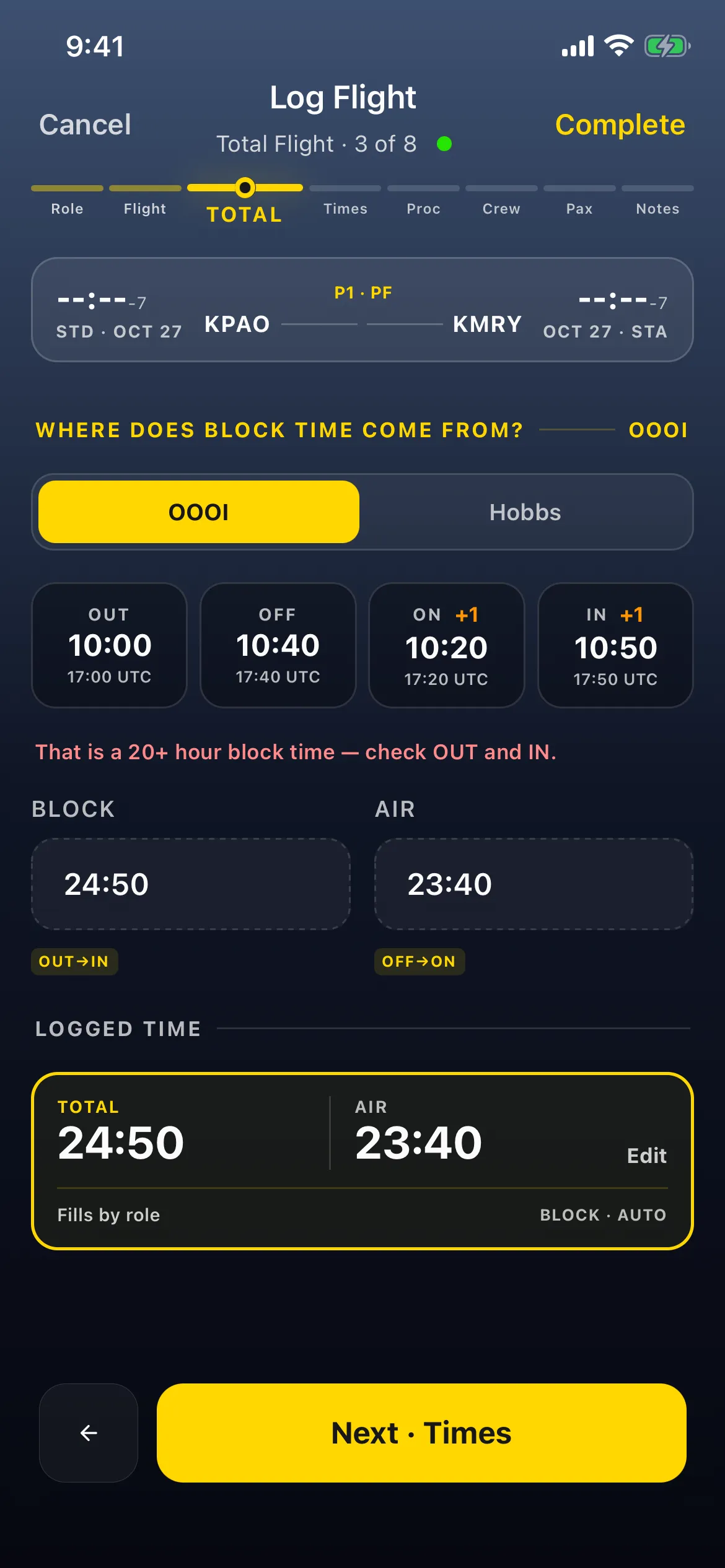
- Tap Next to the Total step (for example Total Flight · 3 of 8). With OOOI selected under WHERE DOES BLOCK TIME COME FROM?, type the four clocks: OUT, OFF, ON, IN.
- For example, ON typed as 10:20, before takeoff at 10:40. Each clock must be the same time or later than the one before it, so the app assumes ON (and so IN) is the next day and marks both +1. Block becomes 24:50, air 23:40, and a red line says That is a 20+ hour block time — check OUT and IN.
Fix it
Section titled “Fix it”- Tap ON and type the right time (for example 10:45).
- The +1 marks and the warning go away. Block reads 0:50 (Block 0:50, from OUT→IN), and Total follows it.
- Carry on and save as usual.

A time that is later but still wrong is caught too: for example, ON 11:20 after IN 10:50 pushes IN to the next day and shows the same warning.
What else Log Flight checks
Section titled “What else Log Flight checks”- The red line on the Total step appears when OUT to IN comes to 20 hours or more.
- On the Times step, a Check this time banner (or Check 2 times, and so on) lists anything that can’t be right, with Fix or Fix all where the app knows the answer. With a typo like the one above, it lists block and air over 20:00.
- The checks cover: OOOI out of order or a taxi over 12 hours, block or air over 20:00, Night or another time more than the total, Air or Total more than Block, a negative time, P1 or P2 time that doesn’t match your duty role, STA before STD, OUT far from STD, duty or FDP times out of order, and Hobbs or Tach readings that go backwards or don’t match OUT to IN. Some are only notes, such as night landings with 0:00 night, or the same airport at both ends.
- If a warning is still there when you tap Complete, the app asks Check this time with Review (back to the Times step) or Save anyway. The checks advise; they never stop you saving.
- Simulator entries aren’t checked, and neither are clocks imported in airport local time.
Related: Check a flight before you save it · Change an auto-filled time · Block not what the clocks say? Override it, then hand it back with Auto · Log a flight in UTC, past midnight · Save a flight, finish later