
Added an aircraft you already have? Use existing
Added an aircraft you already have? You won’t end up with two of them. When you save a registration that’s already in your database, the app stops and asks what you want to do, and Use existing takes you to the aircraft you already have.
1. Add the registration
Section titled “1. Add the registration”- Account → Database → Aircraft. Your aircraft are listed under Favorites and My Aircraft.
- Tap +. Add Aircraft opens on Basic (with Specs, Setup and More beside it). Registration is empty (e.g. VH-ABC).
- Tap Registration and type it, for example N172FF. A suggestion appears under the box: your own aircraft, starred if it’s a favorite.
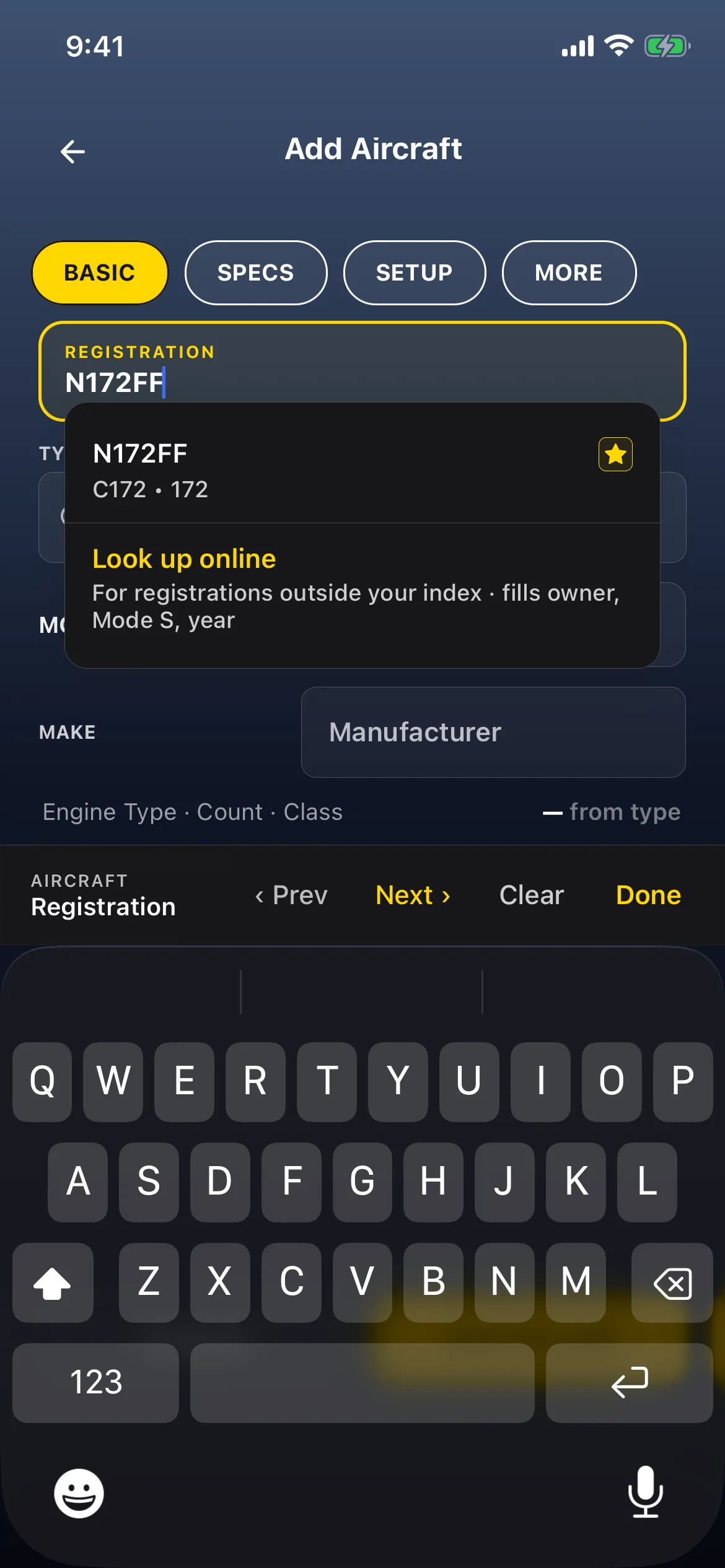
- Tap Done on the keyboard bar. Type, Model and Make fill in from your existing record. For example C172, 172S Skyhawk and Cessna, with Piston · 1 · Single-Engine Land from type. Done picks the matching suggestion for you.
2. The conflict sheet
Section titled “2. The conflict sheet”- Tap Add Aircraft.
- Instead of adding a second N172FF, a sheet titled Registration Period Conflict opens:
Another aircraft with registration “N172FF” already exists for this period. What would you like to do?
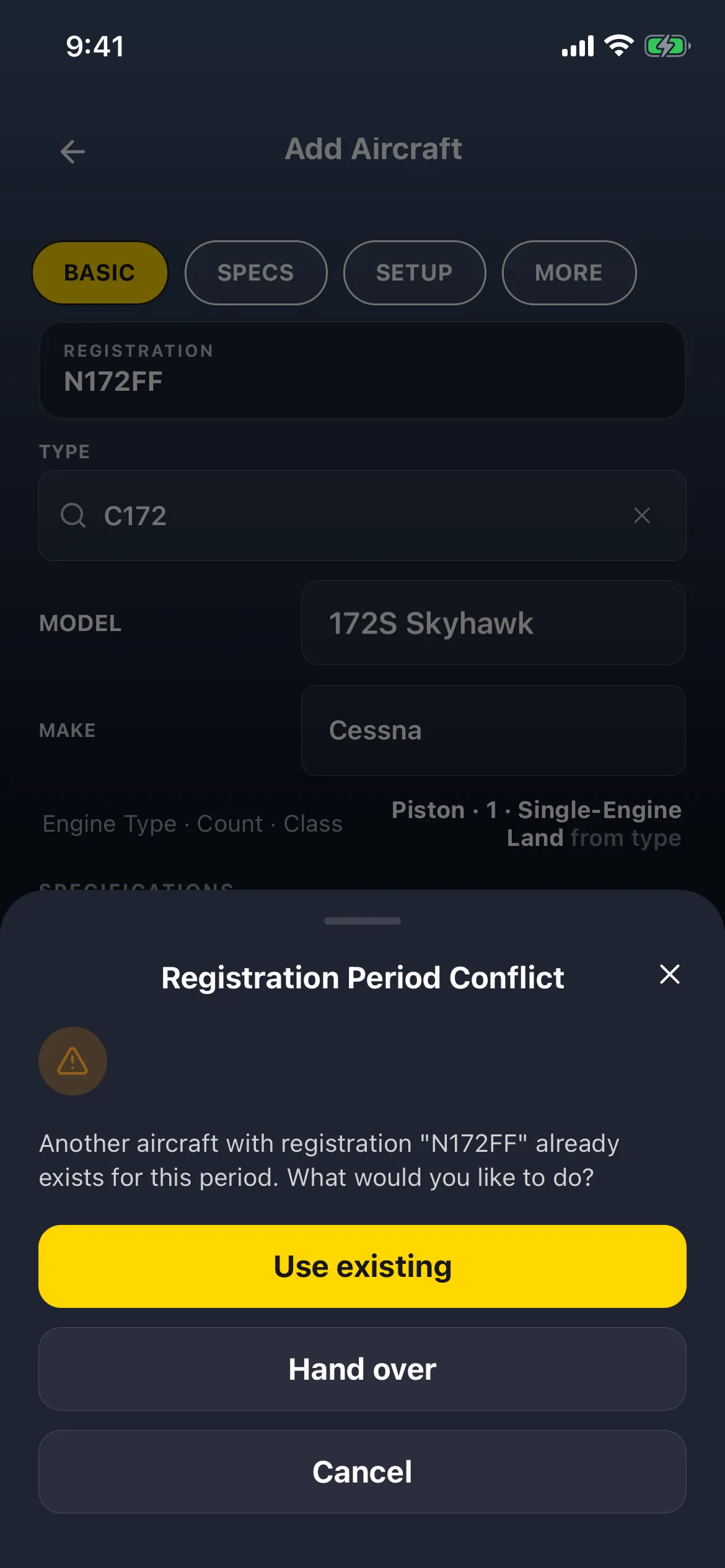
- Tap Use existing (the yellow button at the top).
3. You’re on the aircraft you already have
Section titled “3. You’re on the aircraft you already have”Use existing opens N172FF’s own page, with its history intact: 4 FLIGHTS · 4:32 BLOCK TIME · 7 OCT LAST FLOWN. The basic fields read Registration N172FF, Retired In service, Aircraft Type C172, Model 172S Skyhawk, Manufacturer Cessna.
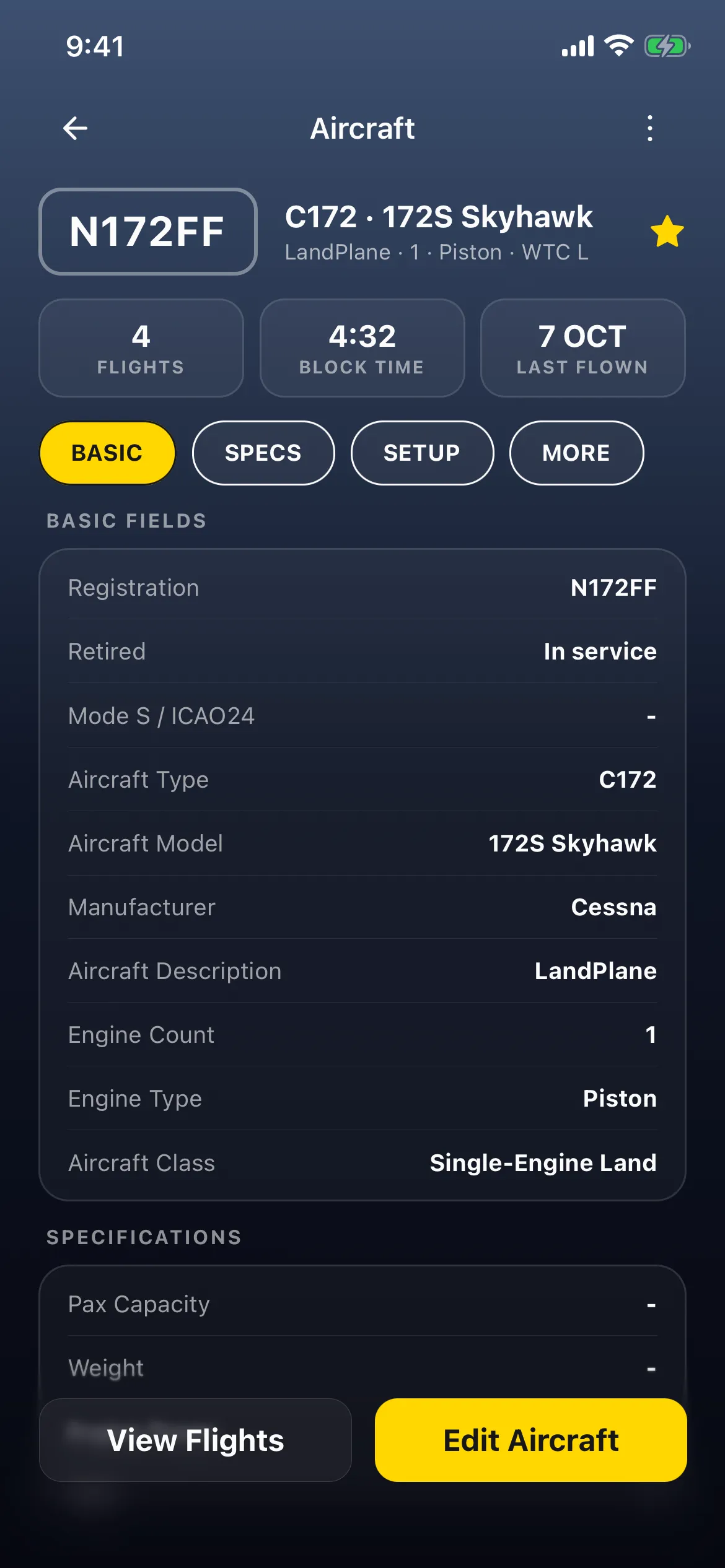
Go back: the list is unchanged, with one N172FF under Favorites and the same two aircraft under My Aircraft. Nothing was created.
What the three buttons do
Section titled “What the three buttons do”- Use existing closes the Add form and opens the aircraft you already have. What you typed in the form is dropped.
- Hand over is for a registration that has moved to a different airframe, for example when a registration is reissued to another aircraft. It asks for a Handover date, ends the existing aircraft’s registration on that date, and creates a second aircraft with the same registration from that date on, then opens it. Your existing flights stay with the old one. No form can undo a handover, so don’t tap it to tidy up a duplicate.
- Cancel (or ✕) closes the sheet. You’re back on the Add form with what you typed, and nothing is saved.
Good to know
Section titled “Good to know”- “For this period”: every aircraft holds its registration for a period, which is open-ended unless a handover has ended it. The Add form has no period fields, so a new entry always covers all dates and overlaps any N172FF you still hold. A parked aircraft (in the Garage) still counts; one you’ve deleted doesn’t.
- Catalog suggestions: the list under Registration mixes your own aircraft (from your database, favorites with a ★) and matches from the app’s aircraft index (from master database). Picking a match, or tapping Done on an exact one, fills the type, model and make from it. Look up online, at the bottom, checks your own aircraft first; if you already have the registration it says Aircraft Already Exists and offers Discard & Open Existing.
- To change an aircraft’s details, open it and tap Edit Aircraft, rather than adding it again. See Add and manage your aircraft.
- Crew has the same idea: adding a name you already have from Log Flight offers Use existing too. See Add new crew without leaving Log Flight.