
Ask someone to sign a flight
An instructor or examiner can countersign one of your flights in their web browser. You send them a link; they don’t need the app.
Before you start
Section titled “Before you start”- The flight must have synced to your account. Otherwise you’ll see Signing is only available after the flight is synced to the server.
- The signer must be in your crew list (see Add your crew) and synced. Crew in the Garage aren’t offered.
- You need to be online, and it doesn’t work in Private Logbook Mode.
1. Make a signing link
Section titled “1. Make a signing link”- Flights → open the flight.
- Tap the more button (⋯, Flight options) at the top right → Sign flight. (The menu also has Endorsements for this entry and Delete flight.)
- Sign Flight — Choose who signs. Hand them this device to sign now, or send them a link. Under AUTHORIZED SIGNER, choose who signs. The list has your crew: anyone on this flight first (with their role), then everyone else A–Z, and you last. Their ID number shows underneath (for example CFI-4471).
- Tap Get Signing Link (below Sign on This Device). Share this link with Sam Rivera to sign the flight. and the link appear, with Share Link and Done.
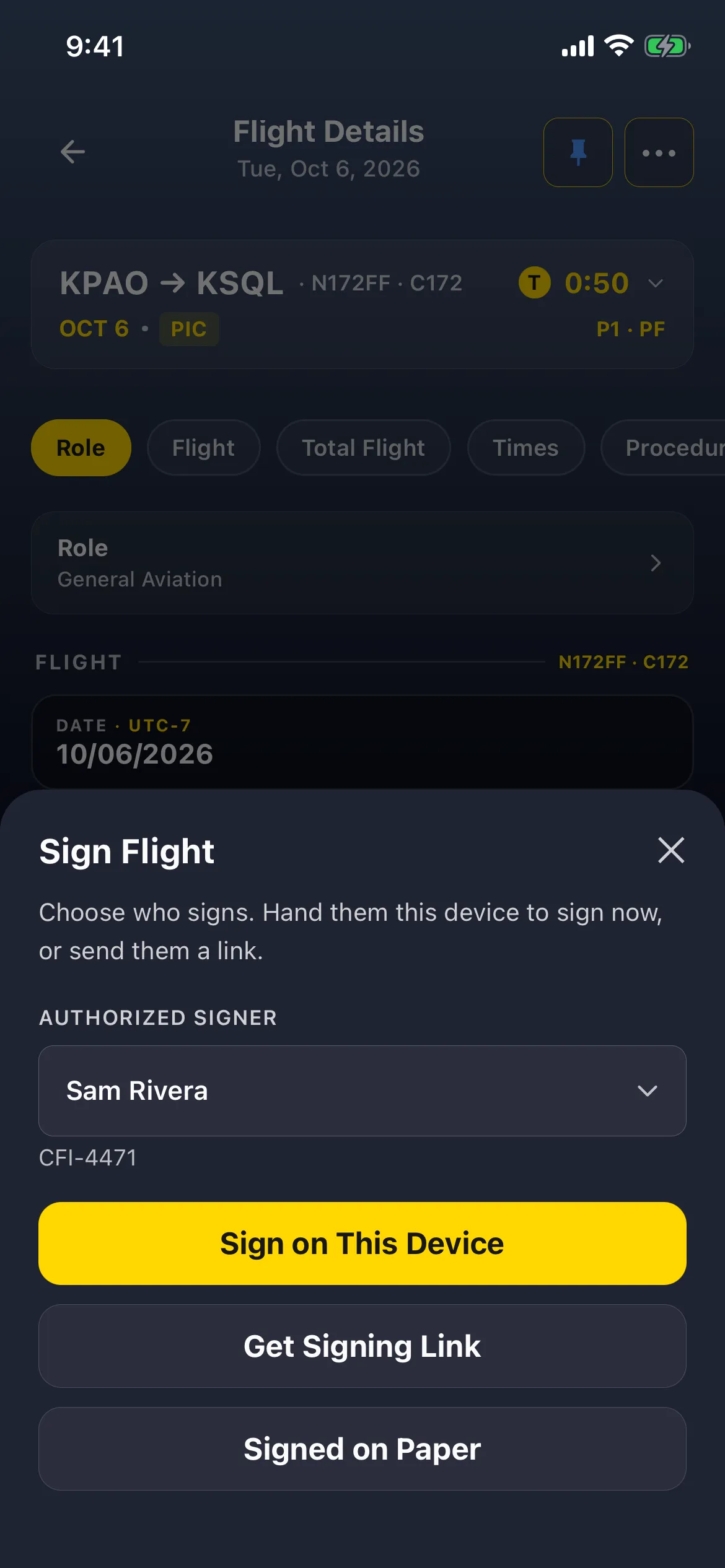
If the signer is with you, Sign on This Device lets them sign on your phone instead. Signed on Paper attaches a photo of a paper signature.
The app doesn’t send anything by itself: no email, text or notification goes to the signer.
2. Send it
Section titled “2. Send it”Tap Share Link and pick an app to send it with. Tap Done to close the Sign Flight sheet; nothing changes on the flight until the signer signs.
3. What the signer does
Section titled “3. What the signer does”The signer opens the link in a browser, sees the flight, draws a signature and submits it. The signature, their name, licence number (from their crew record) and the date are stored with the flight.
4. After it’s signed
Section titled “4. After it’s signed”- Open the flight (or tap Done on the Sign Flight sheet): a banner reads Signed by ‹name› · ‹date›, and its card in the list shows a lock icon.
- A signed flight can’t be changed or deleted. Selecting several flights shows Signed · will be skipped, and a batch delete skips them. The pin still works.
- To change it: Slide to unlock, type a REASON, type UNLOCK, and tap Unlock. The reason is kept with the signature record on the server. After unlocking you may need to slide a second time before you can edit.
Flight Details shows Slide to unlock on every saved flight, signed or not. Only a signed flight needs the reason and UNLOCK.