
Show your own code for an airport on every flight
Fly from a strip with no ICAO code, or one your club calls by another name? Give that airport your own code, and every flight shows it. It takes two changes: tell the app to show identifiers, then type the code on the airport.
1. Show identifiers
Section titled “1. Show identifiers”- Account → Settings. Under FORMATS, tap Airport codes.
- The sheet offers ICAO (ticked), IATA and Identifier, with the hint Falls back to the next available airport code when the preferred one is missing. Tap Identifier.
- The row now reads IDENT, and a new row appears below it: Identifier default · ICAO. A Cancel / Save footer appears.
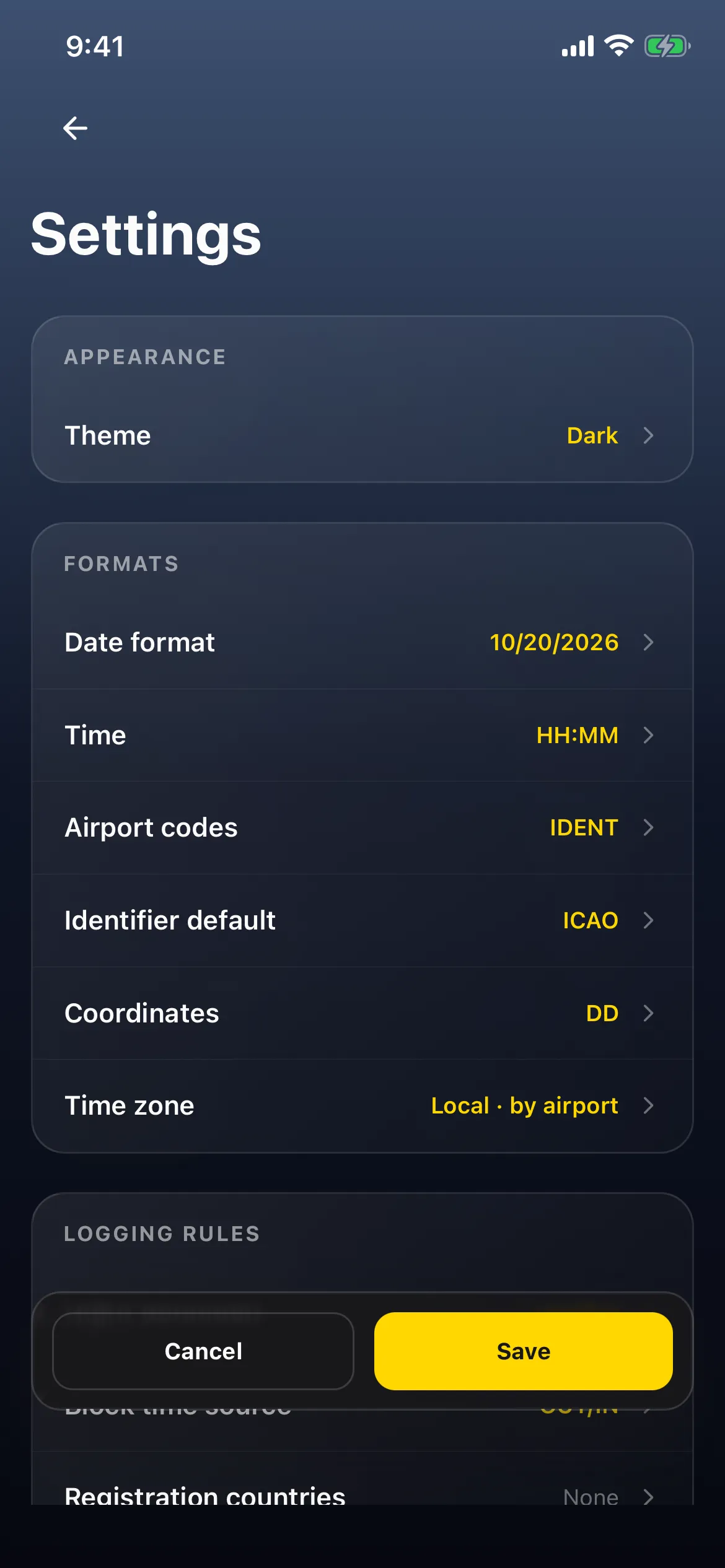
- Tap Save. A Settings saved. toast appears.
2. Give the airport your code
Section titled “2. Give the airport your code”- Go back to Account. Under Database, tap Airports (for example MY AIRPORTS (6)) and tap the airport, here San Carlos Airport (KSQL).
- Tap Edit Airport. The form shows ICAO CODE KSQL, IATA CODE SQL, LOCAL IDENTIFIER (LID) SQL and AIRPORT IDENTIFIER, labelled AUTO: KSQL.
- Tap the Airport Identifier box, type your code (for example SCARLOS) and tap Done on the keyboard. The label changes to RESET TO AUTO, and a Cancel / Save footer appears.

- Tap Save. An Airport updated successfully. toast appears and the app returns to the Airports list. On the list, the KSQL row shows PENDING until the change has synced.

3. See it on your flights
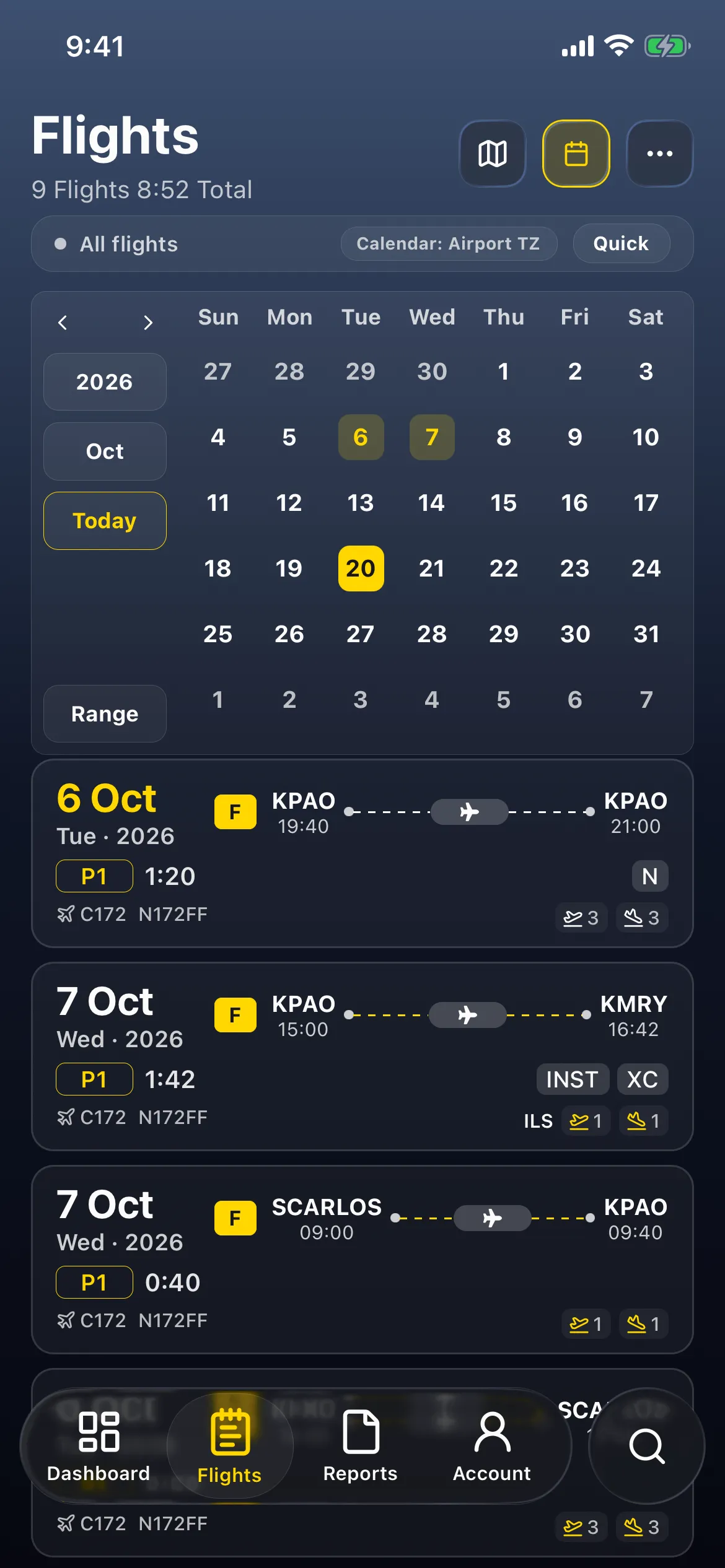
Section titled “3. See it on your flights”Tap Flights. Both San Carlos flights now read SCARLOS: 7 Oct SCARLOS → KPAO and 6 Oct KPAO → SCARLOS. Every other airport still shows its ICAO code. If your flights still show the old code, close the app and open it again (see Good to know).
Good to know
Section titled “Good to know”- It can take a moment, or a reopen. Right after saving, the flight cards can still read the old code (KSQL here), the reopened edit form can show the box empty (AUTO: KSQL), and the Settings picker can briefly show ICAO. Both changes are saved: after closing and reopening the app, or some time later, the flights read SCARLOS and Settings reads IDENT. If you don’t see your code, reopen the app before typing it again. Flights keep a copy of each airport’s codes, which may be why the list lags.
- PENDING on the airport’s row is the sync status, not an error. It clears once the change reaches your account; it can still be there after a relaunch. (As in Find and add airports, sync time varies.)
- To undo: Airport codes → ICAO → Save (the flights showed KSQL at once). To remove the code itself, open the airport → Edit Airport → RESET TO AUTO → Save; after a reopen the box reads AUTO: KSQL again. With Airport codes back on ICAO, the Identifier default row disappears.
- Don’t send it to the catalog. On some airports (for example KMRY and KHAF, not KSQL), Edit Airport shows a Send your changes to the catalog card. That submits a suggestion for review to the shared airport catalog. Your own code is a personal label, so leave that card alone.
- For a strip that isn’t in the database, add it first: Add an airstrip or seaplane base. Its Airport Identifier copies the local identifier automatically, and you can type over it the same way.