
Print your logbook in tenths: the PDF follows your Time setting
Hand in your logbook in decimal hours? The PDF has no time setting of its own: it prints durations the way your Time setting shows them. Set Time to DECIMAL and every row prints in tenths, rounded with your Decimal Formats table. Each column then adds up the printed rows, the way you’d add them by hand. For example, a 50-minute flight prints 0.8, and a grand total of 93:52 prints 93.9 HRS.
1. Set Time to DECIMAL
Section titled “1. Set Time to DECIMAL”- Open Account → Settings. Under FORMATS, tap Time (for example HH:MM).
- The Time format sheet lists HH:MM (✓), DECIMAL and 2 DECIMAL. Tap DECIMAL. The sheet closes, the Time row reads DECIMAL, and a Cancel / Save bar floats at the bottom.
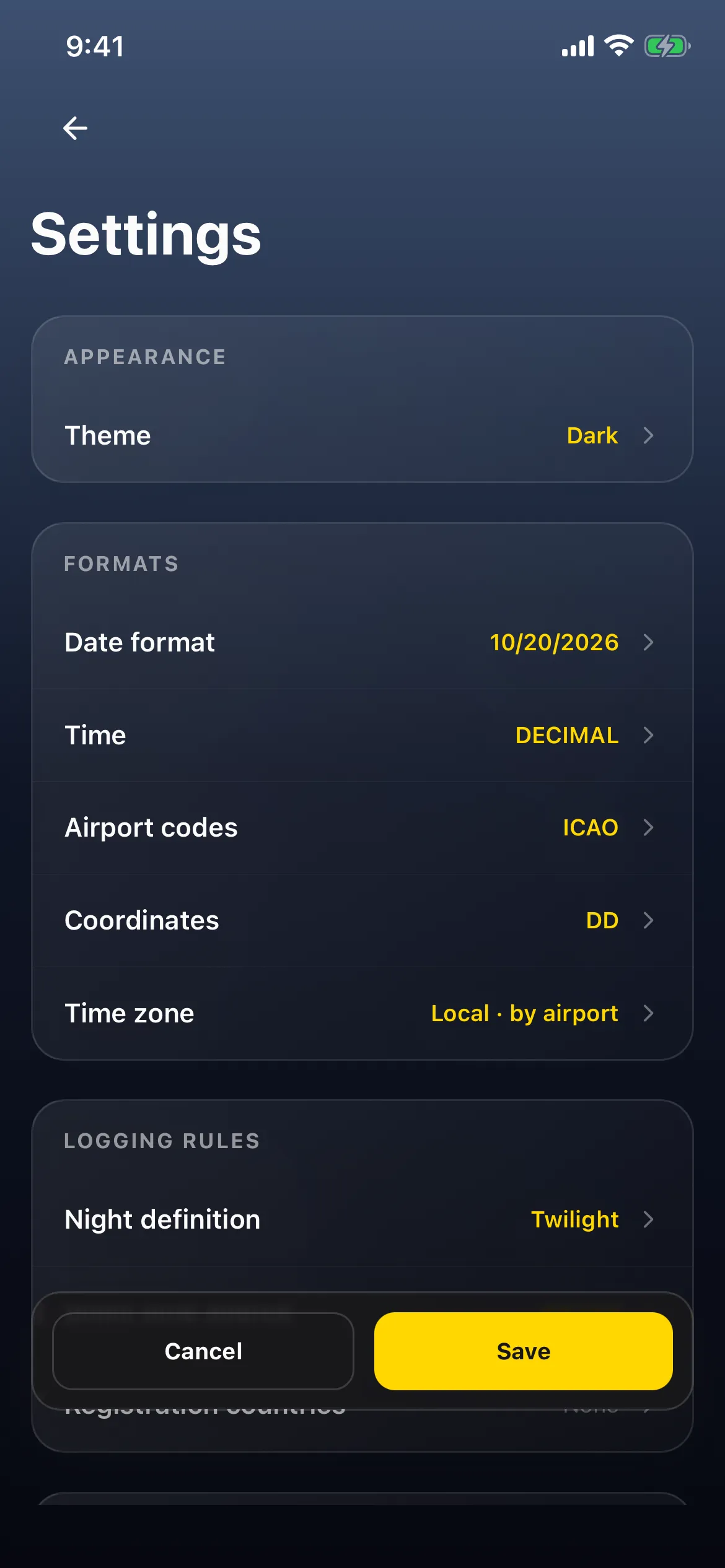
- Tap Save. A short Settings saved. message shows.
- Close and reopen the app, so every screen picks up the change.
2. Open the PDF
Section titled “2. Open the PDF”- Open Reports → Export. It shows your report, for example HK CAD · Hong Kong, DATE RANGE ALL, Ready to export 9 flights in this report.
- Tap Export at the top right. PDF Preview opens, READY, with a file named like 20261027_Flight_Folder_Logbook.pdf (the default report name). The cover comes first: <your name>‘s Logbook, the report name and the date range.
- Scroll down to the right-hand page, which holds the hours, and pinch in. The text is small.
3. Every row in tenths
Section titled “3. Every row in tenths”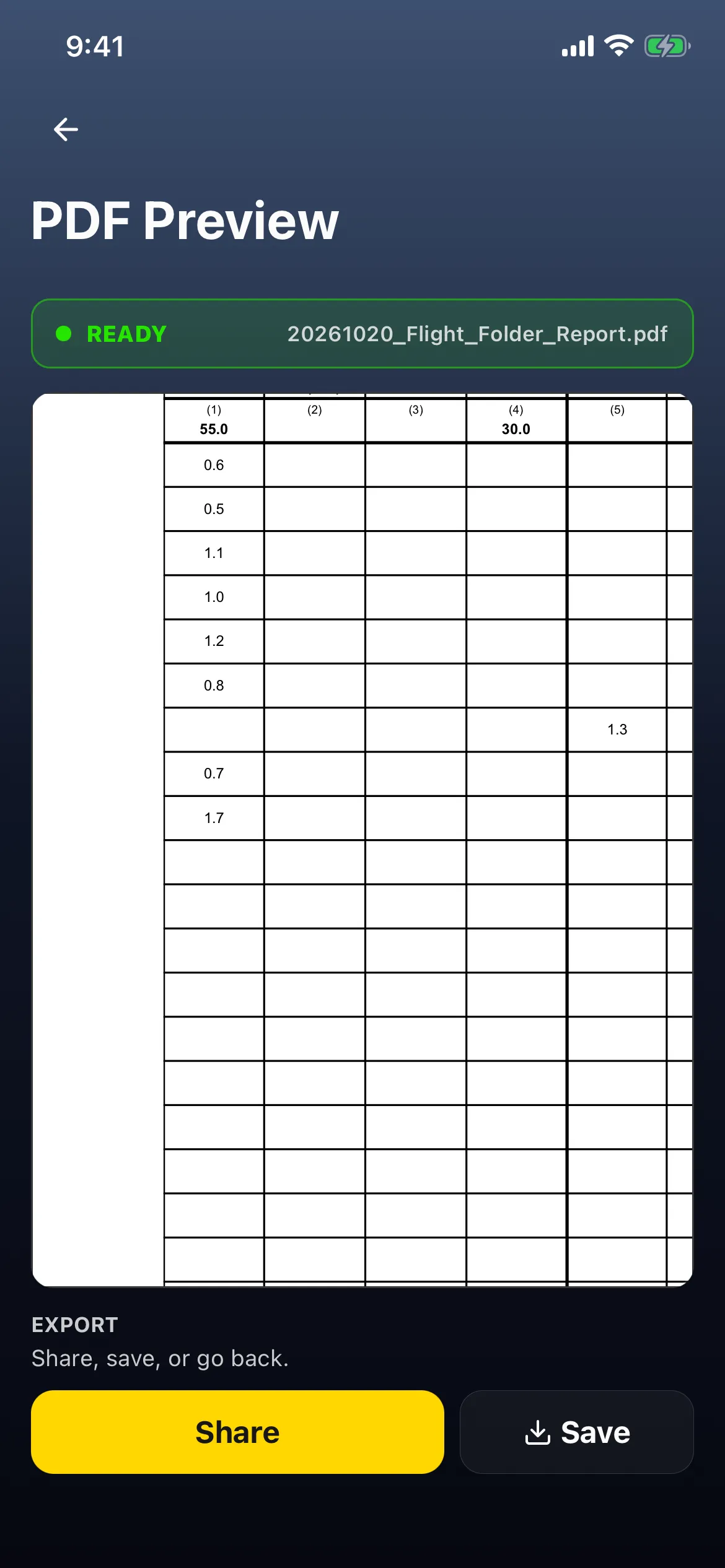
- The top row is brought forward from the paper logbook: (1) 55.0 Day PI and (4) 30.0 P/UT.
- Each flight’s hours sit in its own row. For example, under (1) Day PI: 0.6, 0.5, 1.1, 1.0, 1.2, 0.8, 0.7, 1.7. The 0.8 is a flight from Palo Alto to San Carlos, 14:00–14:50: 0:50.
- The night flight (6 October, 19:40–21:00, 1:20) prints 1.3 under (5) Night PI.
4. Columns add the printed rows
Section titled “4. Columns add the printed rows”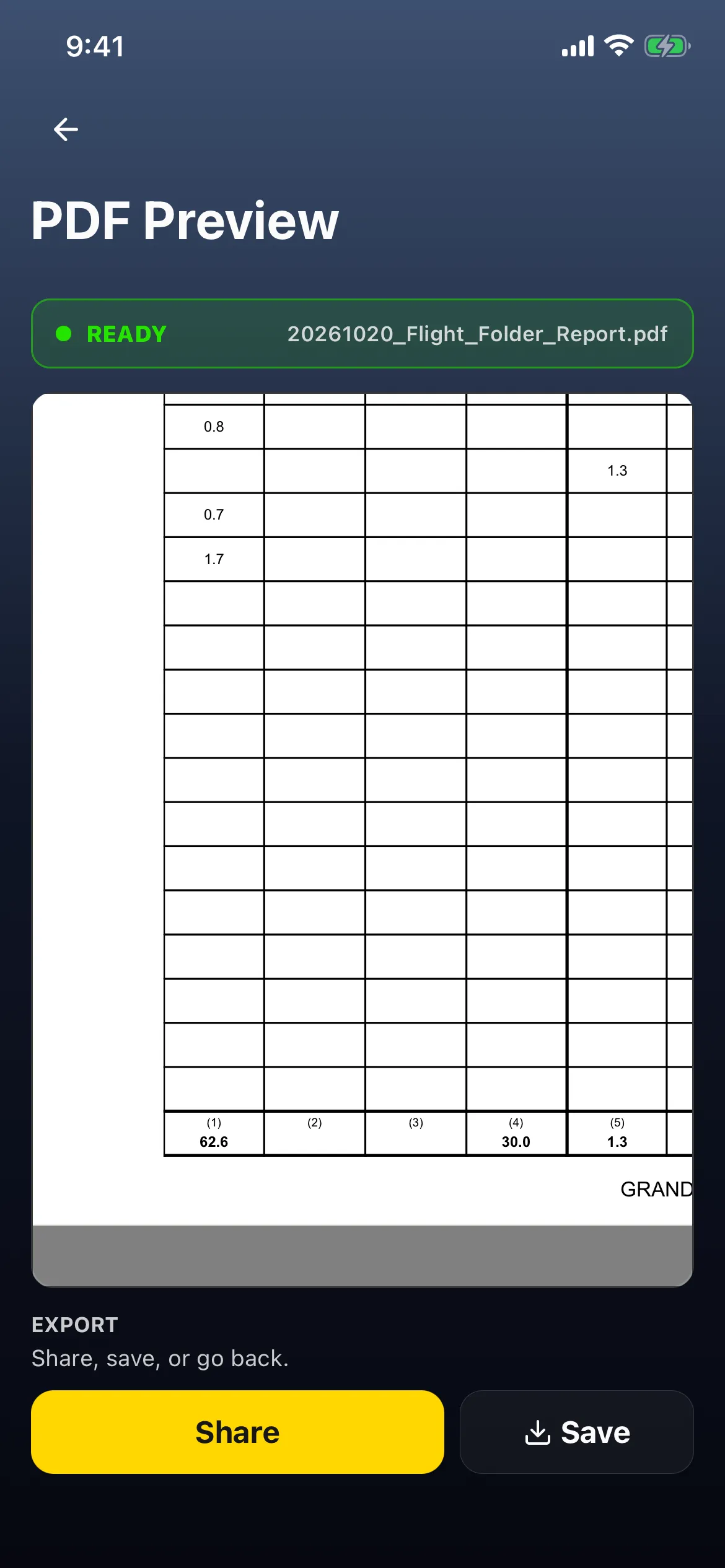
At the bottom of the page: (1) 62.6, (4) 30.0 and (5) 1.3. Column (1) is 55.0 brought forward plus the eight printed rows, 7.6. Converting 62:32 in one go would give 62.5; the PDF prints what the column adds up to.
Below them, GRAND TOTAL COLUMN (1) TO (8): 93.9 HRS: 62.6 + 30.0 + 1.3, which is 93:52 in tenths.
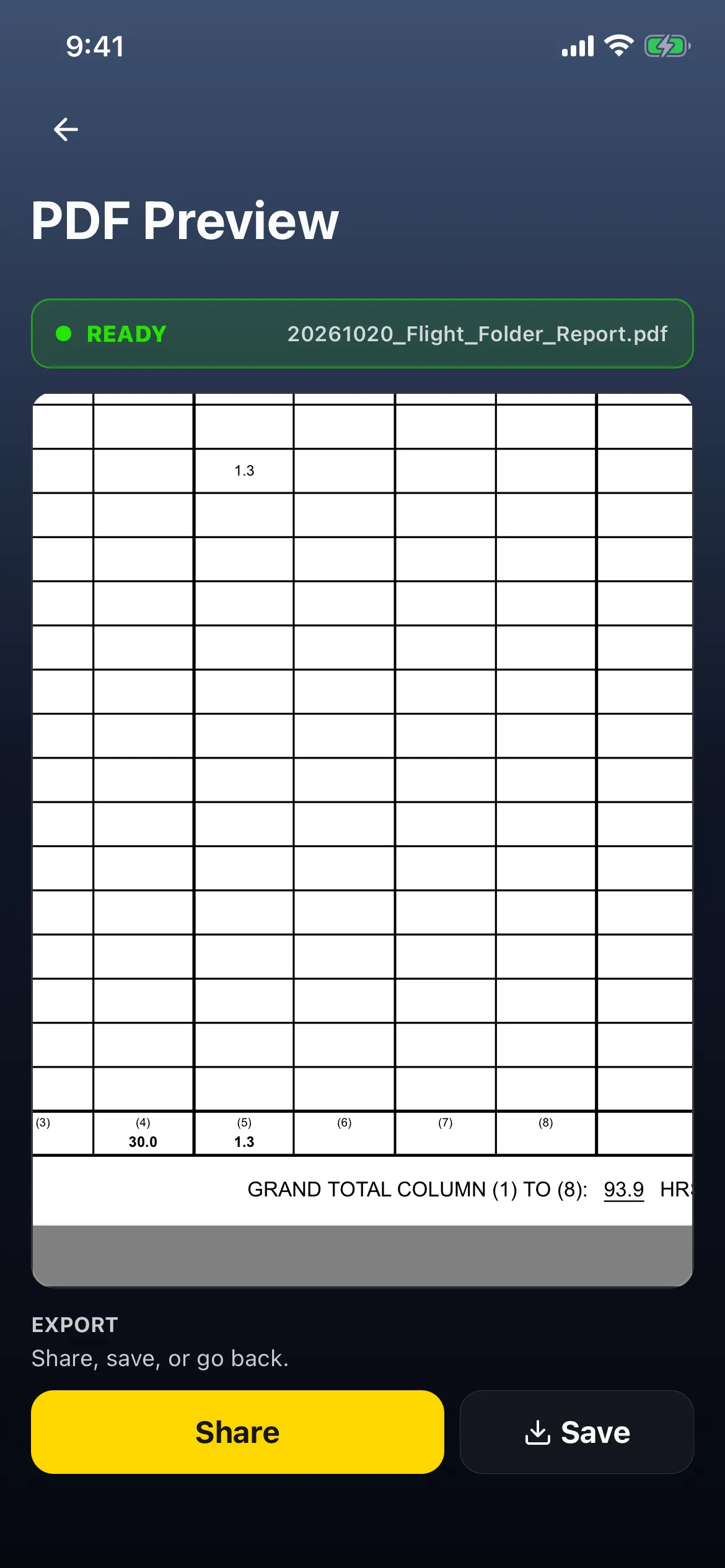
Tap back (←). Nothing is shared or saved until you tap Share or Save.
5. Back to hours and minutes
Section titled “5. Back to hours and minutes”- Account → Settings → Time → HH:MM → Save. A Settings saved. message shows.
- Close and reopen the app. The Time format sheet reads HH:MM (✓), and the Dashboard shows hours and minutes again, for example 93:52.
Good to know
Section titled “Good to know”- No PDF-only setting. The PDF prints what your screens show, so the Dashboard, the flight list and the paper match (for example, with General, a Dashboard reading 93.9 HRS matches the grand total). To print tenths you set the whole app to tenths; there’s no way to keep HH:MM on screen and print tenths.
- If a screen still shows the old format, close and reopen the app. Export picks up the Time setting after the screen loads, and reads the decimal table from the account settings saved on this phone.
- The table is yours to choose. Choosing HKCAD makes no claim about what an authority requires: use the table your form asks for. See See your hours in tenths, and why 0:50 can be 0.8 or 0.9.
- Display only. Your flights keep what you logged, in minutes.
- Time and Decimal Formats are account settings, so they sync to your other devices. Put Time back when you’re done, as in step 5.
- Use Export → PDF Preview to check the tenths.