
Organise sections and checklist order
Each aircraft has sections (new aircraft start with Normal and Non-normal). Add your own, such as Emergency or QRH, and put checklists in the order you fly them.
- On Checklists, tap Edit beside the section name.
- Edit <aircraft> opens. Changes apply as you go.
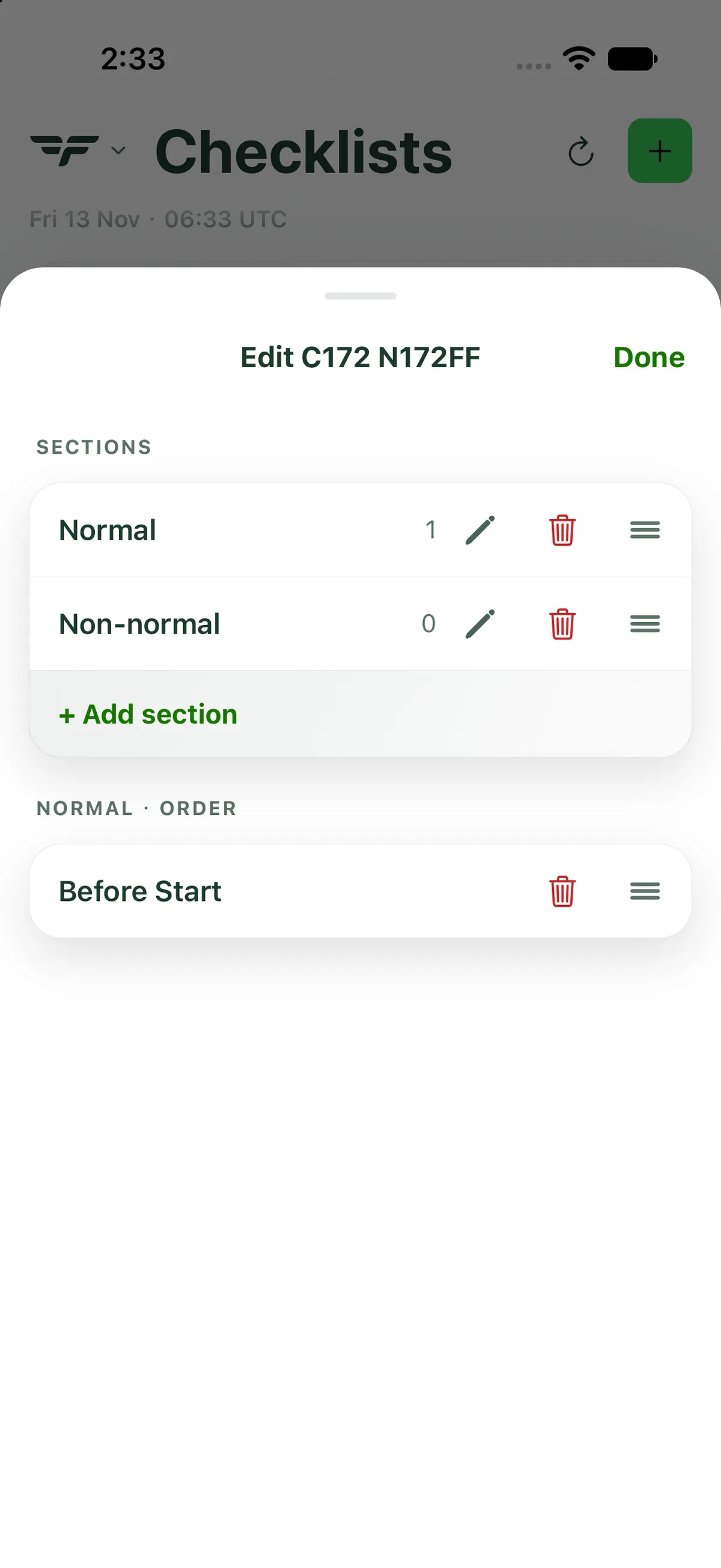
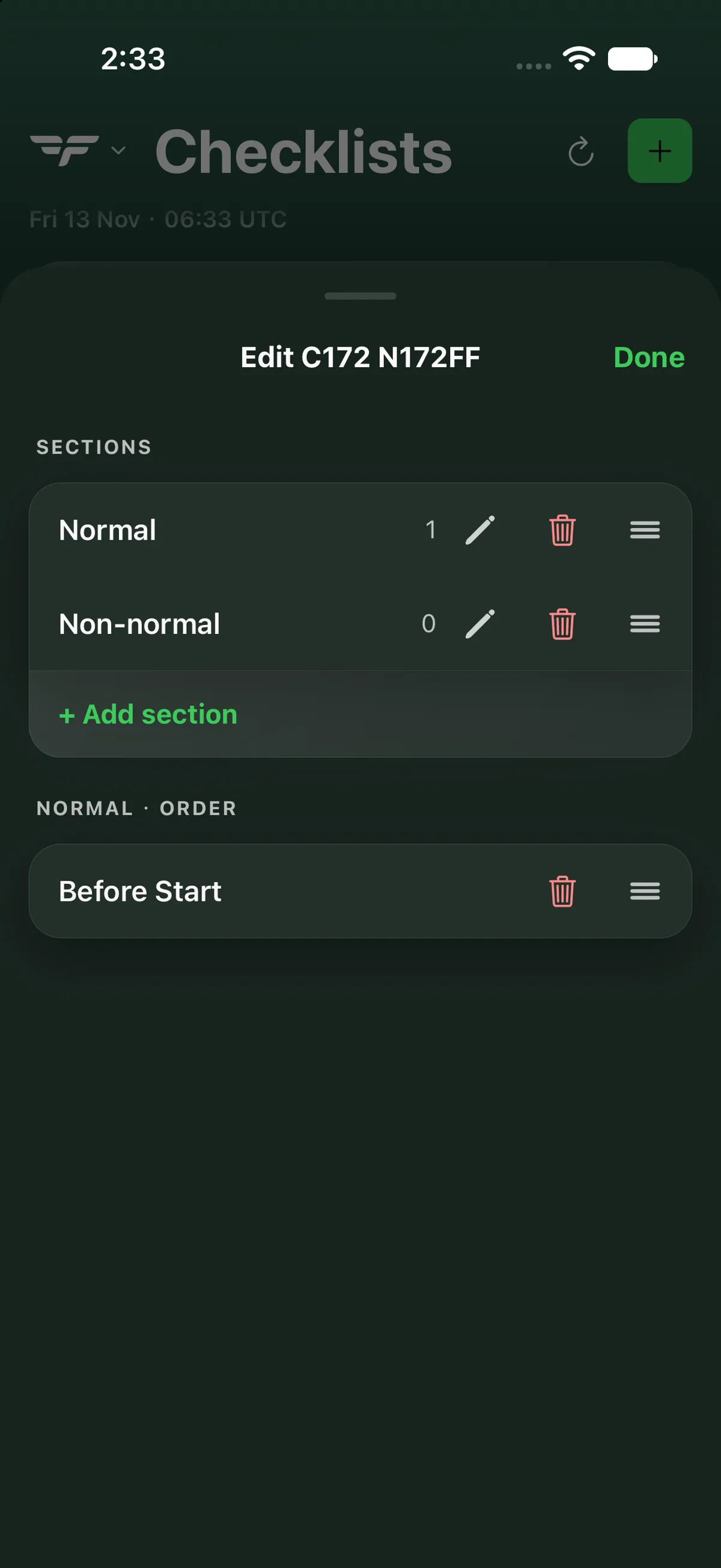
Sections
Section titled “Sections”- Reorder: drag a section by its handle.
- Each section shows how many checklists it has.
- Rename: tap the pencil.
- Add: tap + Add section (For example: Emergency, QRH.).
- Delete: tap the red bin. Its checklists are deleted too. This cannot be undone.
Checklist order
Section titled “Checklist order”Under <section> · order, drag checklists by their handles (the three lines on the right). You can delete a checklist here too with the red bin.
Tap Done when you’re finished.
On iPad
Section titled “On iPad”On iPad every section is listed down the left pane with its own Edit link, instead of section buttons. Edit opens Edit <aircraft> as a tall card in the middle of the screen with the same section rows (count, pencil, bin, handle), + Add section, and the order list for the section you tapped.


On Android
Section titled “On Android”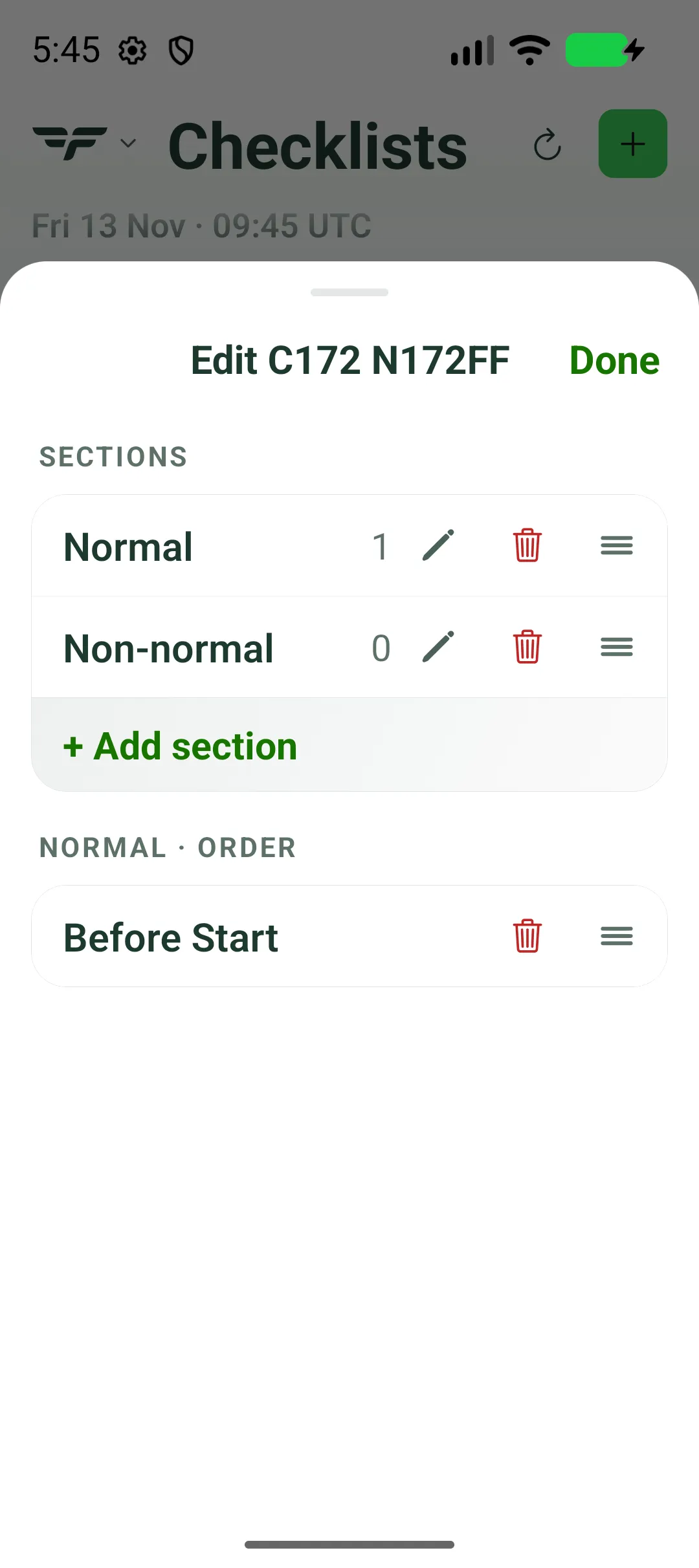

Related: Long-press a checklist - duplicate, move, mark complete · Archive and restore a checklist.