
Set your flight duty limits: My duty rules
My duty rules is where you set the flight duty limits FF Logbook checks your duties against: FDP tables, report and release, cumulative limits and rest. You set them up once, from a template, and they’re applied to your duties automatically, including the Time Loop. Each save is a new version that starts on a date, so duties you’ve already flown keep the rules they were checked by.
This replaces the retired guide Set your Time Loop limits, whose video showed the old per-widget limits.
1. Open My duty rules
Section titled “1. Open My duty rules”- Go to Account › Settings › Duty & FTL › My duty rules.
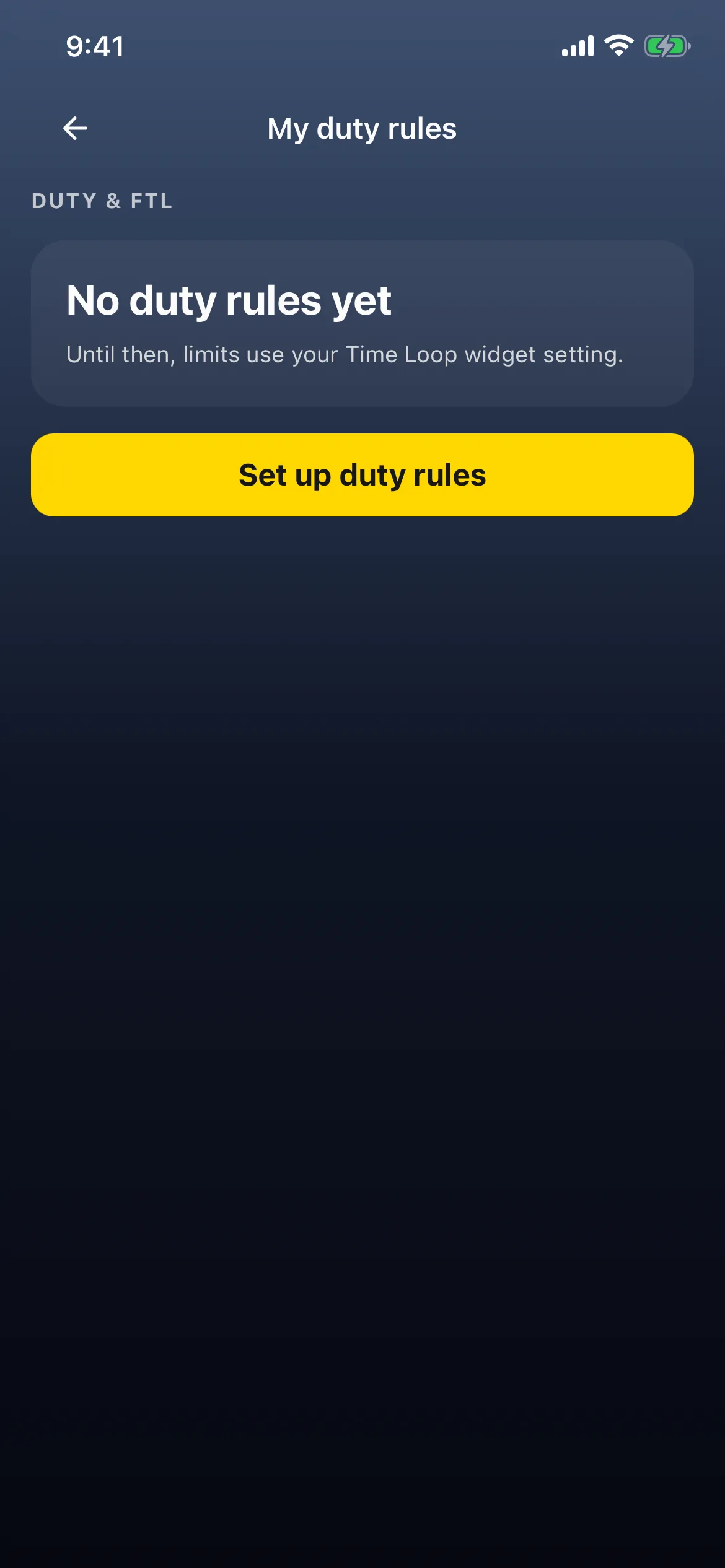
- With nothing set up, it reads No duty rules yet · Until then, limits use your Time Loop widget setting.
- Tap Set up duty rules.
2. Pick a template
Section titled “2. Pick a template”- The form opens on a template, for example New duty rules · FAA 14 CFR Part 117. If your role profile’s airline has its own template, it starts from that one instead.
- NAME is filled in from the template (FAA 117); you can change it.
- TEMPLATE has two groups:
- Airline-specific: AHK template, CPA template.
- General authority: FAA 117, EASA, HK CAD 371, Canada CARs, Canada medevac, UK CAP 371.
- Under the chips, the UNVERIFIED banner names the scheme and says to check every value against your controlled manual.
- Sources · N not modelled lists the parts of the scheme the app doesn’t model: for example 3 not modelled for FAA 117 and 19 for Canada CARs. Read it before you rely on any limit.

3. Check the rules
Section titled “3. Check the rules”- Scroll down to RULES. Each row opens to show its values, and says Template (unchanged), N changed, or Not modelled:
- FDP tables: the maximum FDP by report time and number of sectors (14 CFR Part 117, Table B · acclimatised for FAA 117), with Edit table layout.
- Report & release
- Cumulative limits
- Rest & recovery
- Crew, reserve & exceptions
- Tap a value to change it to match your company’s scheme, higher or lower than the template.
- At the bottom: WHAT CHANGED (a note for this version, such as Revision 12), Reset all (back to the template) and Review & save.

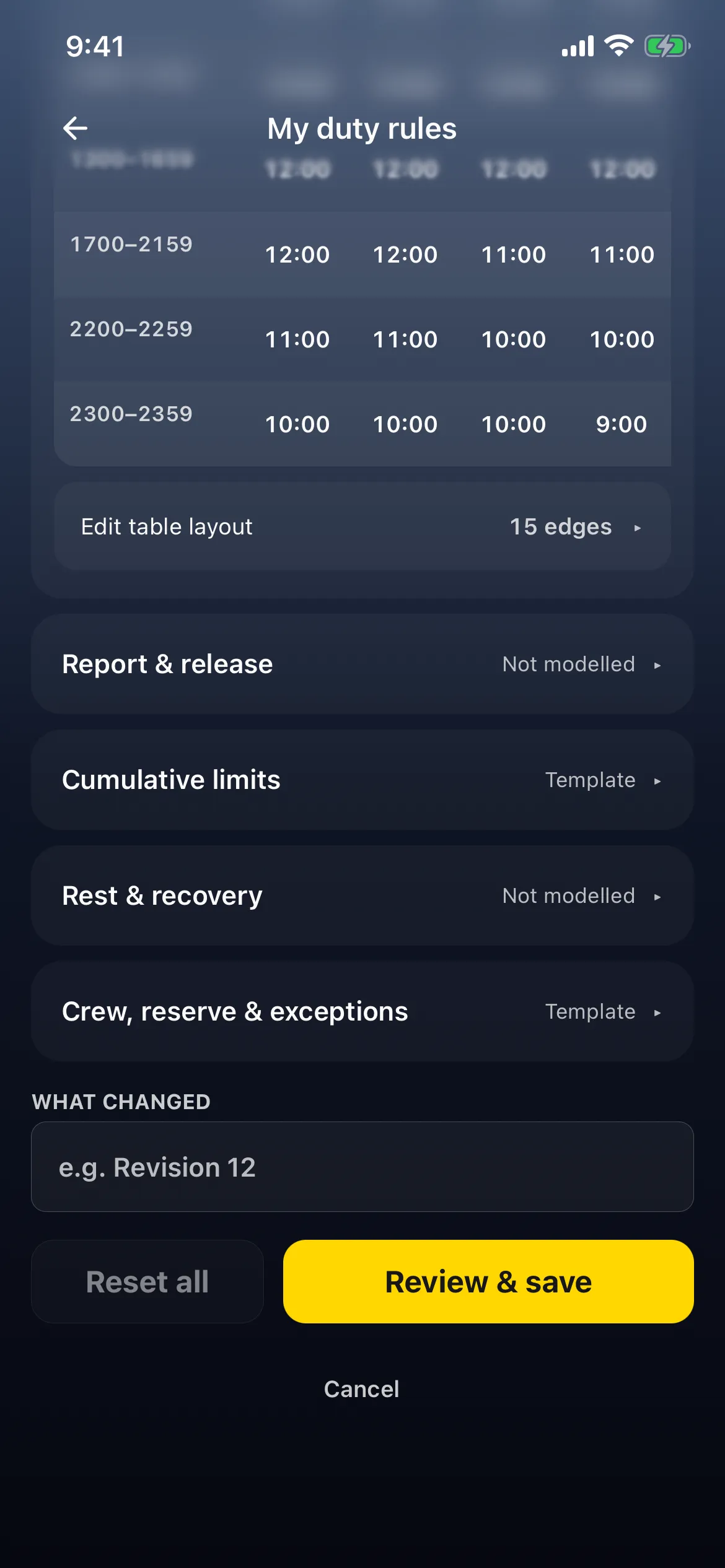
- Tap Review & save.
4. Review and save
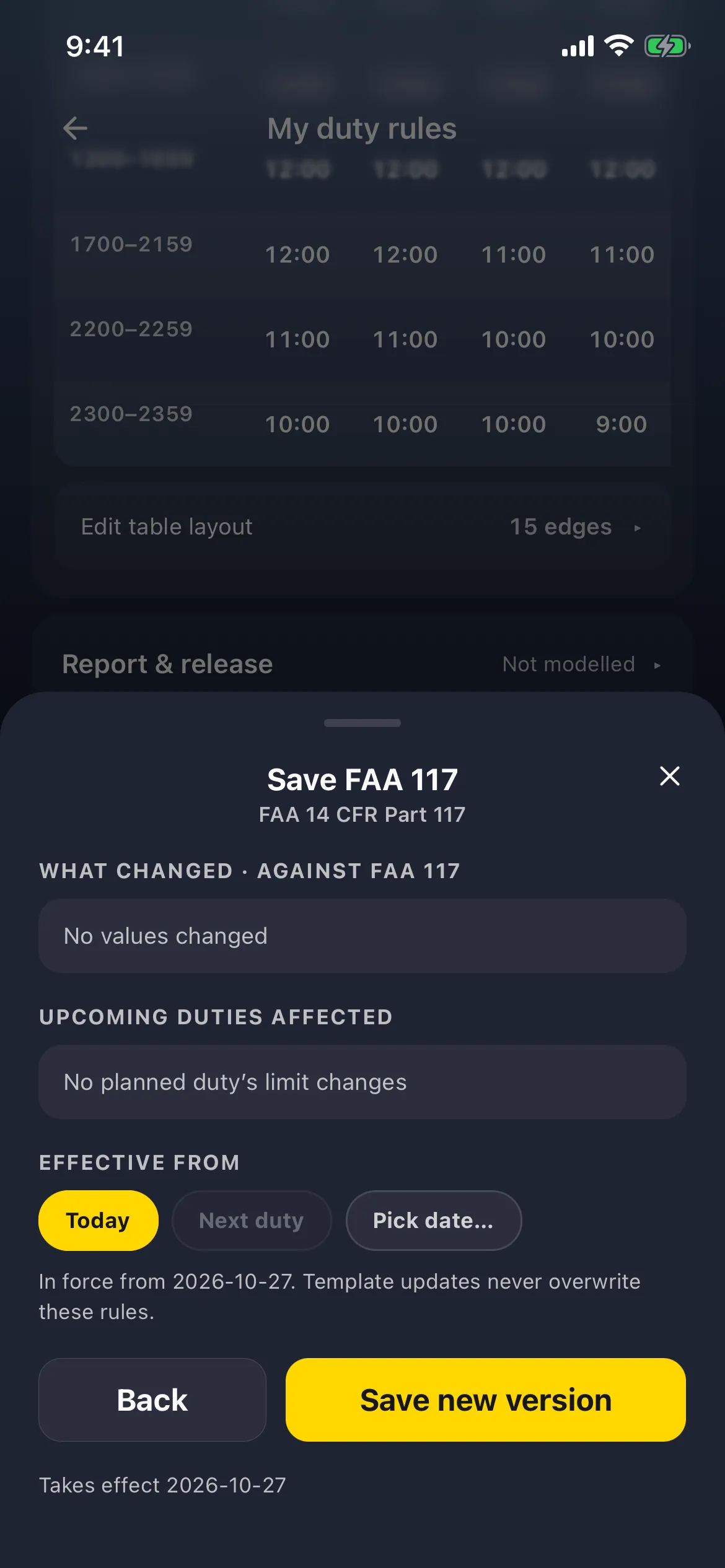
Section titled “4. Review and save”- The sheet Save FAA 117 (FAA 14 CFR Part 117) shows:
- WHAT CHANGED · AGAINST FAA 117: for example No values changed if you changed nothing.
- UPCOMING DUTIES AFFECTED: planned duties whose limit check would change. For example No planned duty’s limit changes. Past duties that would be re-checked get their own list, with Logged times never change.
- EFFECTIVE FROM: Today, Next duty (greyed out if you have no planned duty) or Pick date…. Under it: In force from 2026-10-27. Template updates never overwrite these rules.
- Tap Save new version (Takes effect 2026-10-27).
5. Your active rules
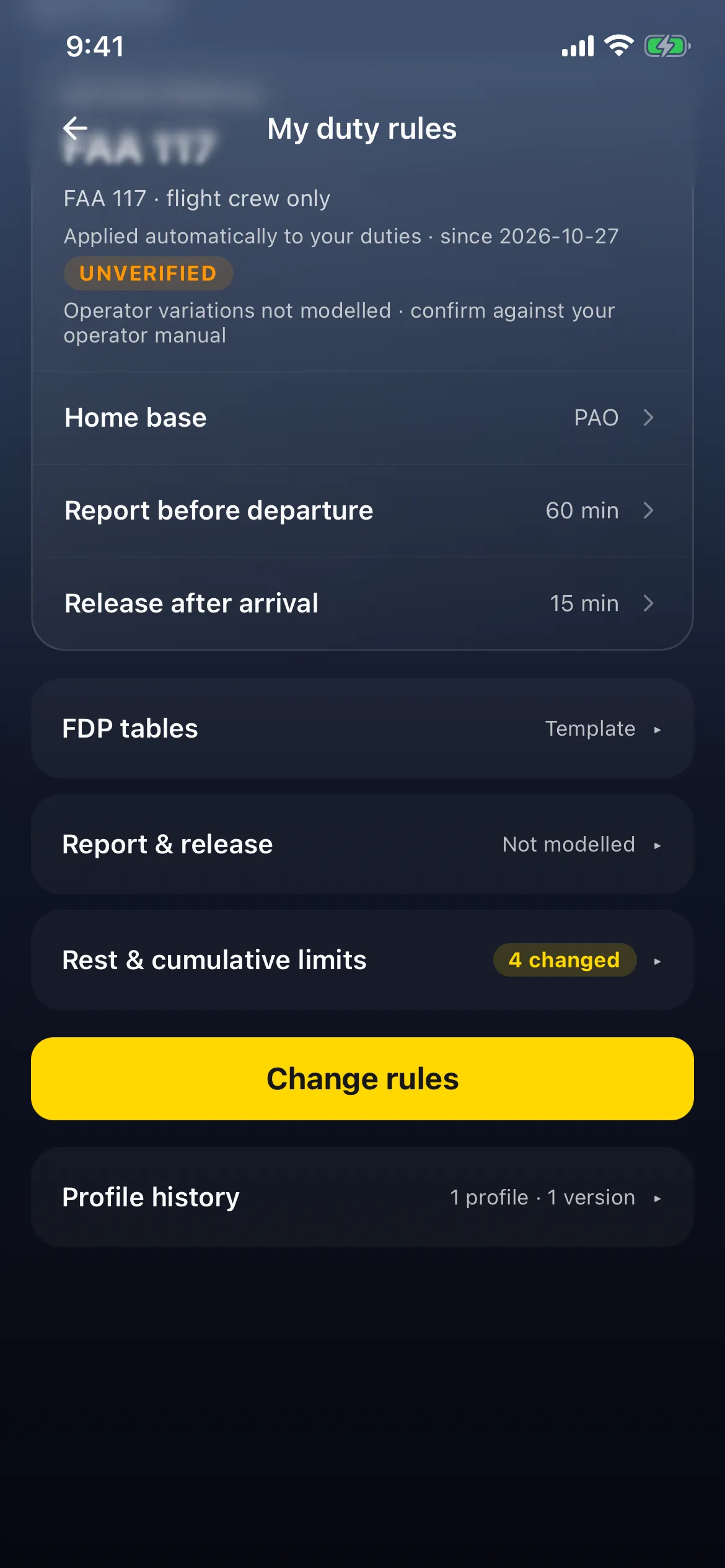
Section titled “5. Your active rules”- My duty rules now shows the ACTIVE PROFILE: FAA 117, FAA 117 · flight crew only, Applied automatically to your duties · since 2026-10-27, the UNVERIFIED tag, and Operator variations not modelled · confirm against your operator manual.
- Below are Home base (for example PAO), Report before departure (60 min) and Release after arrival (15 min), then the rule rows: FDP tables Template, Report & release Not modelled, Rest & cumulative limits (it can read 4 changed even when the review said No values changed).
- Change rules opens the form again; saving adds a new version from the date you pick. Profile history (1 profile · 1 version) lists your profiles and versions.

Undo it: delete a version, archive a profile
Section titled “Undo it: delete a version, archive a profile”- Open Profile history and tap Delete on the version. Delete version explains that duties from its start date will use the version before it, if there is one, and how many duties’ limit checks change. Tap Delete.
- The profile it was filed under stays. Under PROFILES it offers Use from a date, Duplicate and Archive, but not Delete. An archived profile is marked ARCHIVED and can be unarchived.
Good to know
Section titled “Good to know”- Unverified means check it yourself. Every template ships unverified, and an edited table is your own. Check every value against your operator’s manual.
- Pick the start date with care. Duties from that date on are checked by the new version; a duty under way is re-checked the moment you save.
- Template updates don’t change your rules. If a template is updated later, Profile history notes it, and your version keeps its own rules.
- To see the limits at work, open the Time Loop: Read your Time Loop. To log report and release times on a flight, see Log duty and FDP times.