
Long-press a checklist - duplicate, move, mark complete
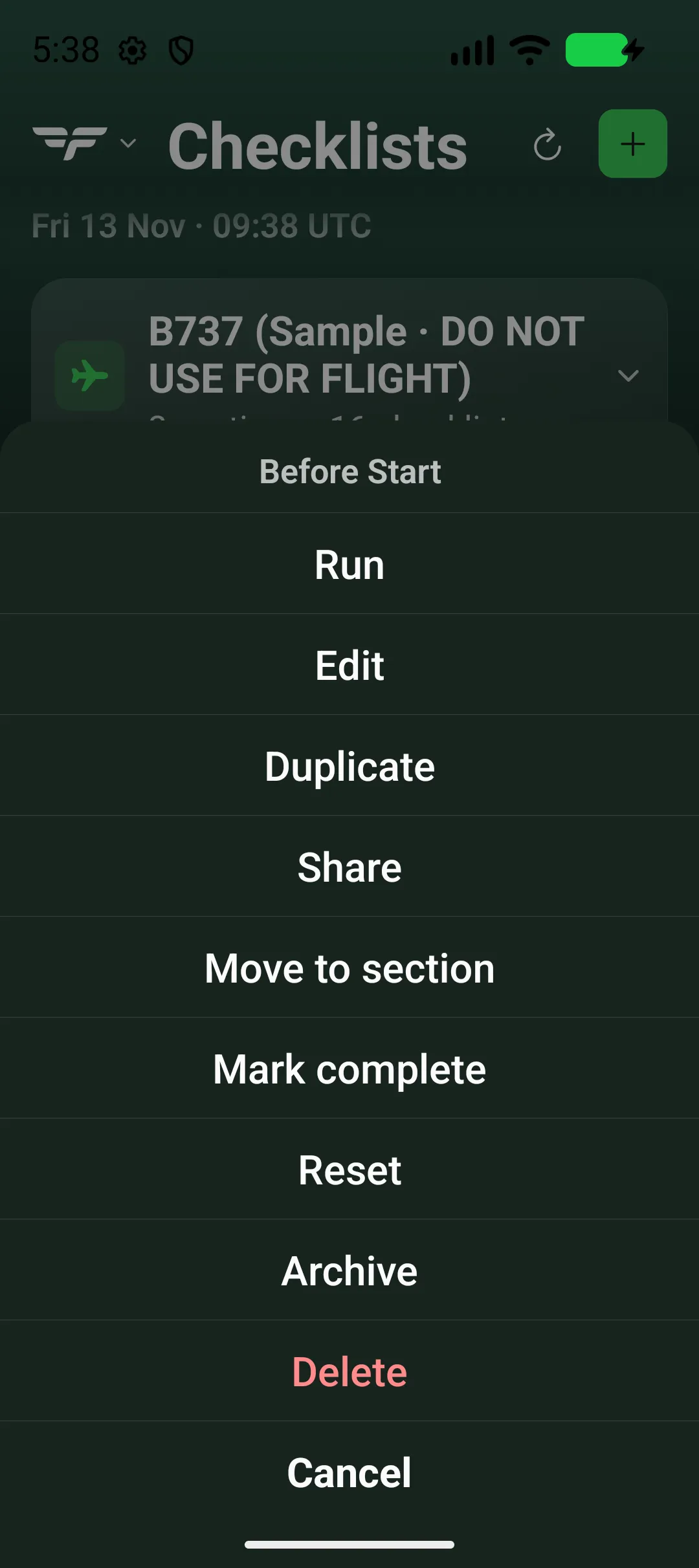
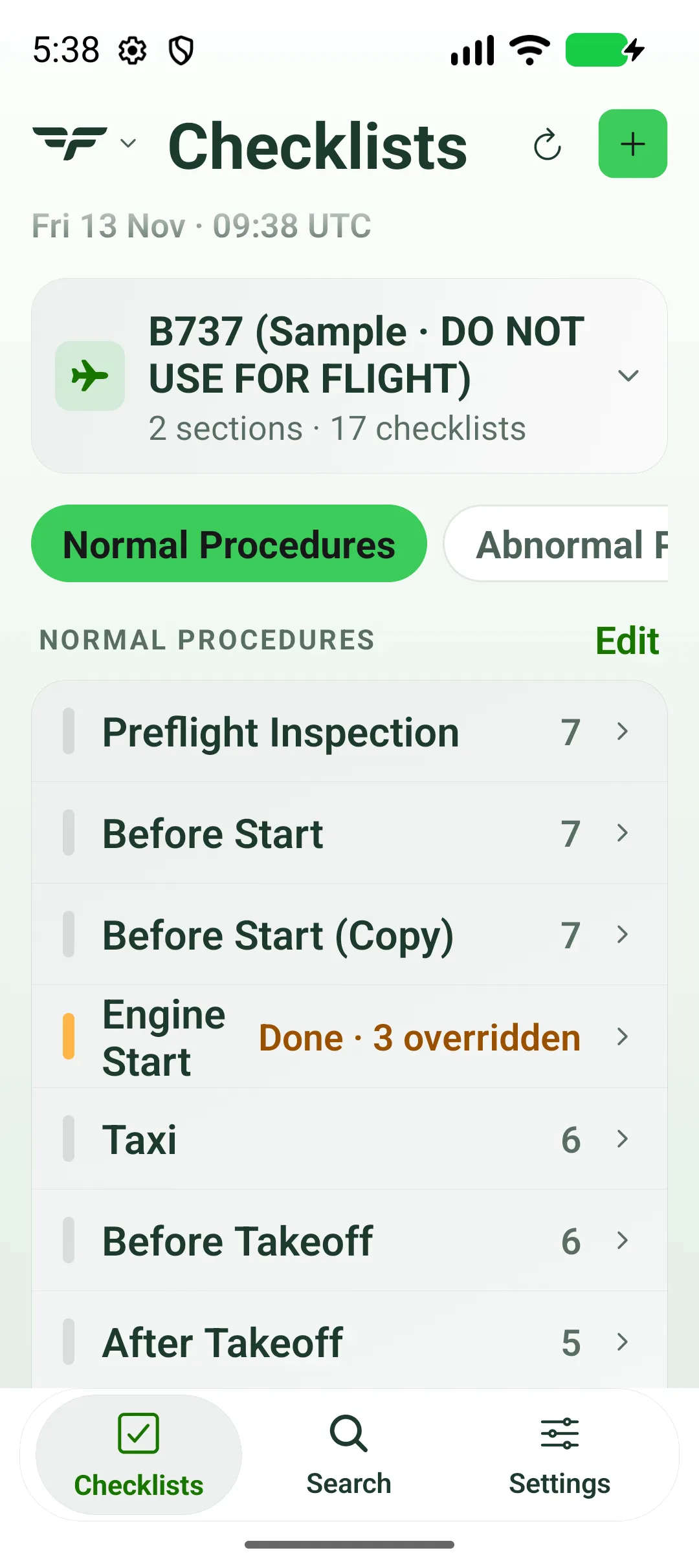
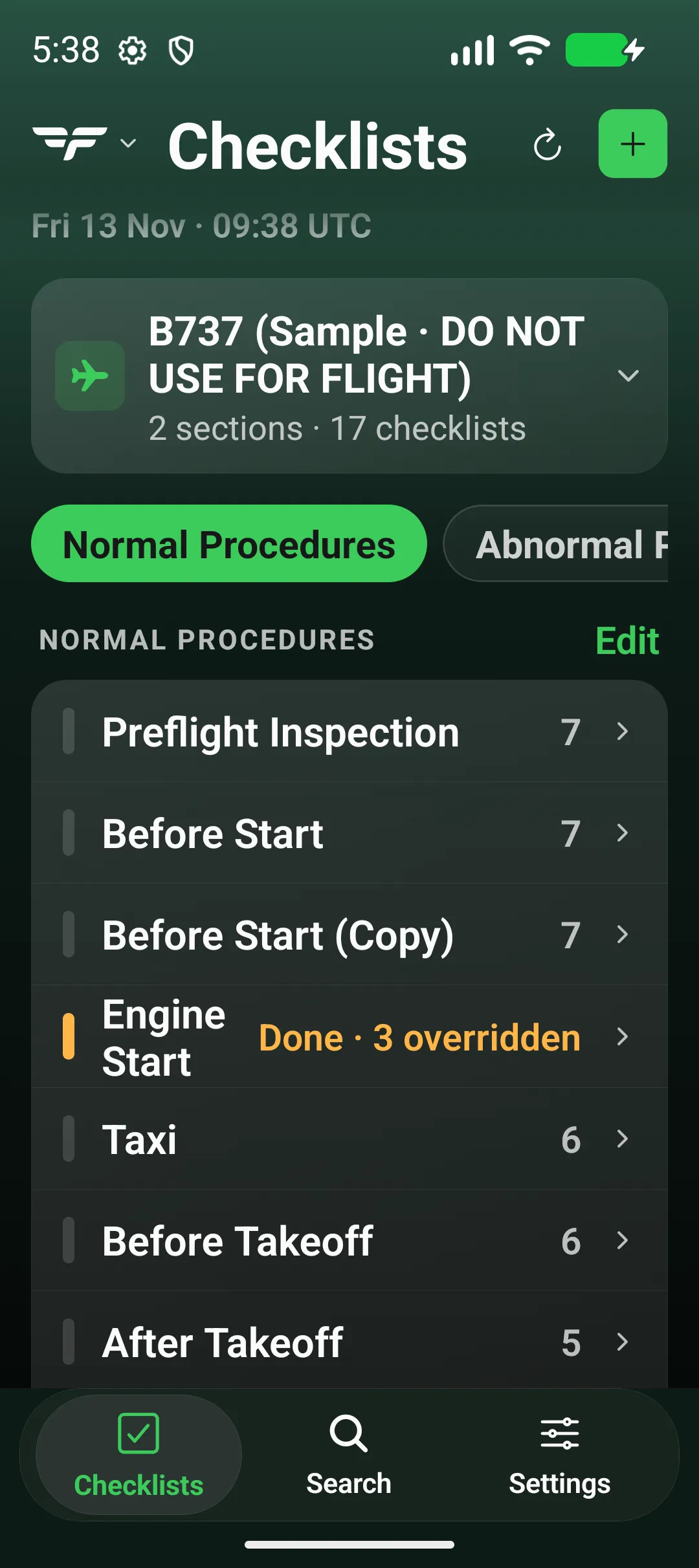
Touch and hold a checklist on Checklists for its menu (Long-press a checklist to mark it complete, duplicate, move or archive it.). With VoiceOver, use the More actions rotor action.


The menu lists the options in this order:
| Option | What it does |
|---|---|
| Run | Opens the checklist. |
| Edit | Opens the editor. See Build your own checklist. |
| Duplicate | Makes a copy named <title> (Copy). |
| Share | File, QR code or text. See Share a checklist - file, QR code or text. |
| Move to section | Only when the aircraft has another section. |
| Mark complete | Only when it isn’t complete. With items open, asks first (see Complete a checklist early). |
| Reset | Clears its check marks. |
| Archive | Hides it from your lists. See Archive and restore a checklist. |
| Delete | Asks first: This cannot be undone. Archive it instead to keep it. |
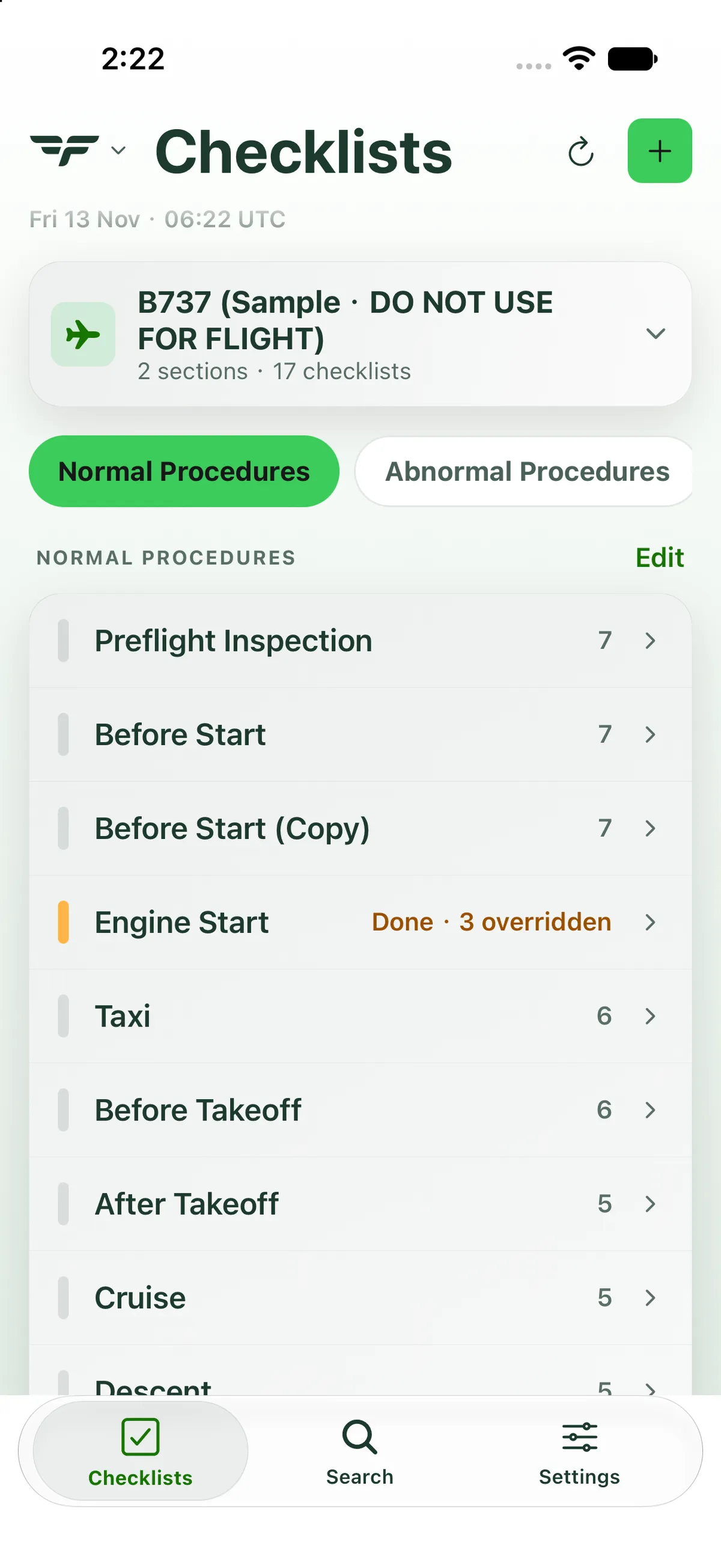

On iPad
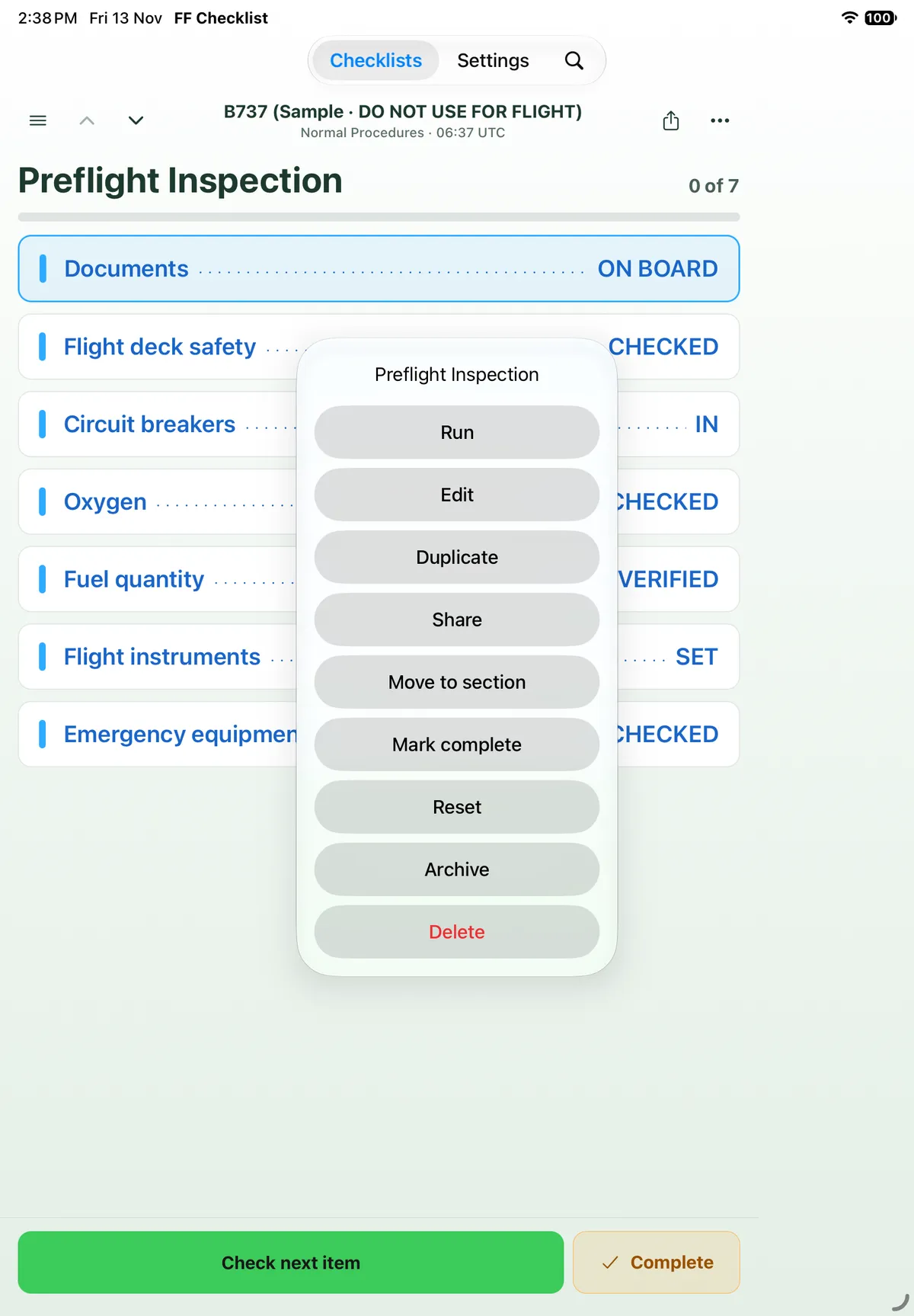
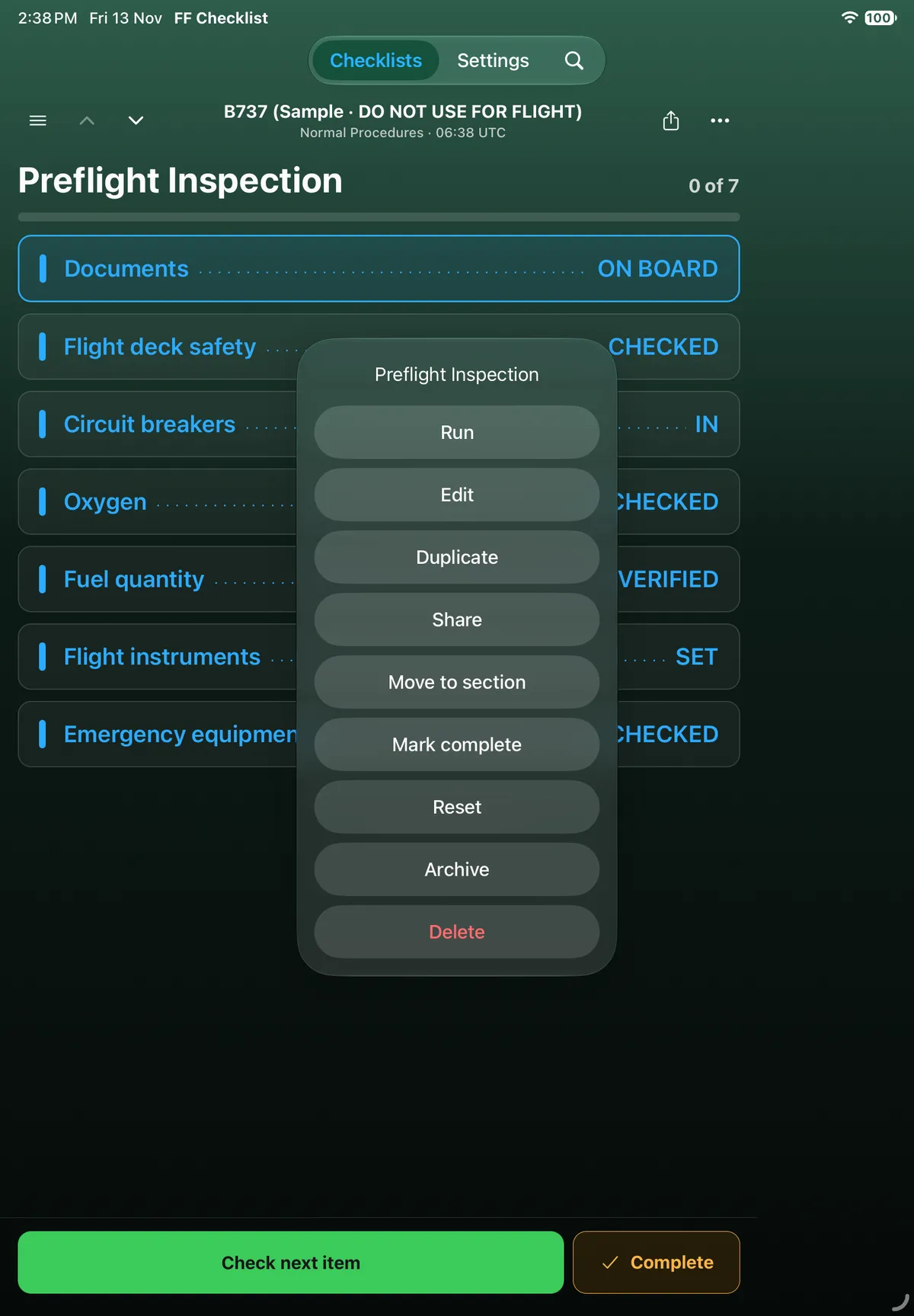
Section titled “On iPad”On iPad, touch and hold a row in the left-hand list: the menu is a card in the middle of the screen, with the same items in the same order (Run, Edit, Duplicate, Share, Move to section, Mark complete, Reset, Archive, Delete). The same menu also opens from ••• at the top right of the open checklist. Delete asks This cannot be undone. Archive it instead to keep it. (Cancel / Delete).
On Android
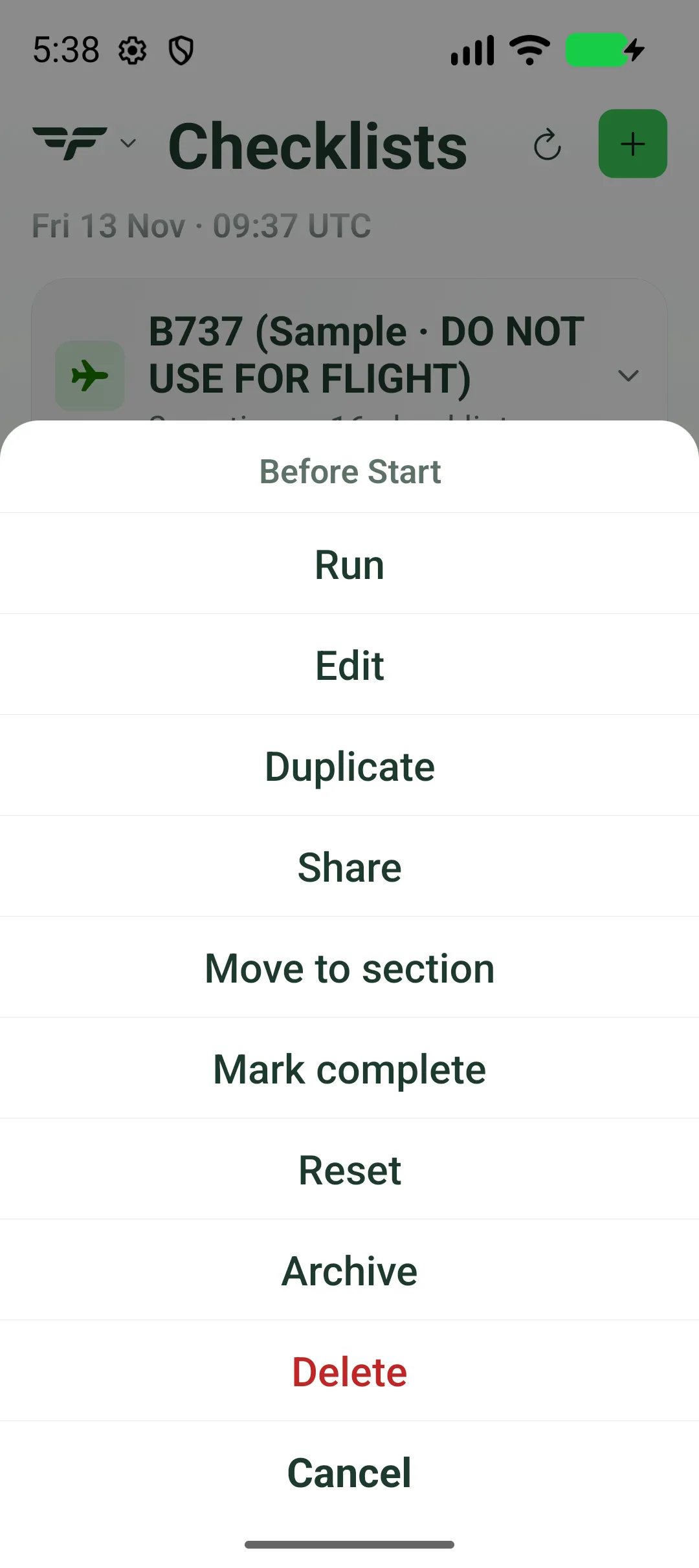
Section titled “On Android”On Android the long-press menu is a sheet from the bottom of the screen, with Cancel at the end.
Related: Getting around FF Checklist.