
What share of your flying is at night? A Ratio goal
How much of your flying is at night? A Ratio goal shows one kind of flight as a share of all your entries. This guide counts night flights against a target of 20% on Reports, so it doesn’t take a Dashboard slot. A Quick Start filter does most of the work, so there’s almost nothing to type.
1. Start a goal
Section titled “1. Start a goal”- Reports → Summary, then tap + Add at the top (on iPad, + Add widget). Or tap the Add Widget tile in an empty section.
- Tap + Start from scratch. The editor opens on the Metric tab, and Show on… reads Reports · Career.
- Swipe the tabs along the top (Metric, Trend, Currency, Compliance, Goal, Time Loop, Activity) and tap Goal. The preview shows your total time of 0 HRS • 0% and the editor says Set a target above 0 before saving.
2. Make it a ratio
Section titled “2. Make it a ratio”- Tap Goal type. The sheet lists Hours, Count, Date, Unique, Streak and Ratio (Track one subset as a share of the whole). Tap Ratio.
- The sheet closes and Goal type reads Ratio. Nothing has been picked to count on top yet, so the preview shows no value (—, of 0 %), and the editor says Set a target percent between 1 and 100 before saving.

3. Set the target, and pick what counts
Section titled “3. Set the target, and pick what counts”- Tap Target. The sheet has a TARGET RATIO box with the hint A percent of matching entries — 75 means 75%., and NUMERATOR FILTERS: Which flights count on top. The ratio is matching entries ÷ every entry in the widget’s scope.
- Tap the box and type 20 (20%).
- Tap + Filter. Add Filter opens with QUICK START (Last 30 Days, IFR Only, Night Operations Night logs, This Year) and, below, the categories (Time, Value, Aircraft, Airport, Flight, Rules, Pin, Crew, Role).
- Tap Night Operations. The sheet closes and the Target sheet shows the chip Has Night Time.
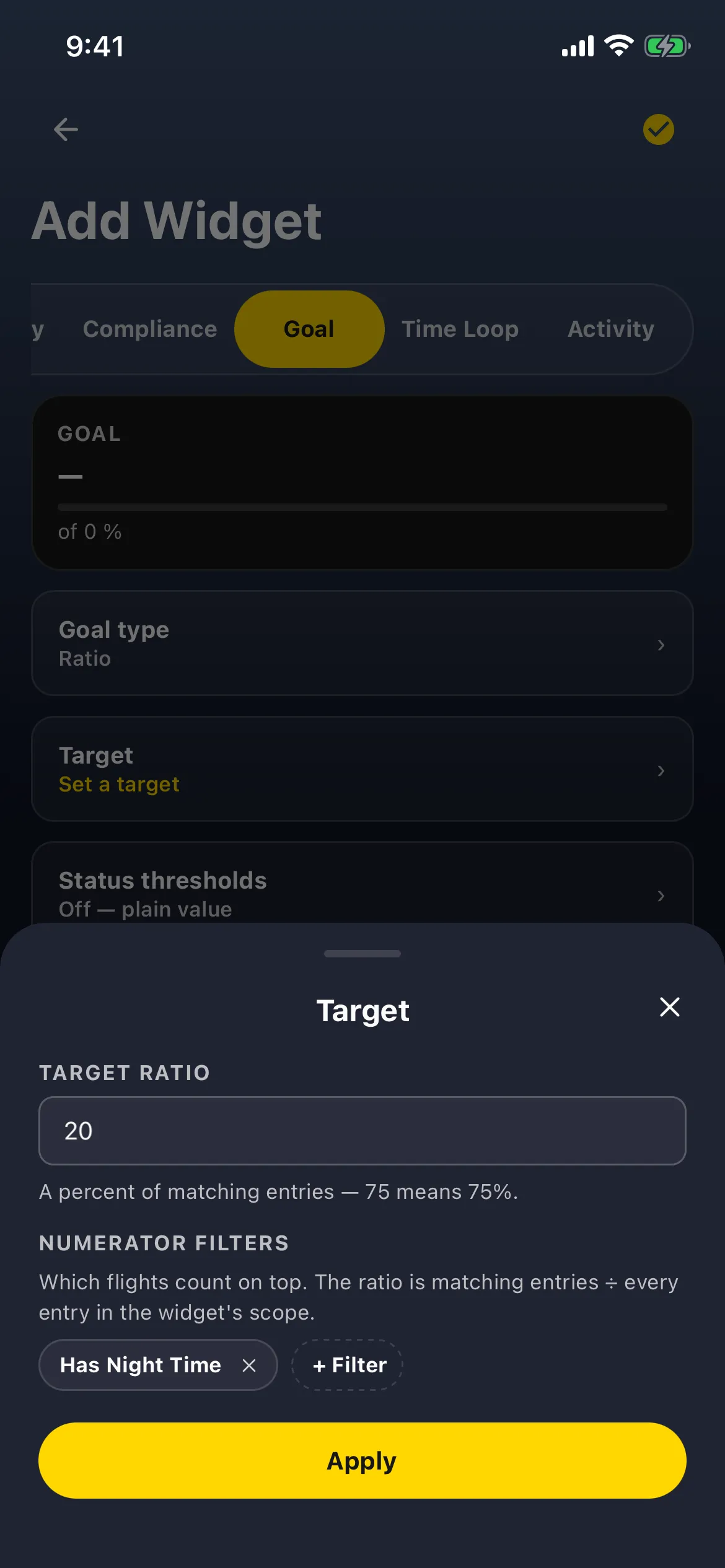
- Tap Apply. The preview counts your logbook straight away, for example 11.1 %, of 20 % • 55%.
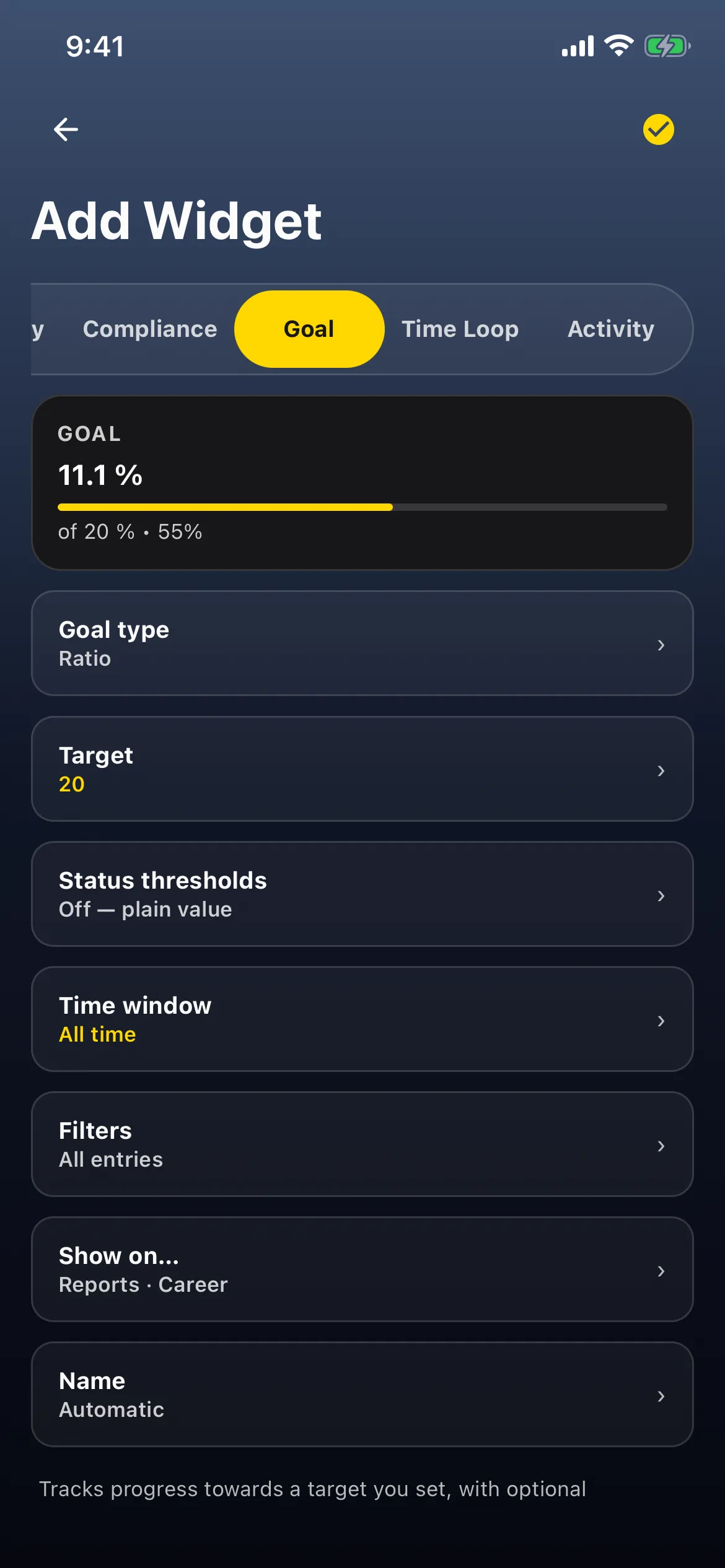
Why 11.1%? In the example the logbook has one night flight (see Get night current again) among 9 flights. One in nine is 11.1%, just over half of the way to 20%. The paper-logbook carry-over (85:00) is not a flown entry, so it is left out of the ratio.
To keep it, name it and save it (step 4).
4. Name it and save
Section titled “4. Name it and save”- Optional: tap Name. The box shows a placeholder, Total Time. Type a name (for example Night share). Tap Apply in the sheet. The preview’s label changes from GOAL to NIGHT SHARE.
- Tap the checkmark (Save) at the top right. The editor goes back to the widget library: tap ✕ to close it. Your goal is on Career, for example NIGHT SHARE 11.1 %, of 20 % • 55%.

On Reports the card is compact, with no progress bar; on the Dashboard it shows the bar.
What counts
Section titled “What counts”- Entries, not hours. The ratio is the number of entries that match the numerator filters, divided by the number of entries in the widget’s scope. A 0:30 circuit and a 5:00 cross-country count the same: one entry each. To see night hours, use an Hours goal or a card with a Night Time metric instead (see Count exactly the hours you need).
- Your carry-over doesn’t count. A paper-logbook total isn’t a flown entry, so it is in neither the top nor the bottom of the ratio. See Carry over your old logbook.
- The Time window and Filters set the denominator. The ratio is taken over the entries the goal’s Time window (All time) and Filters (All entries) let through; the numerator filters then pick from those. Set the Time window to This year to see this year’s night share, or add a filter to leave out simulator sessions.
- No numerator filter means no value. Until you pick what counts on top, the card shows no figure rather than 100%.
Good to know
Section titled “Good to know”- A target of 0.25 still works as 25%. The target is a percent, but a target of 1 or less is read as a fraction (0.25 = 25%), so goals saved the old way keep working. The catch is the edge: 1 means 100%, not 1%.
- Other Quick Starts work the same way. IFR Only gives your IFR share; Last 30 Days or This Year as the numerator gives the share of your flying that’s recent. Or open a category below the Quick Starts (Rules, Crew, Aircraft…) to count something else on top, such as one aircraft type.
- Tapping the card opens the editor, not your flights, because a Ratio goal has no metric. Back out without saving if you only meant to look.
- Changed your mind before saving? The back arrow at the top left leaves the editor; it asks before discarding your changes, and nothing is saved.
- To remove it: tap ⋮ on the card → Delete → Delete this widget? → Delete.