
Saved, History and Scratchpad - what stays on this device
Everything in this guide is stored only on this phone or tablet. It isn’t saved to your Flight Folder account and doesn’t move to a new device. Signing out or deleting your account leaves it in place.
Saved: Favorites
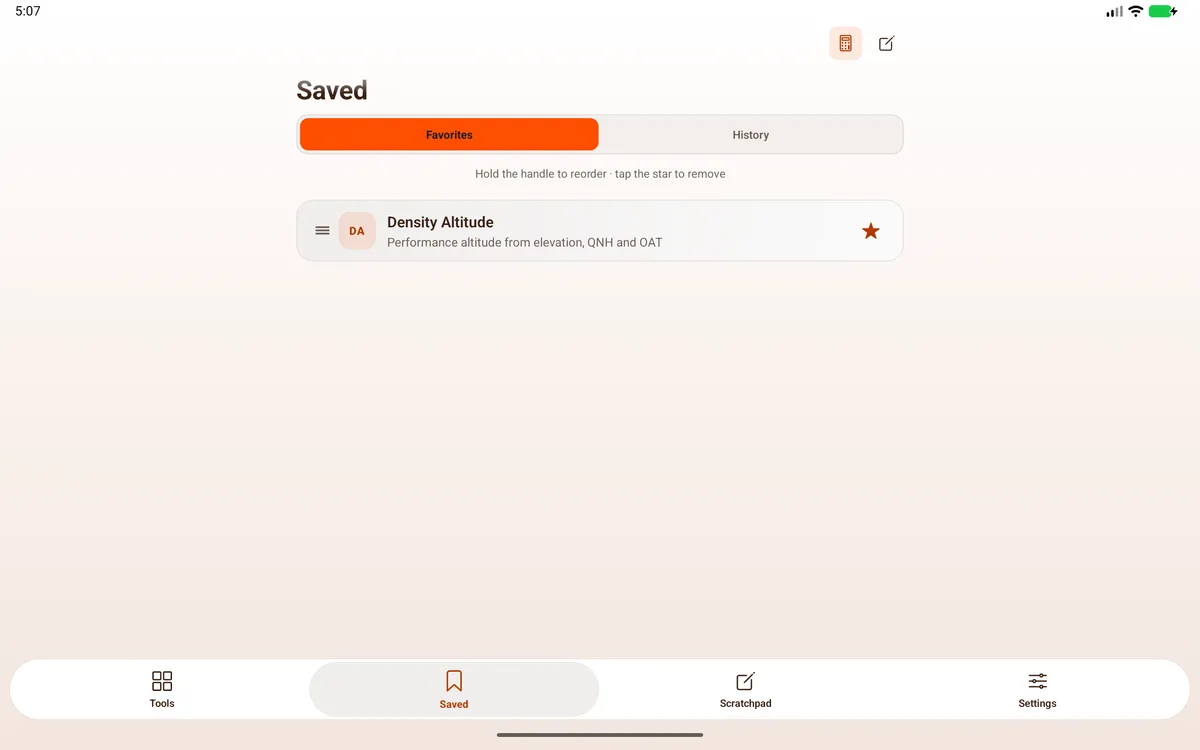
Section titled “Saved: Favorites”Star a tool from a category list, or tap Favorite in a calculator’s ⋯ menu. Favorites appear on Saved → Favorites. Hold the handle to reorder · tap the star to remove.


Saved: History
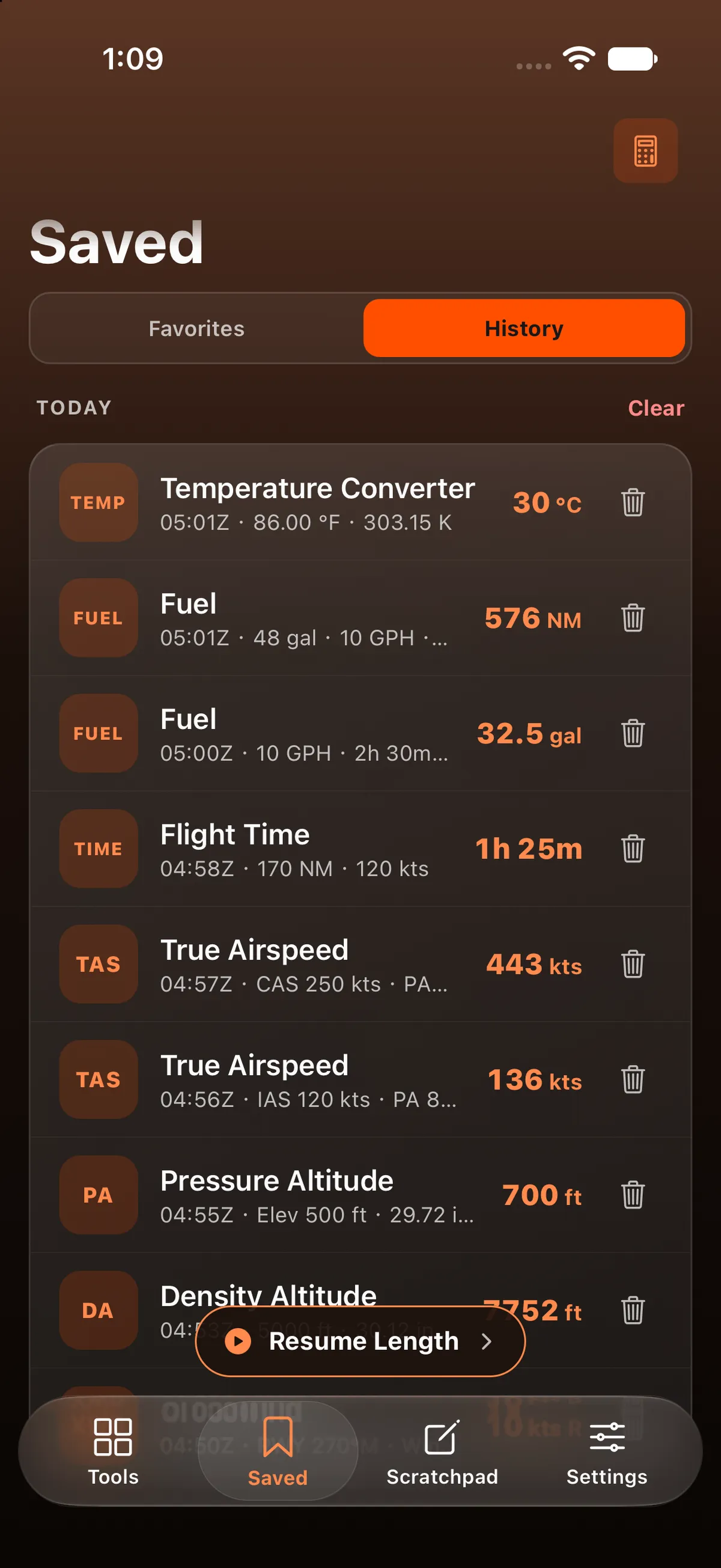
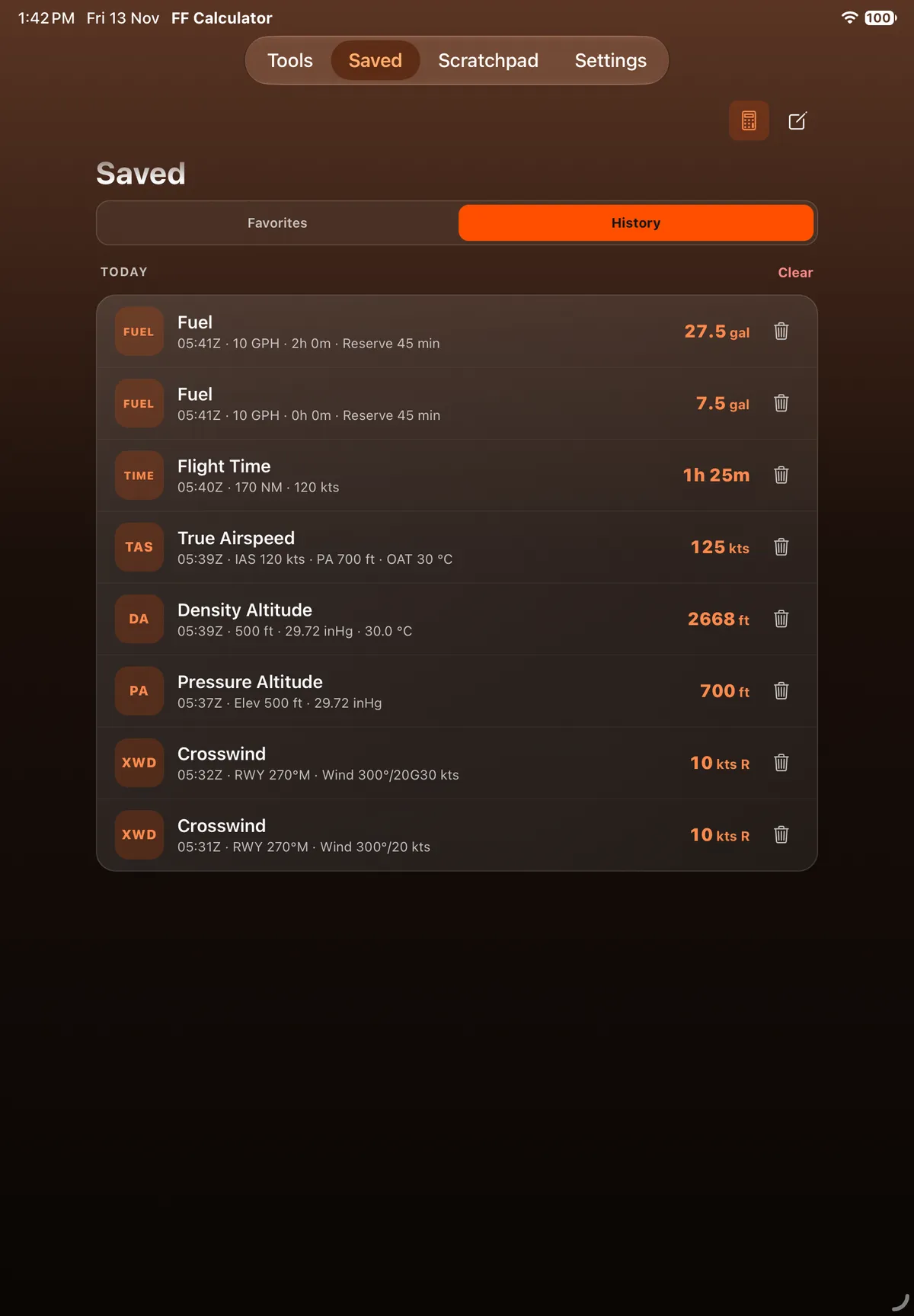
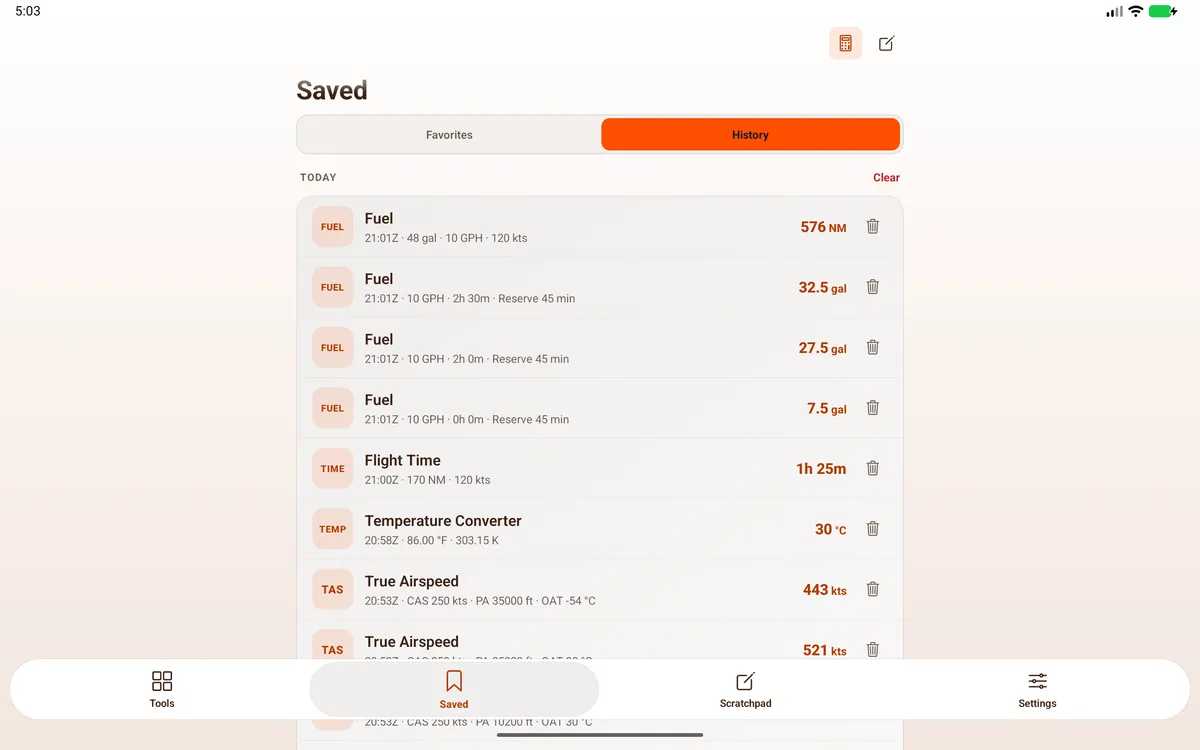
Section titled “Saved: History”Saved → History lists your recent results from every calculator, grouped by Today, Yesterday and earlier days. Each row shows the tool, the time in UTC (for example 1432Z), a summary of the inputs and the result. Tap a row to reopen the calculator with those inputs. The bin removes one row (Delete calculation); Clear removes them all. It keeps the latest 50.

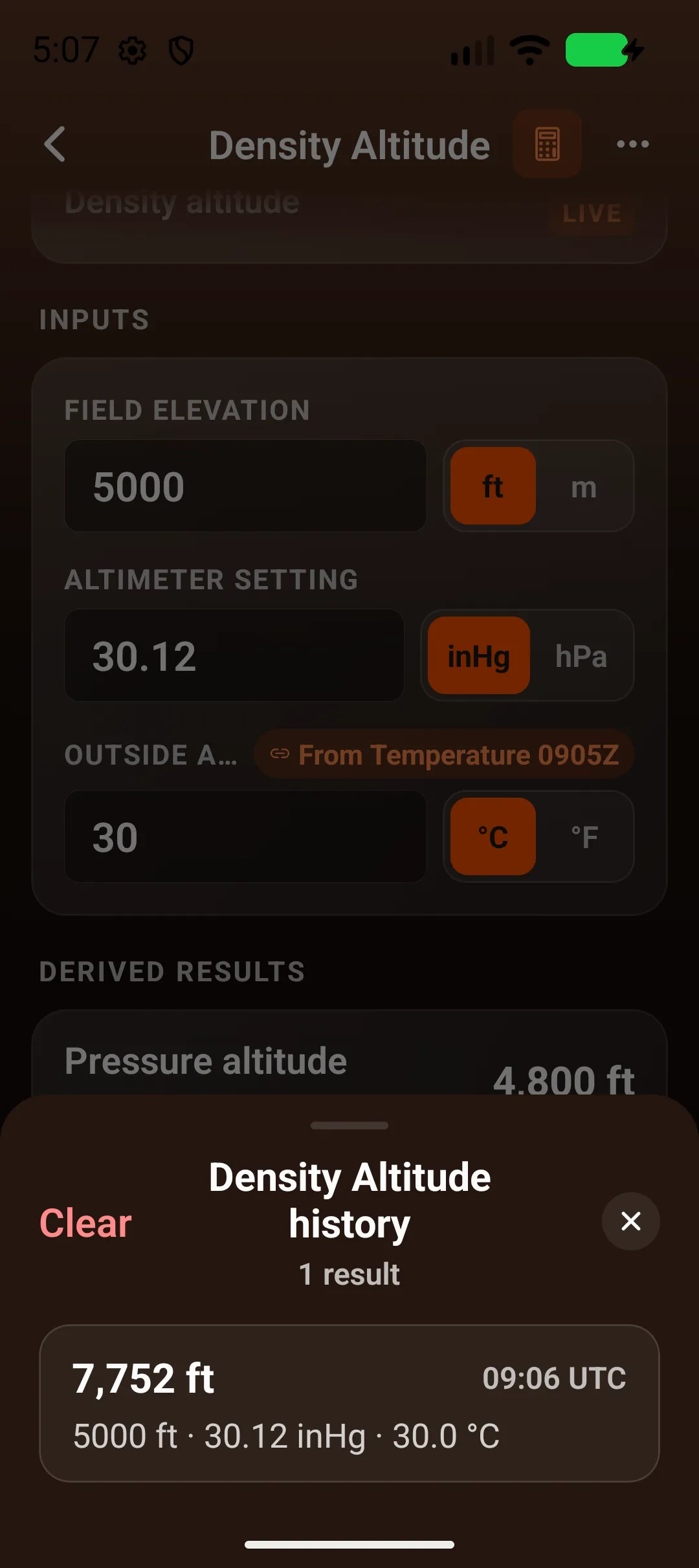
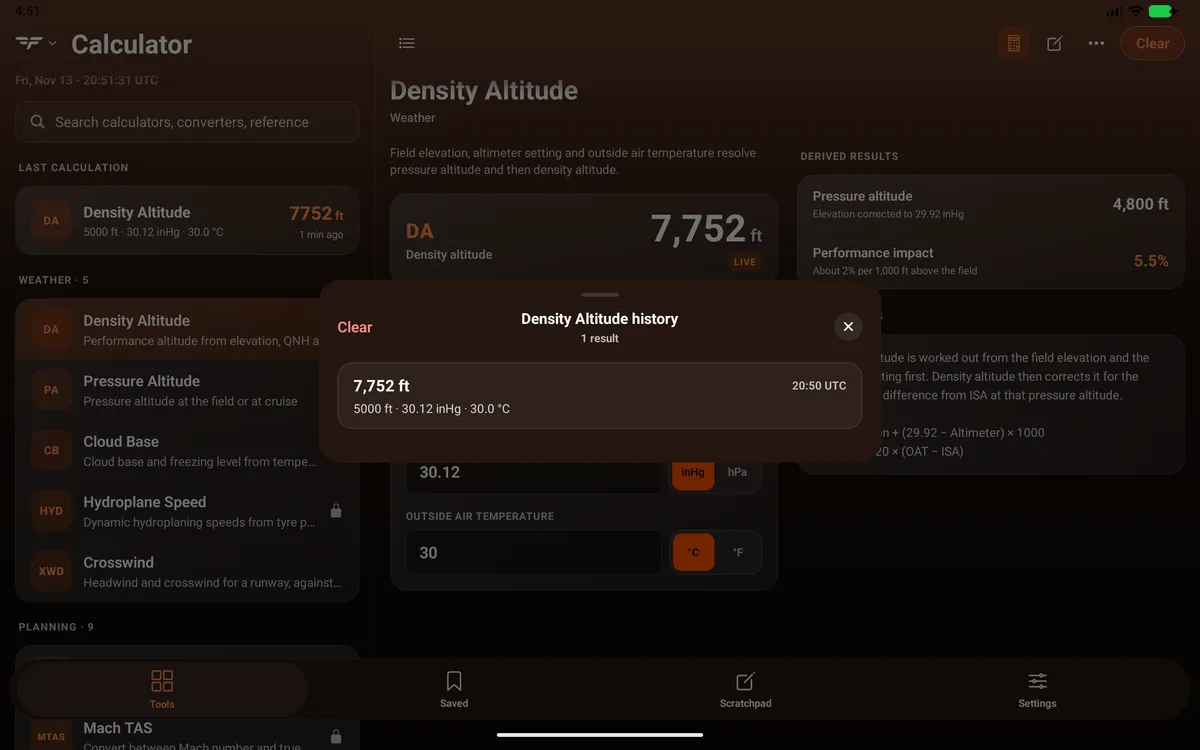
Each calculator also keeps its own list: ⋯ → History opens a sheet such as Density Altitude history (1 result), with Clear and ✕. Tap a result to load its inputs.


Scratchpad
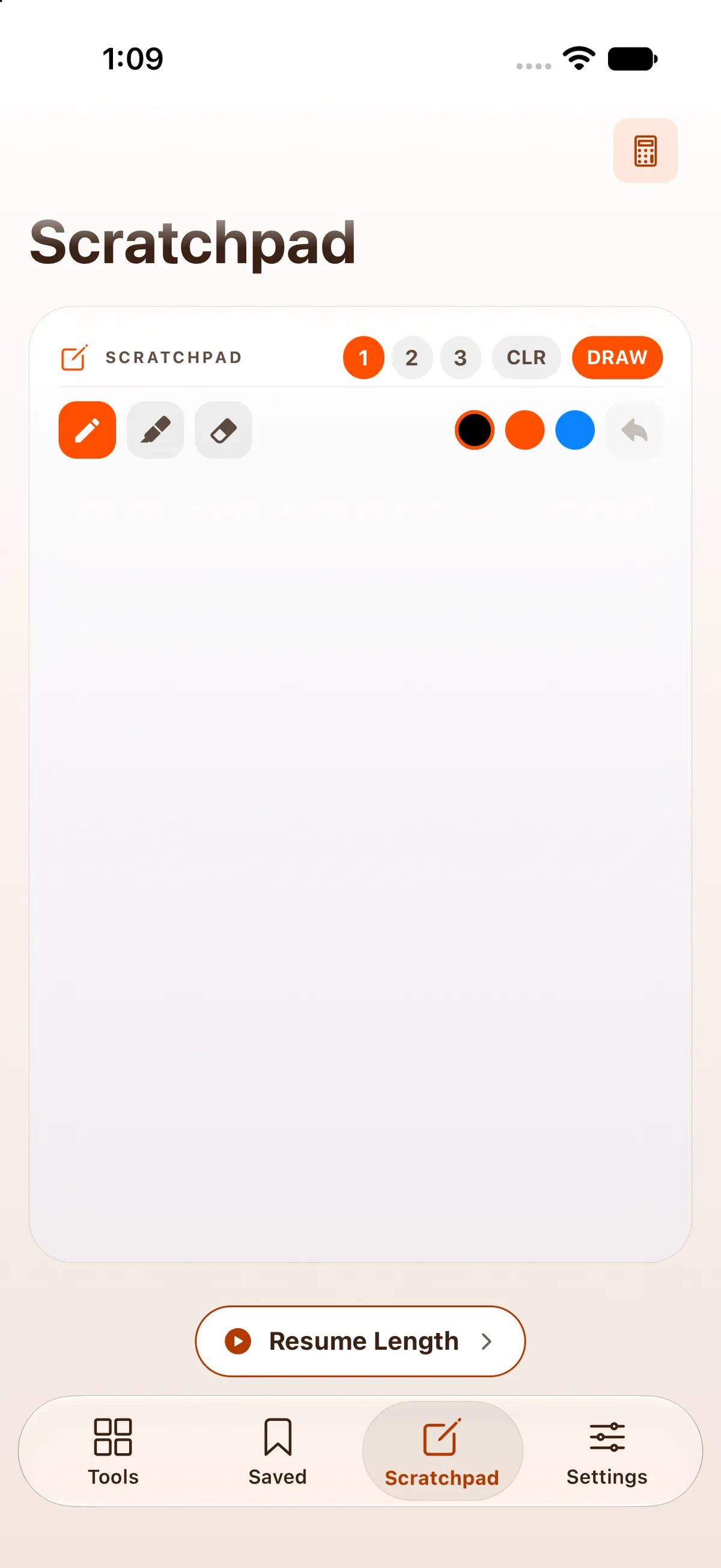
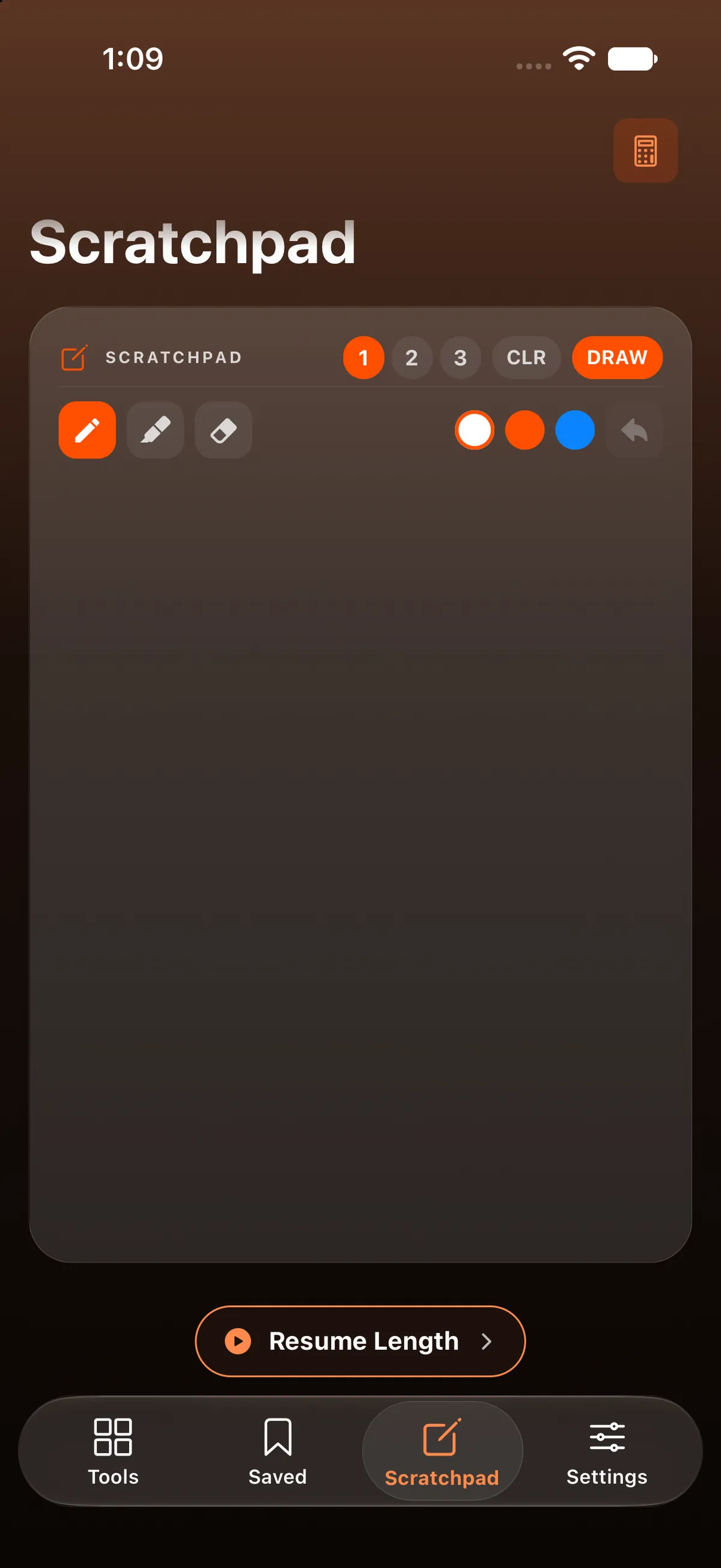
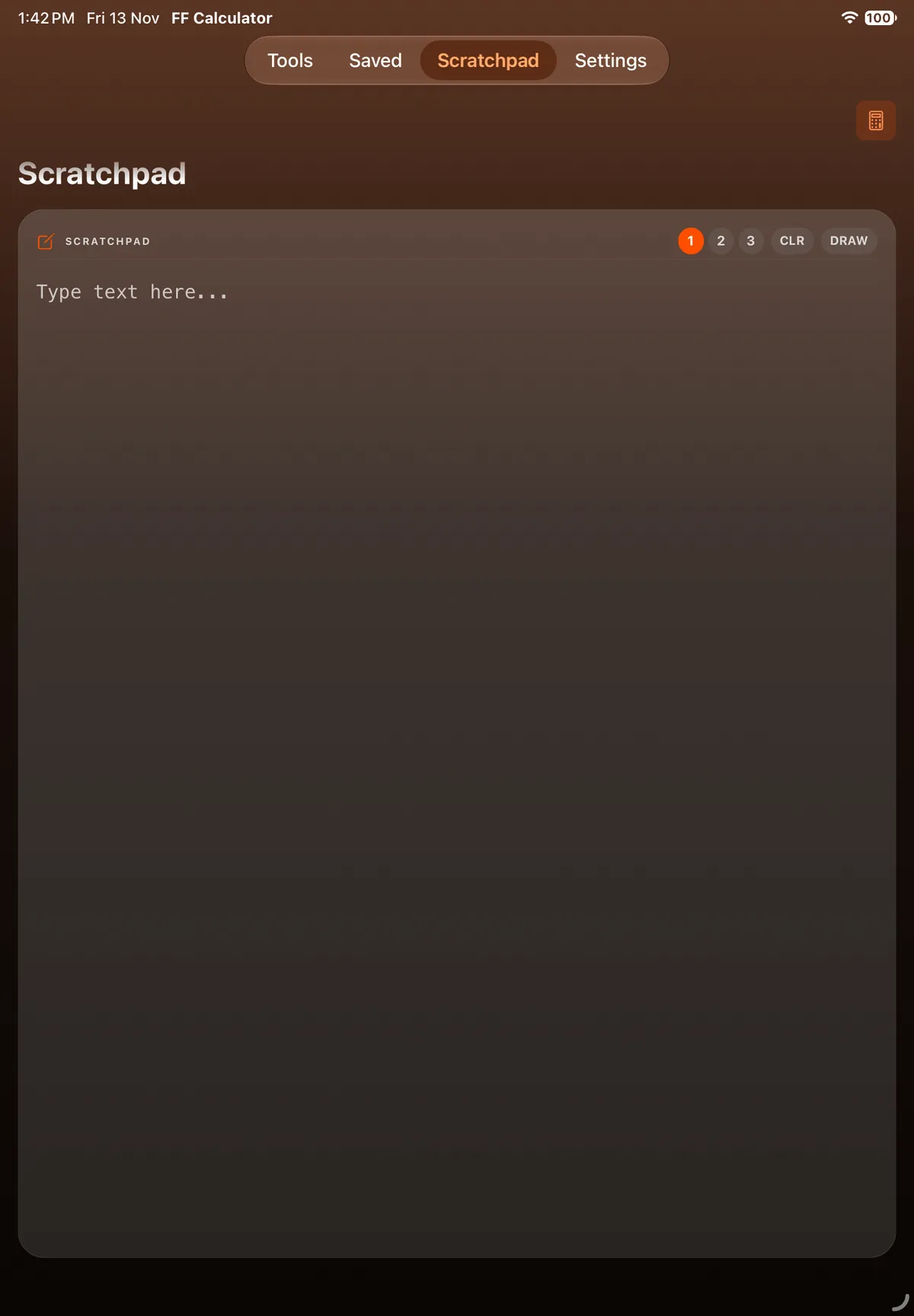
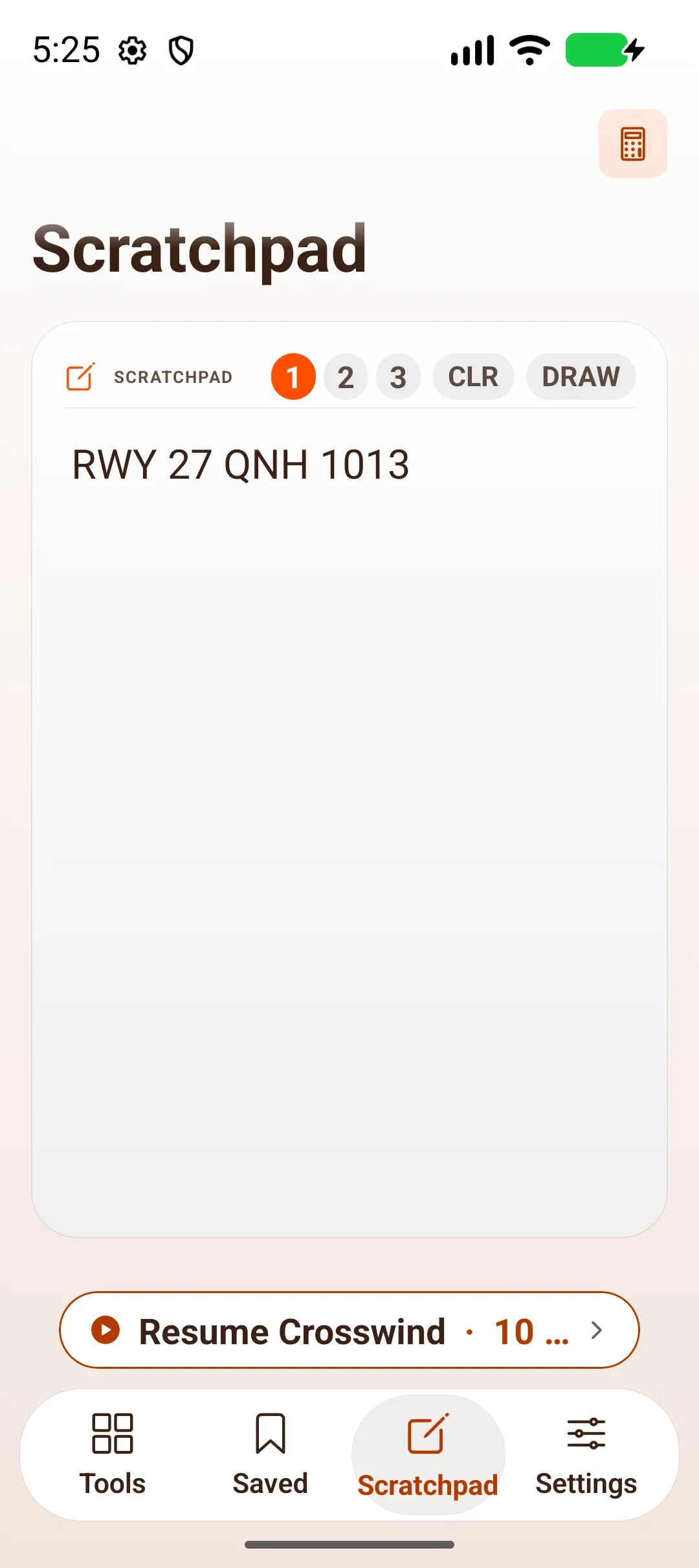
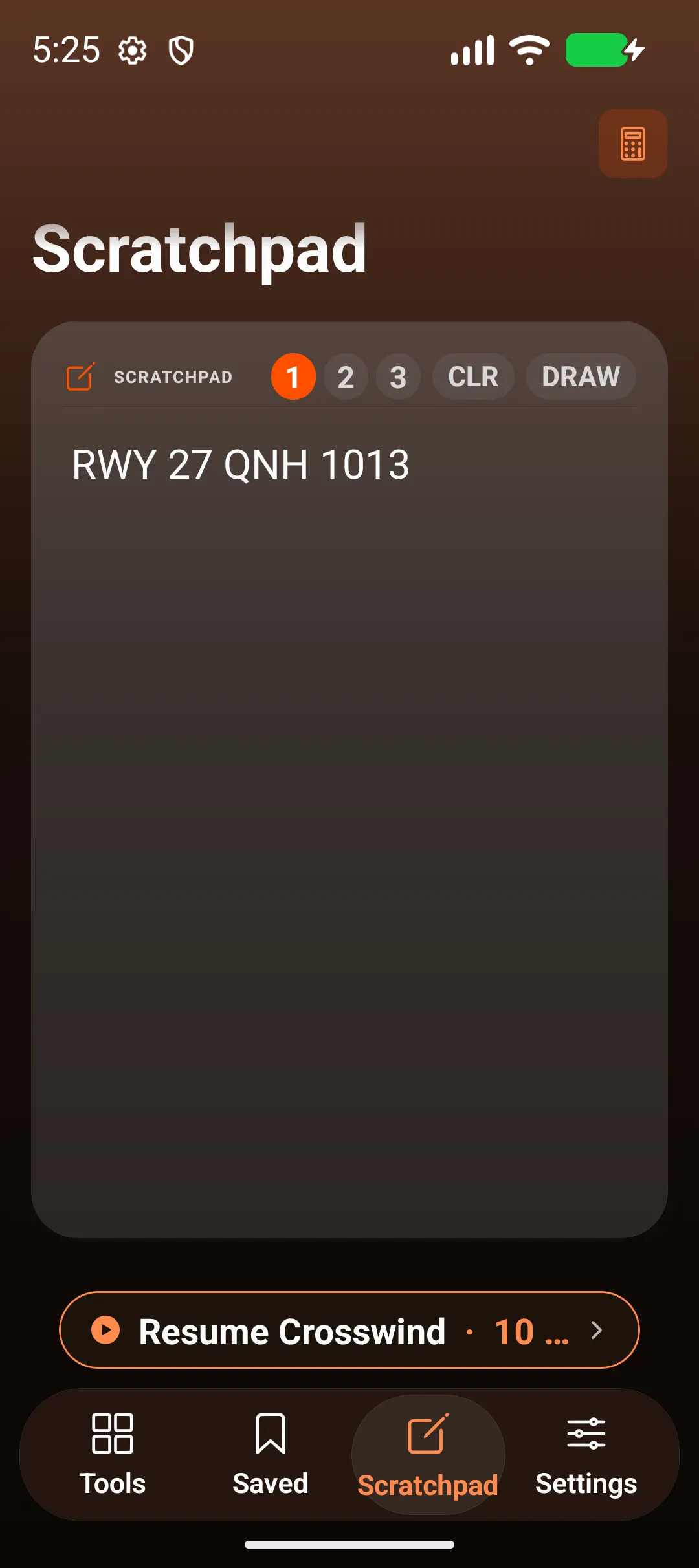
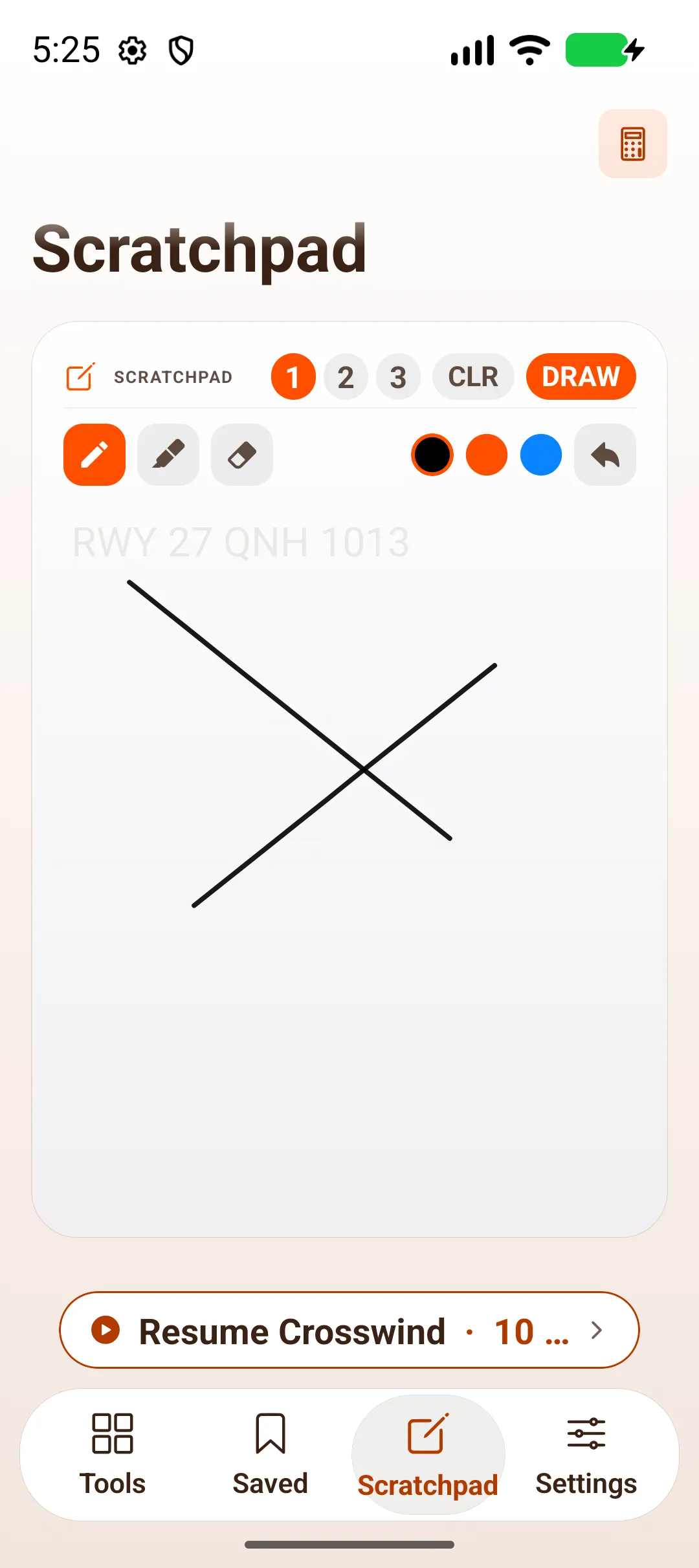
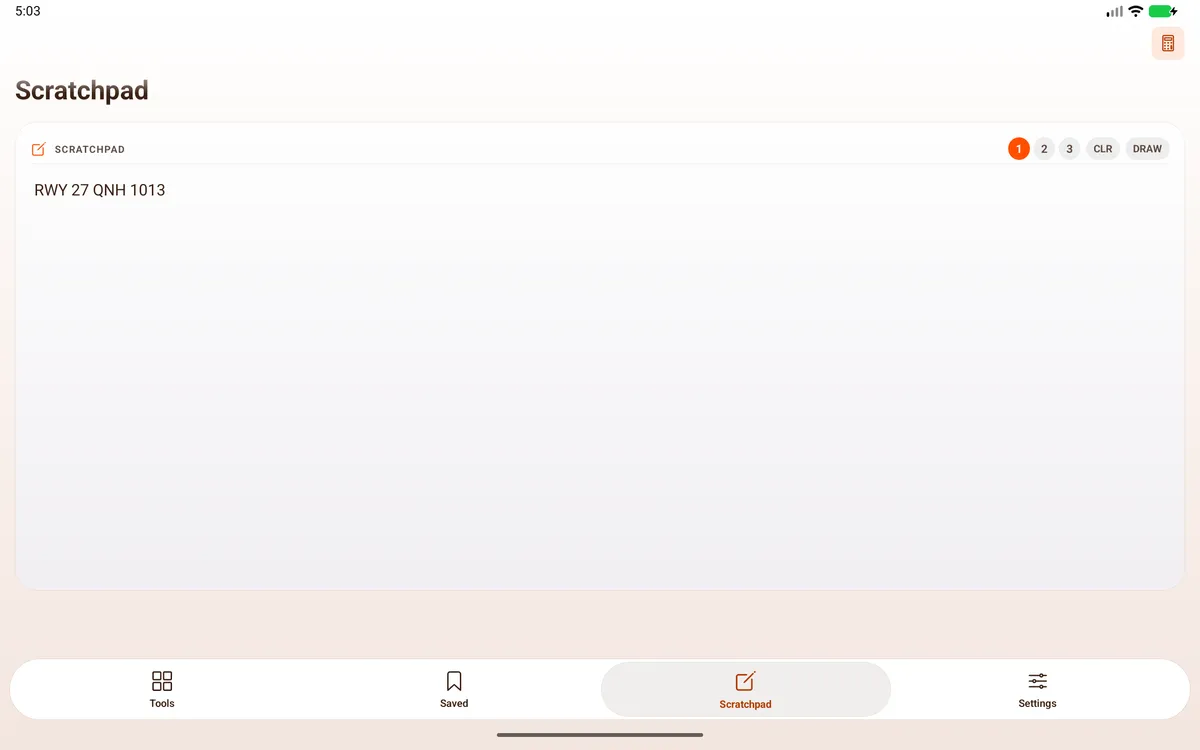
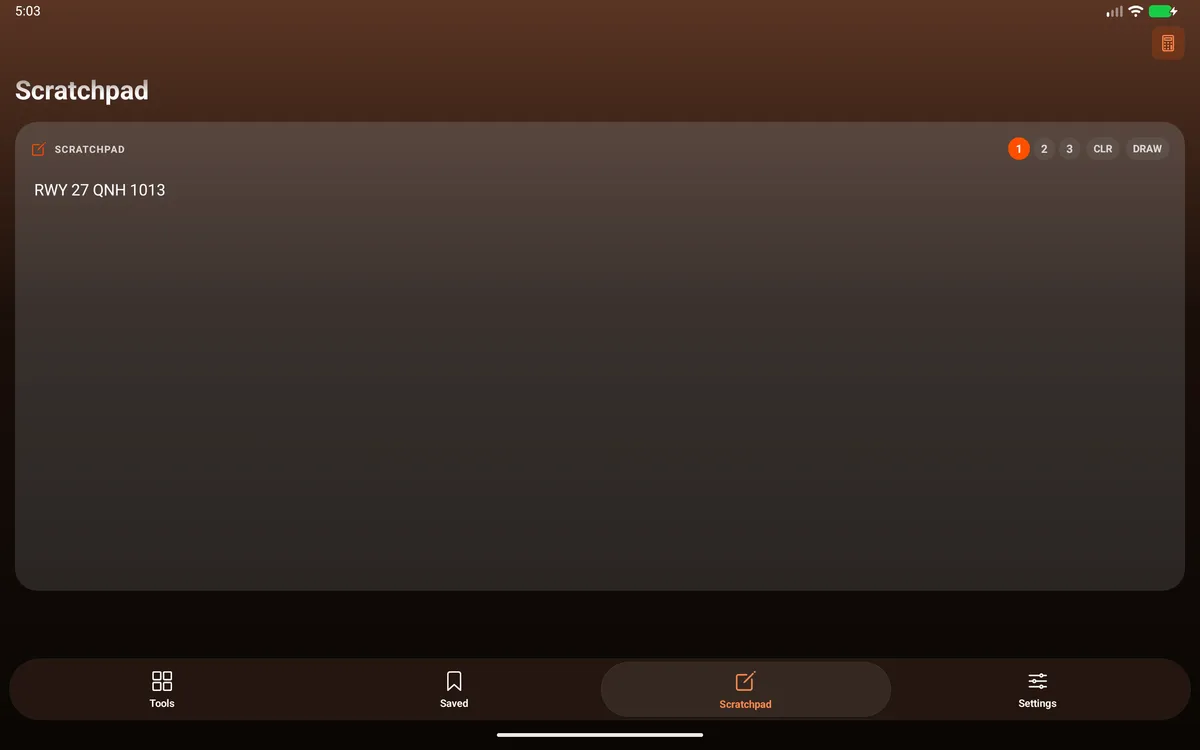
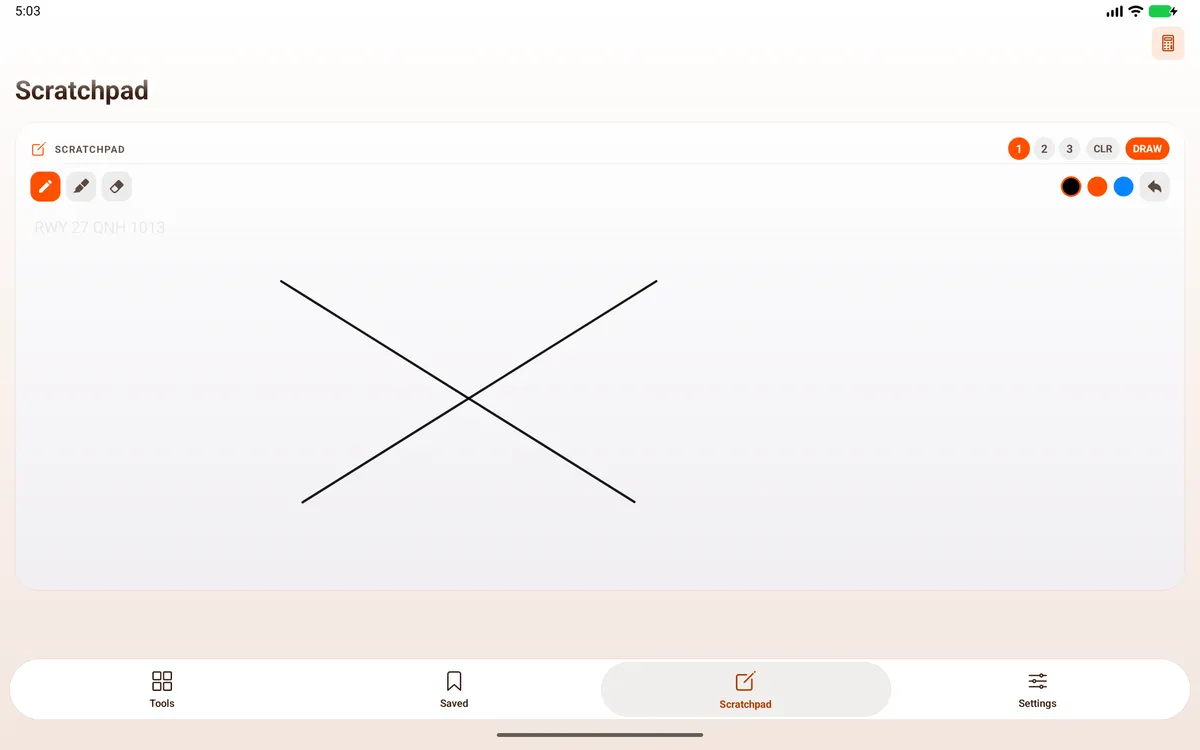
Section titled “Scratchpad”The Scratchpad tab (also the pencil button in the Tools header) has three notes, 1, 2 and 3, plus CLR (clear) and DRAW. Type in a note (Type text here…), or tap DRAW to write by hand. Drawing shows three tool icons (pen, highlighter, eraser), three colour dots (black, orange and blue, with no names) and an undo arrow. CLR asks Clear Note · Erase all text and drawings?, with Cancel and Clear.


Move your setup to another device
Section titled “Move your setup to another device”Settings → Data → Export settings shares your units, aircraft profile and favourites as text. On the other device, copy that text and tap Import settings. History and Scratchpad notes aren’t included.
On iPad
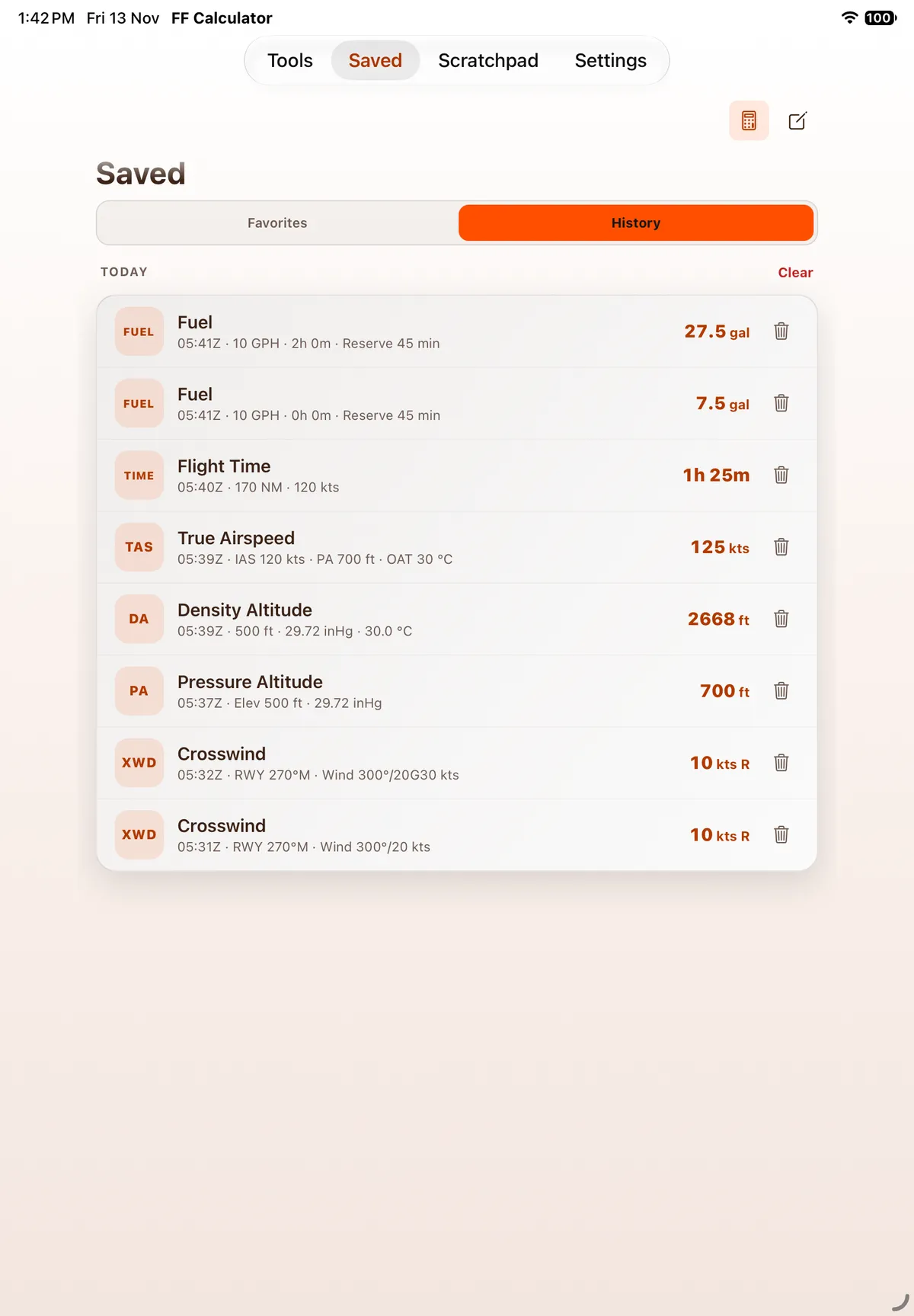
Section titled “On iPad”On iPad Saved and Scratchpad are tabs in the segmented bar at the top. Saved is a single centred column (the tool list is hidden) with the same Favorites / History switch; History lists every result with its UTC time, inputs and a delete button. Scratchpad fills the whole width with pages 1, 2, 3, CLR and DRAW.

On Android
Section titled “On Android”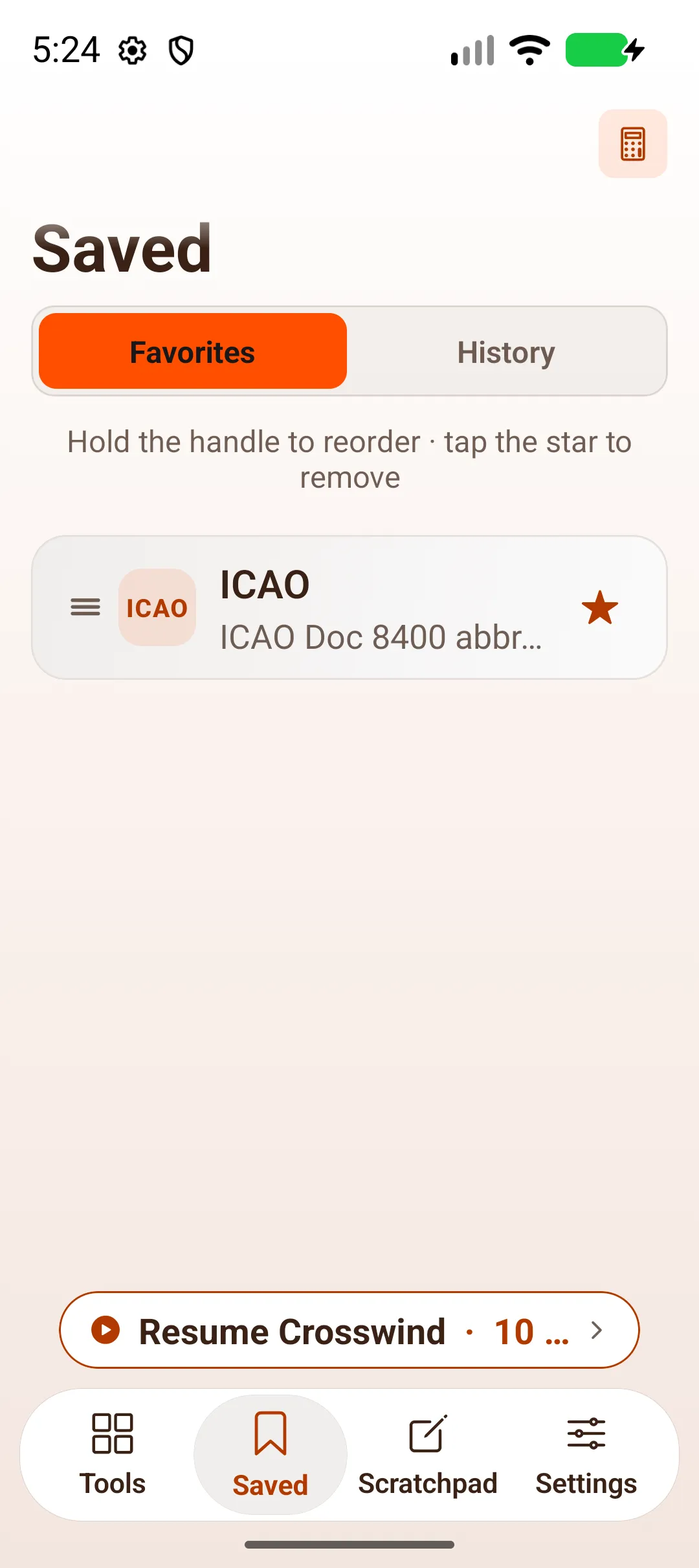



On Android tablet
Section titled “On Android tablet”On an Android tablet tools have no star in the list; use ⋯ › Favorite in the tool.




Related: Settings explained, Getting around FF Calculator.