
Search tricks: one direction of a route, or one approach type
Search on Flights finds more than a registration or one airport (see Search your logbook). Type two airport codes and it finds one direction of a route only. Type an approach type and it finds the flights where that was the first approach. Two things it won’t find: a later approach on the same flight, and anything in remarks or passengers.
1. One direction of a route
Section titled “1. One direction of a route”- Open Flights. The title shows how many flights you have and their total.
- Tap the round search button at the bottom right. The search bar opens in the tab bar’s place, with the keyboard; the tab bar stays hidden while you search.
- Type the departure code, a space, then the arrival code, for example VHHH RJGG (Hong Kong, then Nagoya). The list filters as you type. Tap the keyboard’s search key.
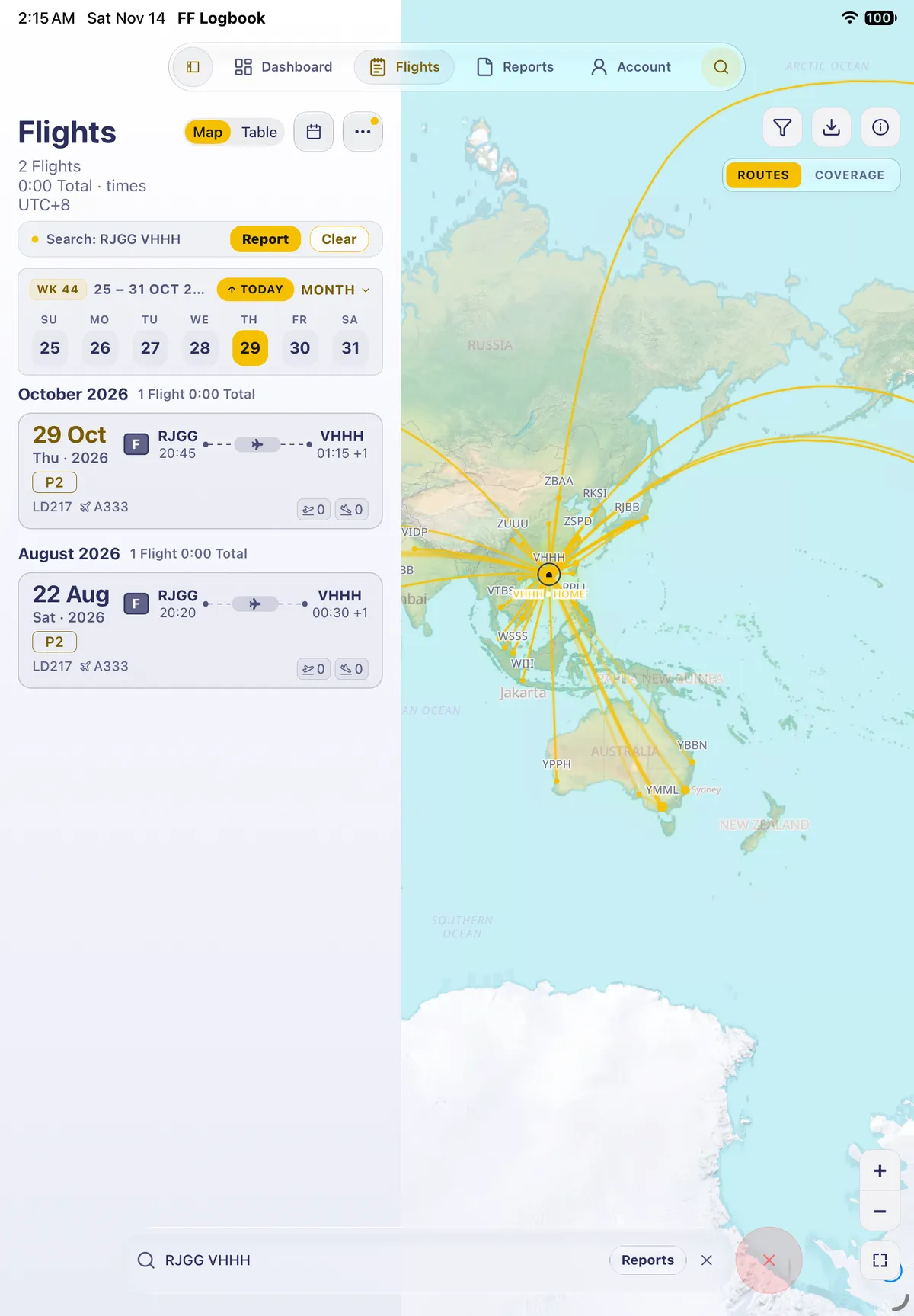
- Flights shows only flights from the first airport to the second, with the chip Search: VHHH RJGG and Report / Clear.
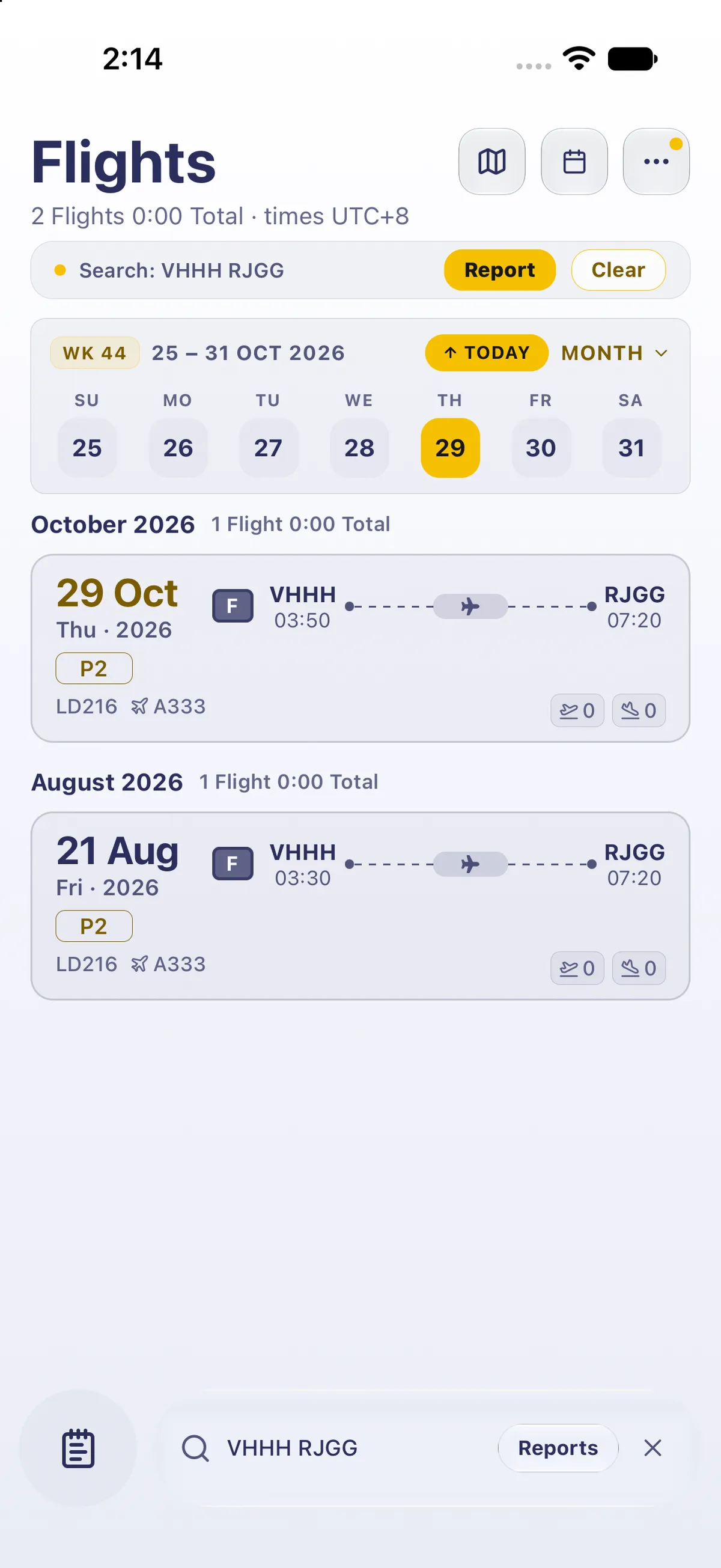

- Tap the × in the search bar to clear it. The bar stays open: tap in it to type the next search.
- Swap the codes: RJGG VHHH, then the search key. Now you see just the flights the other way.
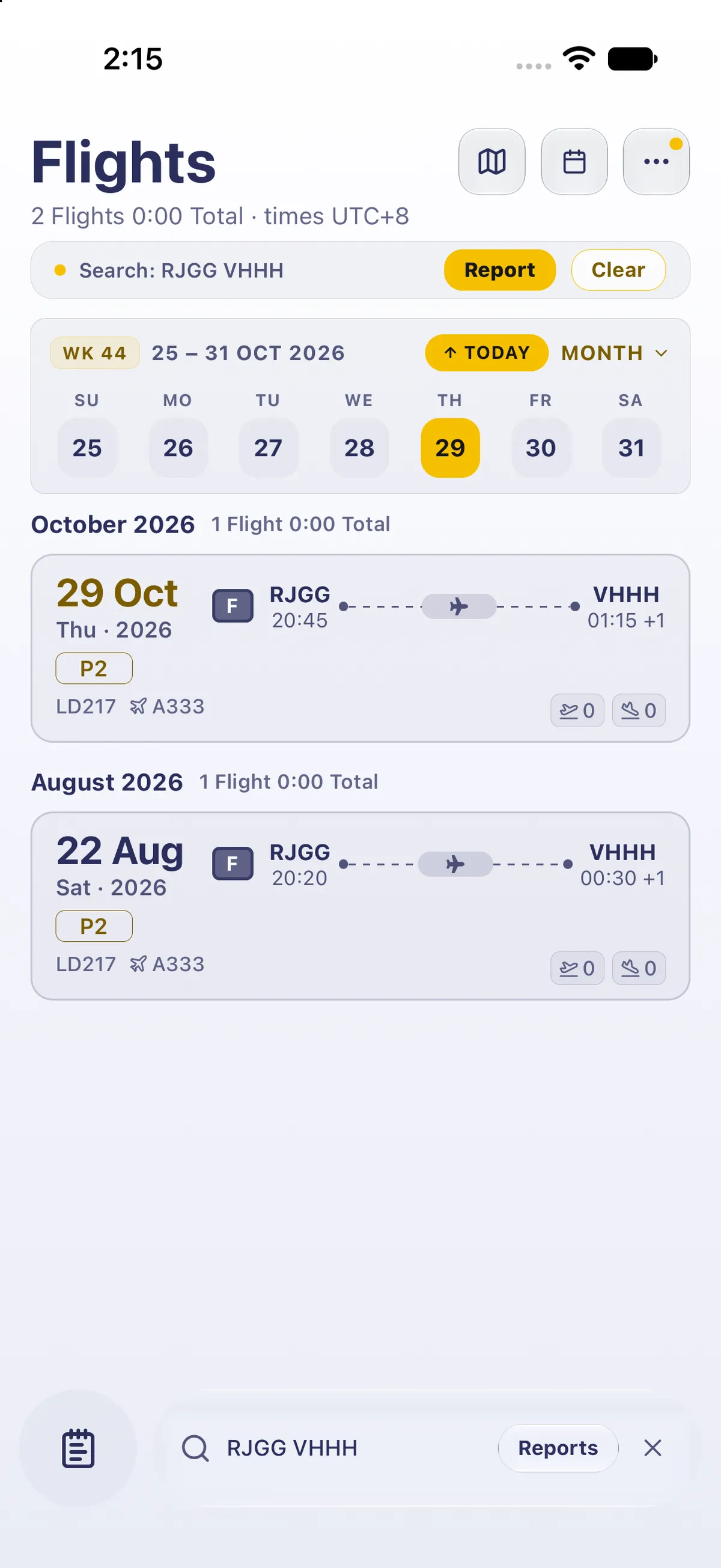

The order matters: the first code is matched as the departure and the second as the arrival. To see a route in both directions, use the map’s route sheet instead: Explore a route on your flight map.
2. One approach type
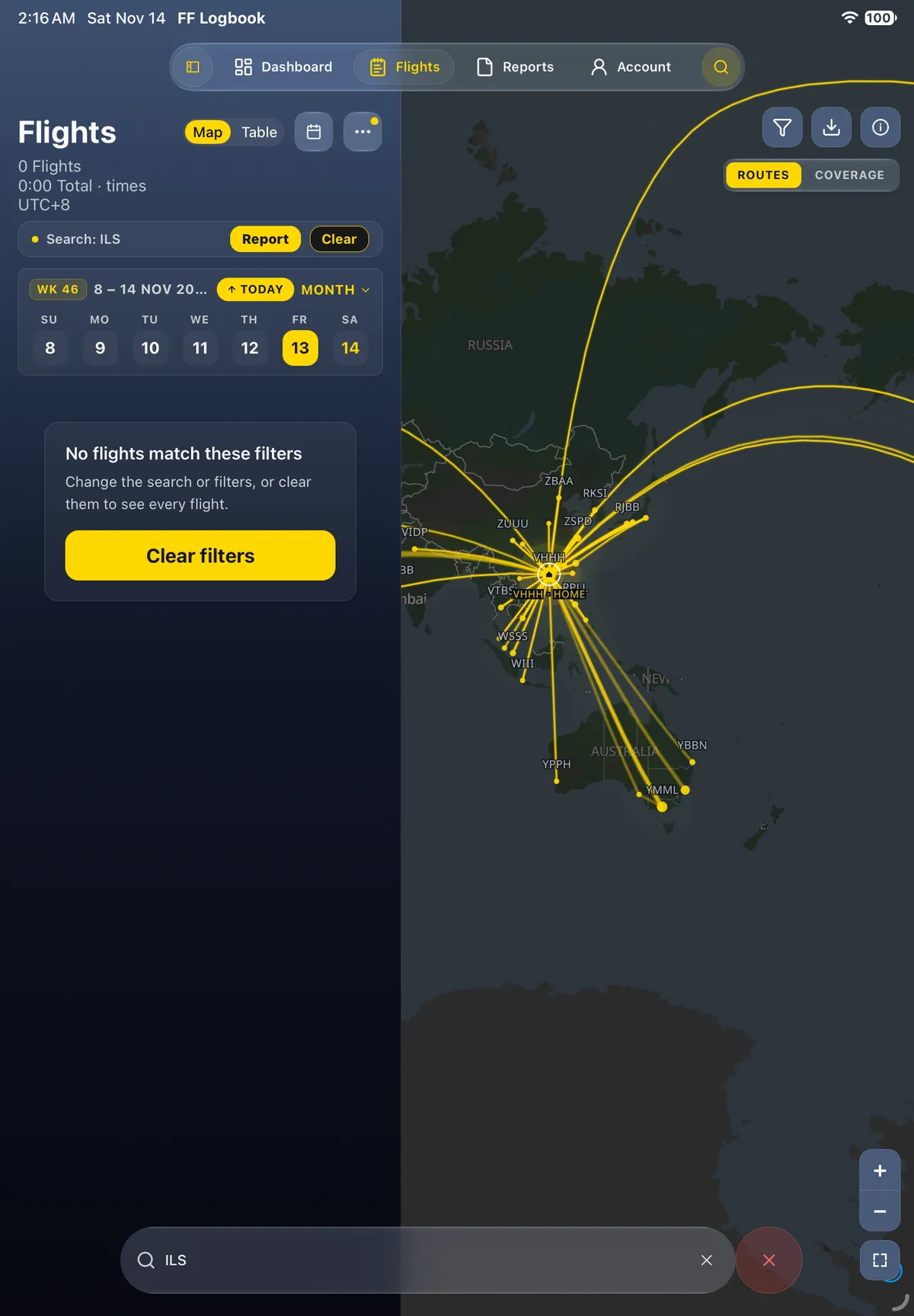
Section titled “2. One approach type”- Clear the search, tap in the bar, and type ILS, then the search key.
- Flights shows the flights whose first approach was an ILS, with ILS on each card and the count and total under the title (for example 22 Flights 128:24 Total).
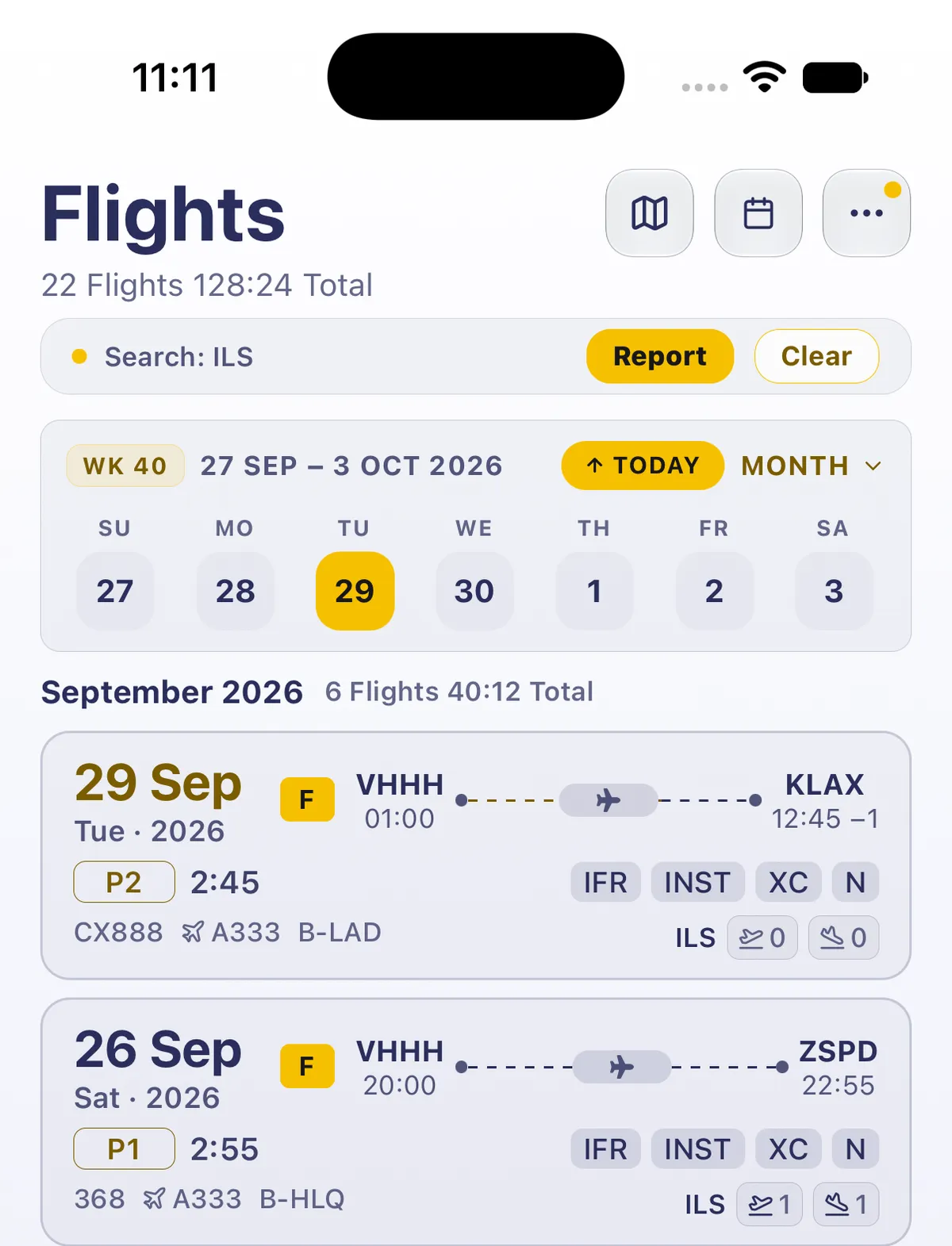
- Clear it, and try another type, such as RNAV. If no flight’s first approach was that type, Flights reads 0 Flights 0:00 Total and No flights match these filters, with a Clear filters button. A flight that flew an RNAV only after an ILS isn’t found: search reads each flight’s first approach (see Log approaches and holds).

- Tap Clear filters or the ×. Flights shows all your flights again.
The search stays on, on Flights and Reports alike, until you clear it. The round button beside the bar (Cancel search) clears the search, closes the bar and brings the tab bar back.
Good to know
Section titled “Good to know”- Type the codes exactly as the pair: one space between them. A dash finds nothing: VHHH-RJGG reads No flights match these filters.
- IATA codes work as a pair too: HKG NGO finds the same direction as VHHH RJGG, when the airports have IATA codes on file.
- One code finds both directions, and every flight that uses that airport.
- The card shows the same approach search reads. The approach type on a flight card (such as ILS) is its first approach (Read your flight list at a glance); if the card doesn’t show the type you want, search won’t find it.
- Search waits a moment. On a big logbook the list can take a few seconds to update after you tap search.
- Search can also find a month: see October’s hours without your paper logbook: search the month.
On iPad
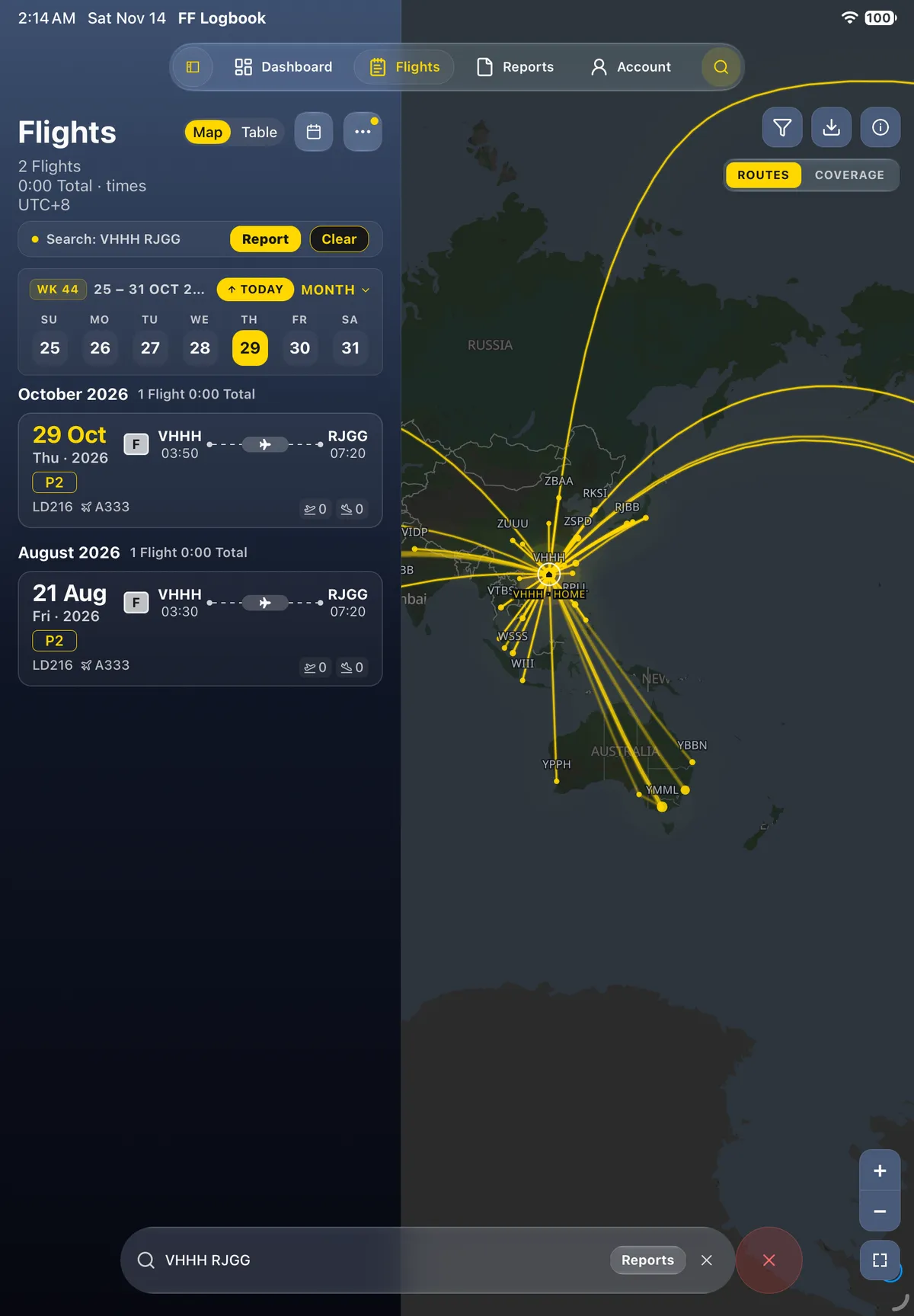
Section titled “On iPad”On iPad the search field is at the bottom left, under the flight list, and the results show in the list beside the map.



Related: Search your logbook · October’s hours without your paper logbook: search the month · Explore a route on your flight map · Log approaches and holds · Read your flight list at a glance · Filter your flights