
New phone? What syncs, and what stays on this phone
New phone? Sign in with the same account, and your logbook comes with you. A few things don’t: they’re saved on the phone itself, and a new phone starts without them. Here’s what moves, what stays, and what to note down before you switch.
1. What comes with your account
Section titled “1. What comes with your account”- Open Account → Backup and scroll down to Cloud Sync, which reads, for example, Up to date · Just now.
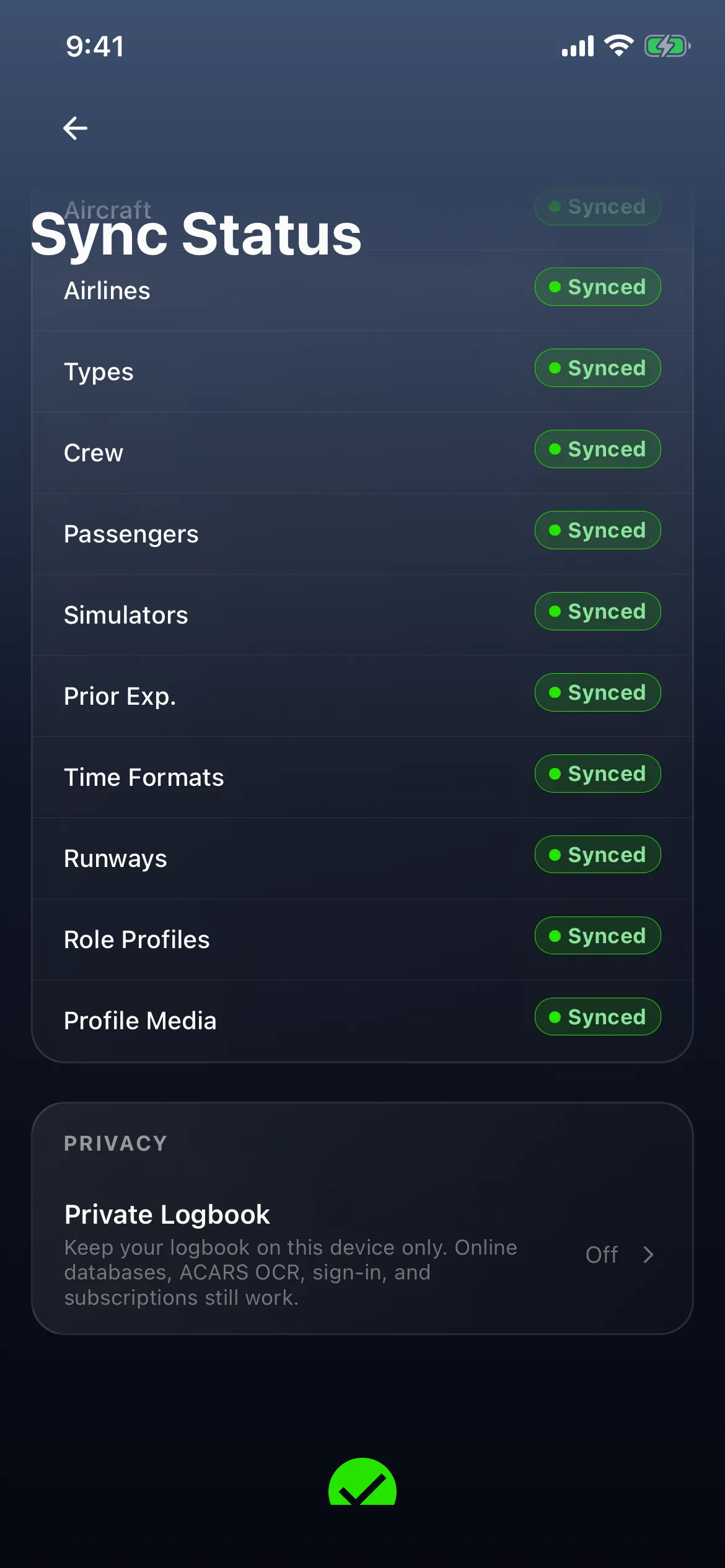
- Tap the words Cloud Sync, not the Sync button. Sync Status opens, for example Up to Date, Last synced · Just now.
- DOMAIN STATUS lists 14 parts of your logbook: Flights, Airports, Aircraft, Airlines, Types, Crew, Passengers, Simulators, Prior Exp. (carry-over totals from previous logbooks), Time Formats, Runways, Role Profiles, Credentials and Profile Media. When everything has synced, each reads Synced.
Everything on that list is on the server, and comes to a new phone when you sign in. For what each state means, see Is my logbook synced.

These come with your account too, though they aren’t on that list:
- Your own currency rules. They now belong to your account and sync like your other settings. Only the on/off switches of built-in rules stay behind (below).
- Your Dashboard cards. After reinstalling the app and signing in, the flights and the Dashboard cards came back.
- Most of Settings: Time, Airport codes, Coordinates, Time zone, Night definition, Block time source, and the countries picked under Registration countries. They’re account settings, but nothing on screen says so.
- The report in use on Reports, and your Summary folders. A custom report format is the exception (see Good to know).
- An unfinished Log Flight draft. The Save progress message says Progress saved. Your draft is saved on this device., but the draft is also carried to your account.

2. What stays on this phone
Section titled “2. What stays on this phone”Theme and Date format
Section titled “Theme and Date format”These two say so on screen.
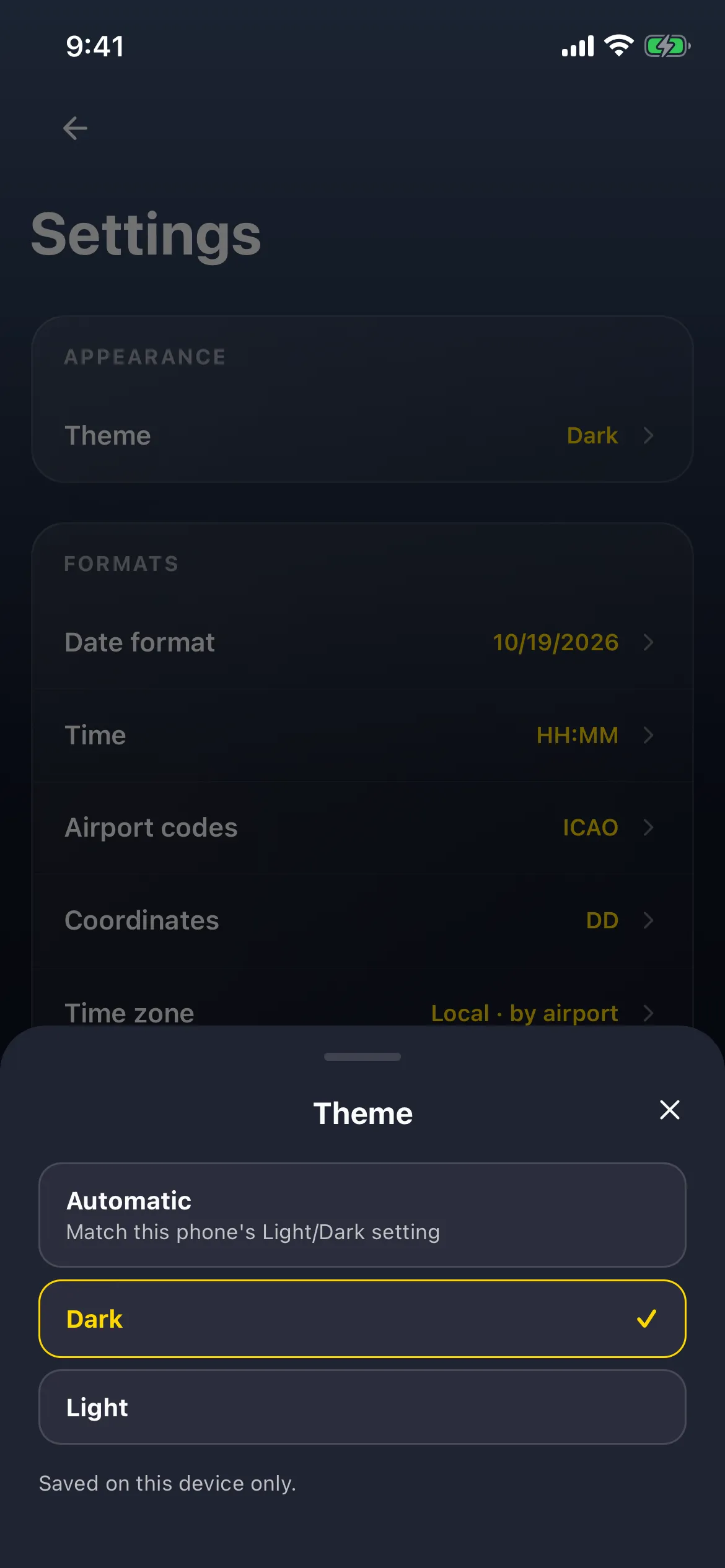
- Account → Settings → Theme. The sheet reads Automatic (Match this iPhone’s Light/Dark setting), Dark ✓ and Light, and below them Saved on this device only. Close it with ×. Tapping a row stages a change; closing leaves it as it was.
- Date format. The sheet lists 12 styles with today’s date, for example Automatic (device) ✓. Scroll to the end: Saved on this device only. Cards and lists use the short form; headers and details use the long form. Close it with ×.

See Settings explained for what each choice does.
Personal backups
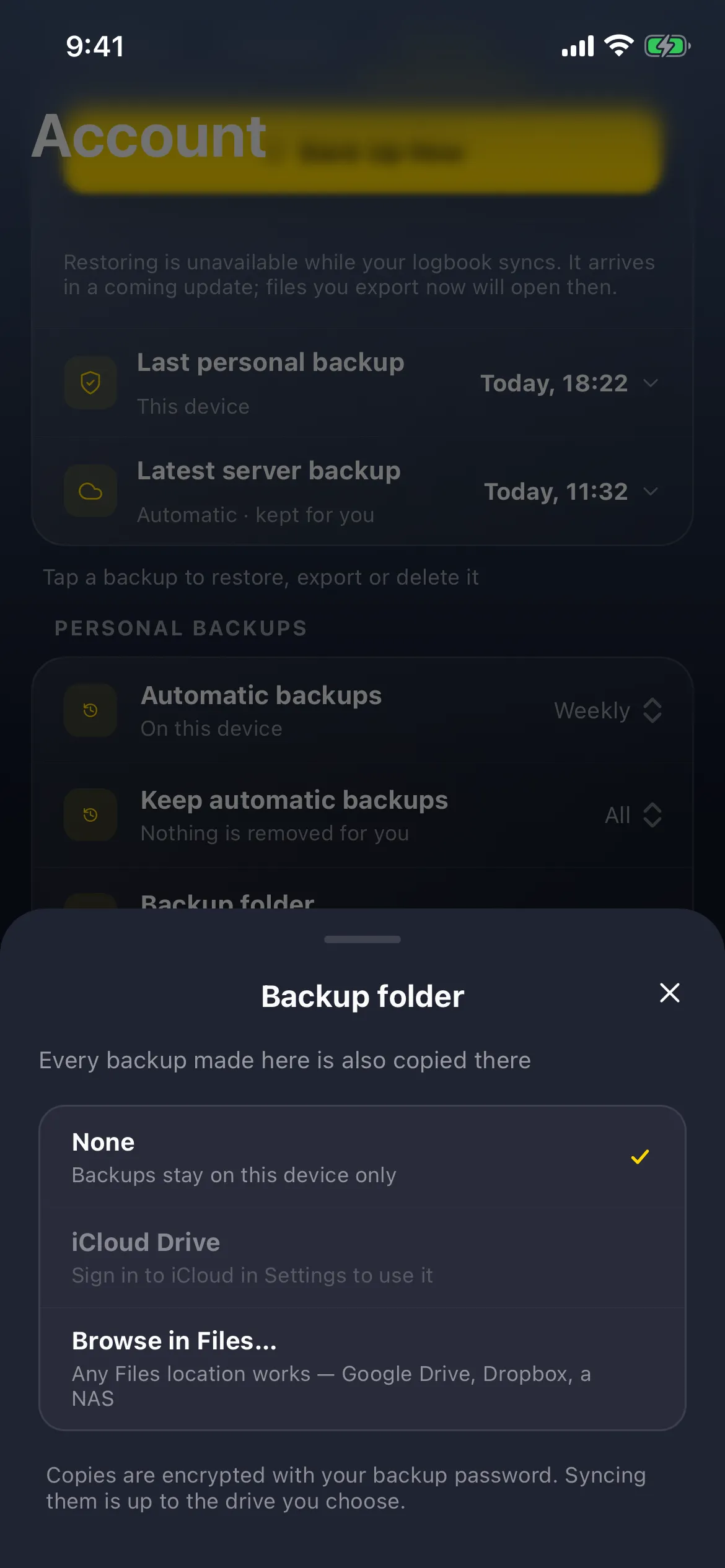
Section titled “Personal backups”On Account → Backup, Last personal backup reads This device (for example Today, 18:22). Automatic backups reads On this device (for example Weekly). A personal backup is made on this phone, and then copied to your Backup folder (Also keeps a copy of each backup). On an iPhone signed in to iCloud, that’s the app’s iCloud Drive folder unless you change it. With None, backups stay on this device. Tap Backup folder to see the choices:
- None ✓: Backups stay on this device only.
- iCloud Drive (the iPhone default): copies each backup to the app’s iCloud Drive folder, where your other devices can reach it. If the phone isn’t signed in to iCloud, it reads Sign in to iCloud in Settings to use it.
- Browse in Files…: any Files location, such as Google Drive, Dropbox or a NAS.
The sheet ends: Copies are encrypted with your backup password. Syncing them is up to the drive you choose.
Server backups are different: Latest server backup reads Automatic · kept for you (for example Today, 11:32), and Server history is kept for you — nothing to set up. See Check what’s in your backups.

Everything else, with no note on screen
Section titled “Everything else, with no note on screen”| Stays on this phone | Where you set it | What you’ll see on a new phone |
|---|---|---|
| Rule switches | Compliance Rules, the same way | Only the 4 rules that start switched on (see Track more currencies than your Dashboard holds) |
| Filter presets | Save as preset on a filter | No presets |
| Role-card order | Account → Pilot Role → Edit | Your role profiles, in their original order |
| Custom report formats | Reports: report layouts you built yourself | Not there; see Good to know |
| Face ID lock | Account header → Profile Details → Require Face ID / Touch ID | Off |
| Batch history and its Undo | Flights → More (⋯) → Batch history | Empty |
| Offline Data catalogs and downloaded registries | Settings → Offline Data (Airport, aircraft and airline catalogs stored on this device) | Downloaded again on the new phone |
| Notifications | Settings → Notifications (Which notices this device shows…) | The defaults |
| Calendar Sync | Settings → Calendar Sync (Add your flights and duties to a calendar on this device) | Not connected |
| Apple Watch duty allowances and rest targets | Settings → Apple Watch | The defaults |
| Standby display mode | iPhone Duo Standby | The default |
Rule switches can stay behind. After reinstalling the app and signing in, the flights and Dashboard cards came back, but an FAA rule switch that had been on didn’t.
3. What a new phone starts with
Section titled “3. What a new phone starts with”- Theme: Automatic, which follows the phone’s Light/Dark setting, whatever your old phone used.
- Date format: Automatic (device), which follows the phone’s region.
- No personal backups on the phone until the first one is made. Automatic backups default to weekly, and the Backup folder defaults to iCloud Drive.
- Only the 4 built-in rules that start switched on. Your own rules come back when you sign in.
So if your second phone looks different, with a different theme or dates in a different order, this is why. Set Theme and Date format again on it.
4. Before you switch
Section titled “4. Before you switch”- Check Cloud Sync says Up to date, and that every DOMAIN STATUS row says Synced. Then everything on the list is on the server.
- Write down which built-in rules you’ve switched on.
- Note your filter presets, custom report formats, role-card order, and whether the Face ID lock, Calendar Sync and the watch’s duty allowances are set.
- On the new phone, sign in. Then set Theme and Date format, switch your built-in rules back on, re-create your presets, and turn the rest on again.
Good to know
Section titled “Good to know”- Cards work on every device. Built-in rules have the same id on every phone, and your own rules now sync with your account, so a card on either kind works anywhere.
- A custom report format picked as the report in use doesn’t come across, though the choice does. On another phone Reports falls back to HK CAD, FAA or EASA, without a message.
- Edits to a built-in rule, other than its switch, aren’t kept. The app refreshes built-in rules from its own definitions and keeps only your on/off. To change one, clone it (see Make your own currency rule).
- Latest server backup can read Unavailable. It can show a time, such as Today, 11:32, and then Unavailable a little later.