
Never miss a medical: track your credentials
Credentials keeps your licences, ratings, medicals, checks and travel documents in one place, and reminds you before each one runs out. You enter the last valid day; the app counts down to it, marks it DUE SOON, and by default sends reminders 60, 30 and 7 days before and on the day itself.
1. Open Credentials
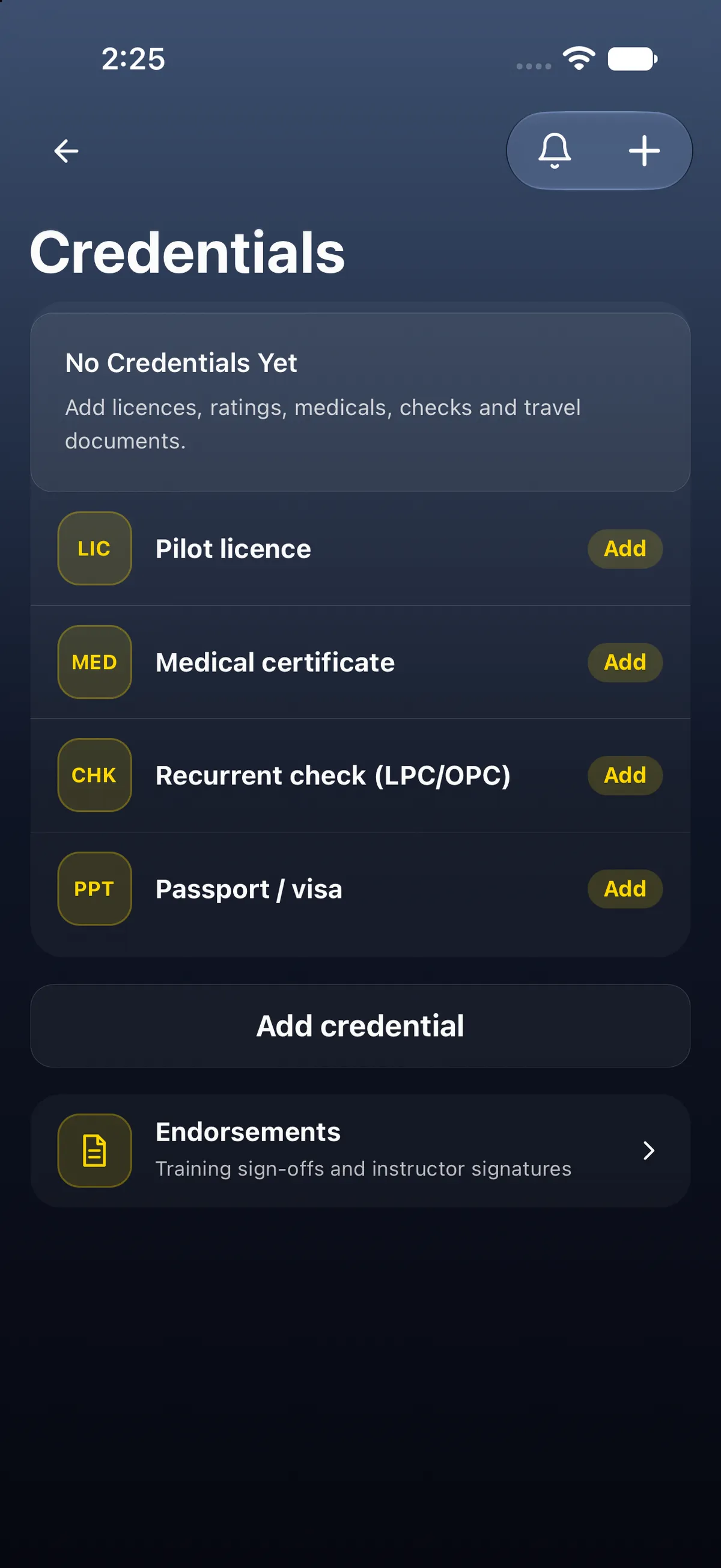
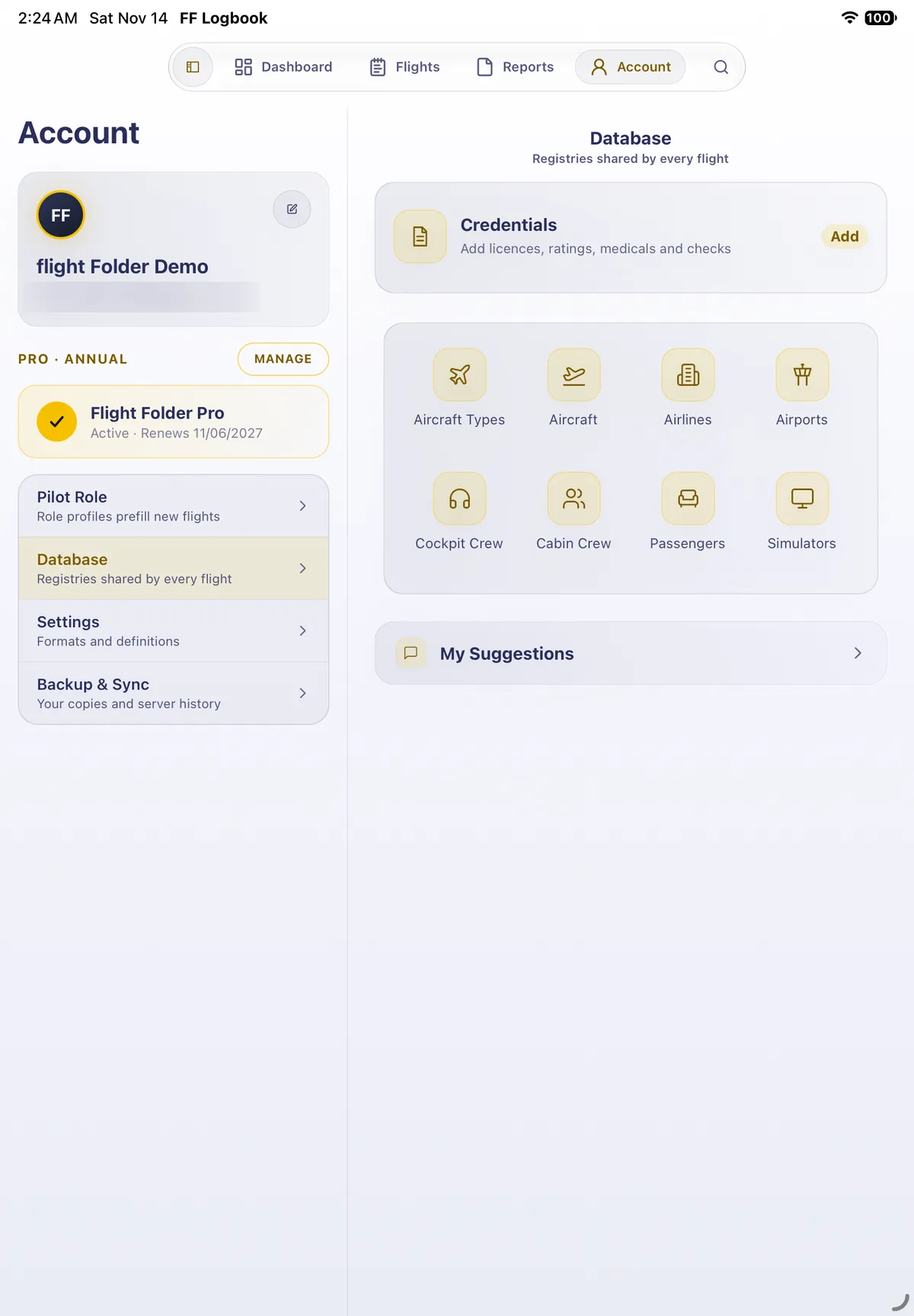
Section titled “1. Open Credentials”- Go to Account, tap Database, then Credentials (the first card, with a summary such as No expiry dates due).
- With nothing added, it reads No Credentials Yet · Add licences, ratings, medicals, checks and travel documents. Under it are quick-add rows: Pilot licence, Medical certificate, Recurrent check (LPC/OPC) and Passport / visa, each with Add, then Add credential (any other kind) and Endorsements (Training sign-offs and instructor signatures; see Keep your instructor endorsements in your logbook).
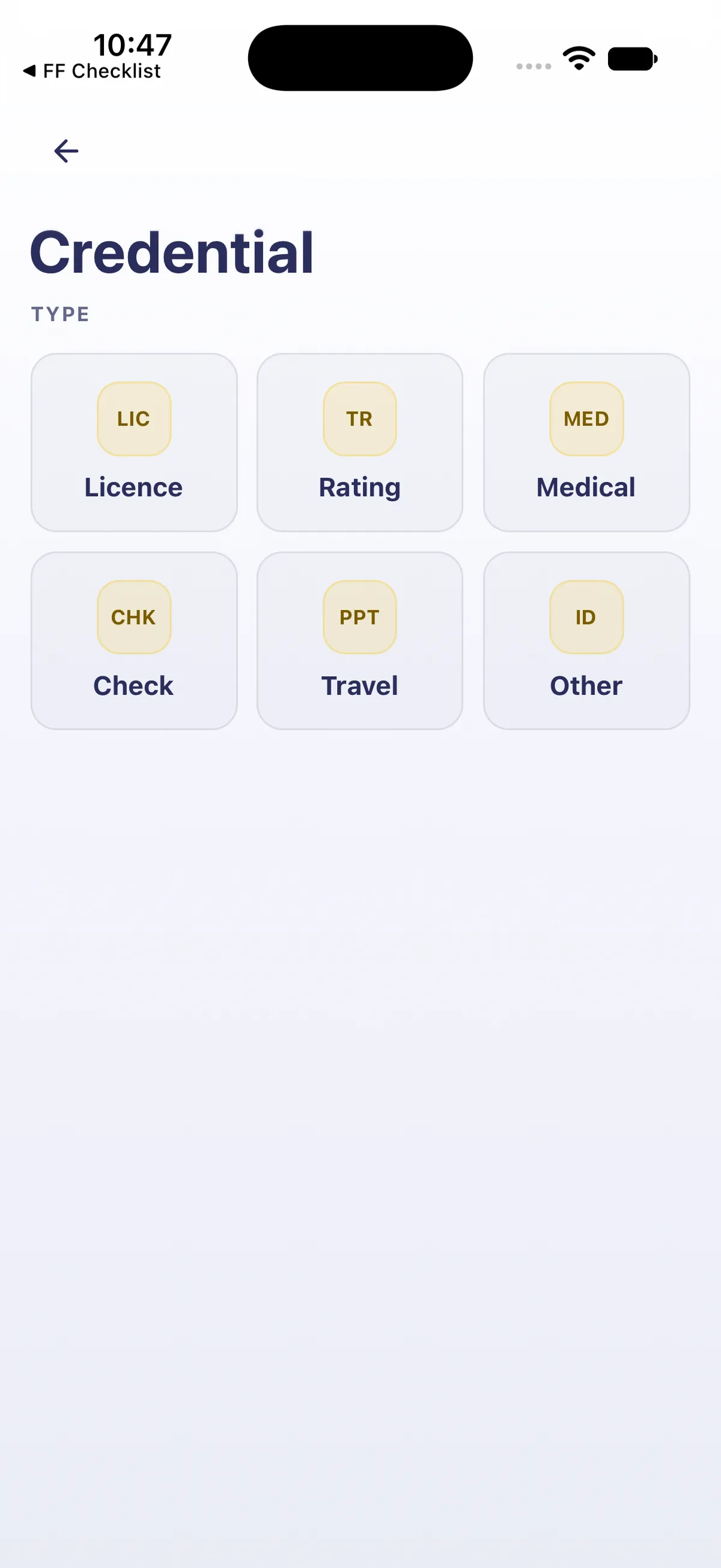
- At the top right, the bell opens reminder settings and + adds a credential: it asks for the type first (Licence, Rating, Medical, Check, Travel or Other).
- Tap Add next to Medical certificate (or +, then Medical).

2. Fill in the form
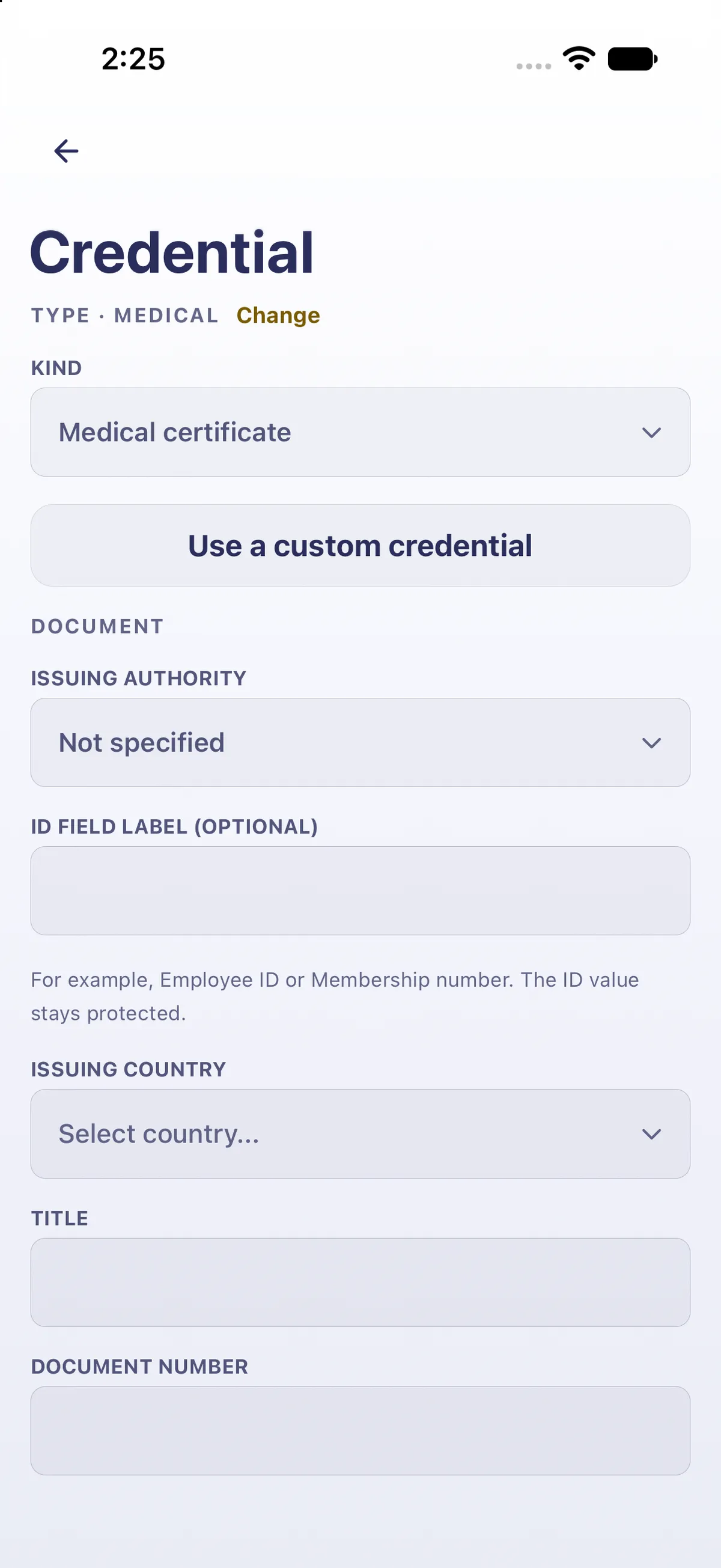
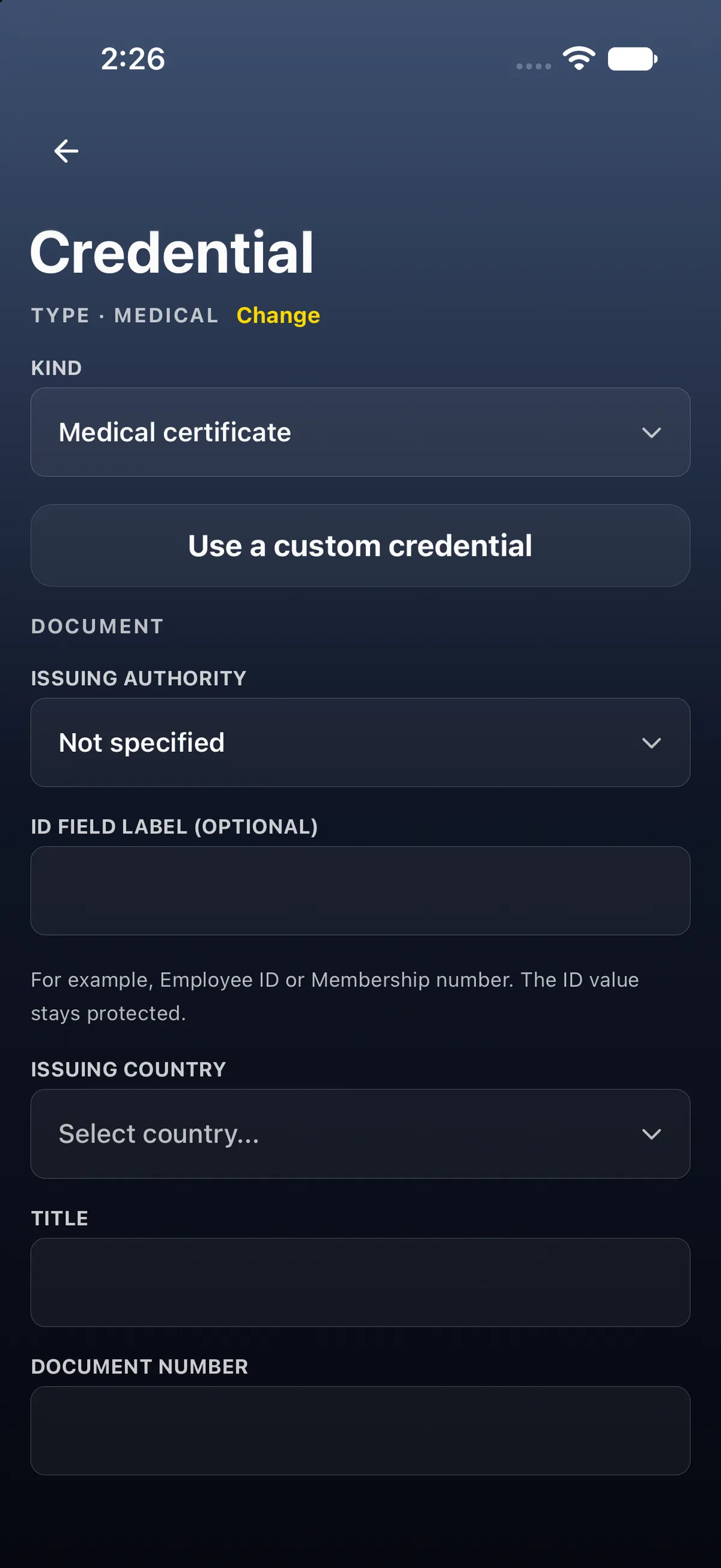
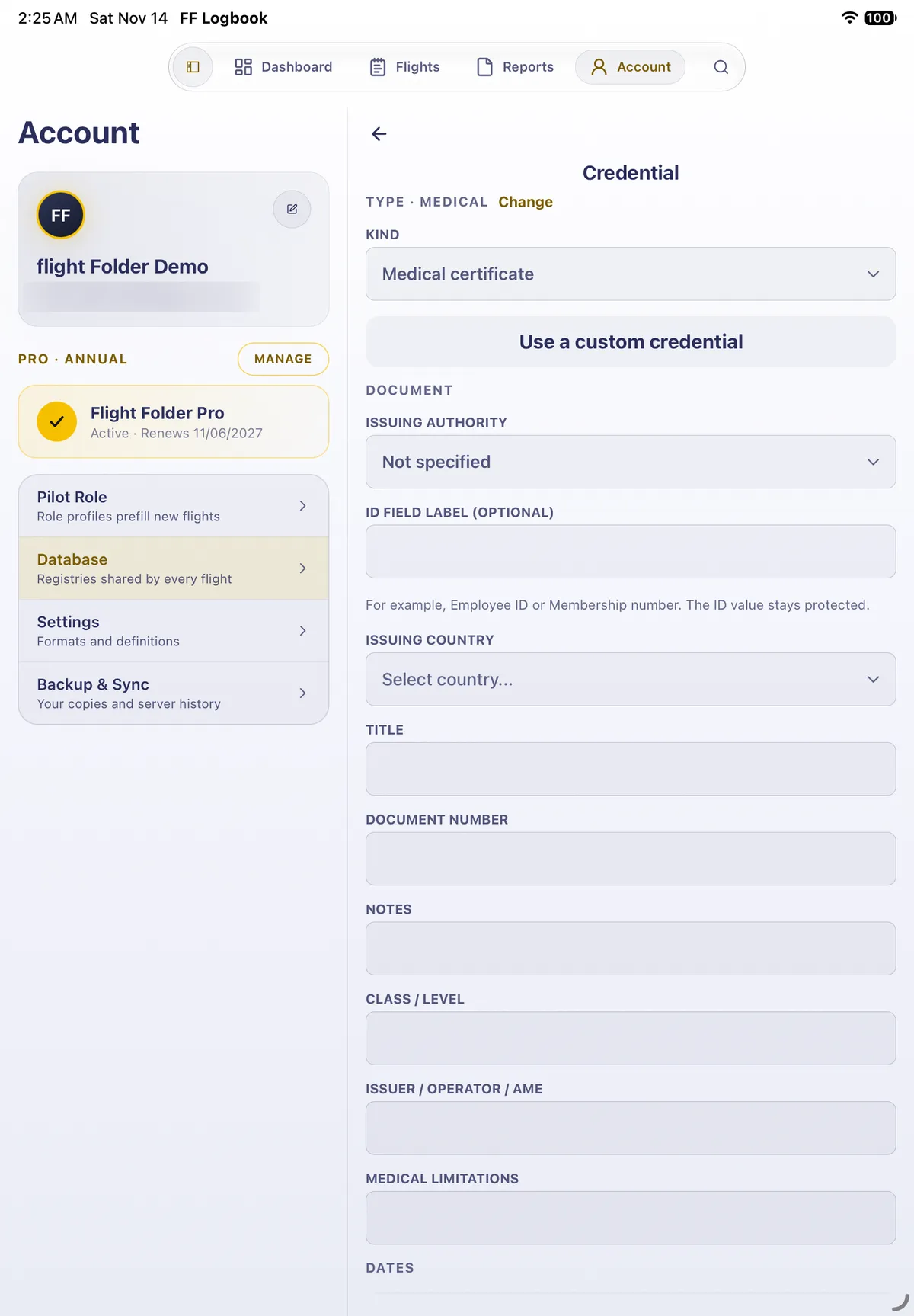
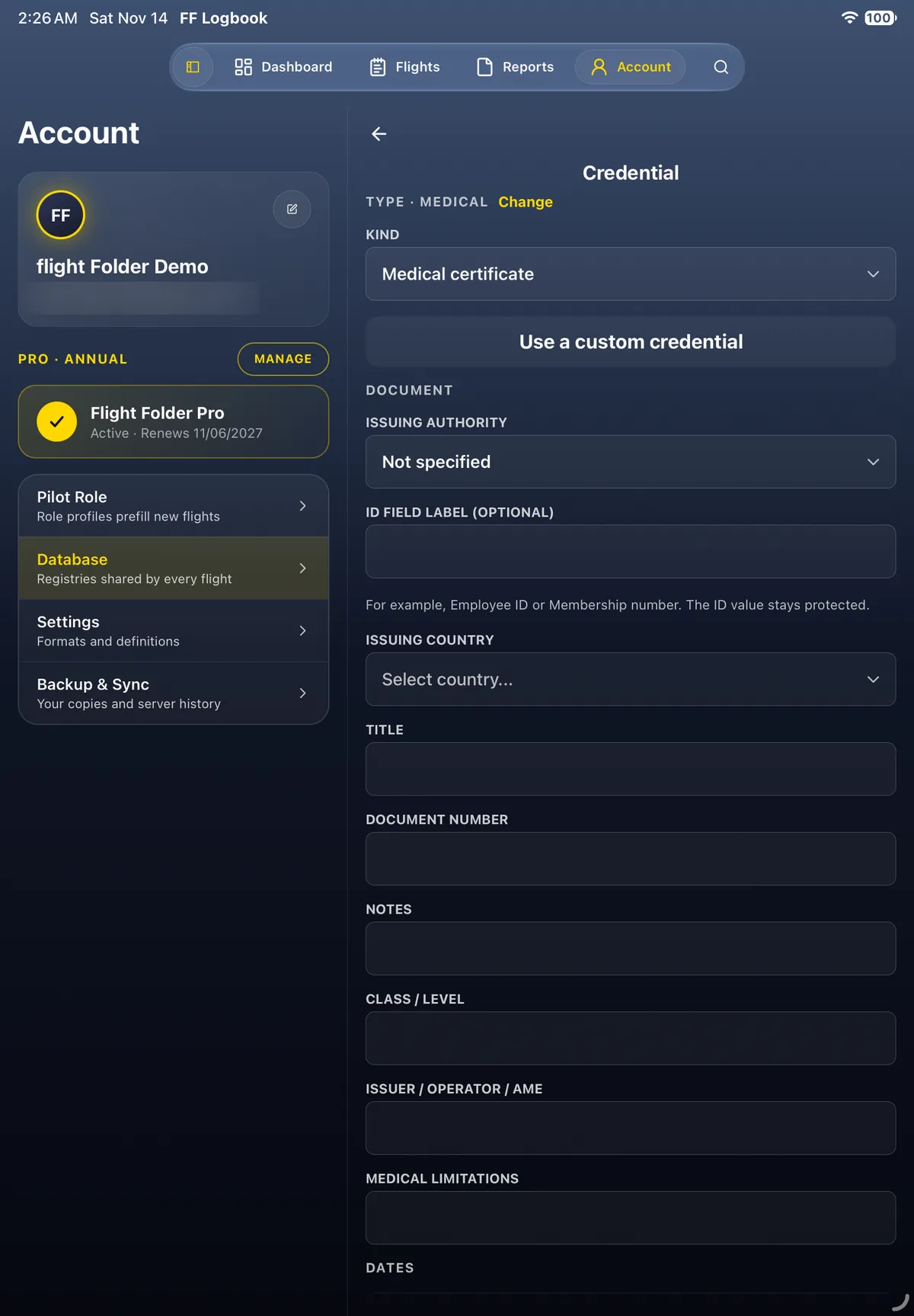
Section titled “2. Fill in the form”- The Credential form opens with TYPE · MEDICAL and KIND set to Medical certificate (Change picks another type; Use a custom credential makes your own).
- Under DOCUMENT: Issuing authority (Not specified by default), an optional ID field label (For example, Employee ID or Membership number. The ID value stays protected.), Issuing country, Title, Document number and Notes, then Class / Level, Issuer / Operator / AME and Medical limitations. All of them are optional.
- The document number and limitations are sensitive: once saved, they show as •••• with Reveal, and they’re never included in a reminder.
3. Set the last valid day
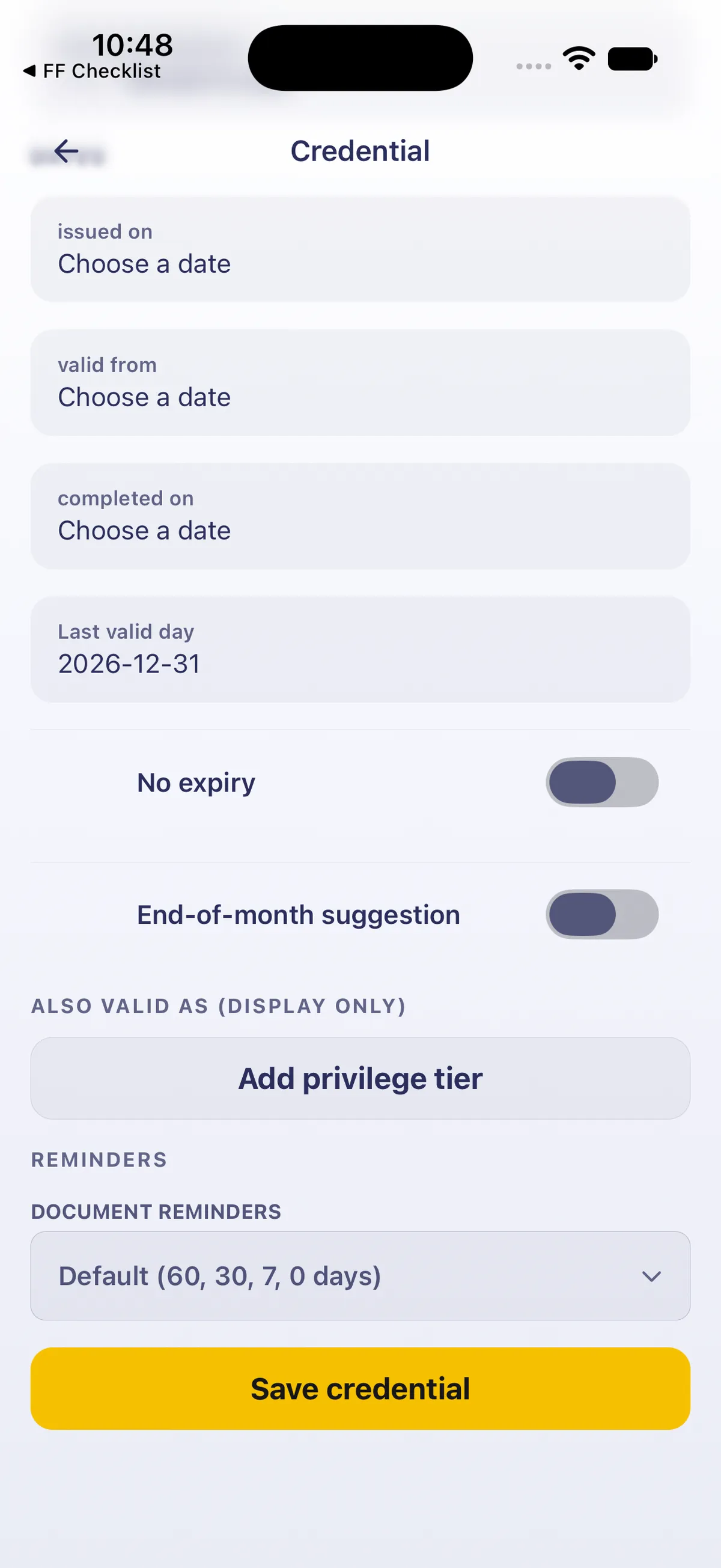
Section titled “3. Set the last valid day”- Scroll down to DATES: issued on, valid from, completed on and Last valid day, each Choose a date. Below are No expiry and End-of-month suggestion switches, ALSO VALID AS (DISPLAY ONLY) with Add privilege tier, and REMINDERS · Document reminders Default (60, 30, 7, 0 days).

- Tap Last valid day. The Last valid day / document date picker opens on the current month, with ‹ › for the month and « » for the year.

- Go to the month your medical runs out and tap the last day it’s valid, for example › to December and 31. The field reads the date, here 2026-12-31.
4. Save, and choose about reminders
Section titled “4. Save, and choose about reminders”- Tap Save credential.
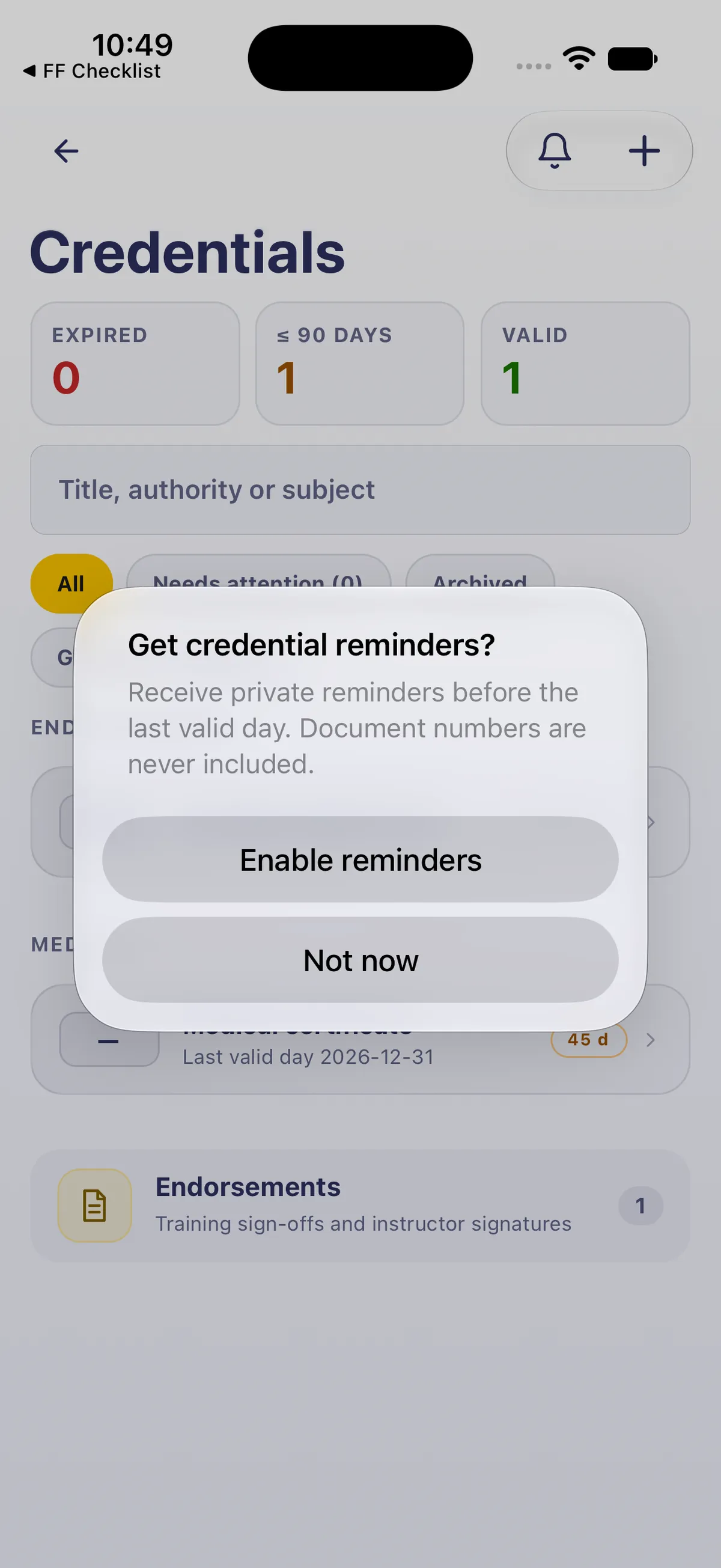
- The first time, the app asks Get credential reminders? · Receive private reminders before the last valid day. Document numbers are never included. Enable reminders turns them on (iOS asks for permission to send notifications); Not now skips the question for now.
5. See what’s due
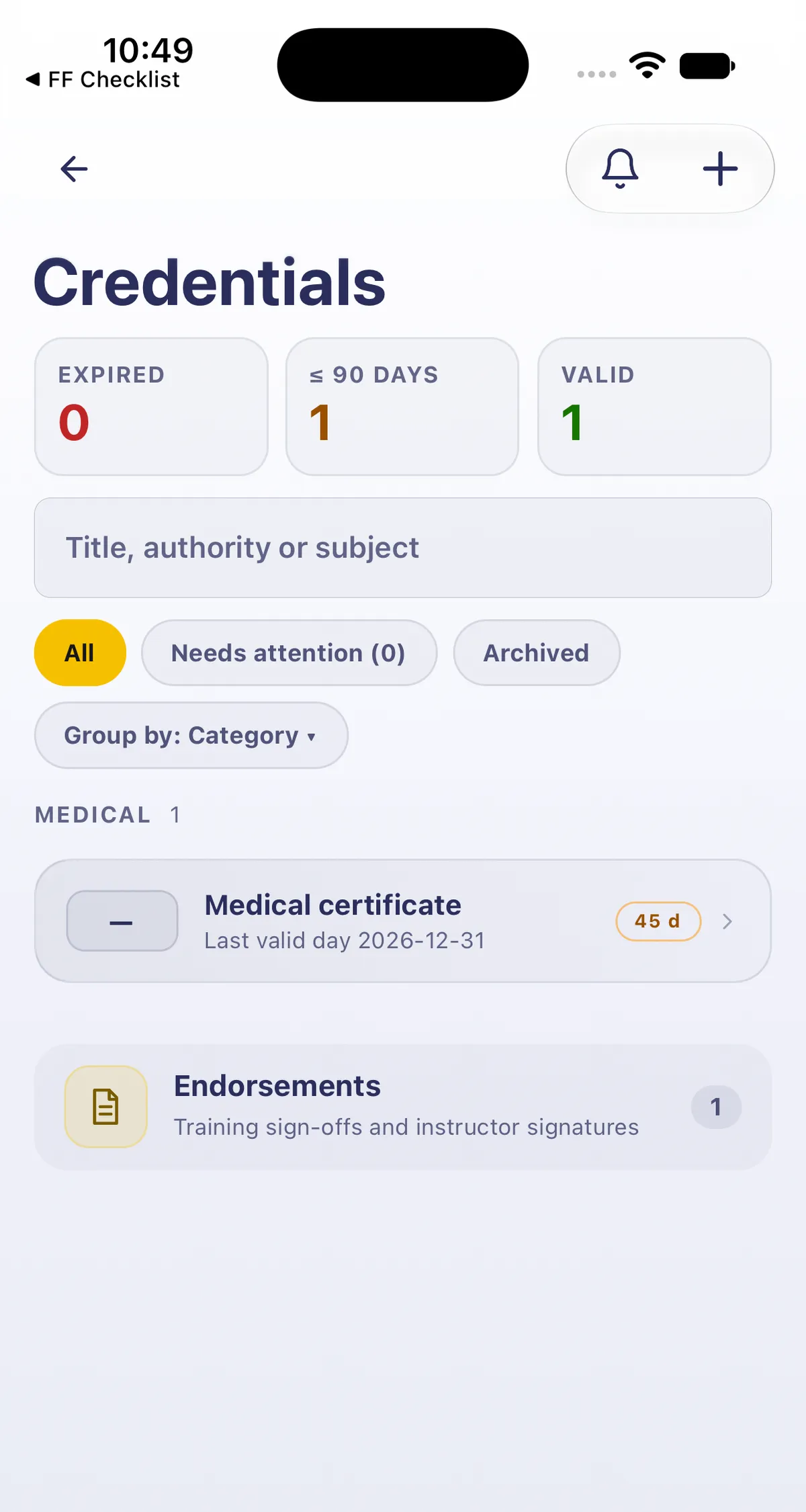
Section titled “5. See what’s due”- The list has three counts at the top: EXPIRED, ≤ 90 DAYS and VALID. A medical that ends within 90 days counts under ≤ 90 DAYS.
- Below are a search field (Title, authority or subject), All / Needs attention / Archived, Group by: Category, and the credential under MEDICAL: Medical certificate · Last valid day 2026-12-31 with a days-left badge (45 d).
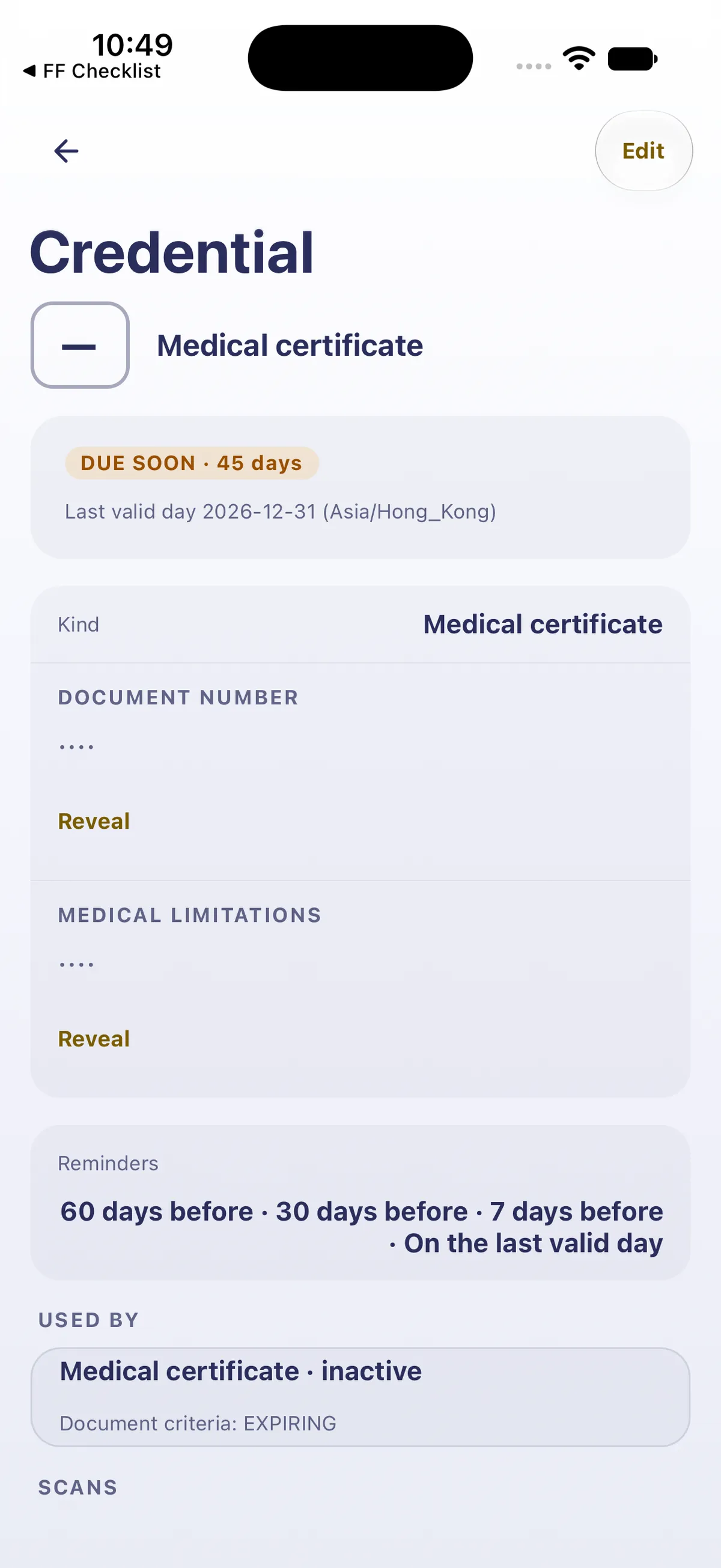
- Tap it. The detail reads DUE SOON · 45 days and Last valid day 2026-12-31 (Asia/Hong_Kong): the day counts in your account’s time zone. Then Kind, Document number and Medical limitations (hidden, with Reveal), and Reminders 60 days before · 30 days before · 7 days before · On the last valid day. Edit at the top right changes it.
6. Renew, or delete
Section titled “6. Renew, or delete”- Scroll down. USED BY lists any currency rule that checks this credential (for example Medical certificate · inactive, Document criteria: EXPIRING). SCANS says Photos and PDFs are private. Adding scans requires Pro; saved scans remain viewable if Pro ends., with Add photo and Add PDF on Pro.
- Then three buttons:
- Renew: when you get a new medical, start the next period here, so the old one stays as history.
- Mark as no longer held: moves it to Archived.
- Delete this period: removes just this period.

- To remove an example, tap Delete this period. The sheet Delete this period? says what goes and what changes, for example Medical certificate will be removed. 0 other periods remain. Medical certificate: document criteria become DATE REQUIRED. Tap Delete period, and the medical is gone from the list.

Good to know
Section titled “Good to know”- Enter the last valid day, not the issue date. Everything (the countdown, DUE SOON, reminders) runs from it.
- Reminders need notification permission. If you tapped Not now, the bell at the top of Credentials has the reminder settings. A credential’s own Document reminders can be changed from the default.
- Renew rather than edit when you get a new medical, so the old period stays in the history.
- A currency rule can use a credential. The detail’s USED BY shows which; deleting the credential changes that rule’s document check (for example to DATE REQUIRED). See Make your own currency rule and Understand your currency cards.
On iPad
Section titled “On iPad”On iPad, Credentials opens in the right pane of Account, beside the profile and section list.


Related: Getting around FF Logbook · Keep your instructor endorsements in your logbook · Track your flight review · Understand your currency cards · Make your own currency rule · Settings explained