
See your hours in tenths, and why 0:50 can be 0.8 or 0.9
Does a form ask for your hours in tenths? FF Logbook can show every duration and total as decimal hours. Minutes don’t divide neatly into tenths, though, so the app rounds them with a table, and two tables can give different answers. For example, a 50-minute flight shows 0.8 with the General table and 0.9 with the HKCAD table.
1. Show durations in tenths
Section titled “1. Show durations in tenths”- Open Account → Settings. Under Formats, tap Time (for example HH:MM). It sets how durations are shown, not the clock.
- The Time format sheet lists HH:MM (✓), DECIMAL and 2 DECIMAL. Tap DECIMAL. The sheet closes, and the Time row reads DECIMAL.
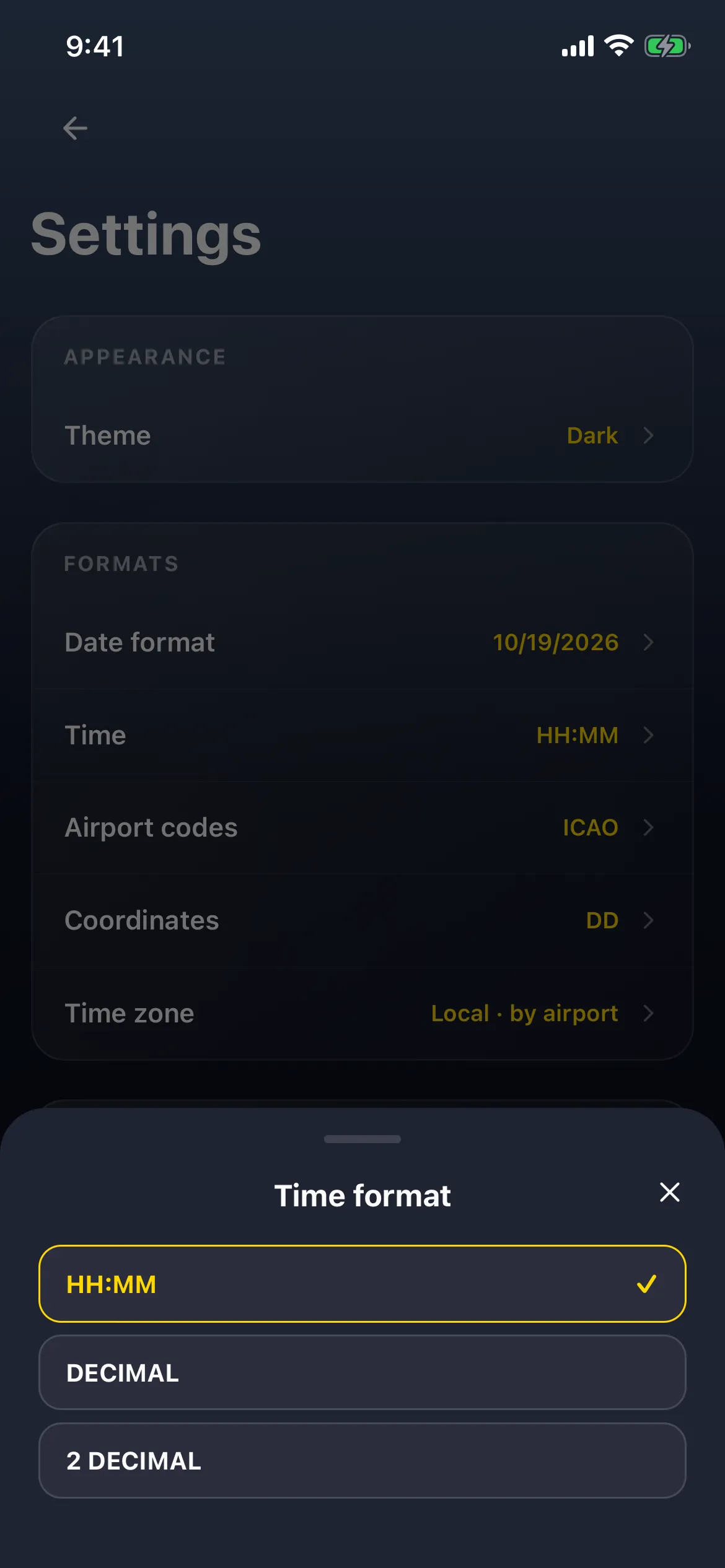
- Nothing changes until you save: a Cancel / Save bar floats at the bottom. Tap Save. A Settings saved. toast appears.
- Go back to the Dashboard. TOTAL TIME now reads 93.9 HRS (it was 93:52), and PIC TIME 63.9.
- Open Flights. The header reads 9 Flights 8.9 Total, and every card shows tenths. In the example, an evening flight (19:40–21:00, 1:20) reads 1.3, and the 6 October flight to San Carlos (14:00–14:50, 0:50) reads 0.8.

2. Why 0.8: the rounding table
Section titled “2. Why 0.8: the rounding table”- Back in Account → Settings, scroll past Duty & FTL, Data and Connected to ADVANCED. Decimal Formats reads General. Tap it.
- PRESET has General, HKCAD and Custom. The table shows each tenth’s AVG MIN, and the minutes it covers, FROM and TO. With General, 45 to 50 minutes is 0.8, so a 50-minute flight shows 0.8.
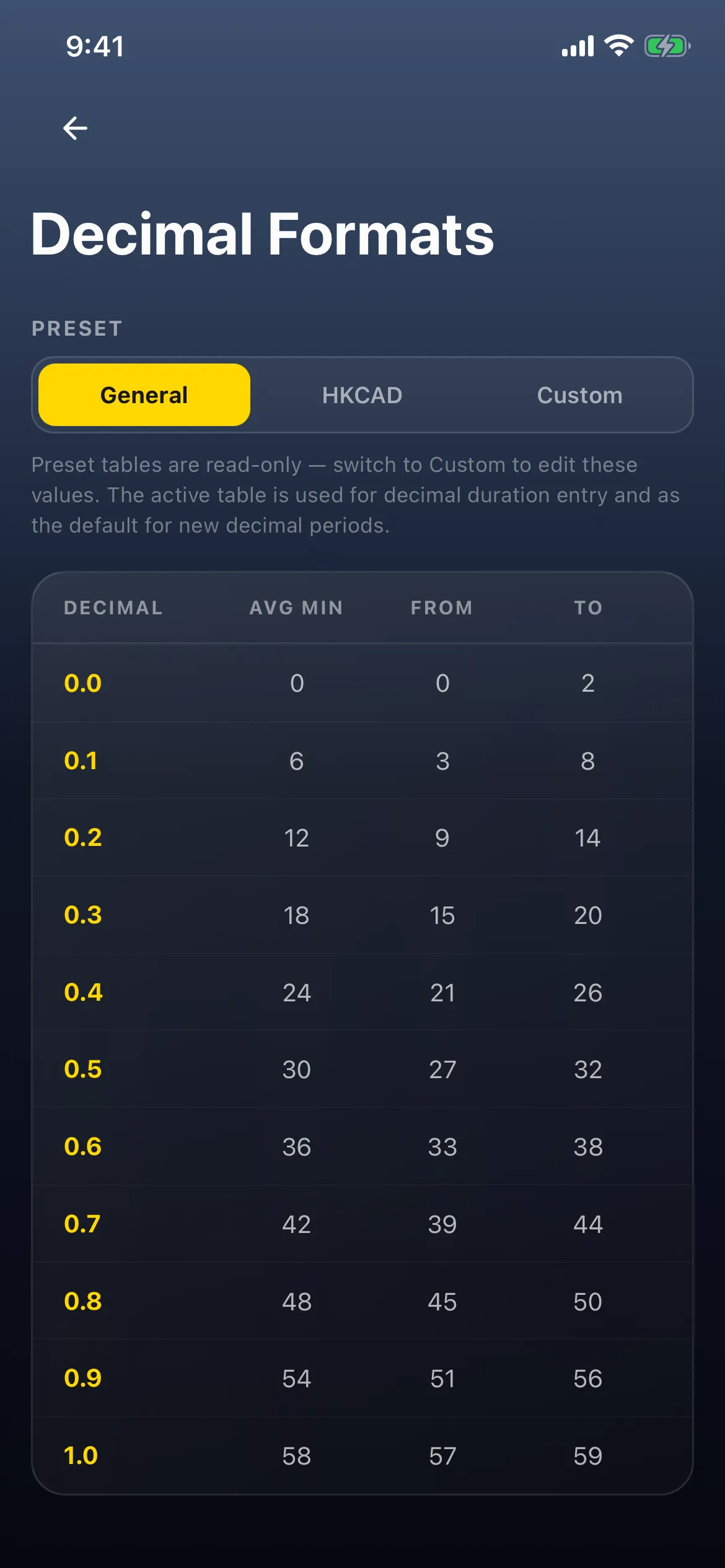
The two presets, as they read on screen:
| Tenth | General: avg, from–to (min) | HKCAD: avg, from–to (min) |
|---|---|---|
| 0.0 | 0, 0–2 | 0, 0–0 |
| 0.1 | 6, 3–8 | 4, 1–6 |
| 0.2 | 12, 9–14 | 10, 7–12 |
| 0.3 | 18, 15–20 | 16, 13–18 |
| 0.4 | 24, 21–26 | 22, 19–24 |
| 0.5 | 30, 27–32 | 28, 25–30 |
| 0.6 | 36, 33–38 | 34, 31–36 |
| 0.7 | 42, 39–44 | 40, 37–42 |
| 0.8 | 48, 45–50 | 46, 43–48 |
| 0.9 | 54, 51–56 | 52, 49–54 |
| 1.0 | 58, 57–59 | 57, 55–59 |
HKCAD rounds up sooner: from 1 minute, not 3. That’s why 50 minutes lands on 0.9 there.
3. Switch to the HKCAD table
Section titled “3. Switch to the HKCAD table”- Tap HKCAD. The table changes: 49 to 54 minutes is now 0.9.

- Scroll down and tap SAVE. A Decimal format settings saved! toast appears and the app goes back to Settings. Decimal Formats now reads HKCAD.
- Go back and open Flights. The header reads 9 Flights 9.1 Total, October 4 Flights 4.7 Total (it was 4.5), and September still 5 Flights 4.4 Total. The evening flight now reads 1.4: its 20 minutes fall in 19–24.
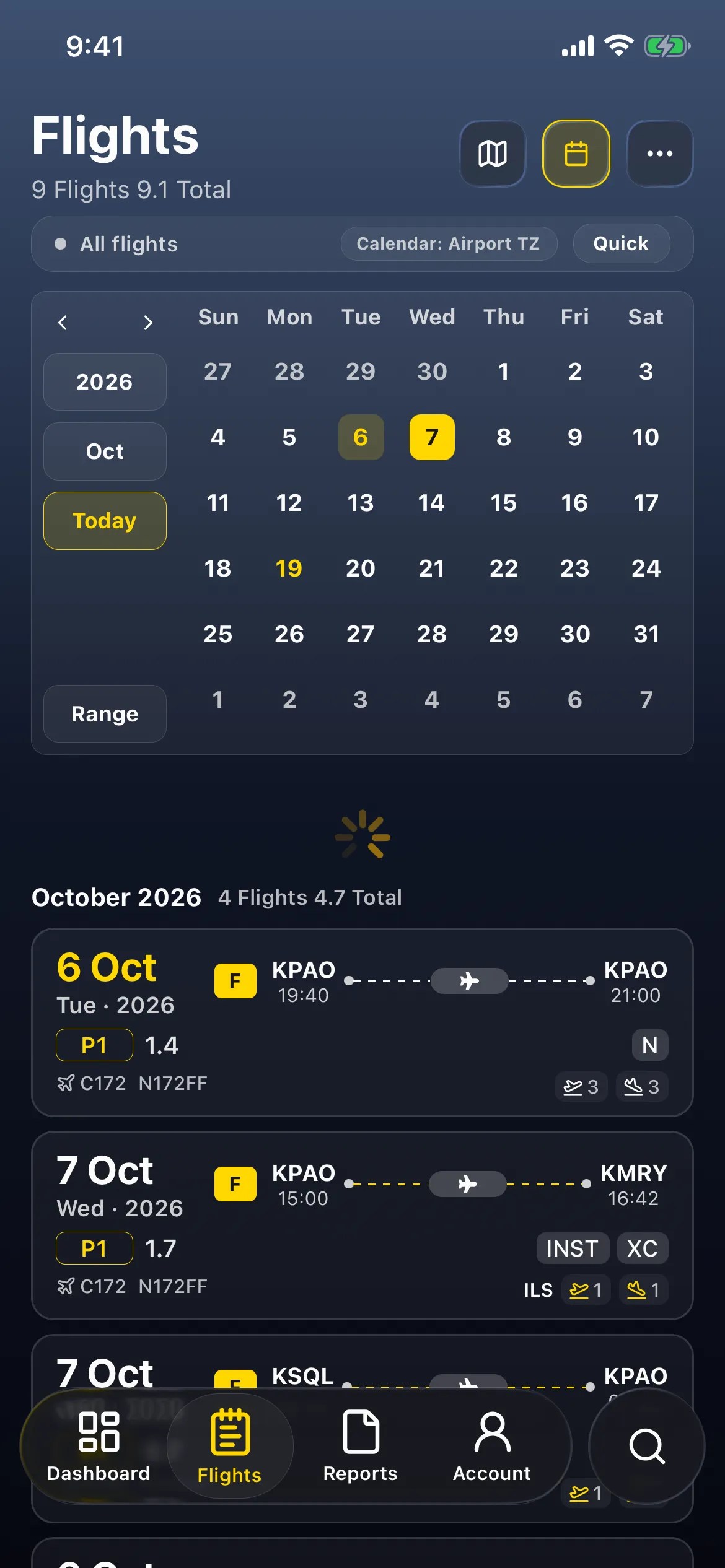
- Scroll down. The same 50-minute flight now reads 0.9.

- On the Dashboard, TOTAL TIME reads 94.1 HRS, and PIC TIME 64.1.
4. Switch back
Section titled “4. Switch back”Change one thing per visit to Settings:
- Decimal Formats → General → SAVE (toast, back to Settings). Decimal Formats reads General.
- Go back, open Settings again, then Time → HH:MM → Save (Settings saved.).
The Dashboard shows hours and minutes again.
Every flight, both tables
Section titled “Every flight, both tables”Every total adds the tenths each flight shows, not one conversion of the total minutes. So a column you add up by hand matches the app, and changing the table moves totals too, not just single flights. In the example:
| Flight | Logged | General | HKCAD |
|---|---|---|---|
| 6 Oct, KPAO → KPAO, 19:40–21:00 (night) | 1:20 | 1.3 | 1.4 |
| 6 Oct, KPAO → KSQL, 14:00–14:50 | 0:50 | 0.8 | 0.9 |
| 7 Oct, KPAO → KMRY, 15:00–16:42 | 1:42 | 1.7 | 1.7 |
| 7 Oct, KSQL → KPAO, 09:00–09:40 | 0:40 | 0.7 | 0.7 |
| October | 4:32 | 4.5 | 4.7 |
| 20 Sep | 1:10 | 1.2 | 1.2 |
| 12 Sep (two flights) | 1:00, 1:05 | 1.0, 1.1 | 1.0, 1.1 |
| 5 Sep (two flights) | 0:30, 0:35 | 0.5, 0.6 | 0.5, 0.6 |
| September | 4:20 | 4.4 | 4.4 |
| All 9 flights | 8:52 | 8.9 | 9.1 |
The September minutes come from earlier takes, and the HKCAD tenths for 12 Sep 1:05 and both 5 Sep flights are from the table; the rest was read on screen. One conversion of the total, 8:52, would give 8.9 with either table.
Good to know
Section titled “Good to know”- Totals add the rounded rows, so the table changes your totals, not just single flights. See Every flight, both tables above.
- The Dashboard includes your carry-over. In the example, 94.1 is 85:00 of paper hours (85.0) plus the flights’ 9.1. PIC TIME 64.1 is 55.0 + 9.1.
- Display only. Neither setting rewrites a flight: what you logged stays in minutes.
- The table also reads what you type. In DECIMAL, a one-decimal duration typed in Log Flight becomes minutes through the table when you enter it: 1.2 is 1:12 with General and 1:10 with HKCAD. Hobbs and Tach readings always go through it. See Settings explained and Logging by Hobbs - add OUT and IN.
- The presets are read-only. Custom makes your own editable copy. Choosing a table makes no claim about what your authority requires: use the table your form asks for.
- Time and Decimal Formats are account settings, so they sync to your other devices.
- 2 DECIMAL shows exact hundredths, with no rounding table.
- Your PDF follows Time too. With DECIMAL, Export prints every row in tenths with the same table, and each column adds the printed rows. See Print your logbook in tenths: the PDF follows your Time setting.