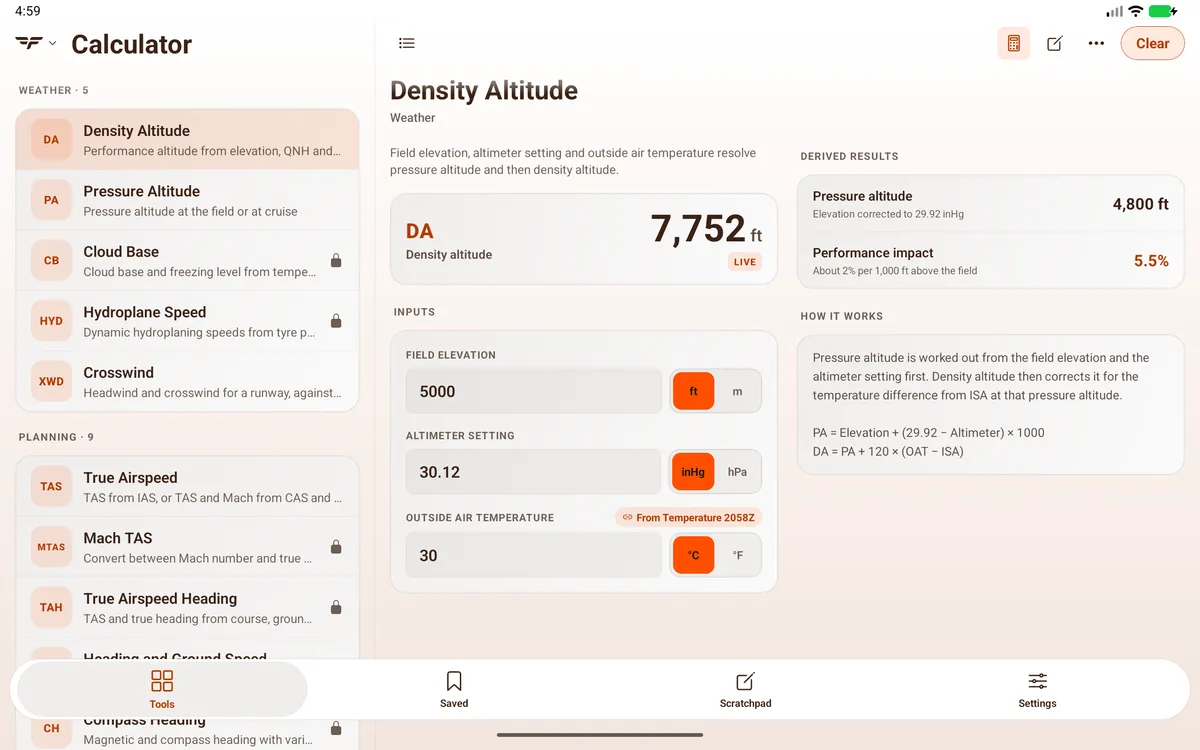
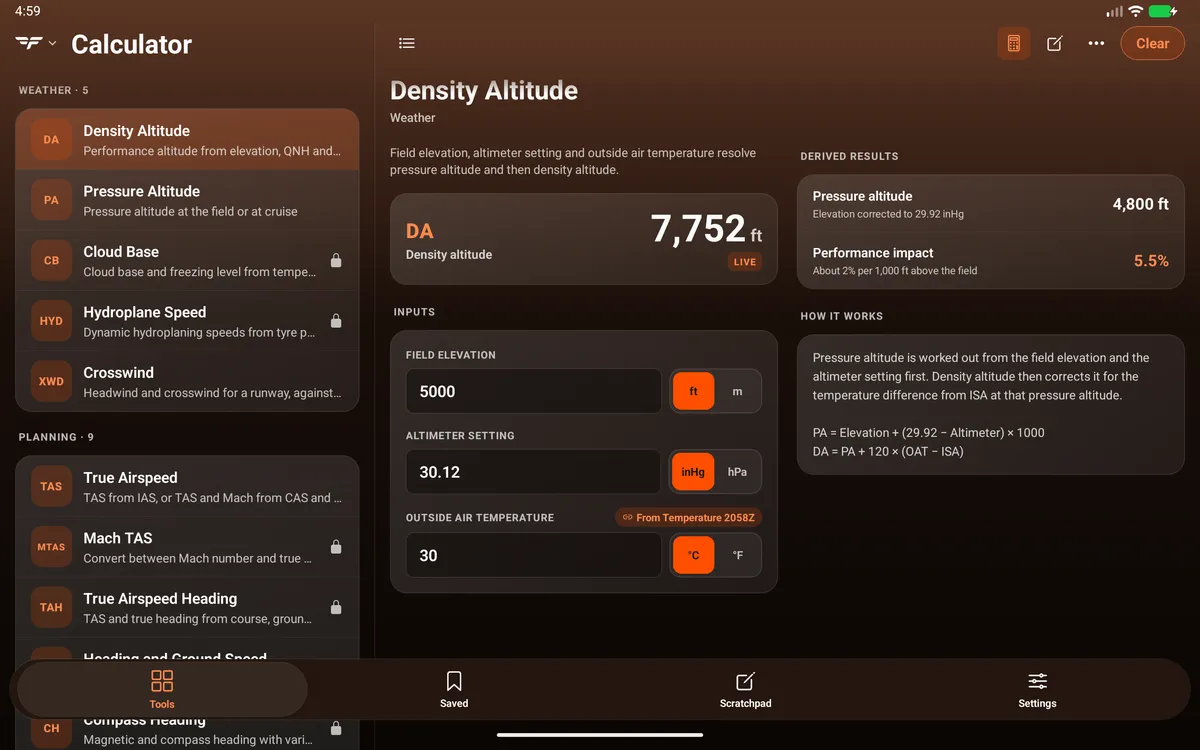
Share values between tools - the source badge
Values flow from one tool to the next, so you enter the wind or the temperature once.
How it works
Section titled “How it works”When you enter values and get a result, the calculator shares them: OAT, altimeter setting, field elevation, ground speed, true airspeed, wind and so on. When you open another calculator that uses one of those values and that field is empty, it fills in for you.
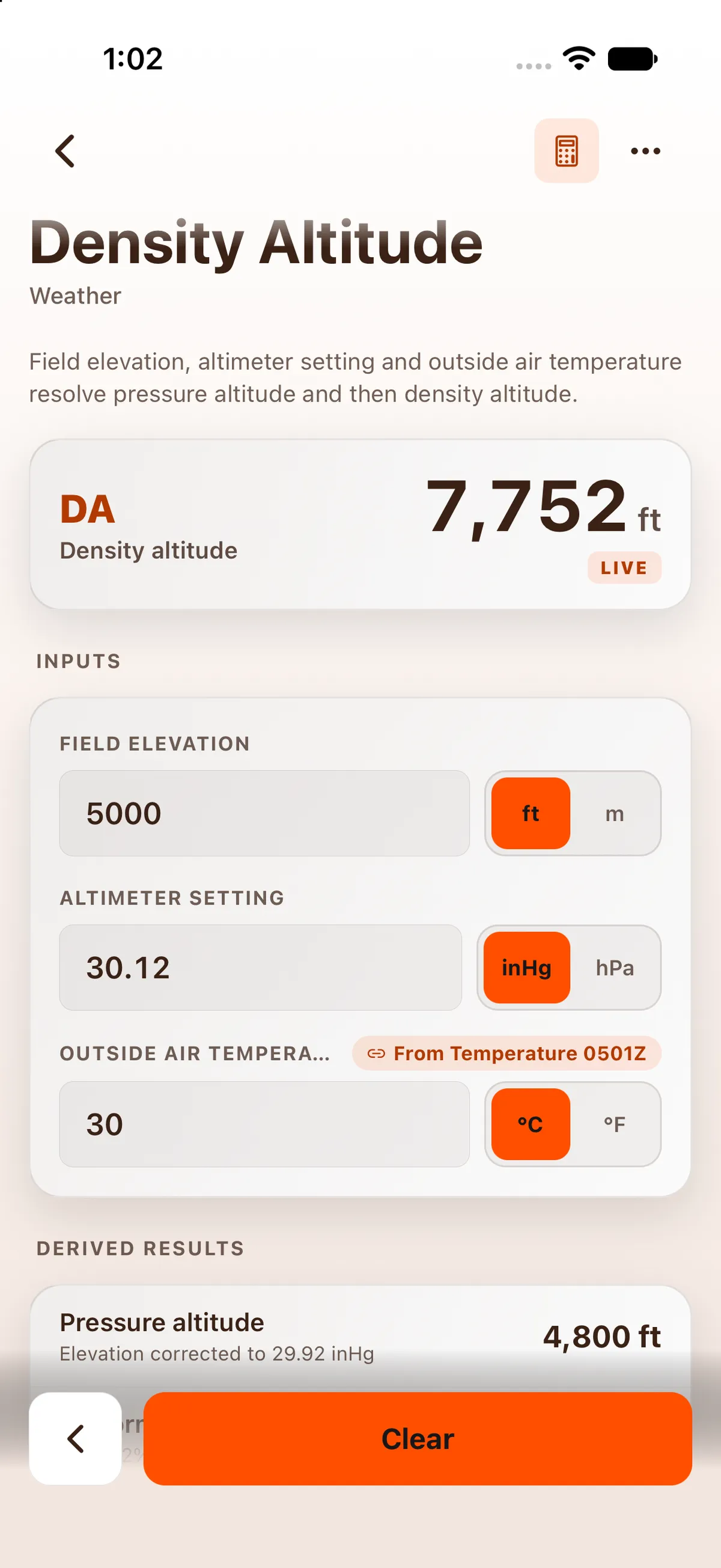
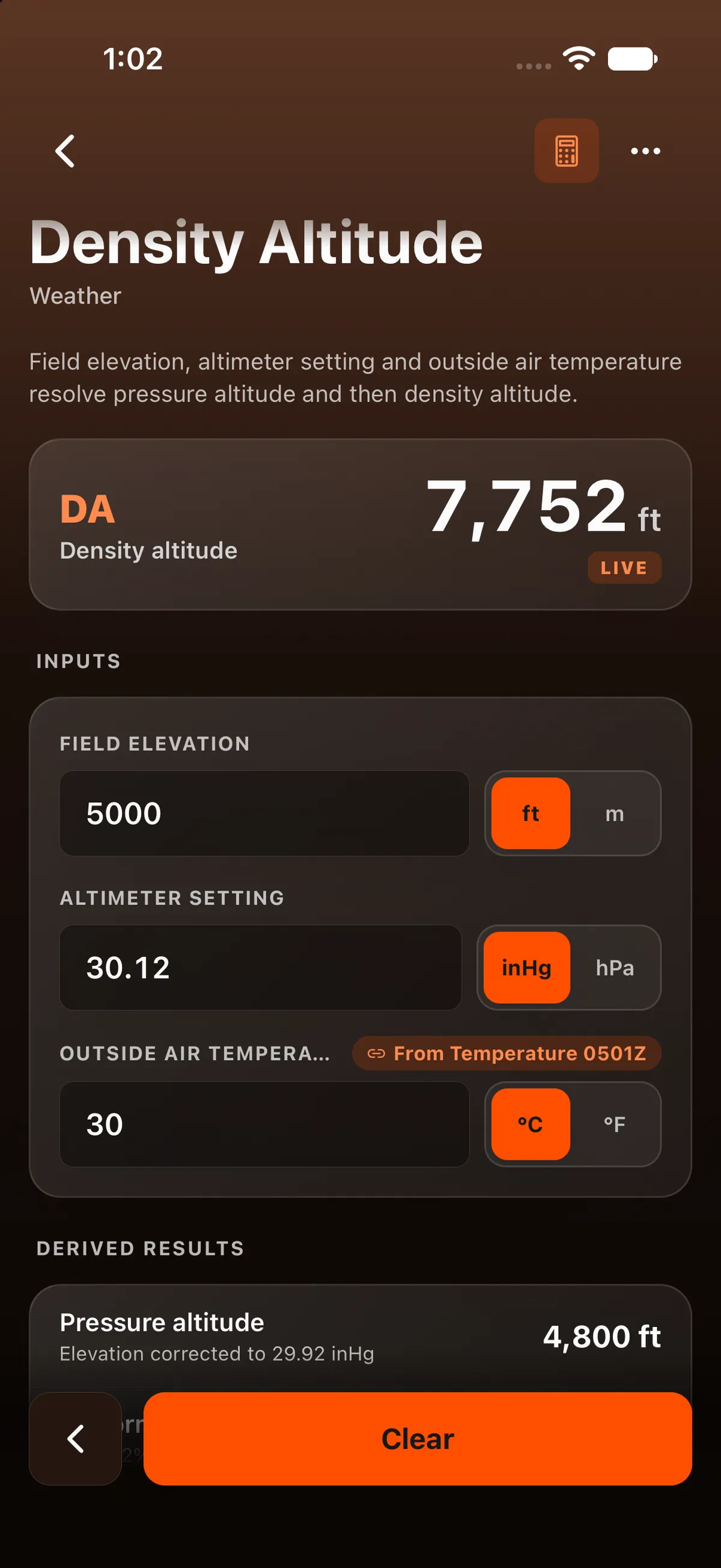
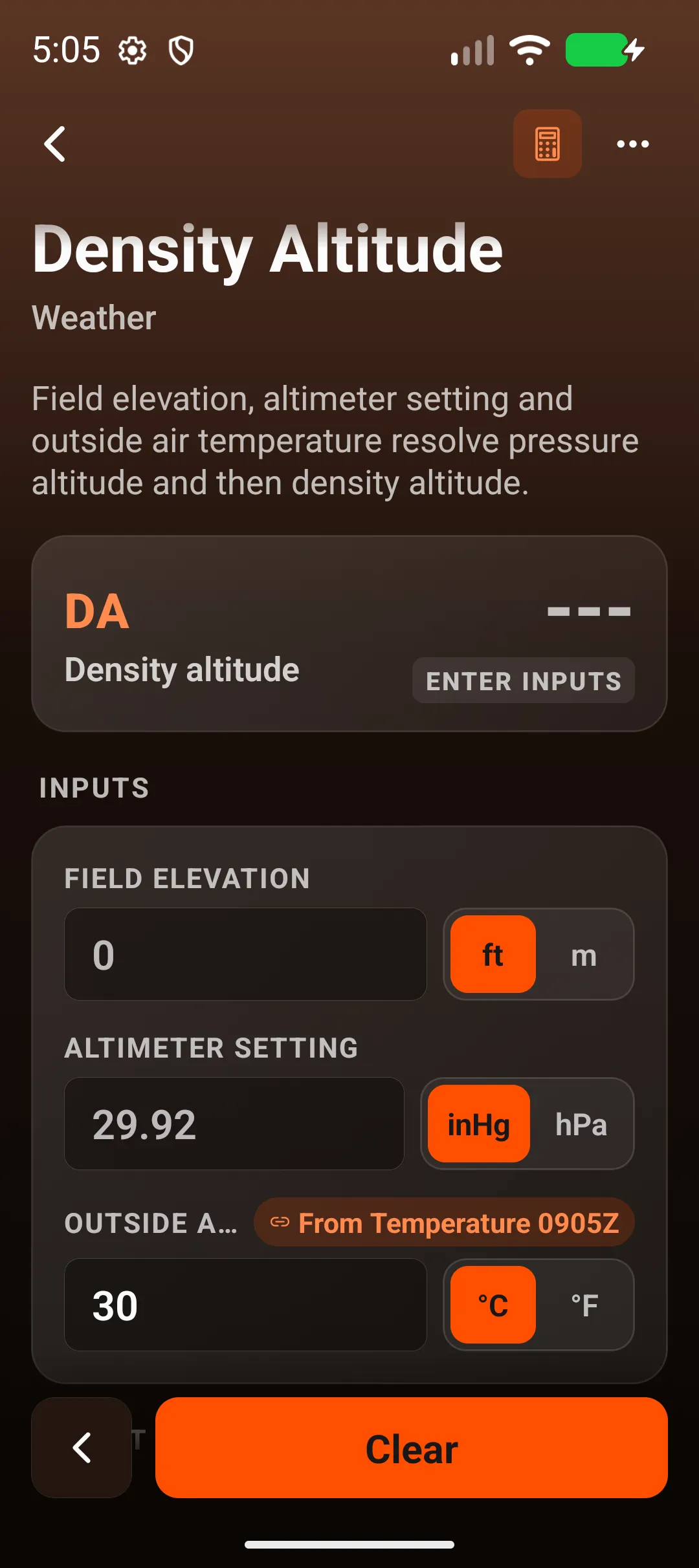
A filled field shows a source badge saying where the value came from and when, in UTC, for example From Temperature 0501Z. If you change the value, the badge goes away.
Example
Section titled “Example”- In Flight Time (Tools → Planning), enter a Ground speed, for example 120 kts.
- Open Fuel and choose Range. Ground speed shows 120 with From Flight Time and the time.
- Enter fuel on board and burn rate to get your range.
Another way in: Send to DA on the Temperature converter opens Density Altitude with the temperature in Outside air temperature, marked From Temperature. See Convert units.
The value is converted if the second calculator uses a different unit.
Quick fills
Section titled “Quick fills”Shared values also appear as chips on the keypad, labelled with the source tool’s code (for example ⚡ TIME 120 from Flight Time), even when the field isn’t empty. See Enter values - keypad, units and quick fills.
Turn it off or clear it
Section titled “Turn it off or clear it”- Settings → Calculations → Auto-fill shared values switches automatic filling off.
- Settings → Data → Reset history clears every shared value (with all history).
Settings → Calculations → Highlight shared values doesn’t change anything yet: the badge shows either way.
On iPad
Section titled “On iPad”On iPad the app uses a two-pane layout: Tools, Saved, Scratchpad and Settings are a segmented bar at the top centre of the screen, the tool list stays on the left and the open calculator fills the right. Badges work the same way. Opening Density Altitude after Pressure Altitude filled Field elevation and Altimeter setting with From Pressure Altitude 0537Z badges, and the keypad showed a PA 500 quick fill. True Airspeed then picked up pressure altitude and OAT From Density Altitude.


On Android
Section titled “On Android”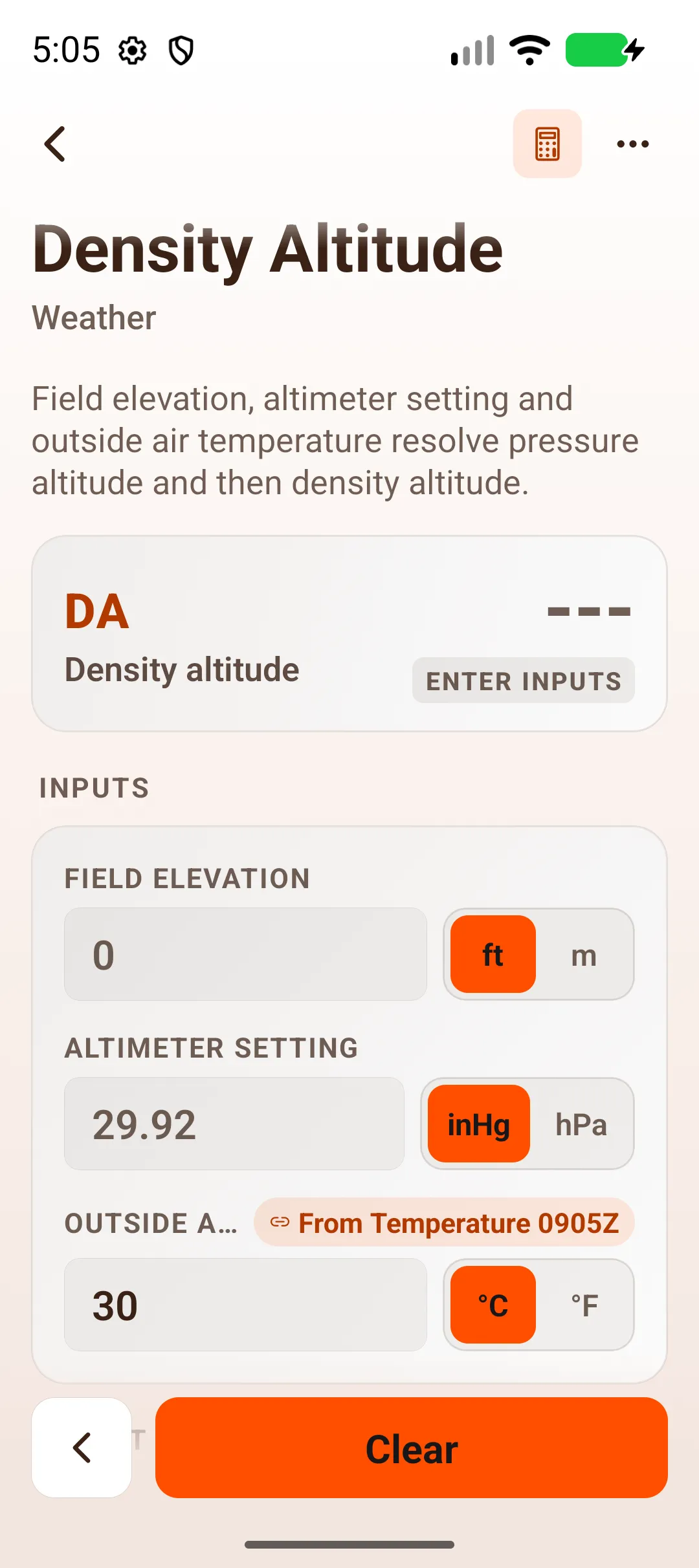
On Android tablet
Section titled “On Android tablet”