
Count your flights, not your hours: a Count goal
Want to count flights rather than hours: 20 flights this year, or 50 sectors before a line check? Use a Count goal. Switching a goal to Count starts it on Total Landings, so change its Metric field to count flights. This guide does that and sets a target of 20. A new goal goes on Reports → Career by default, so it doesn’t take a Dashboard slot.
1. Start a goal
Section titled “1. Start a goal”- Reports → Summary, then tap + Add at the top (on iPad, + Add widget). Or tap the Add Widget tile in an empty section.
- The library opens. + Start from scratch is at the top: tap it.
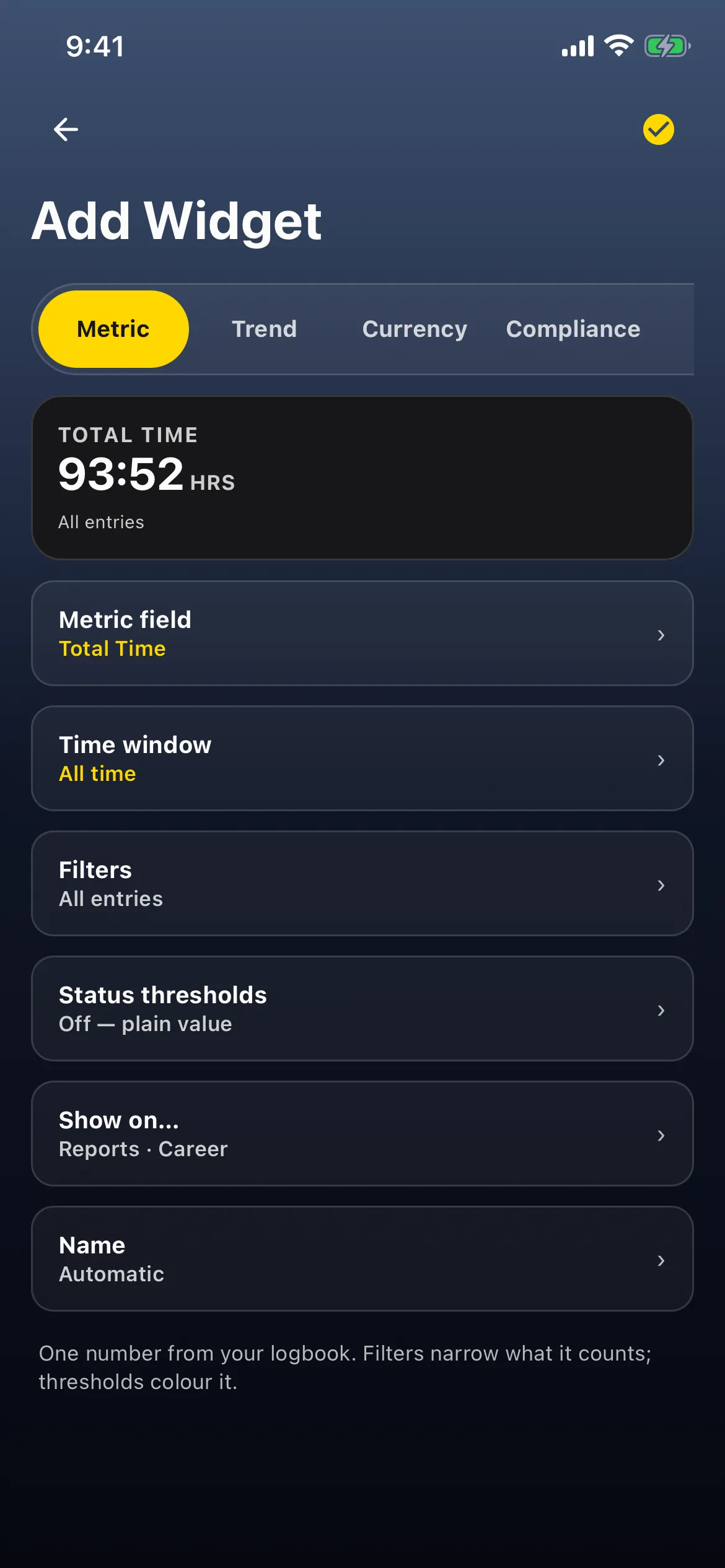
- The editor (Add Widget) opens on the Metric tab. Swipe the tabs along the top (Metric, Trend, Currency, Compliance, Goal, Time Loop, Activity) and tap Goal.
2. Make it a count, then change what it counts
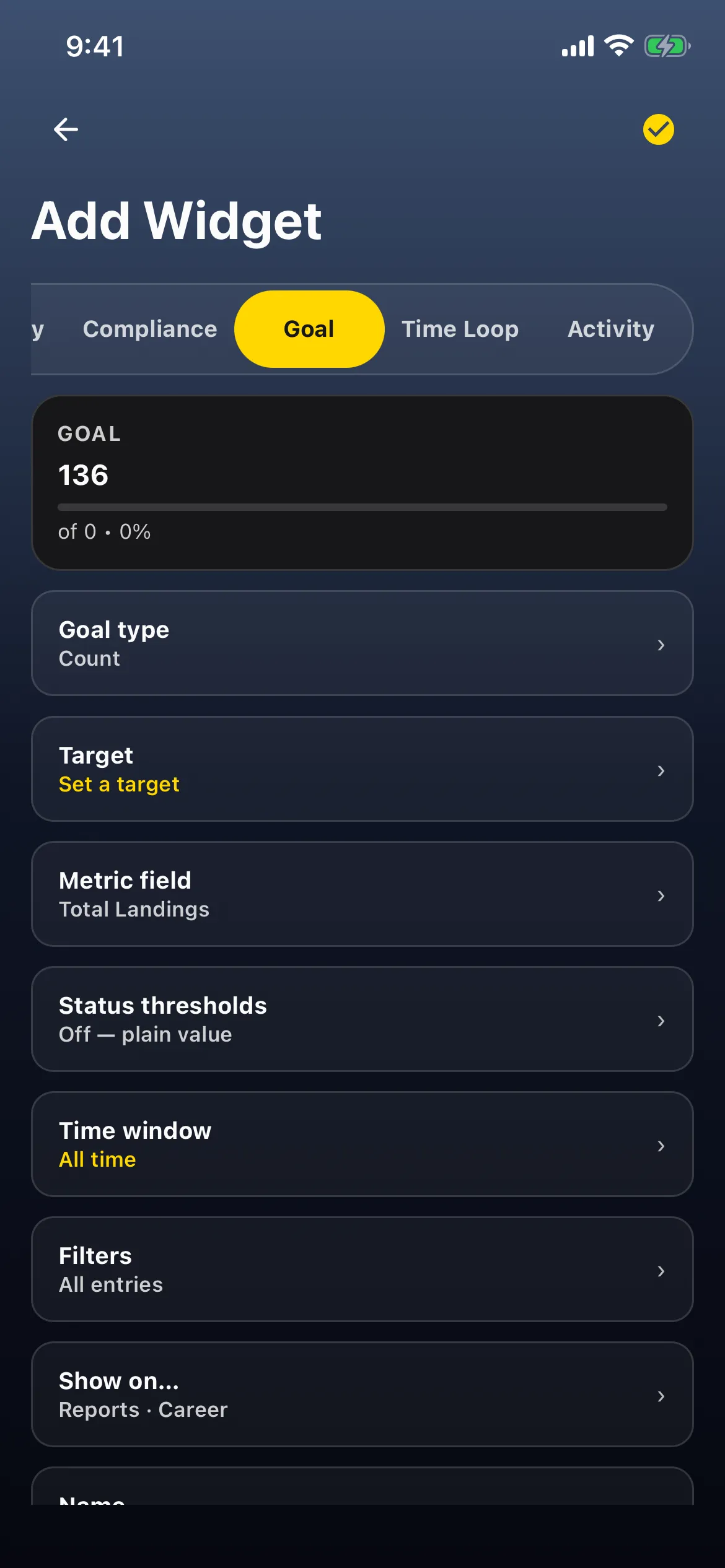
Section titled “2. Make it a count, then change what it counts”- Tap Goal type. The sheet lists six types: Hours, Count, Date, Unique, Streak and Ratio. Tap Count.
- The sheet closes and Goal type reads Count. Metric field now reads Total Landings, and the preview reads 136 of 0 • 0% (all-time landings, the carry-over’s included). A Count goal always counts something, never hours. To count flights instead, change it.
- Tap Metric field, tap the search box and type Flights. Under COUNTS you get Flights / Entries and Flights Only. Tap Flights Only.
- Metric field reads Flights Only, and the preview now counts your flights: 9.
In the example the logbook has 9 flights and a paper-logbook carry-over (85:00), which isn’t counted: a Count goal leaves prior experience out. See What counts below.
3. Set the target
Section titled “3. Set the target”- Tap Target. The sheet has a TARGET COUNT box with the hint How many matching entries count as done.
- Tap the box and type 20.
- Tap Apply. Target reads 20, and the preview reads 9, of 20 • 45%.

4. Name it and save
Section titled “4. Name it and save”- Optional: tap Name. Name reads Automatic; the box shows the placeholder Flights Only, with the hint Leave this blank to keep the automatic name shown above. Type a name (for example Flights logged). Then tap Apply. The preview’s label changes from GOAL to FLIGHTS LOGGED.
- Tap the checkmark (Save, top right). The editor goes back to the widget library: tap ✕ to close it. Your goal is on Career, for example FLIGHTS LOGGED 9, of 20 • 45%.
Each flight you log adds one. On Reports the card is compact, with no progress bar; on the Dashboard it shows the bar.
Good to know
Section titled “Good to know”- Check the Metric field. A Count goal you start from scratch begins on Total Landings. Pick Flights Only to count flights. (The 1,000 Landings preset counts landings too: see Set goals and chart your flying.)
- The carry-over is never counted, whatever the time window, so This year gives a clean count of this year’s flights.
- Tapping the card opens Flights, not the editor. A goal with a metric opens your flights filtered to that metric, as other cards do; see See the flights behind a number. The carry-over isn’t a flight in that list (as in Why paper-logbook landings don’t make you current), so the list shows the same 9 flights as the card. To edit the goal, hold the card and tap Edit Widget, or use Edit.
- Want it on the Dashboard? Show on… (Reports · Career by default) opens the placement sheet, with a Dashboard switch for this iPhone that shows how many slots are used (for example Full · 6 of 6 slots), and Reports with a FOLDER (Career).
- Just want a number, no target? The library’s Entries card under OPERATIONS (Count flights and simulator sessions.) shows a count without a goal.
- Changed your mind before saving? Tap back (←): Discard changes? Your unsaved changes will be lost. Tap Discard.
- To remove it: tap ⋮ on the card → Delete → Delete this widget? → Delete. The same menu has Edit Widget, Duplicate and Move to Folder.