
Add the same remark to several flights at once
Want to tag several flights with the same words, like XC practice or Checkride prep? Batch edit’s Remarks field can add one text to every flight you select, after (or before) whatever each one already says. A {Route} chip fills in each flight’s own route. As with every batch edit, you see a preview first, and you can undo it afterwards. Selecting is covered in Select several flights at once, and batch edit in general in Edit many flights at once.
1. Select the flights
Section titled “1. Select the flights”- In Flights, touch and hold a flight (for example 7 Oct, KPAO → KMRY). The menu shows Open flight, Select flights… and Delete. Tap Select flights….
- That flight starts ticked: the top reads 1 selected · 1:42 selected, with Cancel and Select all 9. Every card gets a tick box, and the bar at the bottom shows the bin (Delete selected flights) and Edit field.
- Tap the other flights you want. The count updates, for example 3 selected.
- Tap Edit field.
2. Choose Remarks, then Append
Section titled “2. Choose Remarks, then Append”- The sheet reads Edit field · 3 flights selected, with Search fields, Fields for: All fields, then RECENT ACTIONS, TIMES, DATE & CLOCKS and more. Search Remarks and tap it.
- Under OPERATION, pick Replace, Append, Prepend or Clear. Append reads: Adds this text after each flight’s existing remark. Empty remarks just get the text.
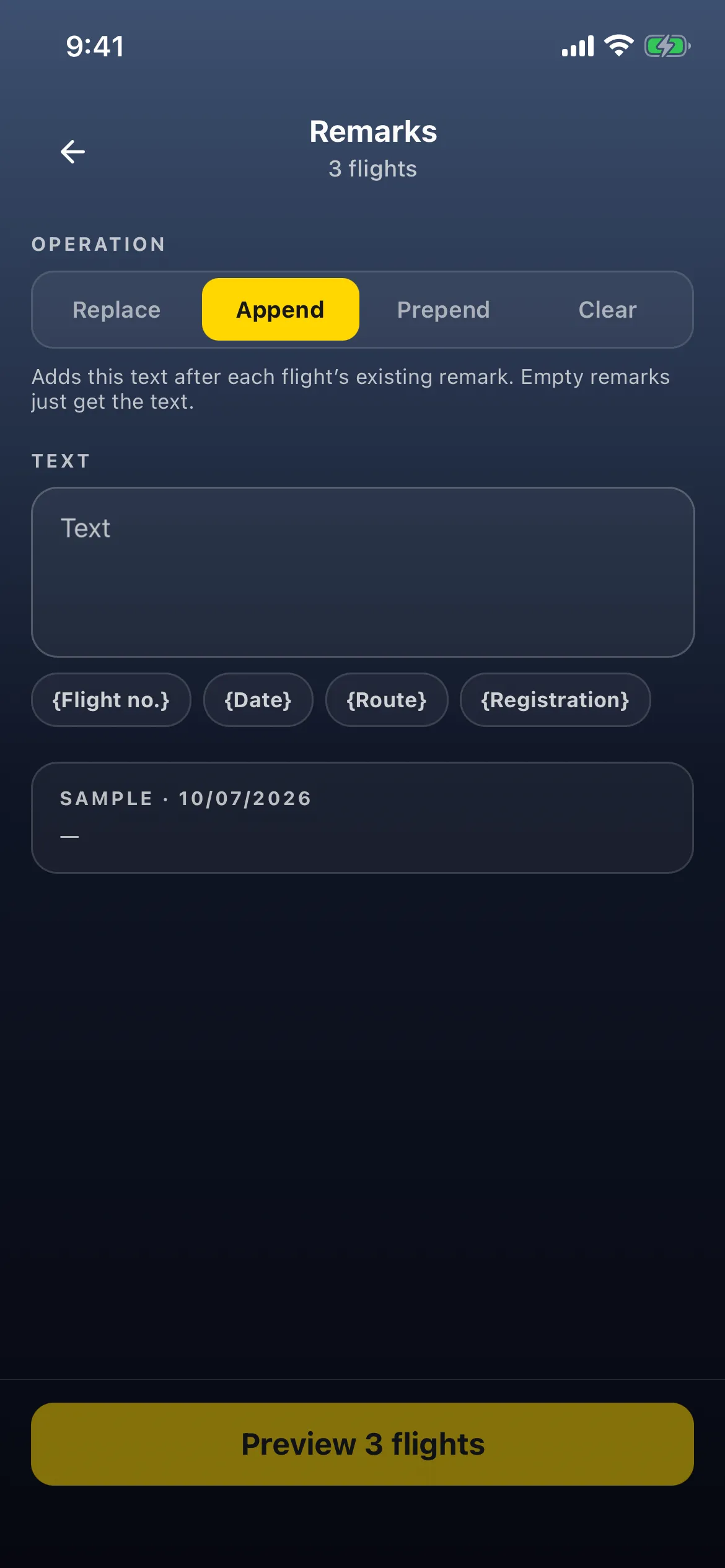
- Tap the TEXT box and write your text. Under it are four chips: {Flight no.}, {Date}, {Route} and {Registration}. Tap one to put it in at the cursor. For example, tap {Route} first, then type XC practice after it.
- The SAMPLE card (SAMPLE · 10/07/2026) shows how it reads on one flight: KPAO–KMRY XC practice.
- Tap Preview 3 flights.
3. Check the preview, then apply
Section titled “3. Check the preview, then apply”Preview · Append remark shows WILL CHANGE 3 · SKIPPED 0 · INVALID 0, and every change:
| Flight | Remark before | Remark after |
|---|---|---|
| 10/07/2026 · KPAO → KMRY | (empty) | KPAO–KMRY XC practice |
| 09/12/2026 · KMRY → KPAO | (empty) | KMRY–KPAO XC practice |
| 09/12/2026 · KPAO → KMRY (locked) | Lunch in Monterey | Lunch in Monterey KPAO–KMRY XC practice |
Each flight got its own route, and the existing remark kept its words, with the new text after them. Each row shows a padlock, because every saved flight is locked. Tap × on a flight to leave it out.
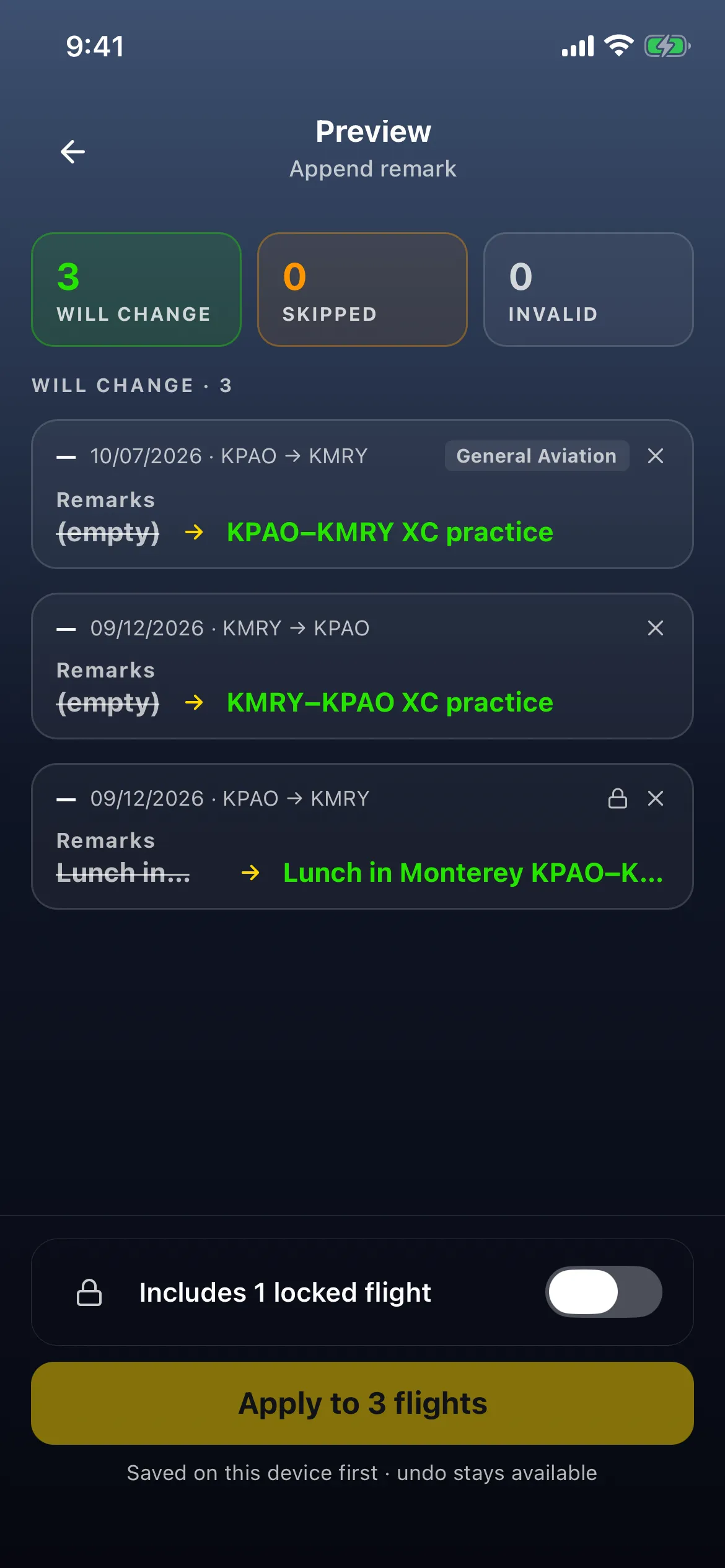
- Every saved flight is locked, so the footer reads Includes 3 locked flights, and Apply stays off until you switch it on.
- Tap Apply to 3 flights (Saved on this device first · undo stays available).
- Flights shows 3 flights updated with a short-lived Undo, and a card at the top: Append remark · 3 flights · Saved on this device · 3 syncing (then 3 synced).
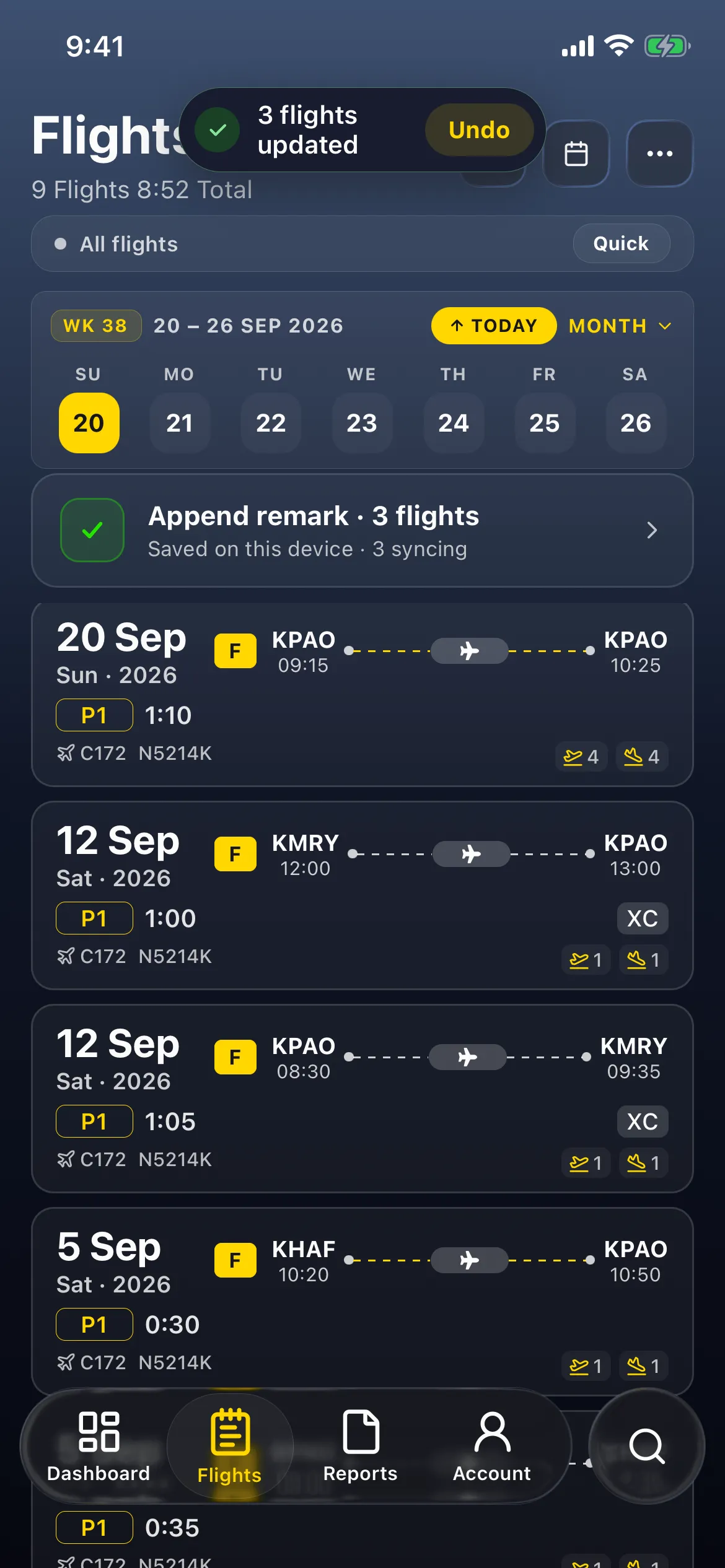
Tap the card for Results: Saved on this device · Synced, Changed 3, with Undo and Done.
4. Undo it
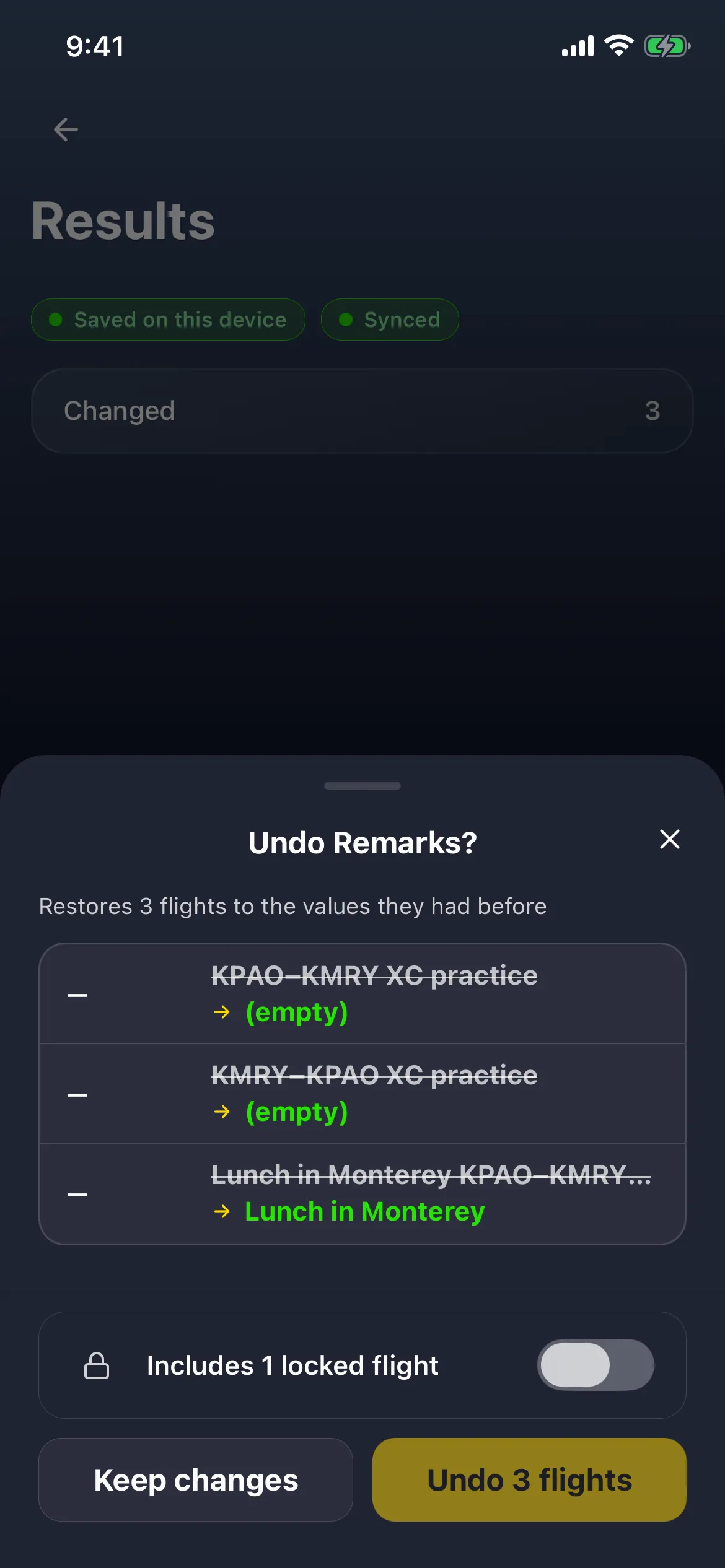
Section titled “4. Undo it”- On Results, tap Undo (or Undo on the message, while it’s there). The sheet Undo Remarks? says Restores 3 flights to the values they had before, and shows each remark going back.
- Switch on Includes 3 locked flights again. Until you do, Undo 3 flights does nothing.
- Tap Undo 3 flights. Flights shows 3 flights restored, and the card now reads Undo Remarks · 3 flights · Saved on this device · 3 synced. Keep changes closes the sheet without undoing.
What the four operations and the chips do
Section titled “What the four operations and the chips do”| Operation | What it does |
|---|---|
| Replace | Overwrites each flight’s remark with this text. |
| Append | Adds your text after the remark, with one space between. An empty remark just gets the text. If the remark already ends with your text (as whole words), the flight shows as No change, so running the same batch twice never doubles it. |
| Prepend | Adds your text before the remark, with one space between. Same rule: a remark that already starts with your text isn’t changed. |
| Clear | Removes the remark on every selected flight. Nothing else on the flight changes. No text box. |
| Chip | Fills in |
|---|---|
| {Flight no.} | The flight number |
| {Date} | The flight’s date, as the app shows it (for example 10/07/2026) |
| {Route} | Departure and arrival ICAO codes with a dash: KPAO–KMRY |
| {Registration} | The aircraft registration |
- A chip with nothing to fill in skips that flight. If a flight has no flight number and you used {Flight no.}, it’s Skipped (Token has no value), never given an empty gap.
- Your text is trimmed at both ends before it’s applied, so a space at the start or end never counts.
- Other skips: a signed flight, a flight whose role profile hides Remarks, or a flight whose remark changed since you opened the batch.
- Notes works the same way. The Notes field has the same four operations and chips. Notes never print (see Remarks or Notes - what prints).
Good to know
Section titled “Good to know”- Locked flights need the switch twice. A locked flight shows a padlock in the preview. Switch on Includes N locked flight(s) to apply, and again on the Undo sheet. Signed flights are never changed.
- If a trailing space gets lost, put the chip first. A space typed after your text can be lost, so a chip added after it would run into the words. Tap {Route} first, then type a space and your text, for example KPAO–KMRY XC practice. Check the Sample card before you preview.
- Undo stays available for 30 days, from Results (the card at the top of Flights, or More → Batch history). The message’s own Undo is short-lived and can disappear quickly.
- Remarks print. They go in your logbook PDF’s Remarks column (and the CSV), so a batch remark shows on paper too. See Remarks or Notes - what prints.