
Flying home? Log the return flight in two taps
Flew out and back the same way? Log Flight opens on a start screen (Log Flight’s new start screen) that can fill in the way home from your last flight: airports swapped, same aircraft, today’s date. You add the times. For the older route through Flight History (which also has Next flight for a multi-stop day), see Log the return leg fast and Log the next leg of a multi-stop day.
1. Open the start screen
Section titled “1. Open the start screen”- On the Dashboard, tap Log Flight.

- The start screen reads Start fresh, or fill from a flight you have flown.
- New Flight starts a blank flight. If you fly for an airline, or fill from flight number sits under it, with your airline prefixes as chips.
- Suggested has two cards built from your latest flight. Return flight flies it back, with the airports swapped. Repeat last flies the same leg again.
- Recent flights shows your latest flights, each with its own Return and Repeat buttons. See all, or the clock button at the top right, opens your full flight history.
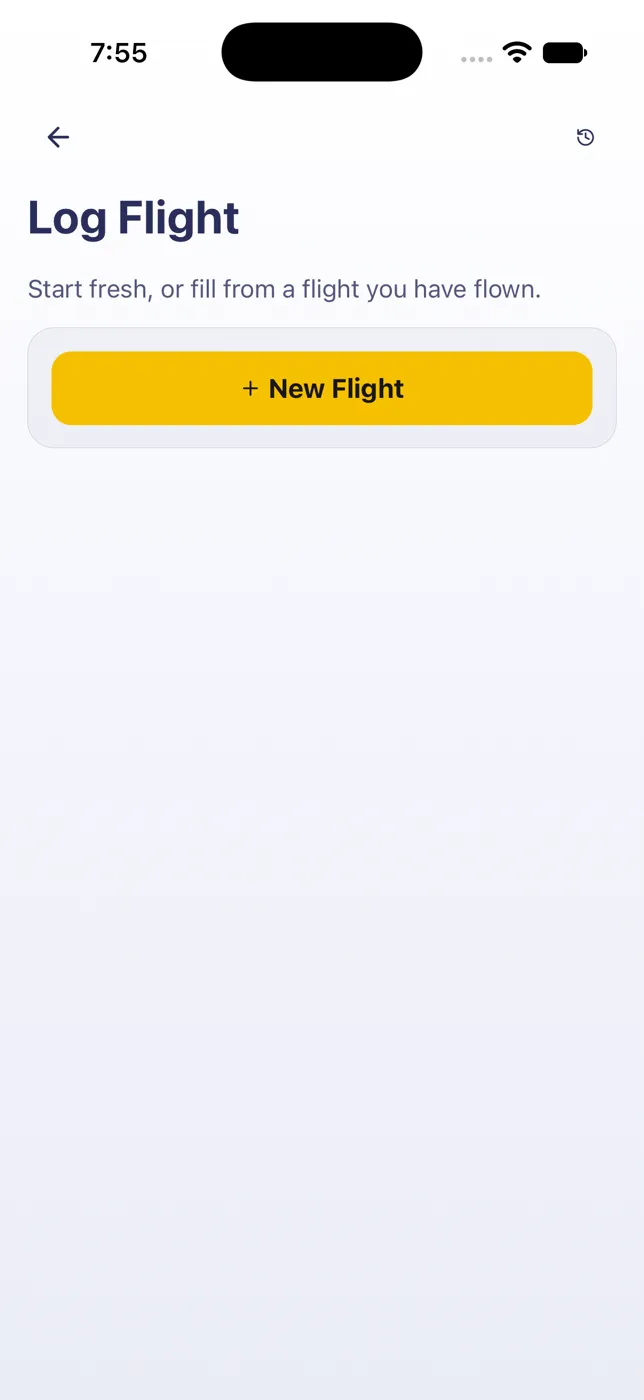
- Tap Return flight.
2. Choose what it copies
Section titled “2. Choose what it copies”- The Copy flight sheet opens on its Return tab (Repeat is the other one). The card at the top shows the new flight: the flight number, New flight · today, the two airports swapped, the aircraft and the crew it copies, and at the top right your role and PF or PM.
- Under Copy · tap to toggle are six chips: Flight no., STD / STA, Registration, Other crew, Swap PF ↔ PM and Swap P1 ↔ P2. For a return, all but Swap P1 ↔ P2 start on. On the Repeat tab, only Flight no. and STD / STA start on.
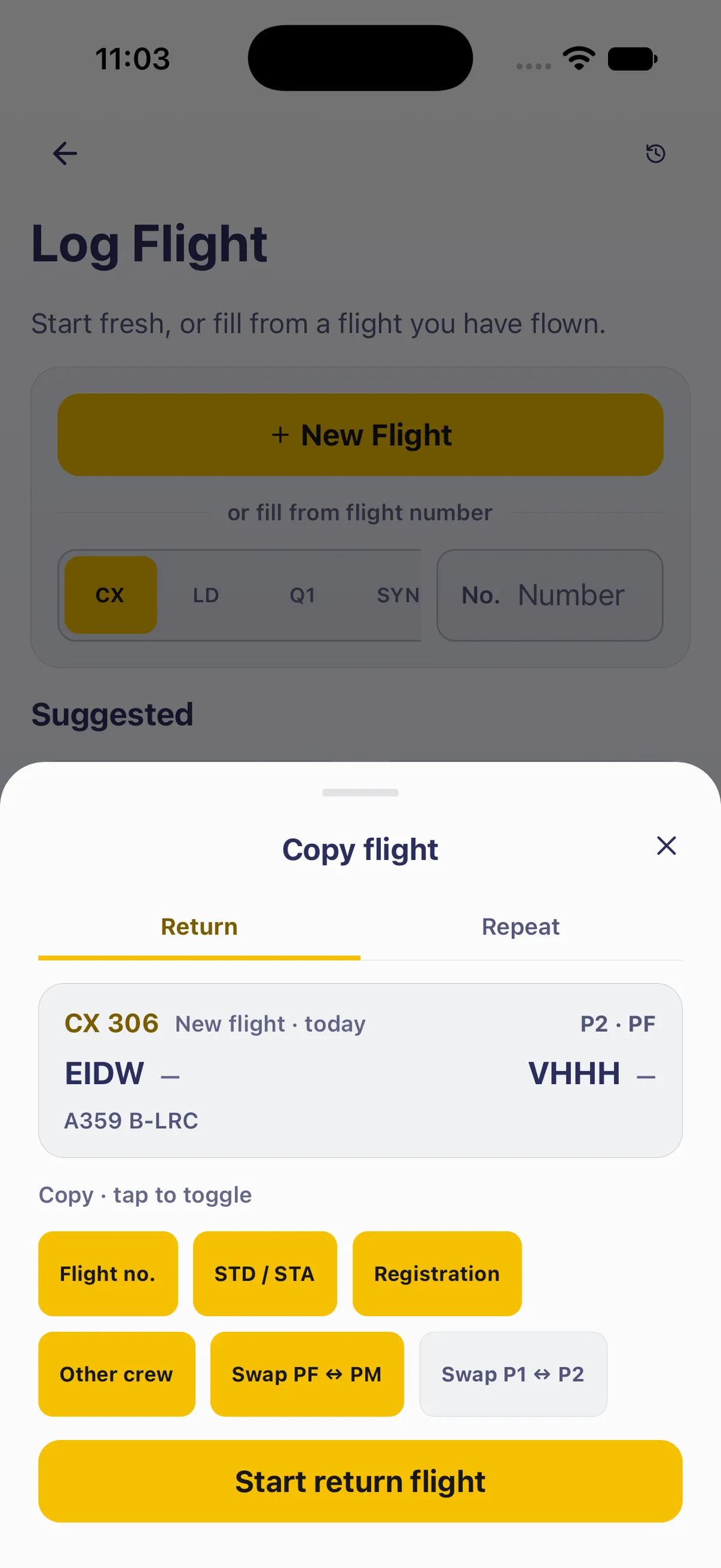
- Swap PF ↔ PM gives the new flight the opposite pilot-flying setting to the one you copy, for two pilots who take turns. If the flight out was PM, the return shows PF.
- Flew both legs the same way (or solo)? Tap Swap PF ↔ PM to switch it off. The card now shows the same setting as the flight you copied.
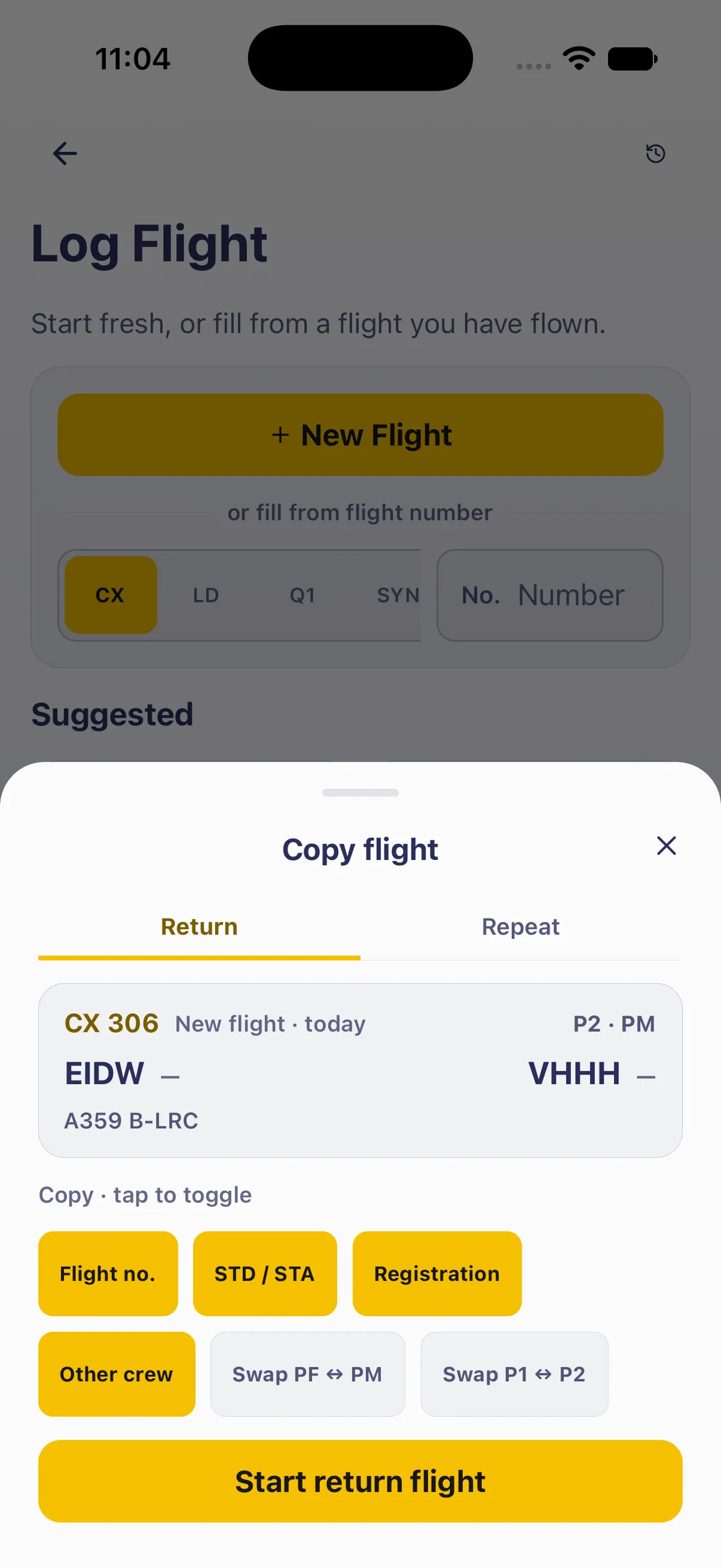
- Tap Start return flight.
3. Check it, then add your times
Section titled “3. Check it, then add your times”- Log Flight opens on the Role step. A Selected history flight card, with Return flight beside its heading, shows the flight you copied (its route and date) and MODE: RETURN FLIGHT. Clear drops the copy.
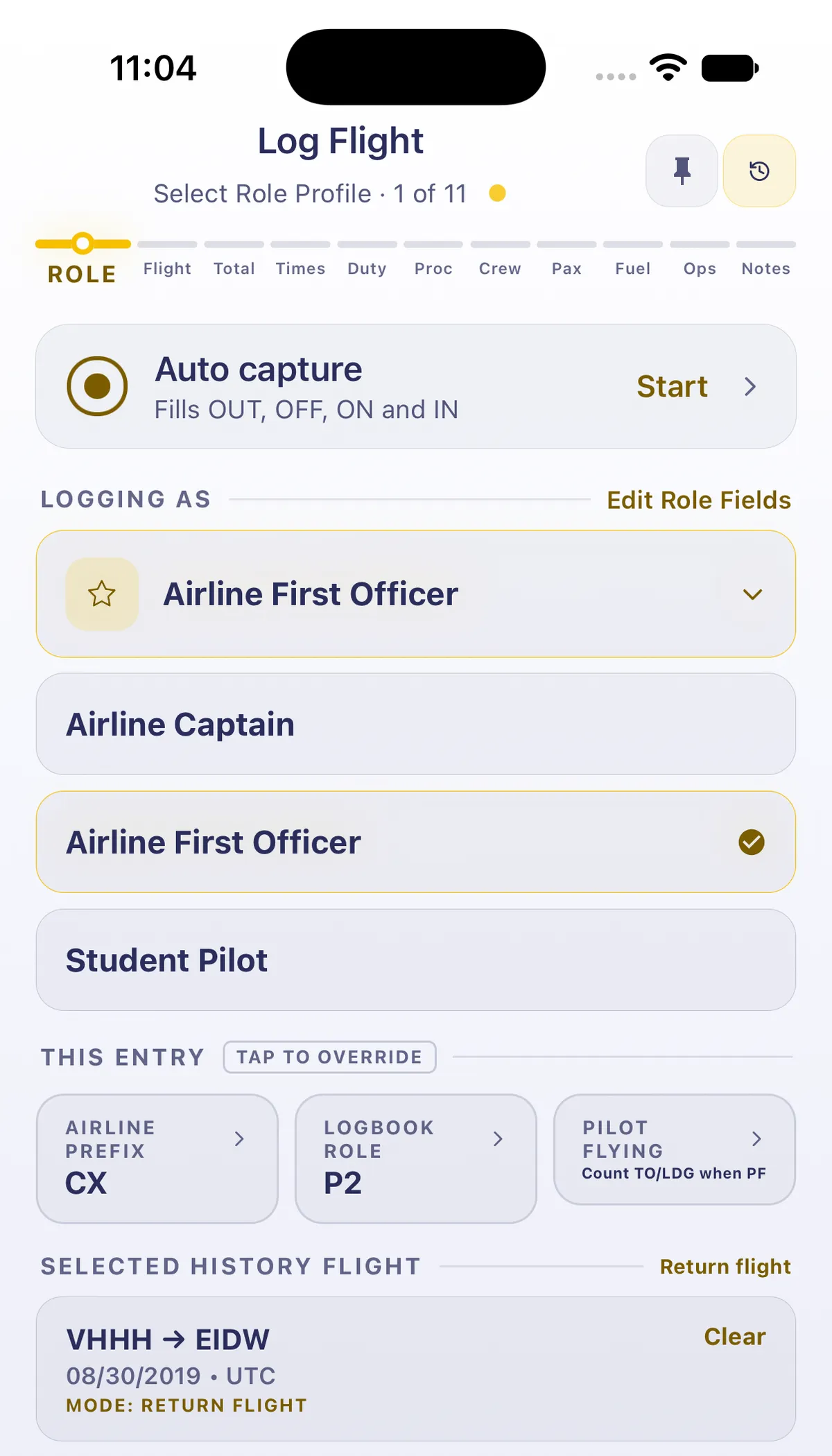
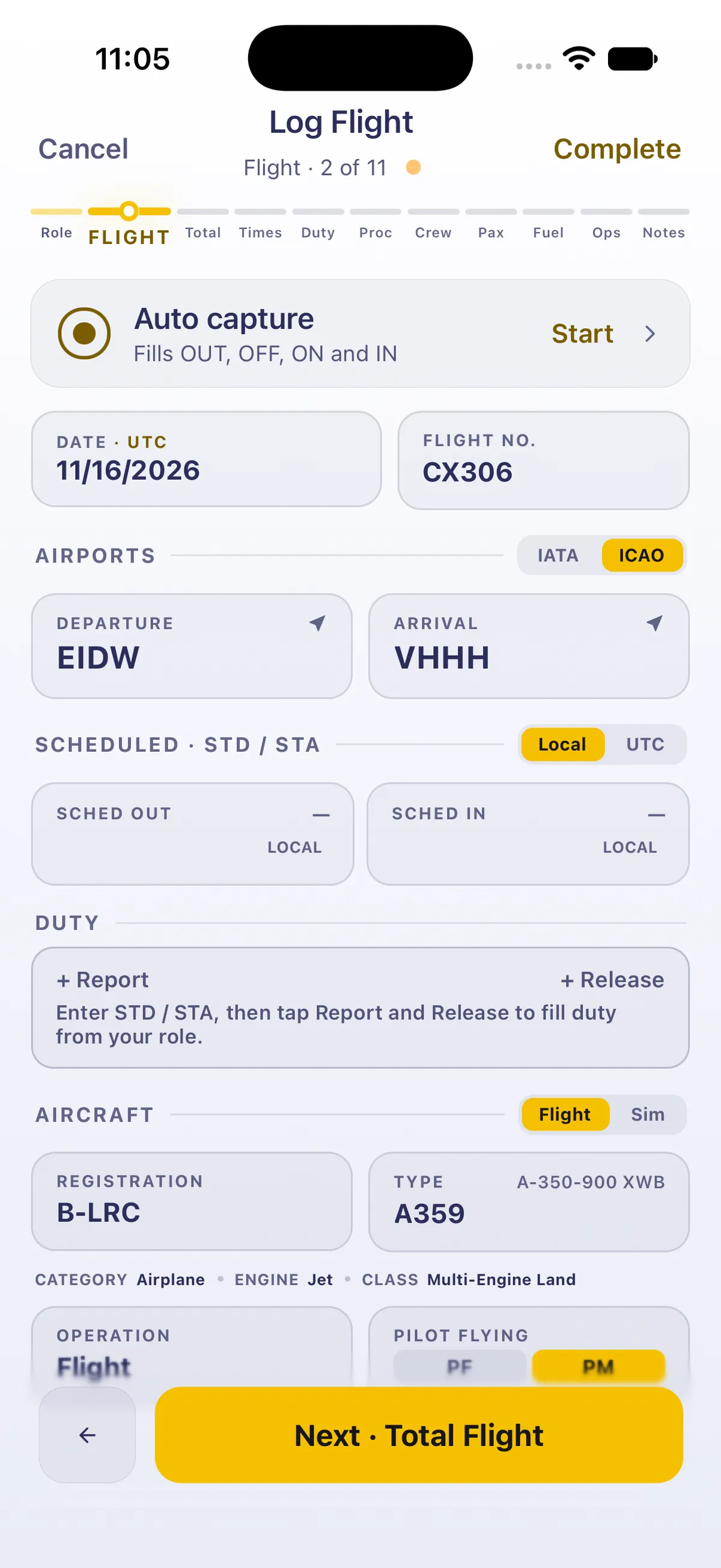
- Tap Next · Flight. The Flight step is filled in: today’s date, the flight number, the airports swapped, the registration and type, and Pilot flying set as the card showed. Times are left for you.
- Enter your times, step through, and save as usual (see Log your first flight).
Changed your mind? Cancel (or ✕ on the Role step) → Discard Draft under Leave Log Flight? Your draft is kept until you discard it or save the flight. Your logbook stays as it was.
Good to know
Section titled “Good to know”- Check PF or PM before you start. The card at the top of Copy flight shows which the return gets. You can also change it on the Flight step’s Pilot flying switch.
- Return flight always uses your latest flight. To fly back a different one, use its Return button under Recent flights, or See all.
- Repeat is for the same leg again, such as a regular route: it copies the flight number and scheduled times, not the aircraft or crew, unless you turn those chips on.
- Clear on the Selected history flight card drops the copy.
- A draft is kept until you save or discard it: Save progress keeps it for later (see Save a flight, finish later).
On iPad
Section titled “On iPad”On iPad, Log Flight opens as a sheet closed with ✕.


Related: Log Flight’s new start screen · Log the return leg fast · Log the next leg of a multi-stop day · Log your first flight · Save a flight, finish later · Role profile and auto-fill explained · Getting around FF Logbook