
Check the crosswind for a runway
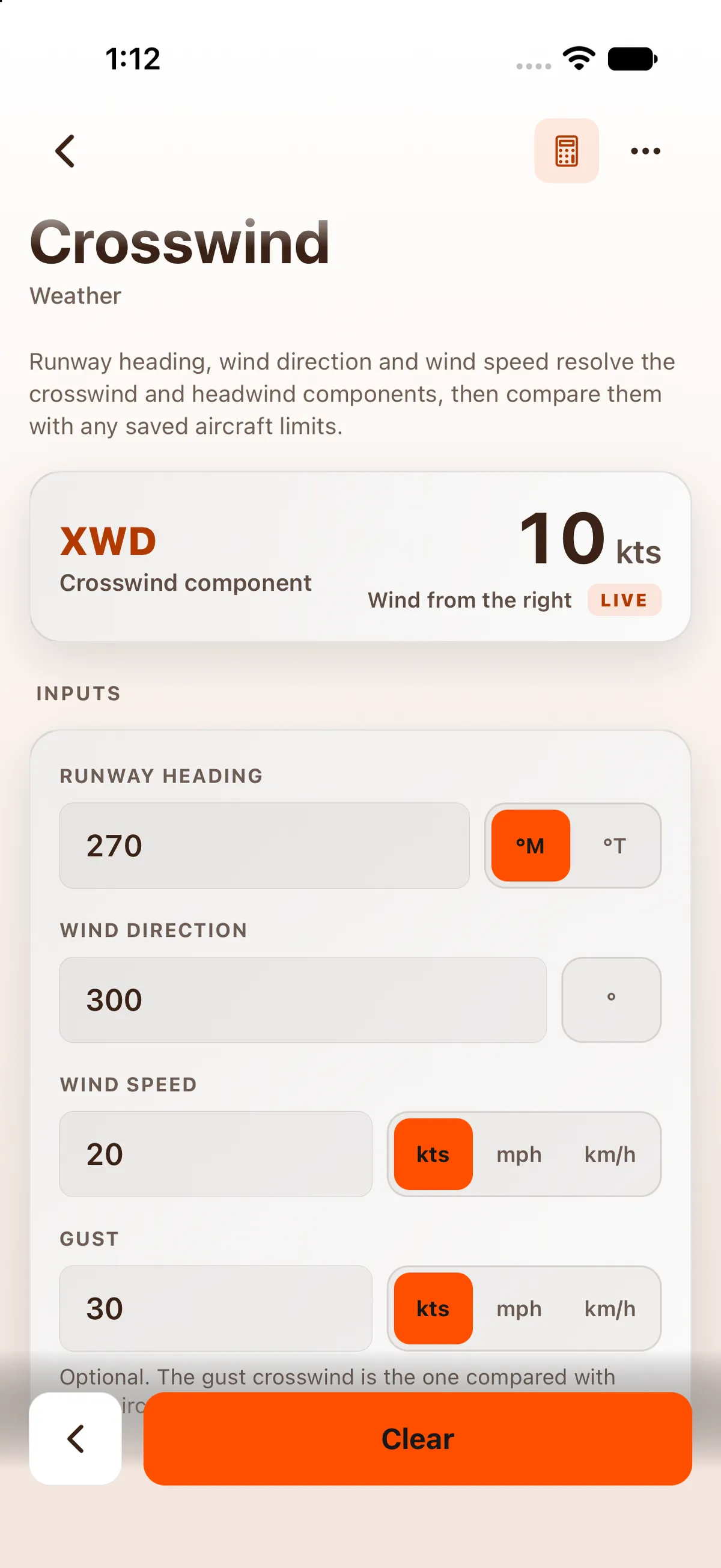
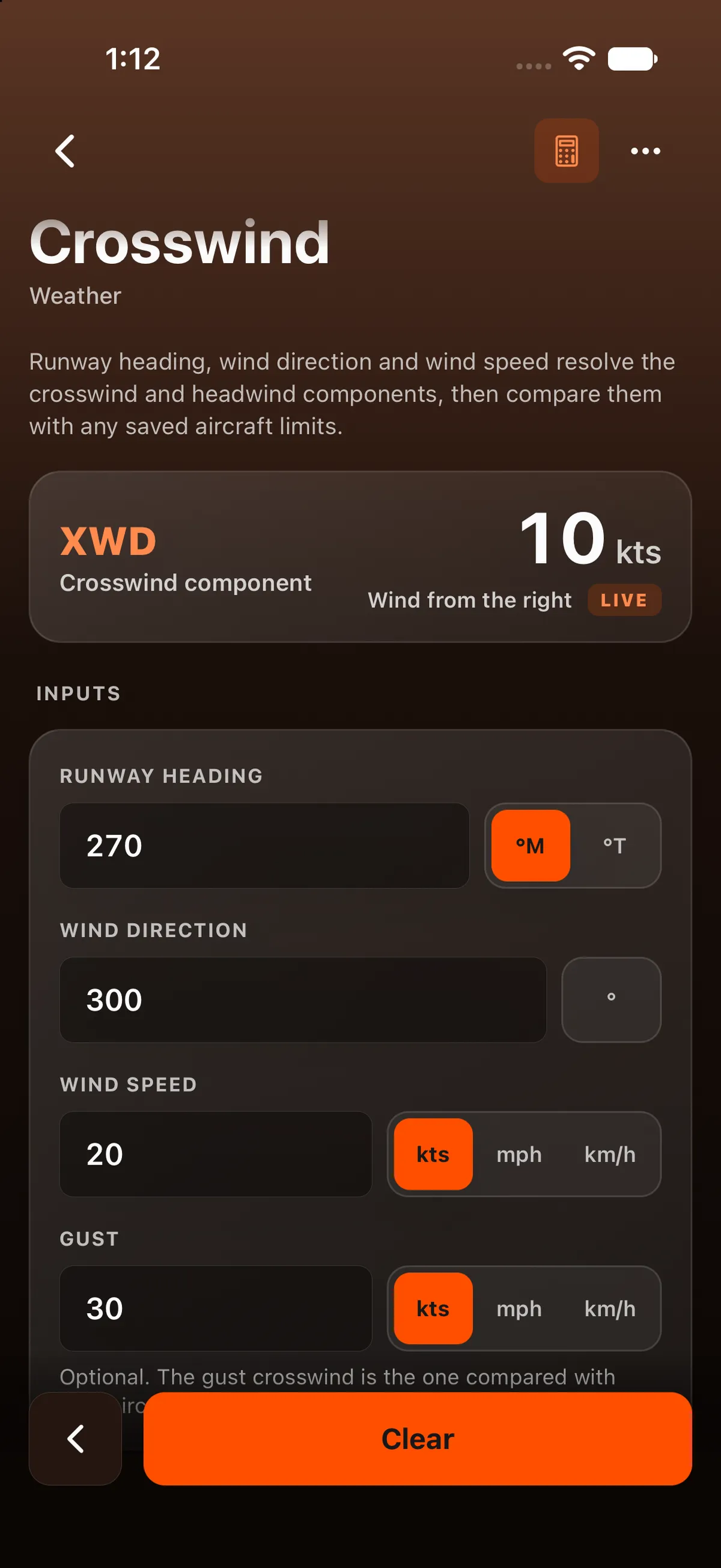
Tools → Weather → Crosswind gives the crosswind and headwind for a runway, and checks the crosswind against your aircraft’s limits.
| Field | Example |
|---|---|
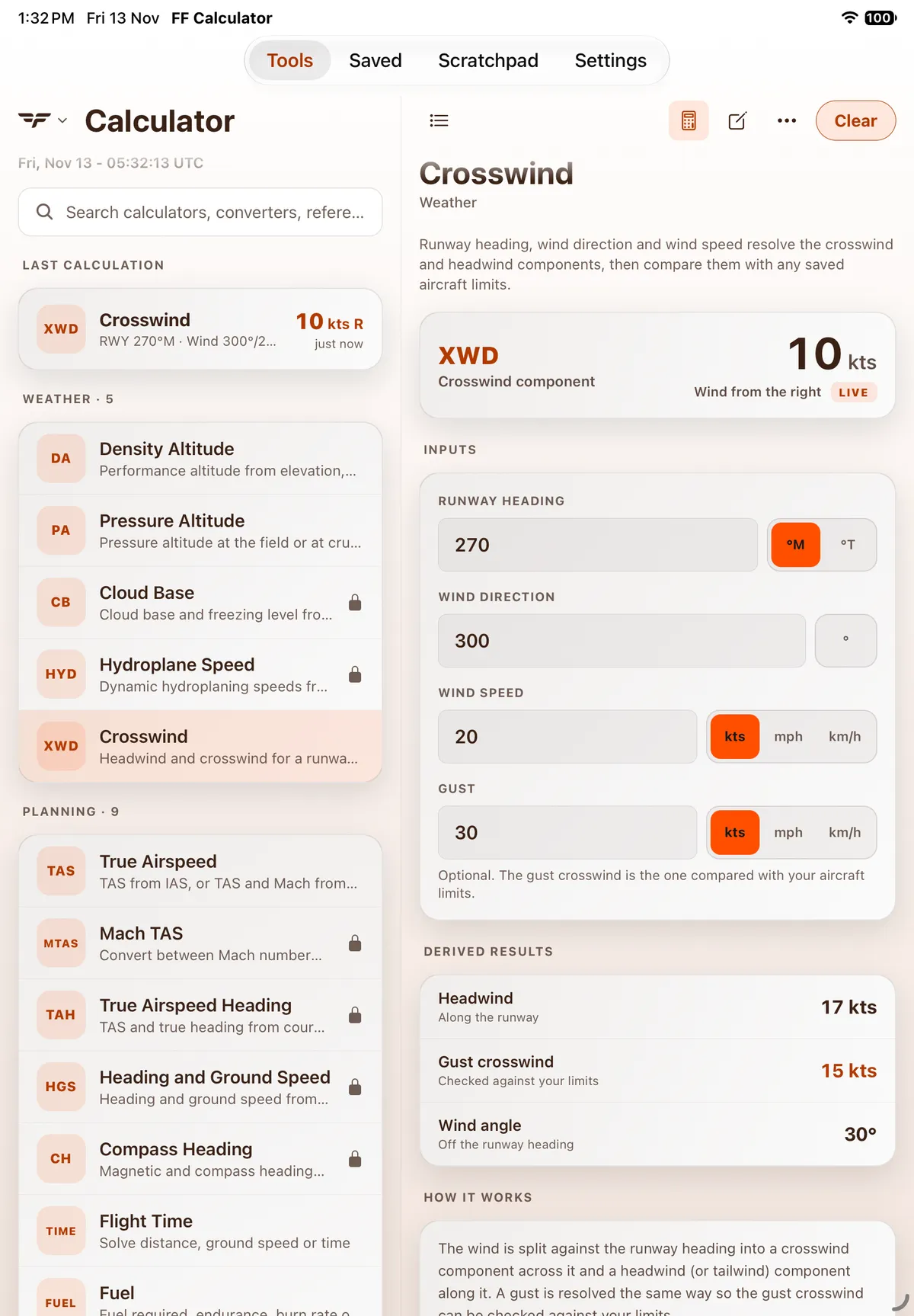
| Runway heading (switch °M or °T) | 270 |
| Wind direction (°) | 300 |
| Wind speed (kts, mph or km/h) | 20 |
| Gust (optional) | 30 |
Read the result
Section titled “Read the result”- Crosswind component: 10 kts, Wind from the right.
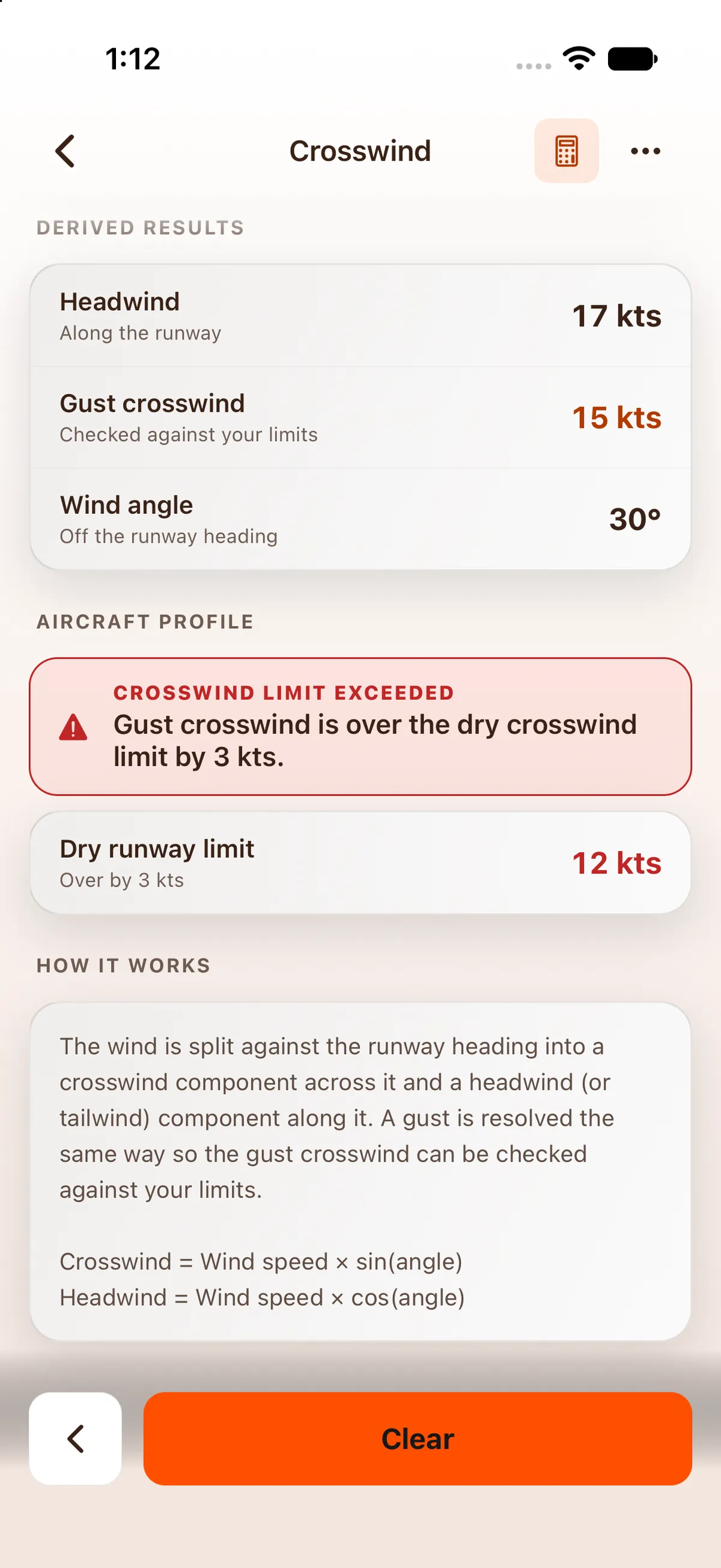
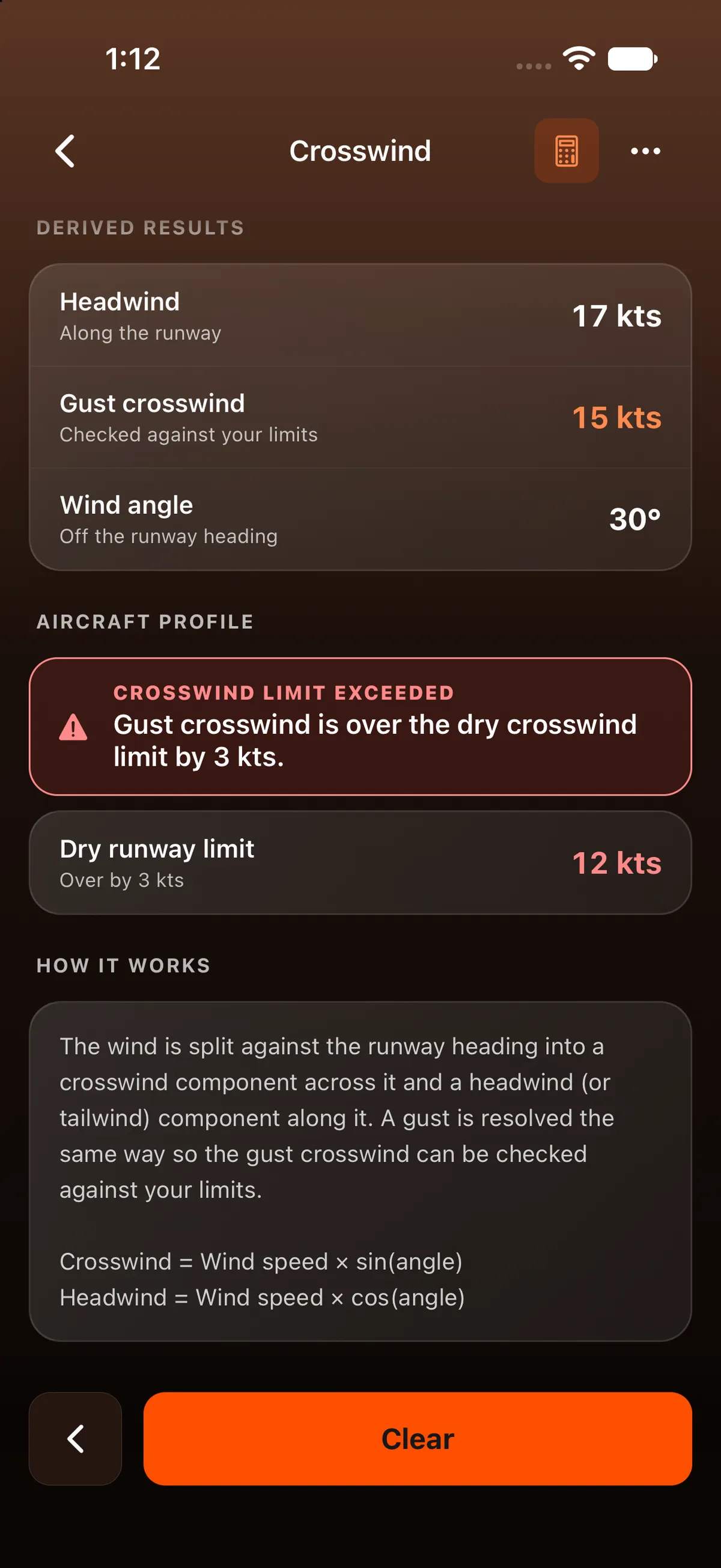
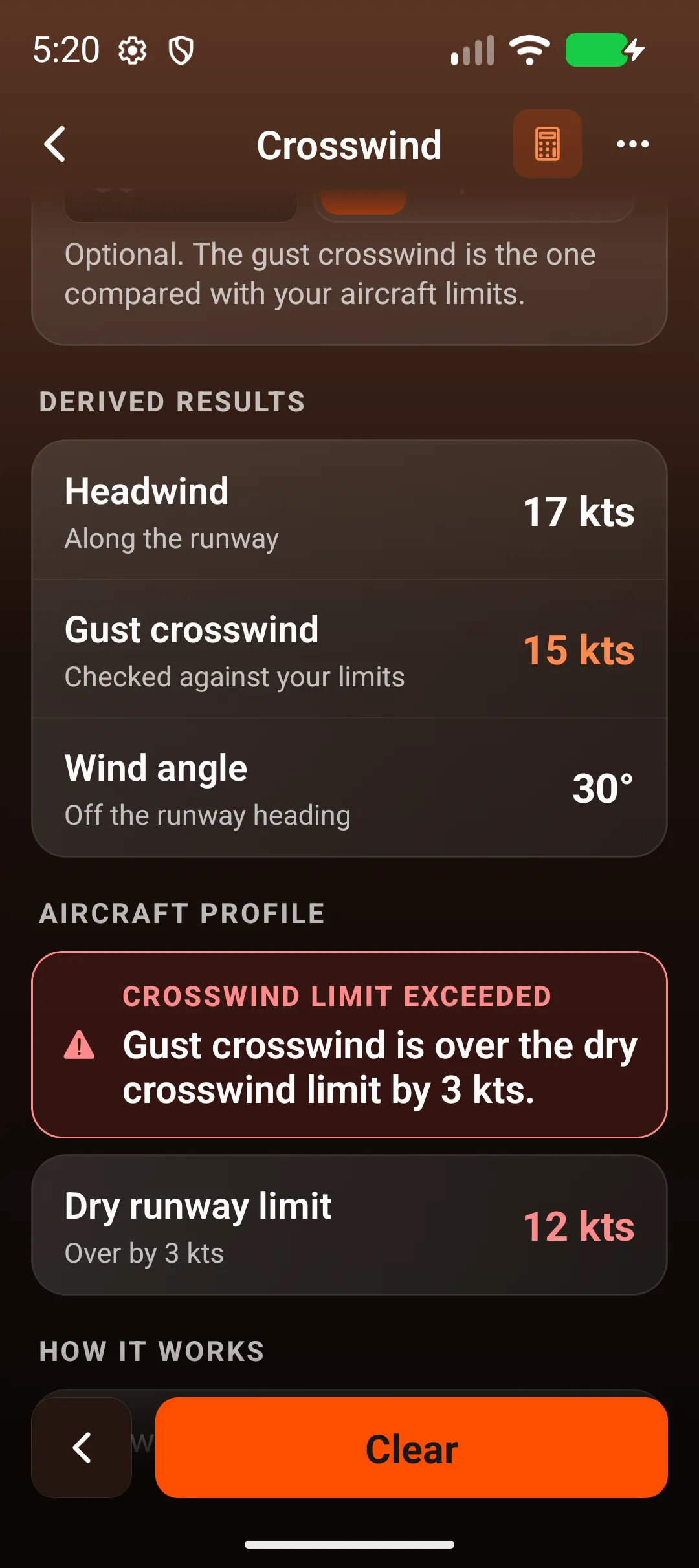
- Headwind (Along the runway): 17 kts. When the wind is behind you this row reads Tailwind.
- Gust crosswind (Checked against your limits): 15 kts.
- Wind angle (Off the runway heading): 30°.
How it’s worked out: the wind is 30° off the runway, so crosswind = 20 × sin 30° = 10 kts and headwind = 20 × cos 30° ≈ 17 kts. The gust crosswind uses the gust: 30 × sin 30° = 15 kts. Results are rounded to whole knots.
Compare with your limits
Section titled “Compare with your limits”Save a crosswind limit in Settings → Aircraft profile (Crosswind limit, dry and Crosswind limit, contaminated; tap a row, type the knots, tap Save). An Aircraft profile section then appears on this screen, below the derived results, with a row per limit. If you entered a gust, it’s the gust crosswind that’s compared. Over a limit, it shows CROSSWIND LIMIT EXCEEDED with a line such as Gust crosswind is over the dry crosswind limit by 3 kts., and the limit row reads Over by 3 kts.
With no aircraft type or limit saved, the section doesn’t appear at all.
On iPad
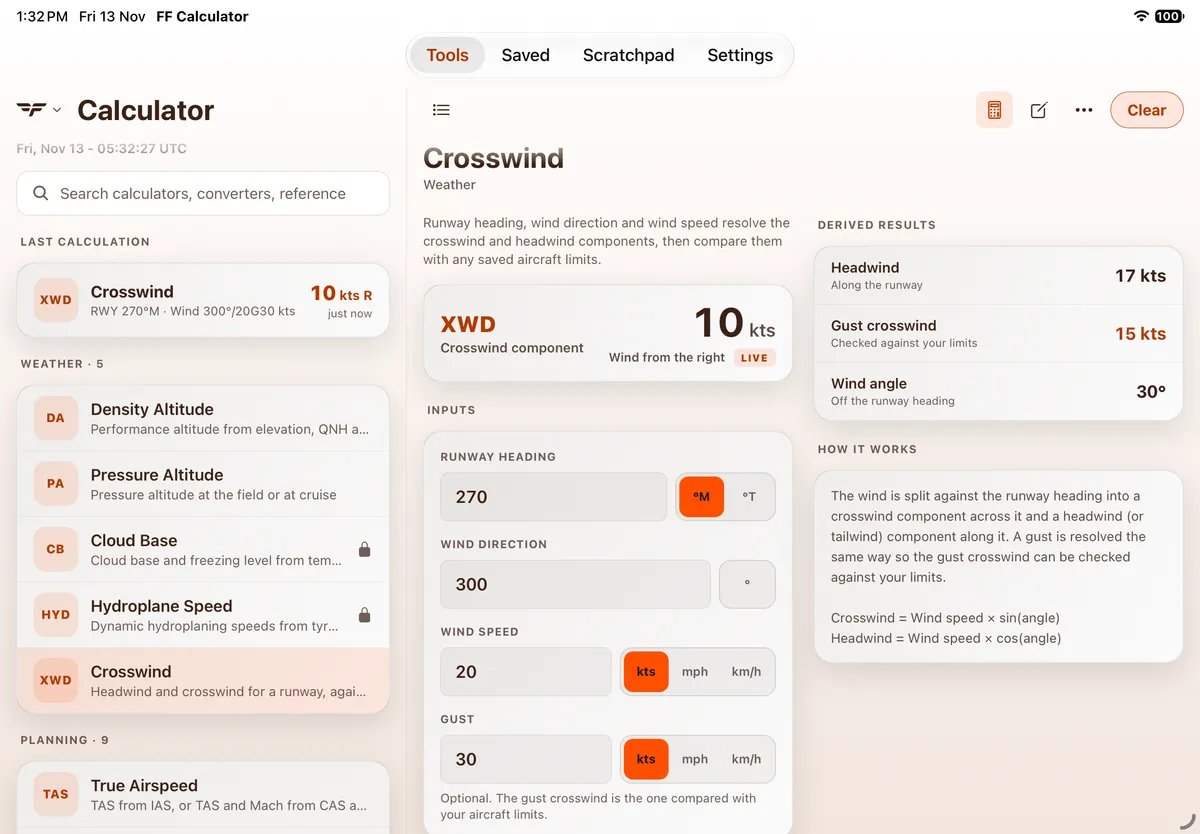
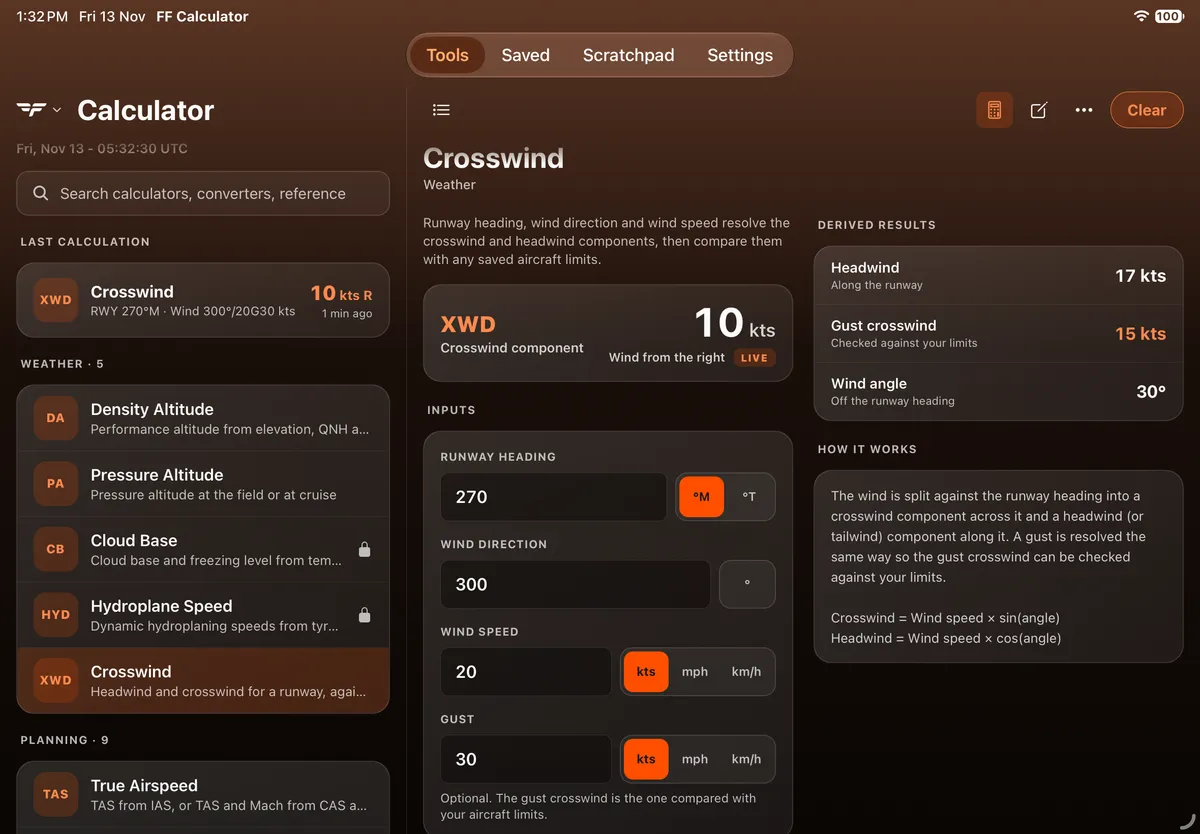
Section titled “On iPad”On iPad the app uses a two-pane layout: Tools, Saved, Scratchpad and Settings are a segmented bar at the top centre of the screen, the tool list stays on the left and the open calculator fills the right. The inputs, results and wording are the same. The new crosswind shows at once in Last calculation at the top of the list. In landscape, Derived results and How it works move to a column on the right.

On Android
Section titled “On Android”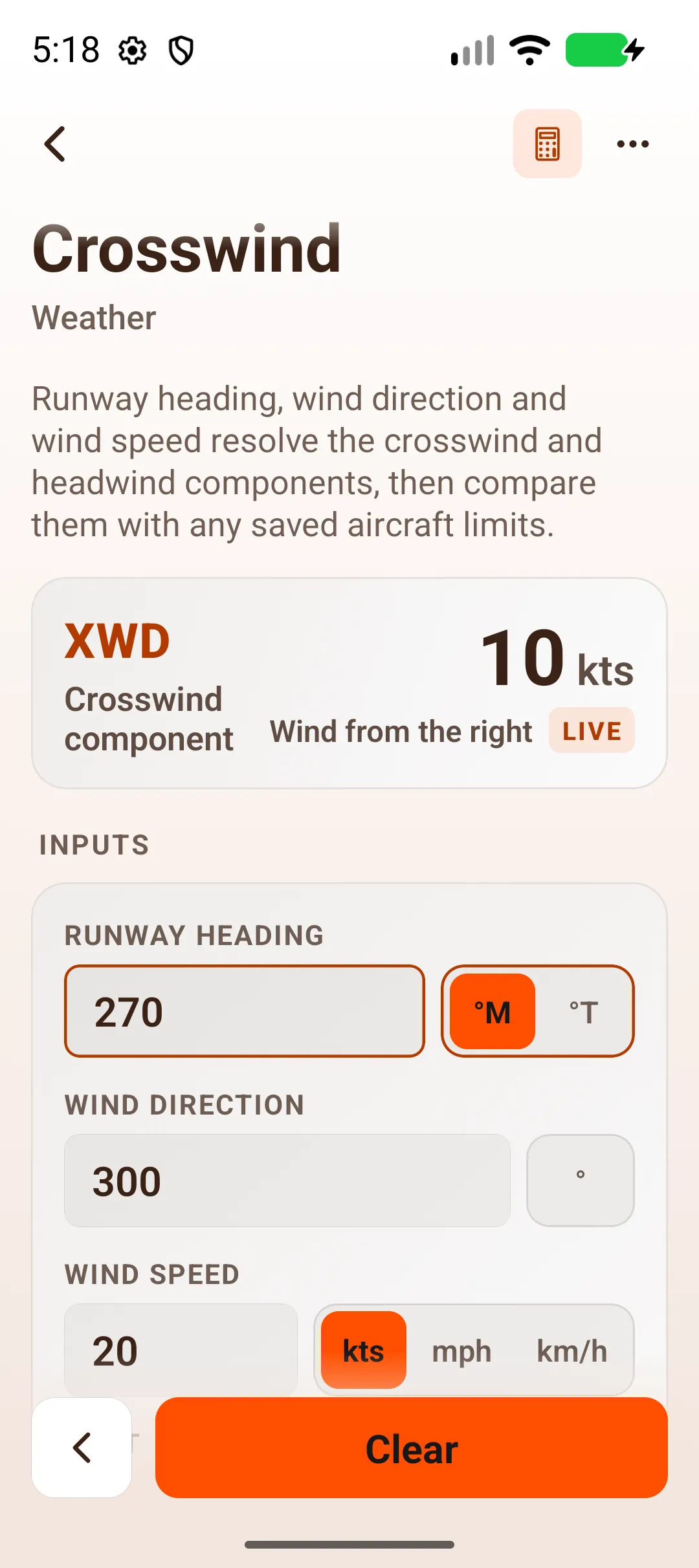


On Android tablet
Section titled “On Android tablet”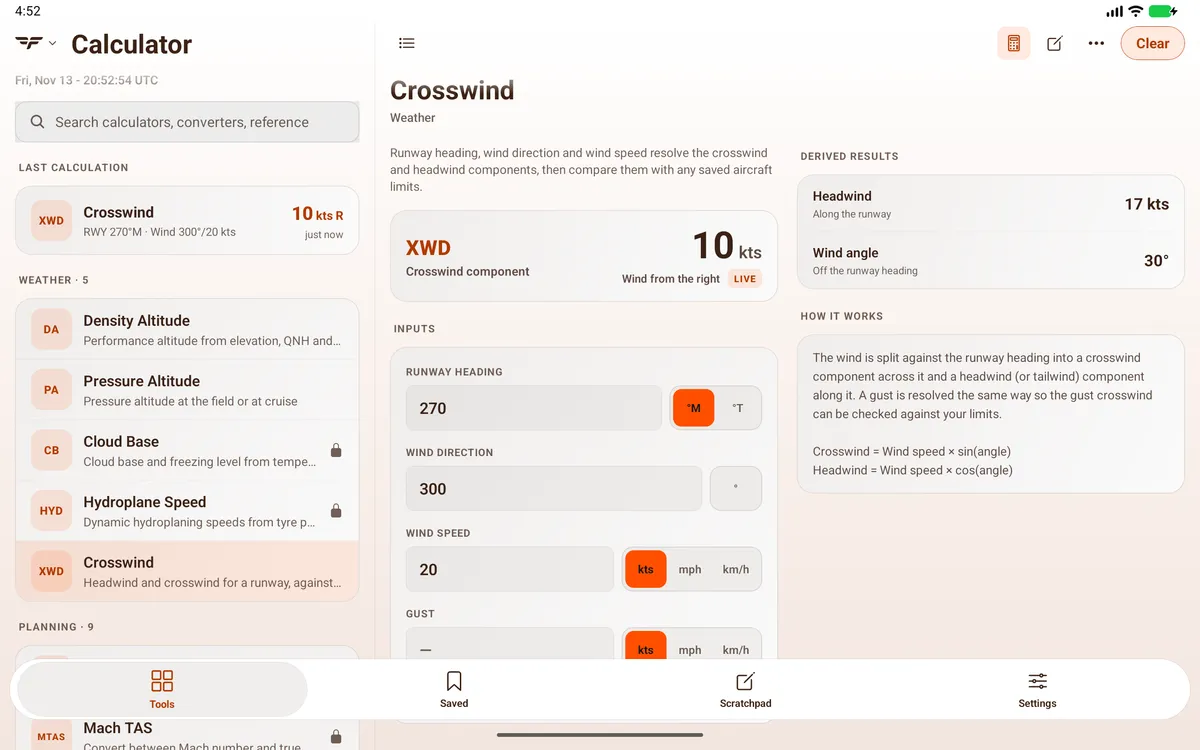

Related: Settings explained, Share values between tools - the source badge, Find the actual wind with Wind Finder.