
Edit many flights at once
Batch edit changes one field on many flights in one go. It always shows you a preview first, and you can undo it afterwards.
Select the flights
Section titled “Select the flights”- Flights → More (⋯) → Select flights… (the menu also has Check logbook).
- Tap the circles on the cards to pick flights, or tap Select all (for example Select all 9 flights). The bar at the bottom shows how many are selected (for example 2 flights).
- Tap Edit field.
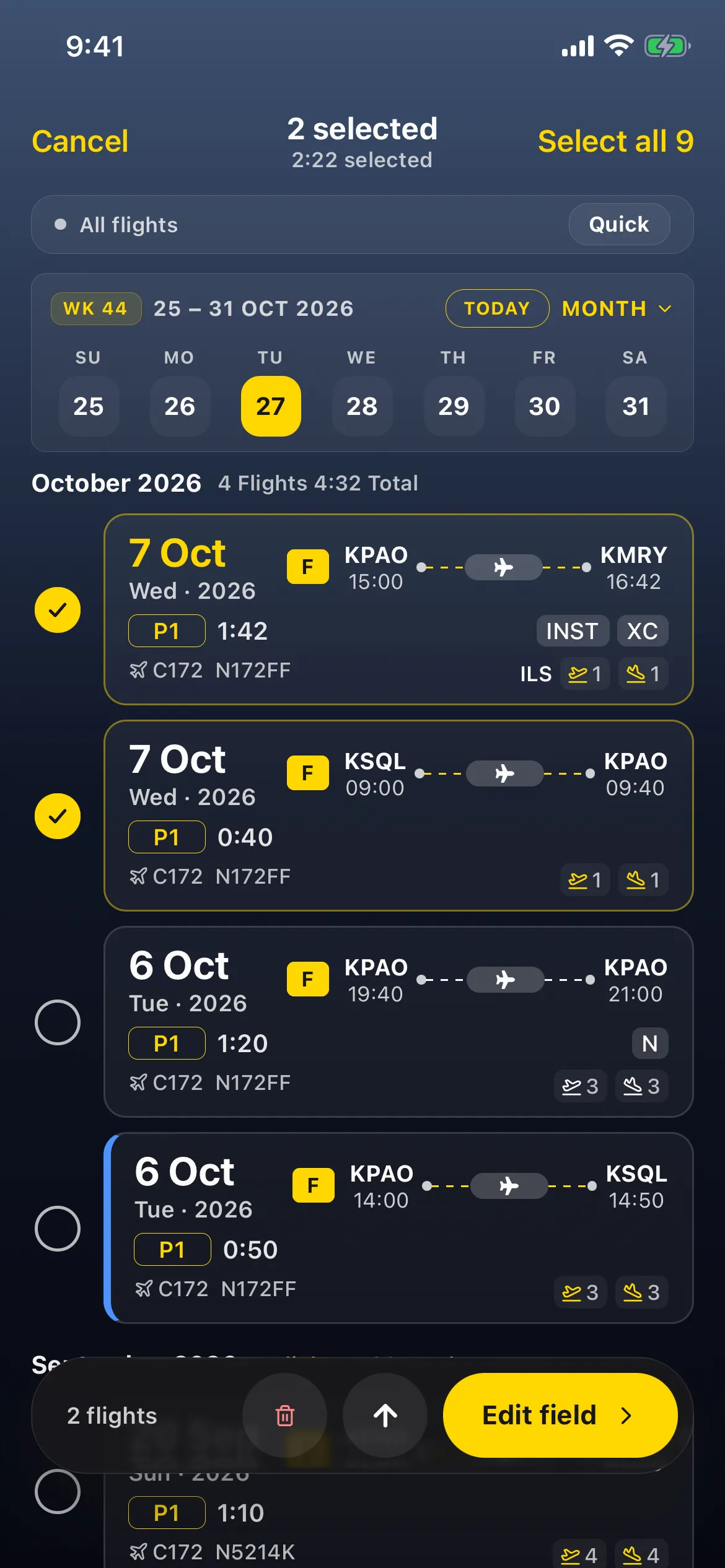
After your first batch edit, More also shows Batch history: your batch edits on this device from the last 30 days (up to 30). Open one for its Results and, while it’s available, Undo.
Choose the field and what to do
Section titled “Choose the field and what to do”Edit field lists every field you can change: Recent actions first (for example Remarks), then groups such as Times (Show all 12 times fields for the General Aviation profile) and Date & clocks (Date, Out, Off, On, In). Fields for narrows it to one profile’s fields (Only this profile’s fields. Each flight still uses its own.). Each field shows its actions, for example Set · Clear:

| Action | What it does | Example fields |
|---|---|---|
| Recalculate | Works the value out again from each flight’s data | Night (date, OUT/IN times, route and your night definition; a flight without OUT/IN times shows as Invalid), Actual instrument |
| Copy from Total / source | Copies another time into it | P1 (from Total), IFR (from its source) |
| Set | Puts the same value on every selected flight | Most fields |
| Clear | Empties it on every selected flight | Most fields |
| Shift | Moves dates or clock times by an amount | Date, scheduled times |
| Recalculate times from profile | Reapplies your role’s auto-fill rules, filling only empty fields or overwriting | All auto-fill times |
For Recalculate, Rules picks whose auto-fill rules apply: each flight’s own profile, or one profile for all flights. Flights logged without a role use Rules for flights without a role. A Sample card shows the result on one flight.
Remarks and Notes have their own actions, Replace, Append, Prepend and Clear, with chips that fill in each flight’s route, date, registration or flight number: see Add the same remark to several flights at once.
Preview, apply, undo
Section titled “Preview, apply, undo”If nothing would change, you find out before anything happens: for example, Night → Recalculate shows No change on this flight on the sample, and the button reads Nothing to change.
- Preview shows Will change, Skipped and Invalid counts, and every change, for example Day — → 1:00. Tap × on a flight to leave it out.
- Every saved flight is locked, so the preview shows Includes N locked flights. Turn that switch on, then tap Apply to N flights. The change is Saved on this device first · undo stays available, then synced. A N flights updated message has a short-lived Undo.
- A card on Flights (Append remark · 2 flights. Saved on this device · 2 syncing) opens Results: Saved on this device, Synced and Changed counts, with Undo and Done.
- Undo (from Results or the message) first shows each value going back (Undo Remarks?, Remarks from Checkout to (empty)). Turn on Includes N locked flights again, then Undo N flights restores them, and Flights shows N flights restored.
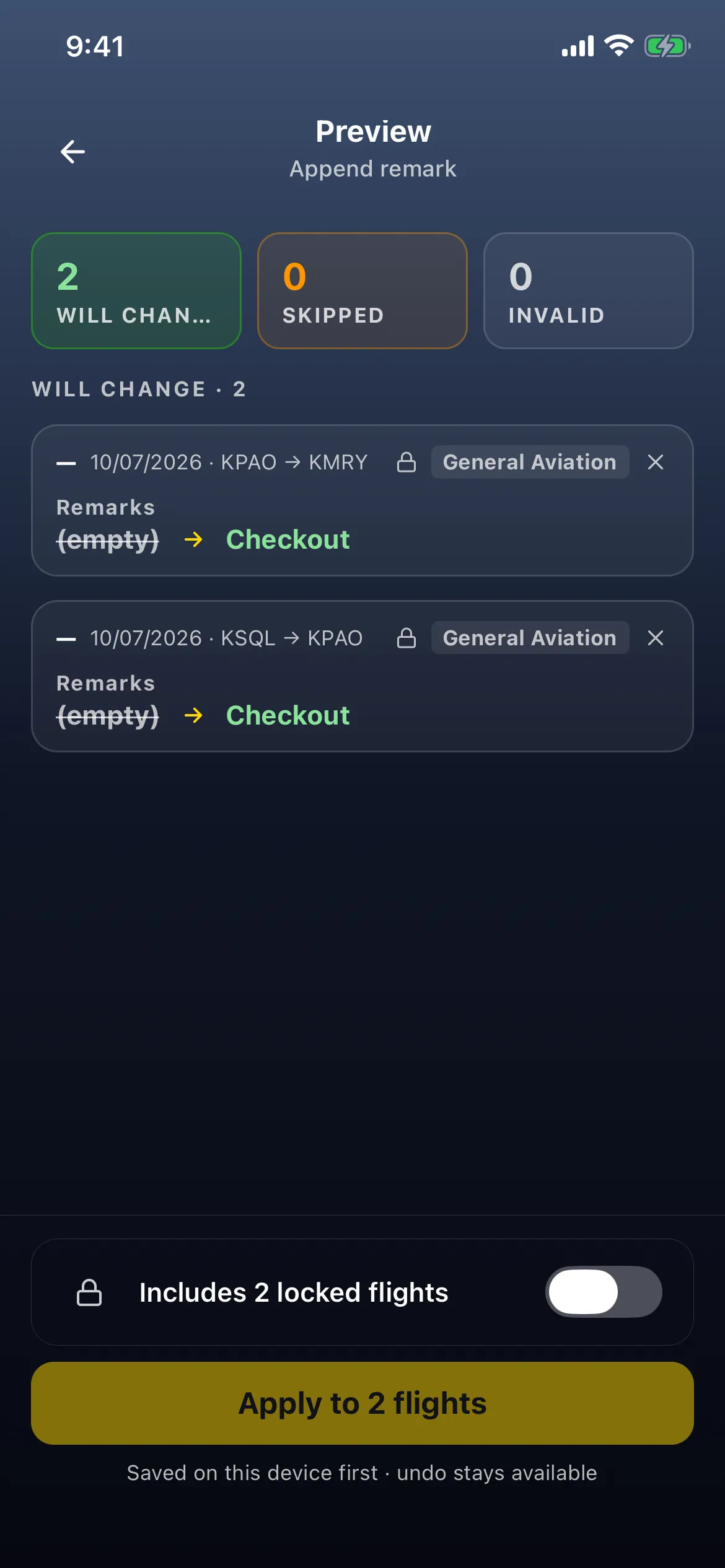
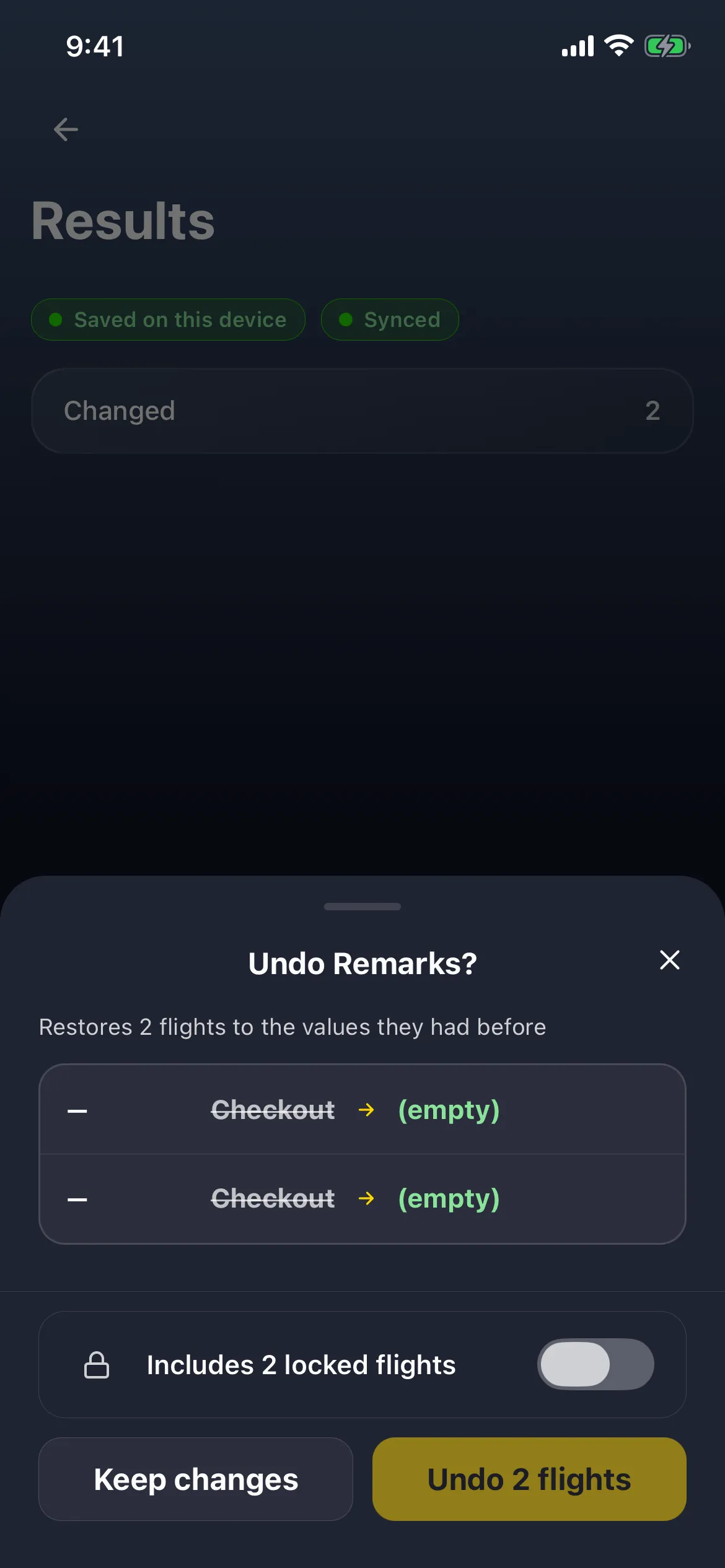
For example, appending the remark Checkout to two flights shows Remarks from (empty) to Checkout, and undoing it from Results shows 2 flights restored. Batch history keeps each batch edit on this device for 30 days.