
Print just one month, under your own report name
Need one month’s pages to sign or to file? Set FROM and TO to that month, and give the report its own name. The name goes on the cover and into the file name.
1. Pick the month
Section titled “1. Pick the month”- Reports → Export. It shows your report, for example HK CAD, DATE RANGE ALL (lit), Ready to export 9 flights.
- Under DATE RANGE, tap FROM. A From date sheet opens on the current month. ‹‹ ›› change the year, ‹ › the month.
- Tap ‹ to go back to September, and tap 1. The sheet closes: FROM reads 01/09/2026.
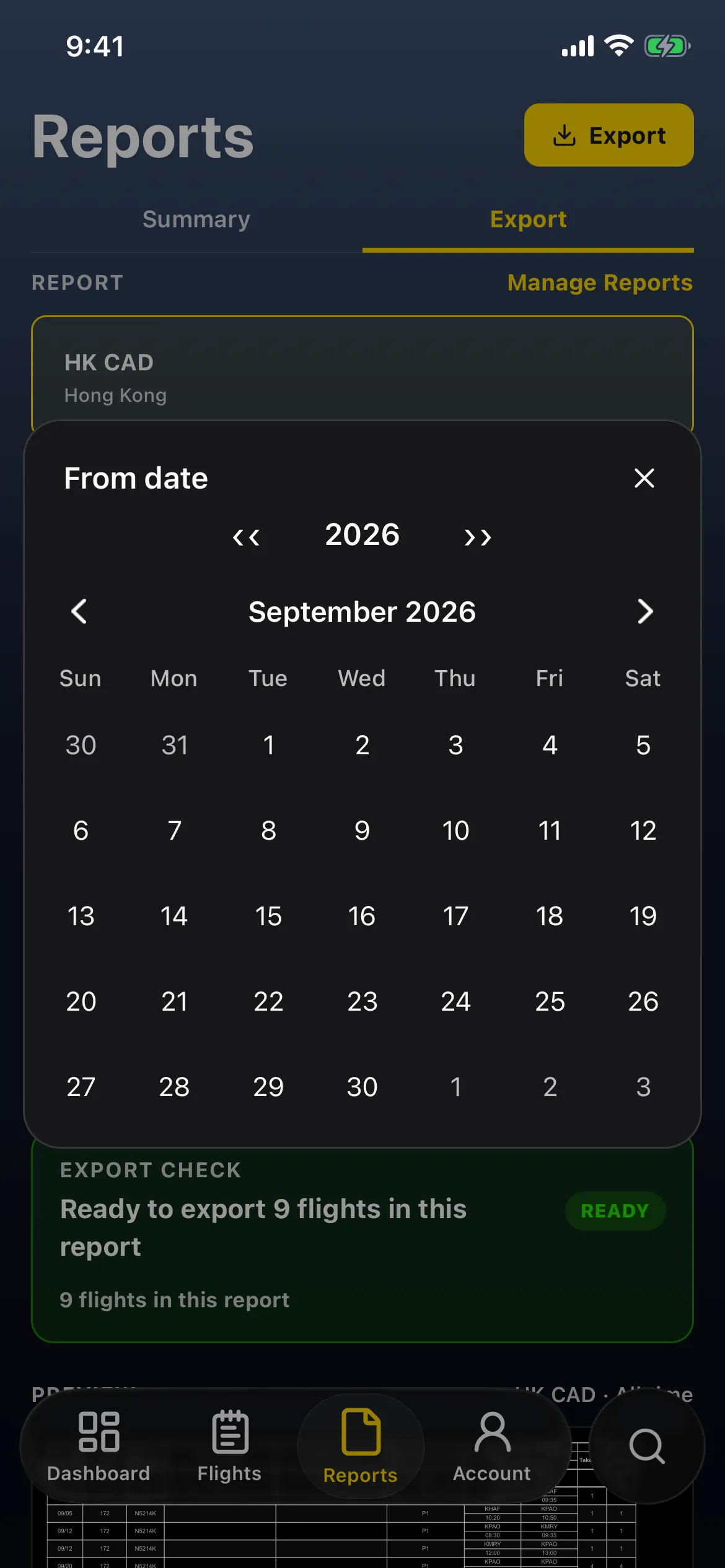
- Tap TO. The To date sheet opens on October too. Tap ‹ to September, and tap 30. TO reads 30/09/2026.
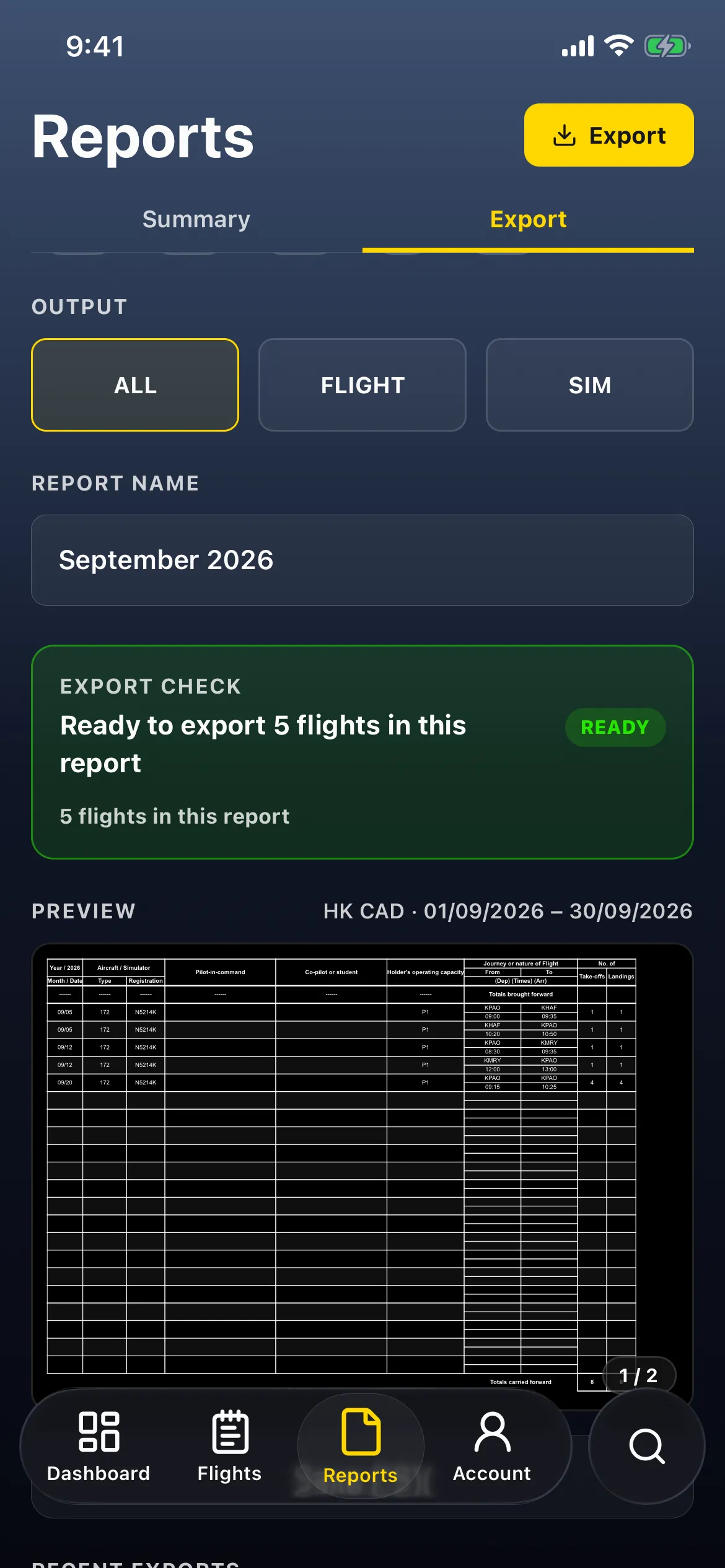
- The ALL chip is no longer lit. EXPORT CHECK reads Ready to export 5 flights in this report, and the PREVIEW line reads HK CAD · 01/09/2026 – 30/09/2026.

2. Give it your own name
Section titled “2. Give it your own name”- Tap the REPORT NAME box. The default is Flight Folder Logbook.
- Clear it and type your name for this report, for example September 2026.
- Tap return on the keyboard. The page preview’s title changes with it.
3. Export and check the cover
Section titled “3. Export and check the cover”- Tap Export at the top. PDF Preview opens, READY, with the file 20261020_September_2026.pdf: the export date, then your report name.
- The cover reads <your name>‘s Logbook (from your profile), then your report name, September 2026, then one date range: the first flight’s date to the last flight’s, in your Date format. With no name on your profile, the report name is the title. Pinch to zoom in.
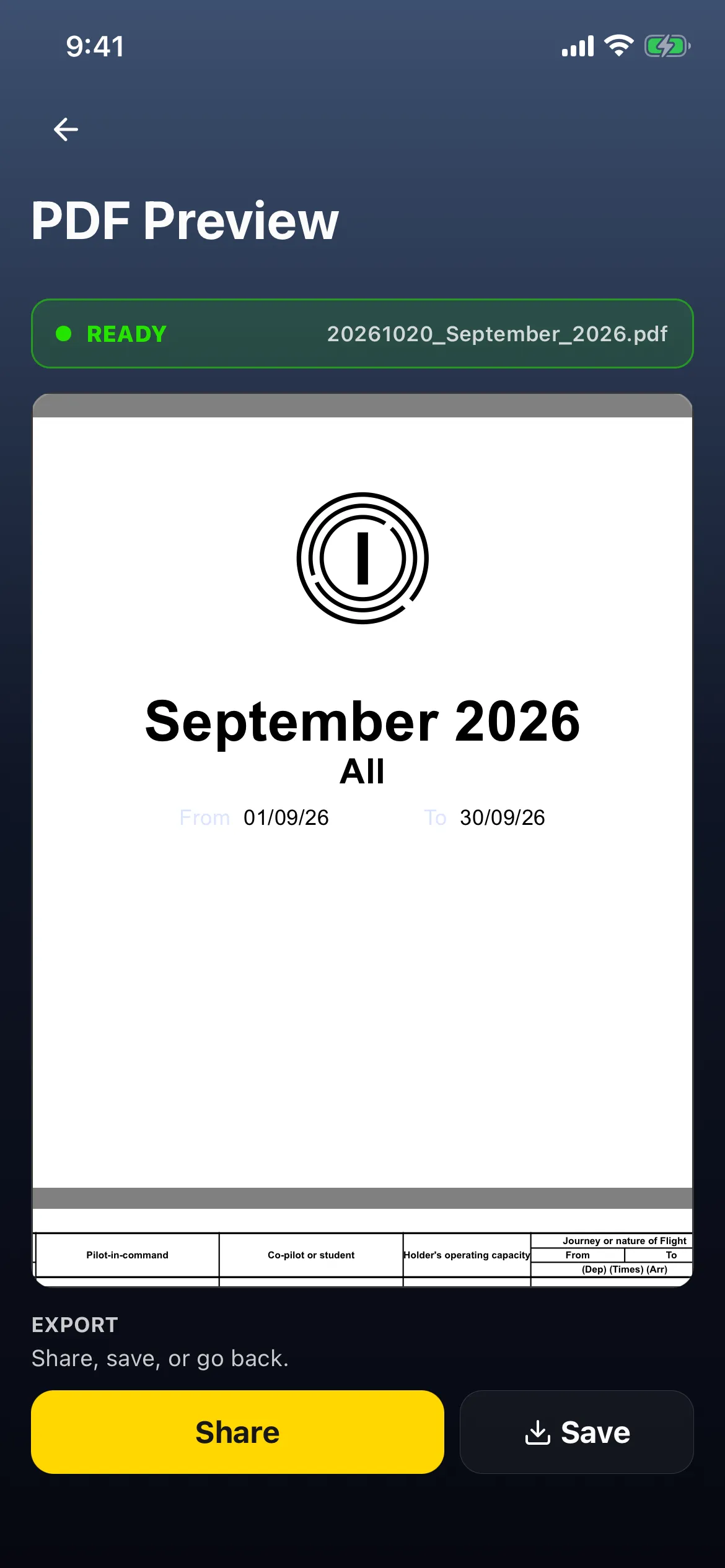
- The flight page lists the five September flights (5 and 12 September twice each, and 20 September, all in N5214K) under Totals brought forward, which is blank because there’s nothing earlier. In the example the carry-over is dated 1 October, after the range, so it isn’t on these pages.
- Share or Save from here.
The file name drops anything but letters, digits, spaces, hyphens and underscores, turns spaces into underscores and keeps 70 characters. A blank name gives flight_folder_report. The default name gives …_Flight_Folder_Logbook.pdf.
4. Put it back
Section titled “4. Put it back”- Tap back (←).
- Change REPORT NAME back to what you use (the default is Flight Folder Logbook), and tap return.
- Scroll up and tap ALL (or the preset you use). It shows all your flights again, for example Ready to export 9 flights in this report, with PREVIEW HK CAD · All time.
Good to know
Section titled “Good to know”- The cover follows your flights. Its one date range runs from the first flight on the pages to the last, so a September report whose first flight is on the 5th starts on 5 September. The old preset label (All, Last 12 Months and so on) is no longer printed.
- The report name is shared and saved. REPORT NAME and FROM/TO are common Export options: every report format uses the same ones, and they’re saved to your account and sync. Put the name back when you’re done, or the next report you make, in any format, prints September 2026.
- A lit chip isn’t a promise. A preset stays highlighted only while its dates still match: 30D, 90D and 12M only on the day you picked them, YTD for the rest of that year, ALL until you pick dates.
- A carry-over dated inside your range (for example, a paper-logbook total dated 1 October on an October report): this guide doesn’t cover whether it’s brought forward or left out, so check the PDF’s Totals brought forward row.
- RECENT EXPORTS → Regenerate (below Save CSV, kept on this device only) rebuilds the PDF from your current Export settings, not the ones you used last time. After you put the name and dates back, Regenerate makes the whole logbook under your usual name, not September again.