
Correct a flight entry
Change a saved flight. This example adds a day takeoff and landing.
- Open Flights and tap the flight. A completed flight opens in Flight Details, locked, with Slide to edit at the bottom (Slide to make changes to this flight). If it opens in Log Flight’s steps instead, see Reopen a saved flight in Log Flight.

- Slide to edit. Cancel and Save Changes appear at the bottom; Save Changes stays dimmed until you change something.
- Jump to a section with the chips at the top (Role, Flight, Total Flight, Times, Procedures, Crew, Duty and more). For example, in Procedures, tap + on Day Takeoffs and Day Landings. The section header shows the new count, 1 TO · 1 LDG.
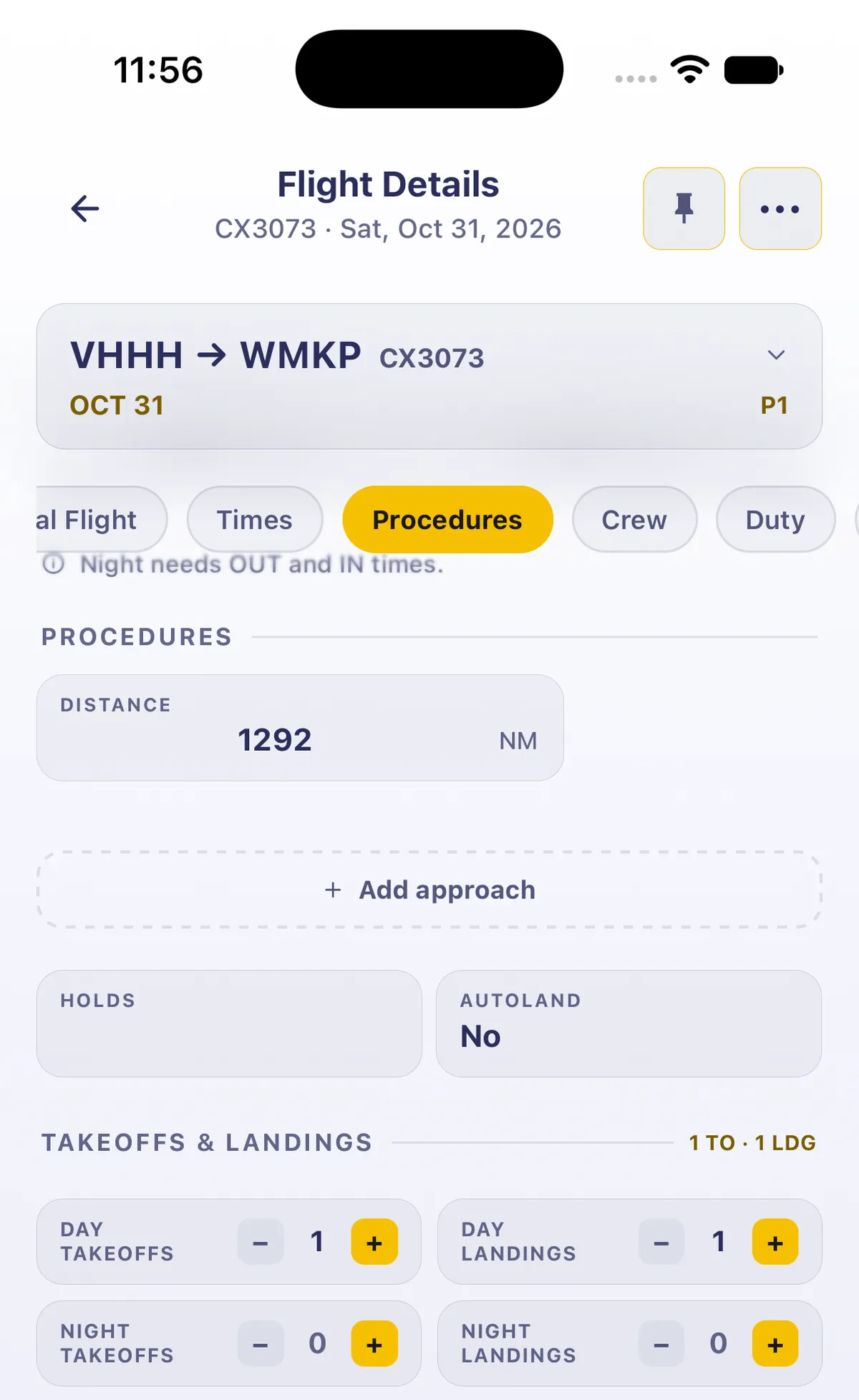
- Tap Save Changes. A toast reads Flight saved and will sync in the background., and the flight locks again (Slide to edit). If a time breaks one of the app’s checks, the app first asks Check this time with Review and Save anyway.
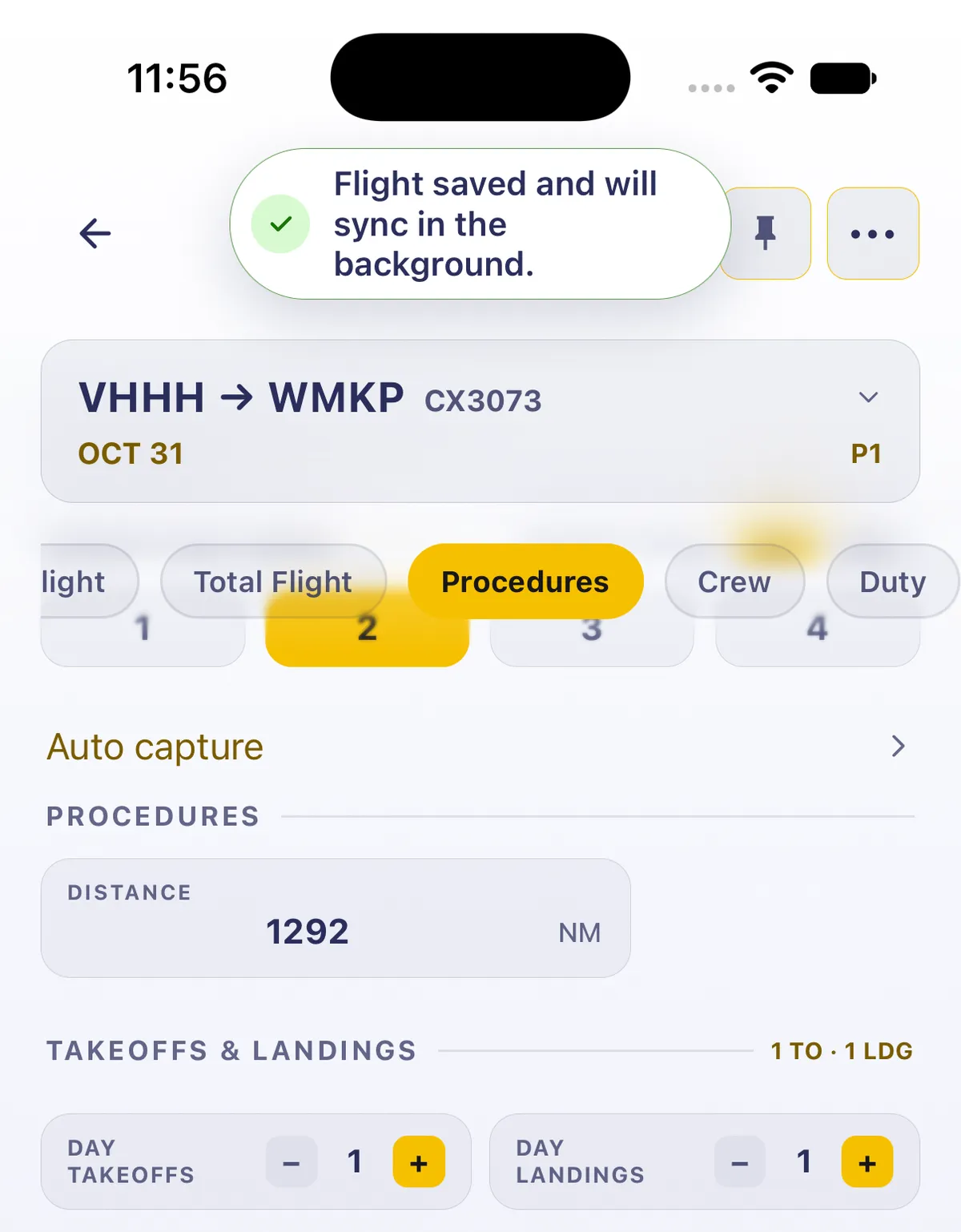
To change something back, slide to edit again, change it and save. Cancel leaves without saving.
On iPad
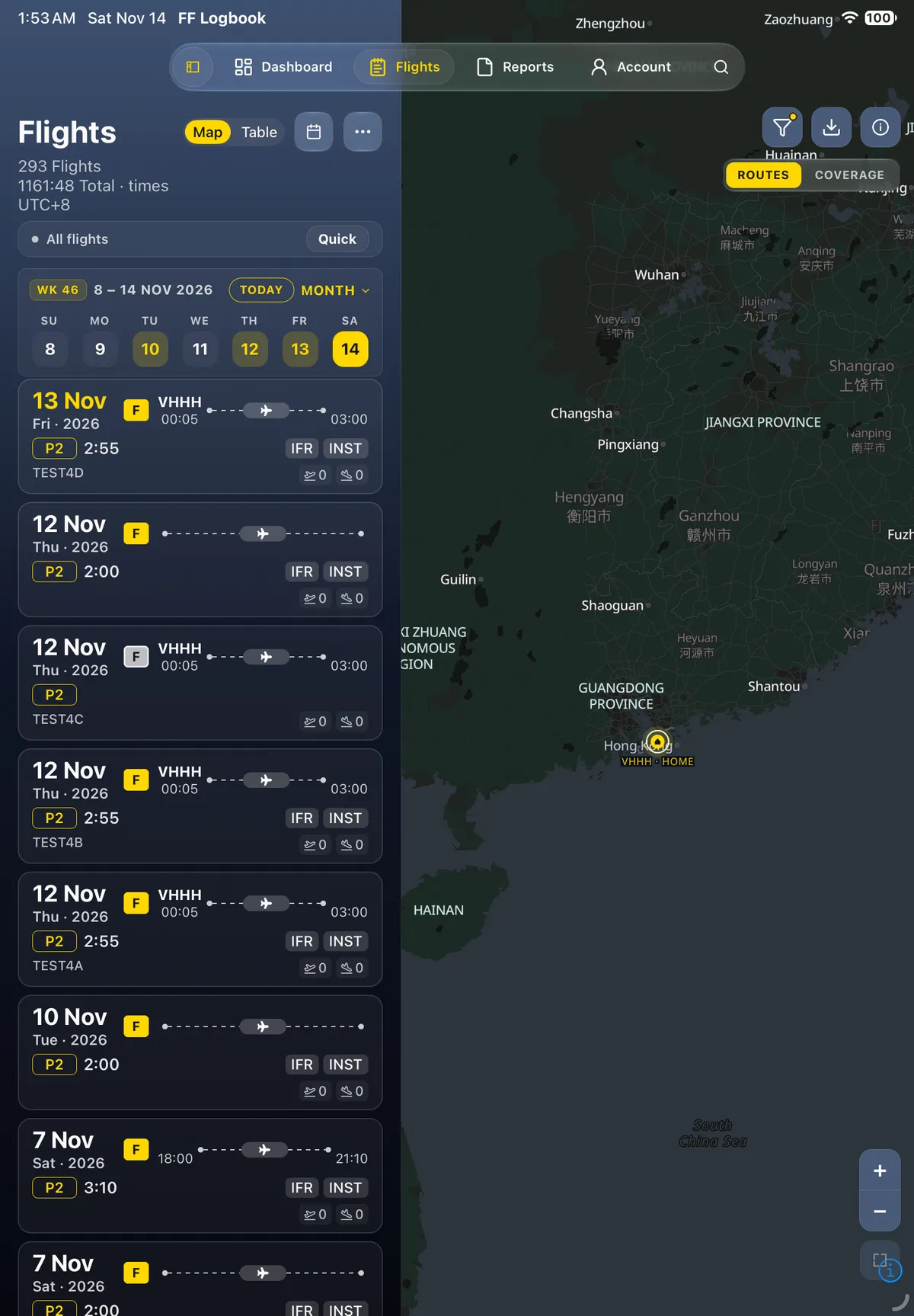
Section titled “On iPad”On iPad the flight opens as Flight Details in the right pane, beside the flight list, with Sign, a pin button and More at the top.



Related: Understand flight time totals · Reopen a saved flight in Log Flight.